> ## Documentation Index
> Fetch the complete documentation index at: https://docs.triplesession.com/llms.txt
> Use this file to discover all available pages before exploring further.
# Set Up the AI Coach Bot on Zoom
> Configure Zoom-specific settings to let the AI Coach Bot join, record, and automatically review your Zoom meetings for sales performance analysis.
The AI Coach Bot works with Zoom, but requires a few settings to be enabled in your Zoom account before it can join and record meetings on your behalf. Complete the steps below to make sure everything is configured correctly.
## How the AI Coach Bot works on Zoom
When a new Zoom meeting appears on your calendar, the bot identifies it as a Zoom meeting and automatically schedules itself to join — unless you manually remove it from the Triple Session list of upcoming meetings.
When the meeting starts, the bot joins and requests permission to record. The meeting host must grant this permission for the bot to begin recording.
The host must join Zoom using the **Zoom Desktop app** (Windows, Mac, or Linux). Joining through the Zoom web browser client is not supported because the recording permission prompt does not appear there.
## Configure Zoom to allow recording
In your Zoom account, go to **Settings** > **Recording** and make sure **Local recording** is turned on. This setting allows participants to record meetings.
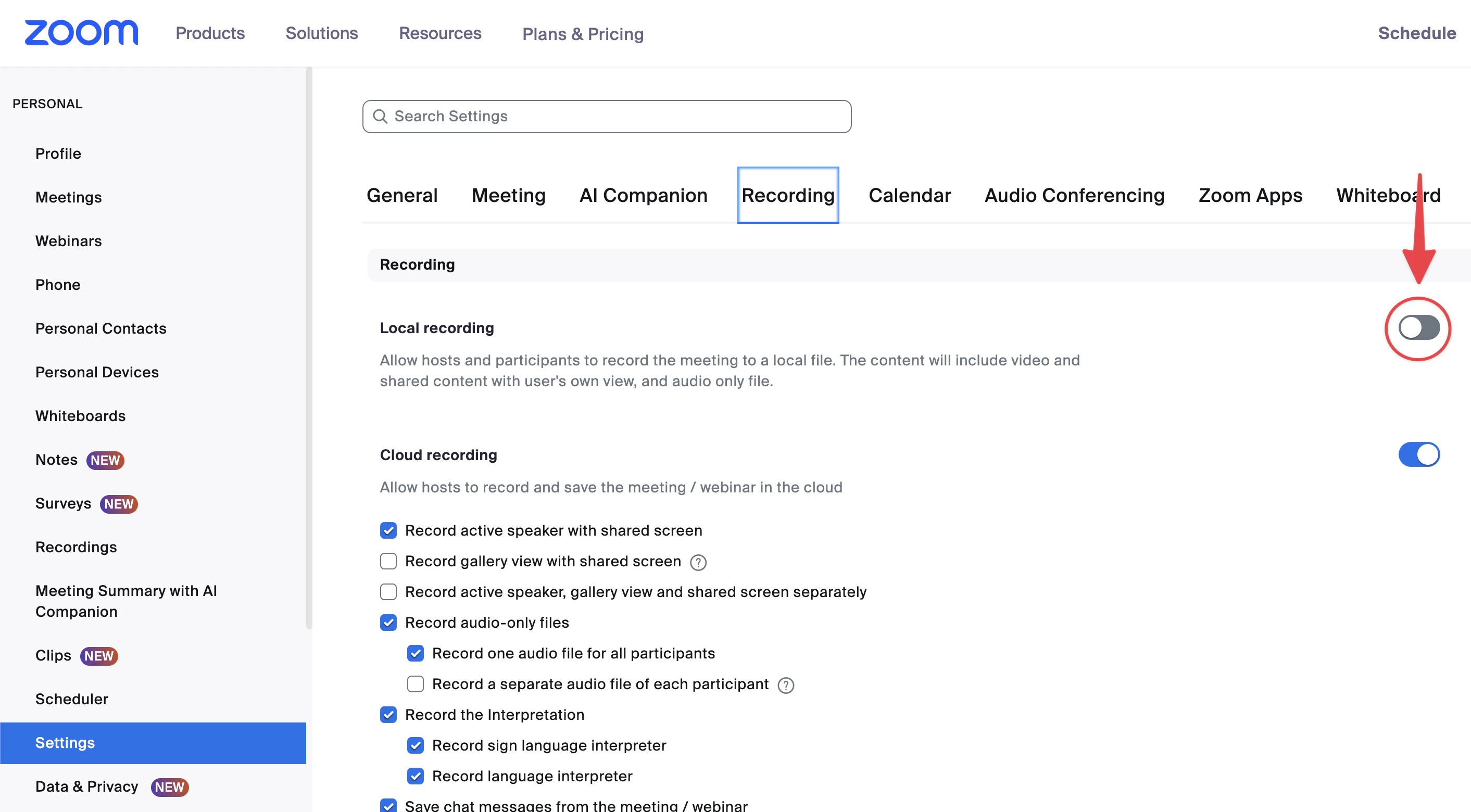 After enabling local recording, confirm that both of the following sub-options are also enabled:
* **Internal meeting participants**
* **External meeting participants**
These settings allow the AI Coach Bot — which joins as an external participant — to record the meeting when the host grants permission.
After enabling local recording, confirm that both of the following sub-options are also enabled:
* **Internal meeting participants**
* **External meeting participants**
These settings allow the AI Coach Bot — which joins as an external participant — to record the meeting when the host grants permission.
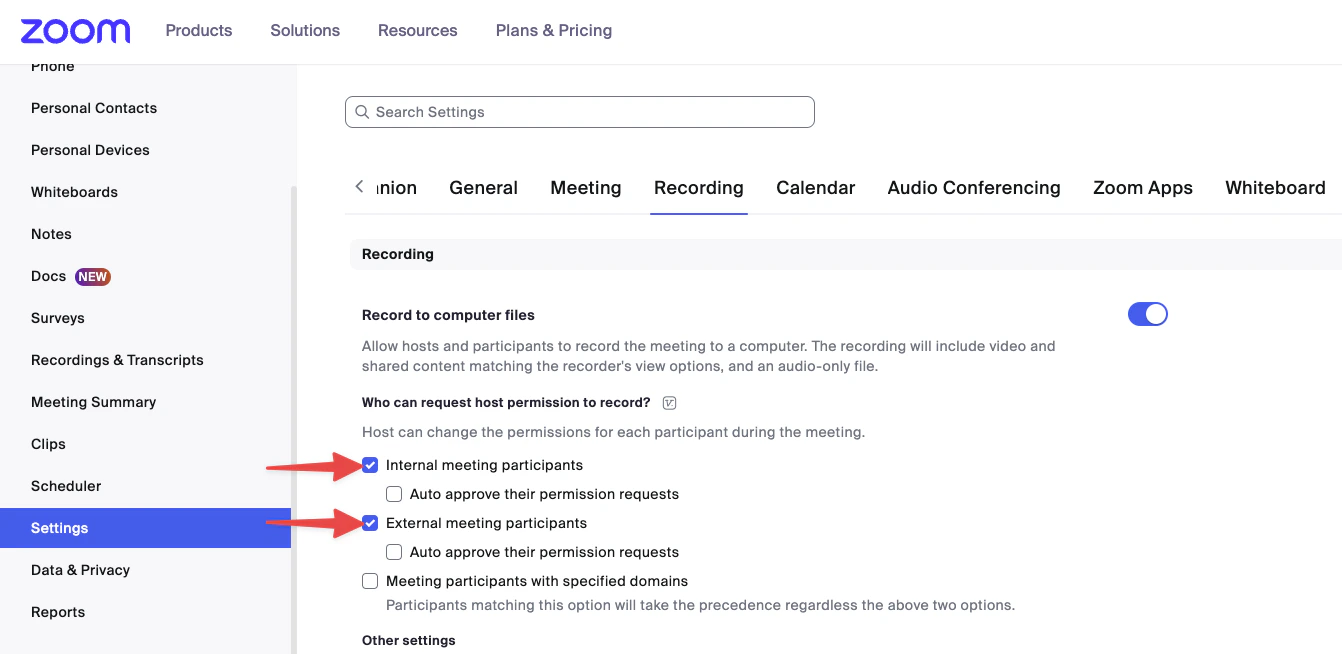 These settings are usually enabled by default in Zoom, but they may have been turned off manually. If the bot is unable to record your Zoom meetings, check these settings first.
## Manually invite the bot to a meeting
If the bot was accidentally removed from a call, or if you want to record a meeting that your settings would normally exclude, you can send a manual invite at any time.
The manual invite feature works across all supported platforms — Zoom, Google Meet, and Microsoft Teams — not just Zoom.
While in your active meeting, copy the unique meeting invitation link or URL from Zoom.
Navigate to your Triple Session home page and click the **Invite bot to meeting** button.
In the dialog box, paste the meeting link into the URL field and click **Invite**. A new bot instance will request to join your meeting within a minute.
A manually invited bot joins through a public link and cannot access the original participant list from the calendar invite. As a result, **automatic deal matching and CRM data pushing may not work** for these recordings. Use manual invites as a recovery option, not as a replacement for automatic recording.
These settings are usually enabled by default in Zoom, but they may have been turned off manually. If the bot is unable to record your Zoom meetings, check these settings first.
## Manually invite the bot to a meeting
If the bot was accidentally removed from a call, or if you want to record a meeting that your settings would normally exclude, you can send a manual invite at any time.
The manual invite feature works across all supported platforms — Zoom, Google Meet, and Microsoft Teams — not just Zoom.
While in your active meeting, copy the unique meeting invitation link or URL from Zoom.
Navigate to your Triple Session home page and click the **Invite bot to meeting** button.
In the dialog box, paste the meeting link into the URL field and click **Invite**. A new bot instance will request to join your meeting within a minute.
A manually invited bot joins through a public link and cannot access the original participant list from the calendar invite. As a result, **automatic deal matching and CRM data pushing may not work** for these recordings. Use manual invites as a recovery option, not as a replacement for automatic recording.