> ## Documentation Index
> Fetch the complete documentation index at: https://docs.triplesession.com/llms.txt
> Use this file to discover all available pages before exploring further.
# Enable the AI Coach Bot for Automatic Recording
> Set up the AI Coach Bot to automatically join and record your sales meetings on Google Meet, Zoom, and Microsoft Teams — no manual uploads required.
The AI Coach Bot joins your calendar meetings automatically so you can stay focused on the conversation. Once enabled, it records your calls and reviews them when they finish — no special subscriptions or manual uploads needed.
## Why use the AI Coach Bot
* **No special subscriptions required:** You don't need a Google Business or Zoom paid plan. The bot joins and records calls on your behalf.
* **Faster processing:** Processing time is significantly faster than native integrations with Google Meet, Zoom, or Microsoft Teams.
* **Never miss a recording:** The bot joins every qualifying meeting automatically. You only need to allow it in, and it starts recording.
## How to enable the AI Coach Bot
In Triple Session, click **Settings** in the left-hand sidebar.
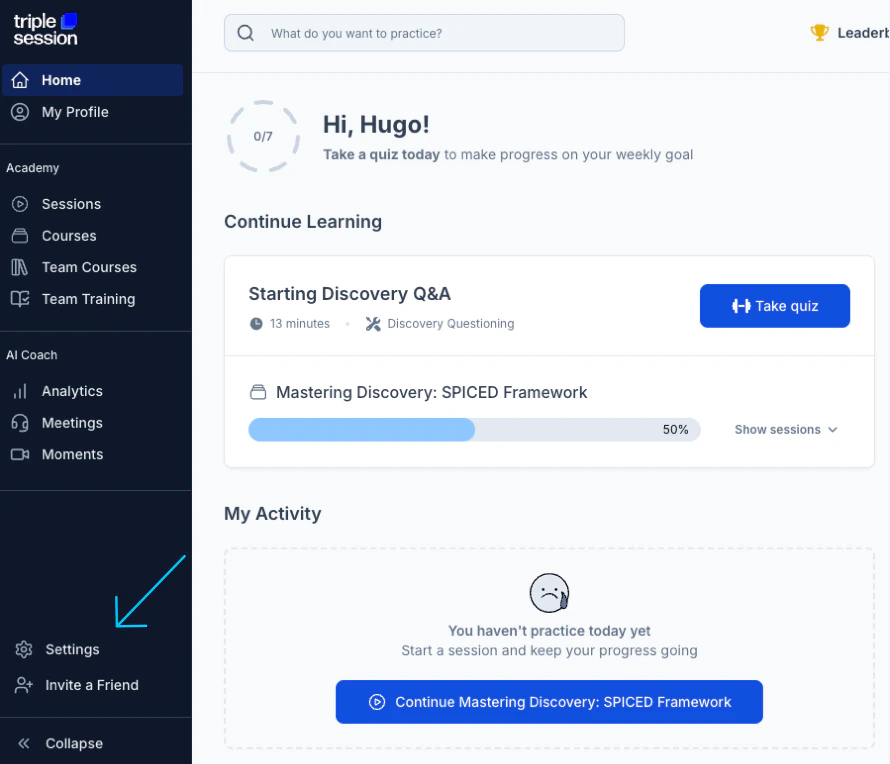 Under the **AI Coach** section, select **AI Coach Bot**.
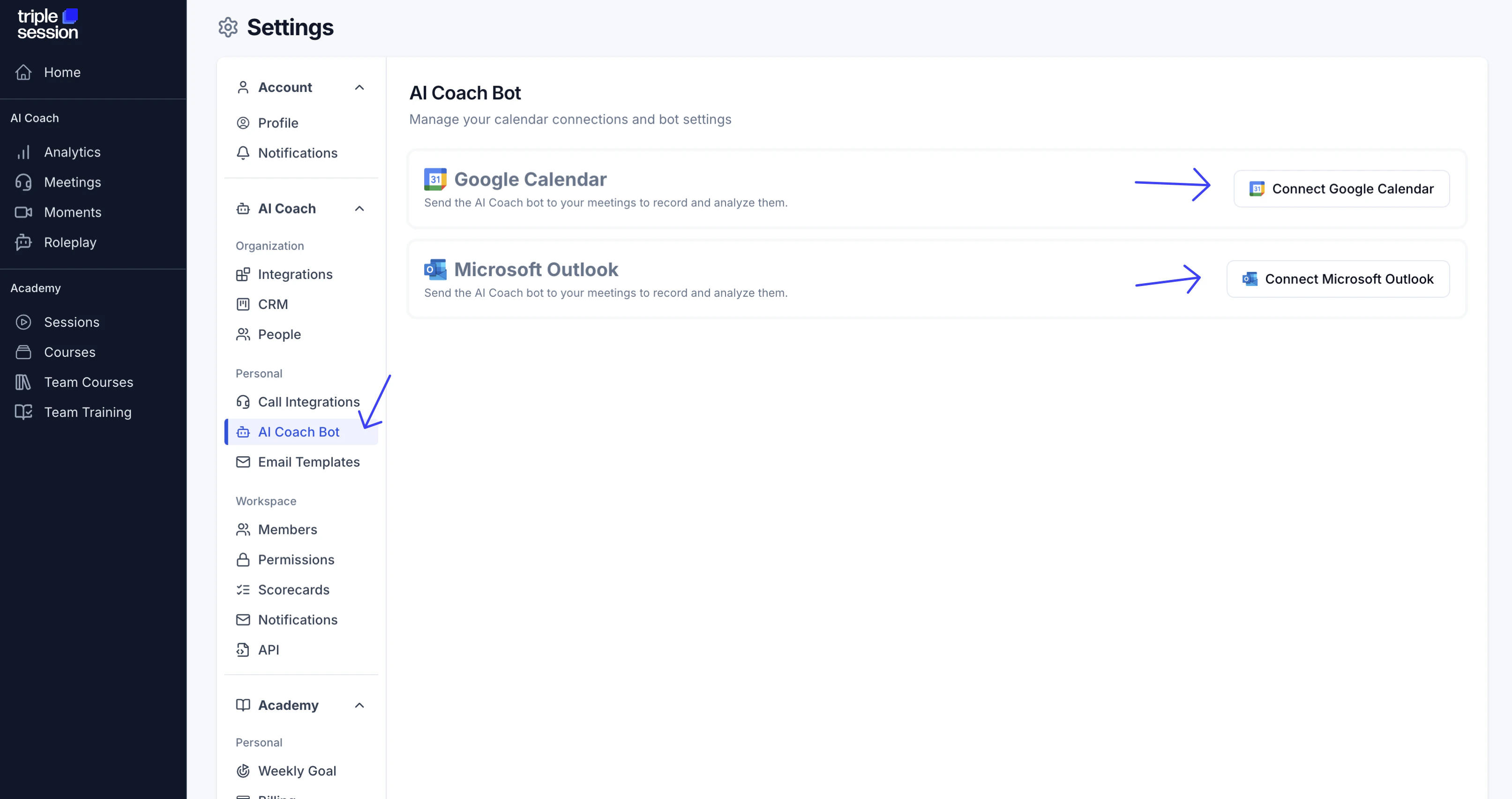
On the **AI Coach Bot** page, connect your **Google Calendar** or **Microsoft Outlook** account. The bot uses your calendar to detect upcoming meetings.
Under the **AI Coach** section, select **AI Coach Bot**.
On the **AI Coach Bot** page, connect your **Google Calendar** or **Microsoft Outlook** account. The bot uses your calendar to detect upcoming meetings.
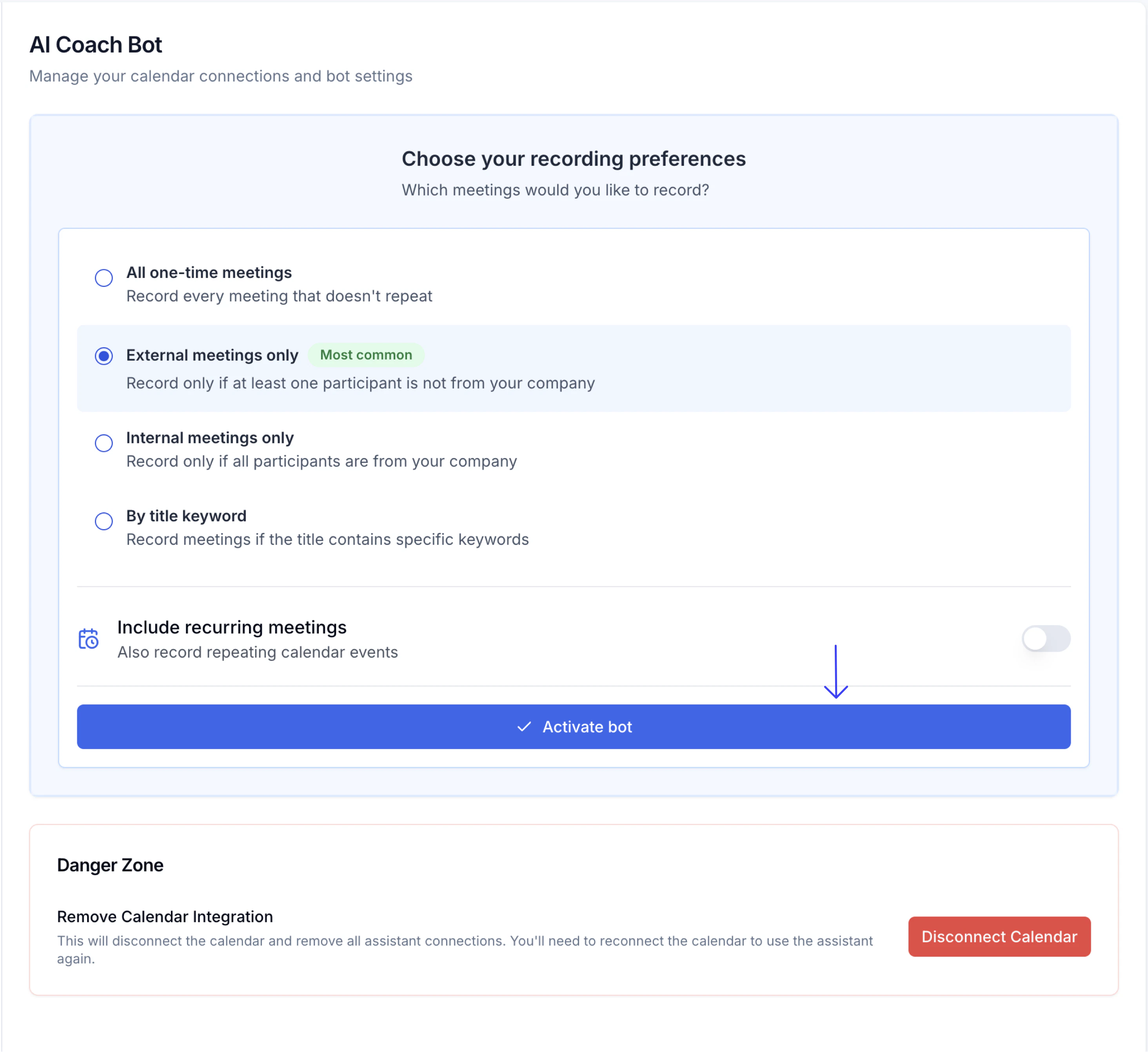
 After connecting your calendar, enable the bot and configure your preferences. The bot is now ready to join your upcoming meetings.
 ## Customization options
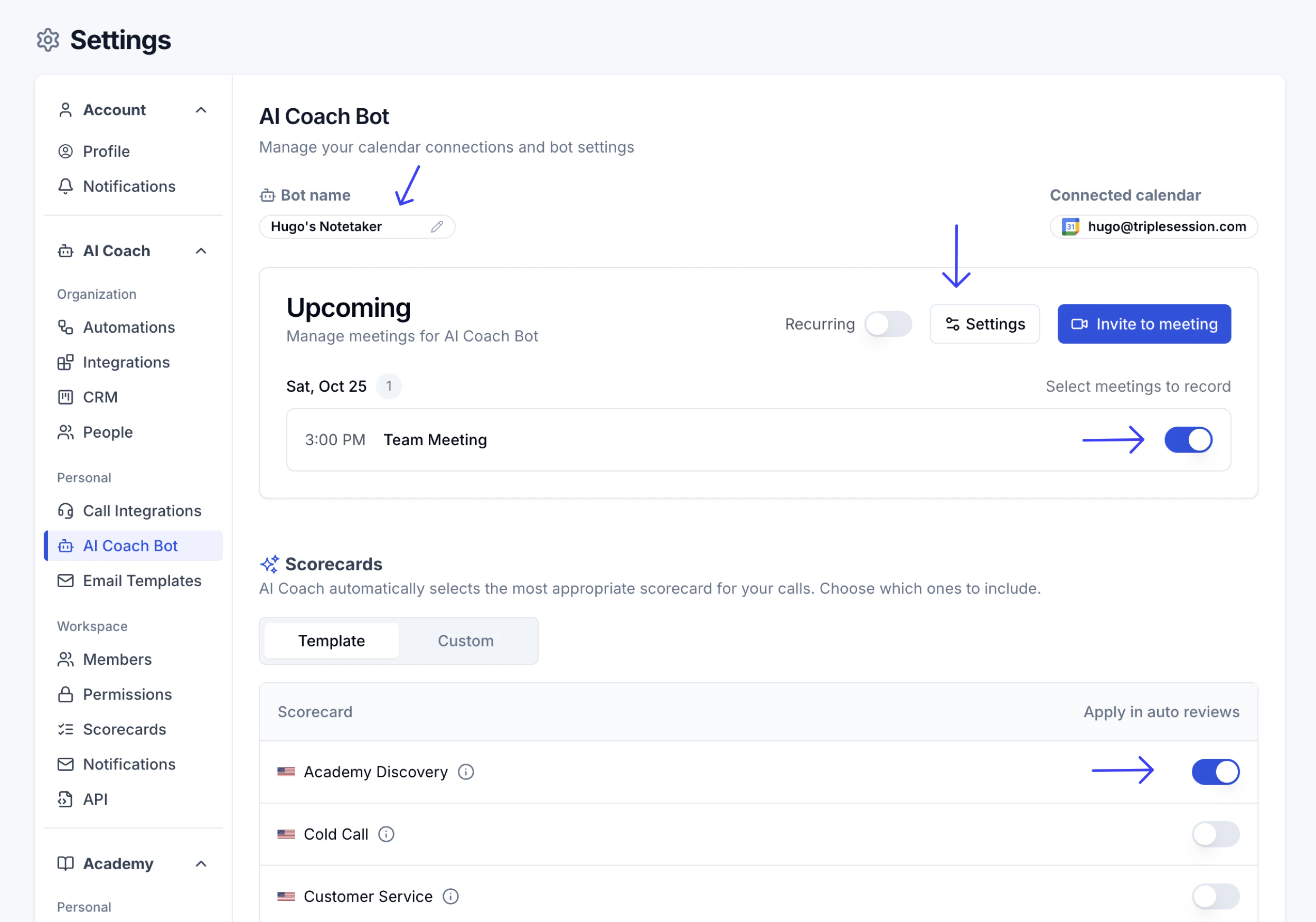
Once the bot is active, you can adjust the following settings:
* **Bot display name:** By default, the bot appears in meetings as *Your Name's AI Coach Notetaker*. You can change this to any name you prefer.
* **Meeting selection:** By default, the bot joins every non-recurring meeting on your calendar. You can remove it from specific meetings where you don't want it to attend.
* **Smart Scorecard selection:** Choose a **Smart Scorecard** for each meeting type to ensure the bot uses the correct scorecard when reviewing your calls.
## Customization options
Once the bot is active, you can adjust the following settings:
* **Bot display name:** By default, the bot appears in meetings as *Your Name's AI Coach Notetaker*. You can change this to any name you prefer.
* **Meeting selection:** By default, the bot joins every non-recurring meeting on your calendar. You can remove it from specific meetings where you don't want it to attend.
* **Smart Scorecard selection:** Choose a **Smart Scorecard** for each meeting type to ensure the bot uses the correct scorecard when reviewing your calls.
 ## Supported platforms
The AI Coach Bot supports meetings on:
* Google Meet
* Zoom
* Microsoft Teams
Zoom requires additional configuration to allow the bot to record. See [Set Up the AI Coach Bot on Zoom](/ai-coach-bot/bot-on-zoom) for the required settings.
## Recording duration limit
The AI Coach Bot records up to **2 hours and 10 minutes** per meeting. If a meeting runs longer, the bot stops recording at that point and processes only the captured portion.
### If you expect a longer meeting
**Split into back-to-back sessions (recommended)**
Schedule two separate meetings instead of one long one. Keep each under 2h10m. The bot joins both automatically and produces a separate report for each session. This is the most reliable approach and gives you cleaner, focused reports.
**Re-invite the bot mid-meeting**
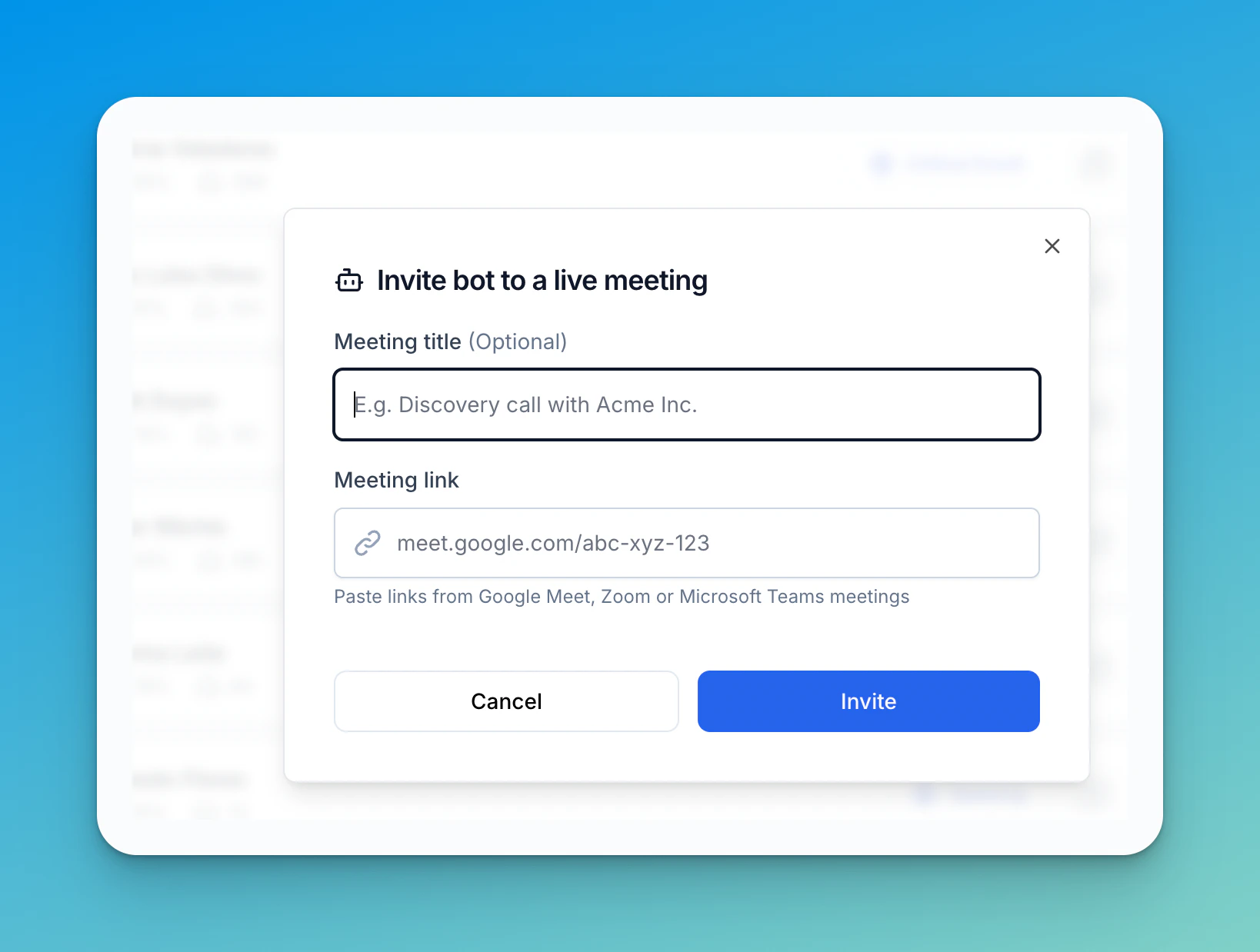
When the bot reaches the 2h10m limit it leaves automatically. You can immediately invite it back to continue recording the rest of the meeting:
1. In AI Coach, click **Invite bot** (the bot icon in the top-right corner of the Meetings page).
2. Paste the meeting link (Google Meet, Zoom, or Microsoft Teams) and optionally add a title.
3. Click **Invite** — the bot rejoins and starts a new recording from that point.
## Supported platforms
The AI Coach Bot supports meetings on:
* Google Meet
* Zoom
* Microsoft Teams
Zoom requires additional configuration to allow the bot to record. See [Set Up the AI Coach Bot on Zoom](/ai-coach-bot/bot-on-zoom) for the required settings.
## Recording duration limit
The AI Coach Bot records up to **2 hours and 10 minutes** per meeting. If a meeting runs longer, the bot stops recording at that point and processes only the captured portion.
### If you expect a longer meeting
**Split into back-to-back sessions (recommended)**
Schedule two separate meetings instead of one long one. Keep each under 2h10m. The bot joins both automatically and produces a separate report for each session. This is the most reliable approach and gives you cleaner, focused reports.
**Re-invite the bot mid-meeting**
When the bot reaches the 2h10m limit it leaves automatically. You can immediately invite it back to continue recording the rest of the meeting:
1. In AI Coach, click **Invite bot** (the bot icon in the top-right corner of the Meetings page).
2. Paste the meeting link (Google Meet, Zoom, or Microsoft Teams) and optionally add a title.
3. Click **Invite** — the bot rejoins and starts a new recording from that point.
 Each session produces its own report. Review them together for the full picture of the meeting.
**Upload segments manually**
If the meeting already happened and was recorded externally (via Zoom, Google Meet, or another tool):
1. Download the recording file.
2. Split it into segments under 2h10m using a tool like QuickTime, iMovie, or [Audacity](https://www.audacityteam.org/).
3. Upload each segment individually via **Review Call → Upload a file** in AI Coach.
Manually uploaded segments are processed independently. Each produces its own report — review them together to get a full picture of the meeting.
Each session produces its own report. Review them together for the full picture of the meeting.
**Upload segments manually**
If the meeting already happened and was recorded externally (via Zoom, Google Meet, or another tool):
1. Download the recording file.
2. Split it into segments under 2h10m using a tool like QuickTime, iMovie, or [Audacity](https://www.audacityteam.org/).
3. Upload each segment individually via **Review Call → Upload a file** in AI Coach.
Manually uploaded segments are processed independently. Each produces its own report — review them together to get a full picture of the meeting.