> ## Documentation Index
> Fetch the complete documentation index at: https://docs.triplesession.com/llms.txt
> Use this file to discover all available pages before exploring further.
# Customize AI Coach Bot Recording Preferences
> Control which meetings the AI Coach Bot records, set its display name, choose Smart Scorecards per meeting type, and adjust auto-review settings.
Recording preferences let you control exactly which meetings the AI Coach Bot attends. You can target specific meeting types, filter by participant domain, or match on title keywords — keeping your recording library relevant and avoiding unnecessary credit usage.
Bot recording is available only to members with a **Recording** seat. You can set a member's seat type when inviting them or later from the members table — see [Roles & Permissions](/workspace/roles-and-permissions).
## Why configure recording preferences
* **Targeted recording:** Focus the bot on specific meeting types, such as external calls, internal syncs, or meetings with keywords like "Discovery Call" in the title.
* **Reduced noise:** Prevent the bot from joining meetings where its presence isn't needed, saving credits and keeping your library clean.
* **Fuller coverage:** Optionally include recurring meetings alongside your chosen preference.
## How to configure recording preferences
In Triple Session, click **Settings** in the left-hand navigation panel. Under the **AI Coach** section, select **AI Coach Bot**.
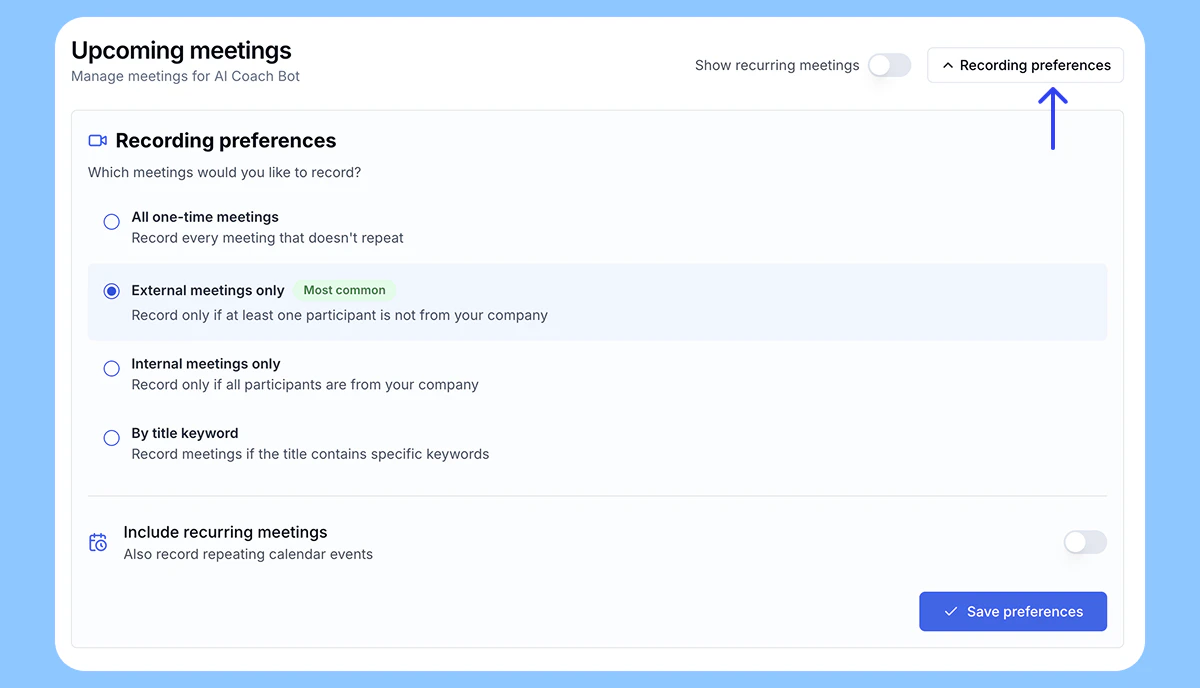
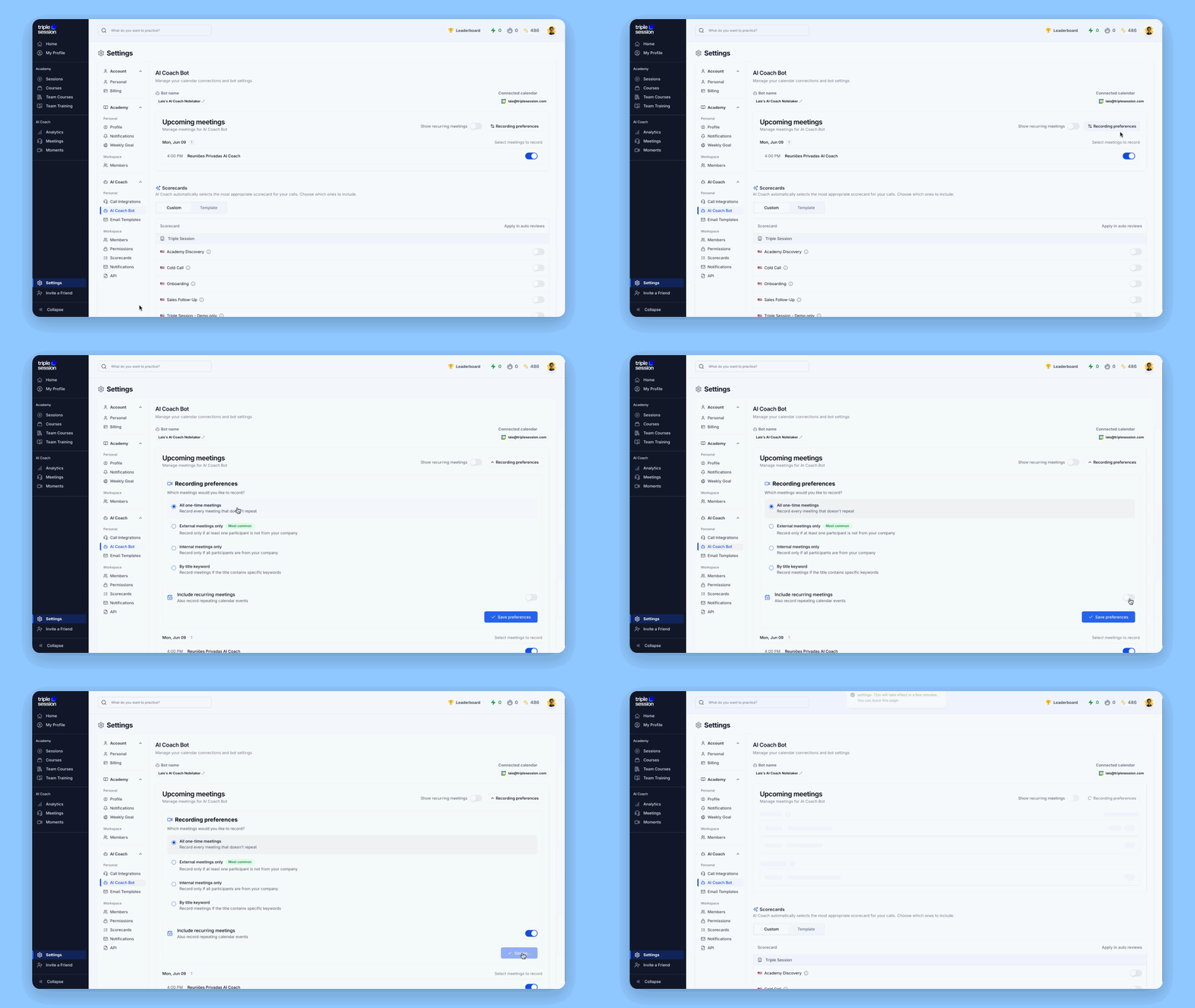 Click **Recording Preference** and select one of the following options:
* **All one-time meetings:** The bot records every non-recurring meeting. This is the default behavior.
* **External meetings only (most common):** The bot records a meeting only if at least one participant's email domain differs from yours. For example, if you are `john@acme.com` and a meeting includes `laura@stephens.com`, the bot joins.
* **Internal meetings only:** The bot records a meeting only if all participants share your email domain. For example, if you are `john@acme.com`, the bot joins only meetings where every invitee also has an `@acme.com` address.
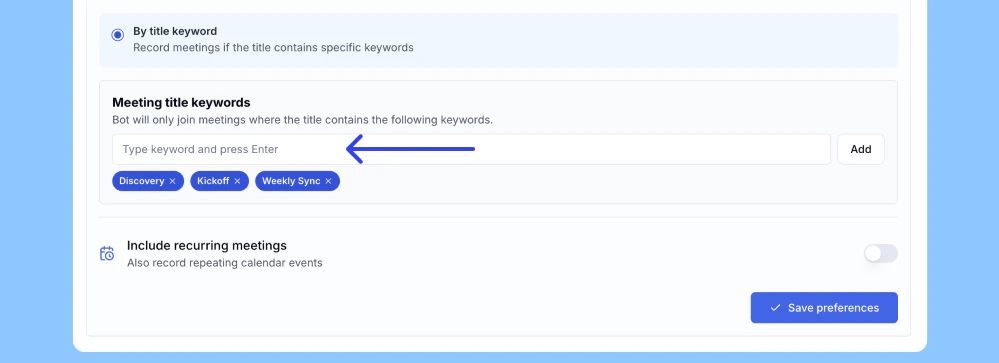
* **By title keyword:** The bot records a meeting only if the meeting title contains one or more keywords you define. Type each keyword into the **Meeting title keywords** field and press Enter or click **Add**. The bot joins if any of the keywords match. Example keywords: "Discovery," "Demonstration," "Kickoff."
Click **Recording Preference** and select one of the following options:
* **All one-time meetings:** The bot records every non-recurring meeting. This is the default behavior.
* **External meetings only (most common):** The bot records a meeting only if at least one participant's email domain differs from yours. For example, if you are `john@acme.com` and a meeting includes `laura@stephens.com`, the bot joins.
* **Internal meetings only:** The bot records a meeting only if all participants share your email domain. For example, if you are `john@acme.com`, the bot joins only meetings where every invitee also has an `@acme.com` address.
* **By title keyword:** The bot records a meeting only if the meeting title contains one or more keywords you define. Type each keyword into the **Meeting title keywords** field and press Enter or click **Add**. The bot joins if any of the keywords match. Example keywords: "Discovery," "Demonstration," "Kickoff."
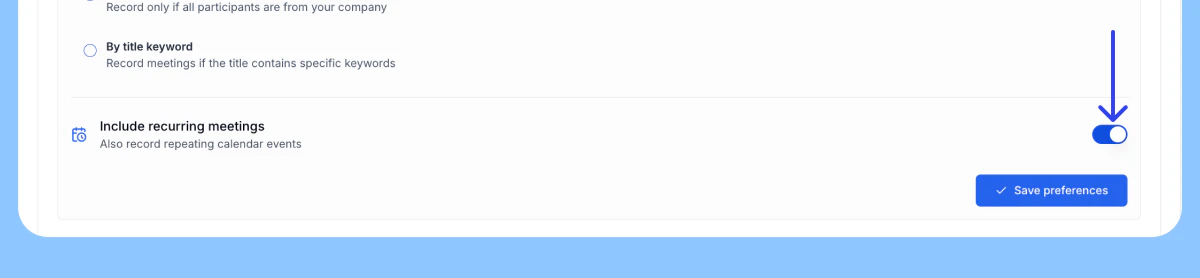
 Below the main preference options, find the **Include recurring meetings** toggle. By default, this is off — the bot only joins non-recurring meetings. Turn it on to also record meetings that repeat on a schedule.
 Click **Save preferences** to apply your changes.
If the **Include recurring meetings** toggle is off, the bot skips all recurring meetings regardless of the recording preference you selected above.
Click **Save preferences** to apply your changes.
If the **Include recurring meetings** toggle is off, the bot skips all recurring meetings regardless of the recording preference you selected above.