> ## Documentation Index
> Fetch the complete documentation index at: https://docs.triplesession.com/llms.txt
> Use this file to discover all available pages before exploring further.
# Automated Call Reviews in AI Coach
> Set up Automated Reviews so AI Coach evaluates every meeting as soon as it ends — no manual uploads or scorecard selection required.
Automated Reviews let AI Coach evaluate your meetings the moment they end. Once you connect a supported calling tool and turn on Auto Reviews for it, AI Coach pulls in recordings automatically, picks the right scorecard with Smart Scorecards, and delivers coaching insights to your **AI Coach** dashboard — no manual uploads or scorecard selection needed.
## How to set up Automated Reviews
Automated Reviews require an active integration with at least one supported call recording platform. Follow the setup guide for your tool:
* [Zoom](/integrations/zoom)
* [Google Meet](/integrations/google-meet)
* [HubSpot](/integrations/hubspot)
* [Microsoft Teams](/integrations/microsoft-teams)
* [Fireflies](/integrations/fireflies)
* [Aircall](/integrations/aircall)
* [Quo](/integrations/quo)
Auto Reviews are an opt-in setting on each integration. When you connect a tool, you'll be prompted to **confirm your Auto Review settings** during setup — you can also change this any time from the integration's panel in settings.
Turn on **Automatically review meetings** for each tool you want AI Coach to process. When it's on, AI Coach reviews meetings recorded through that tool as soon as they end.
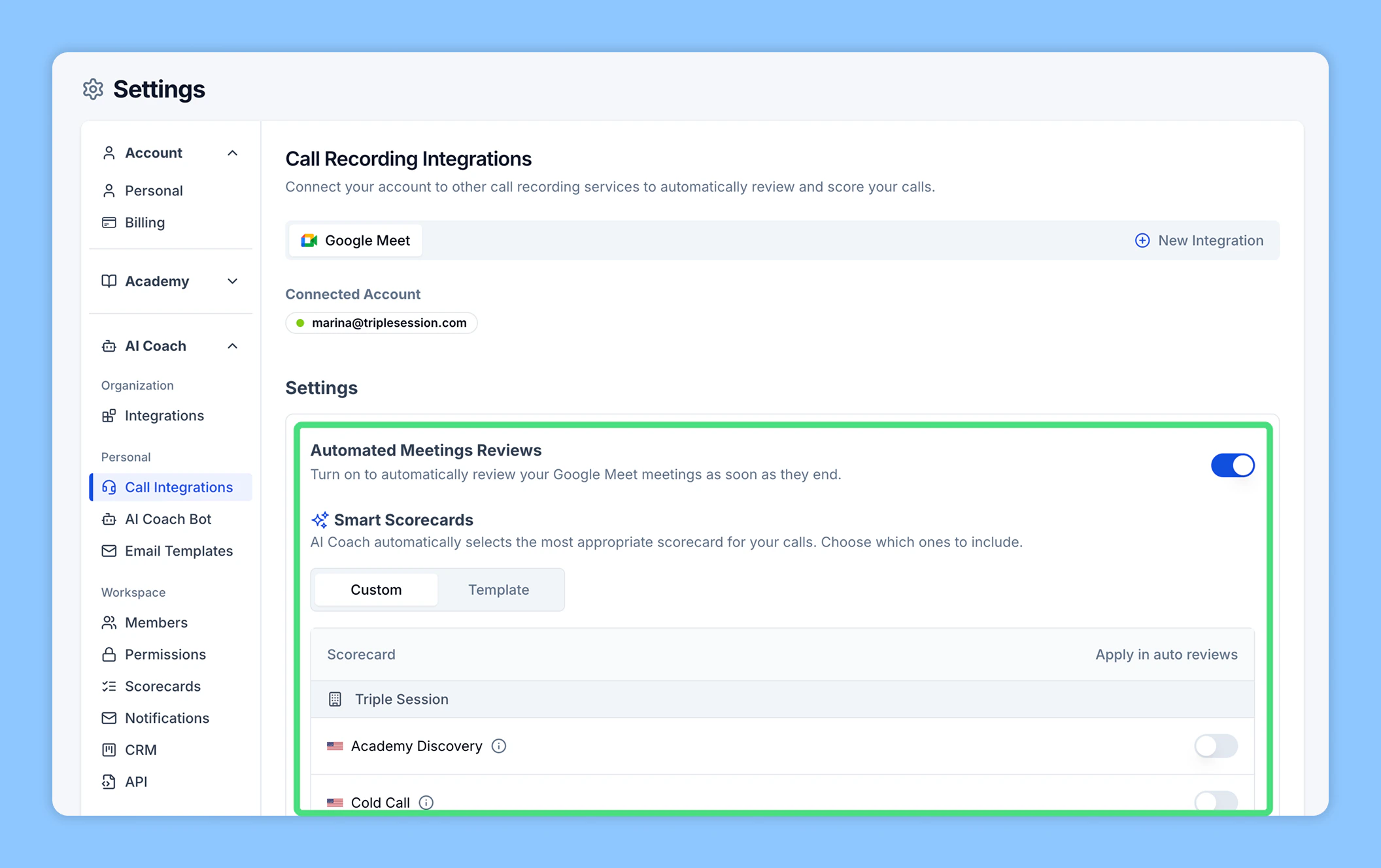 After each meeting ends, AI Coach processes the recording and delivers results to your **AI Coach** dashboard. You can view performance scores, scorecard breakdowns, and coaching plans for every reviewed call.
## Smart Scorecards
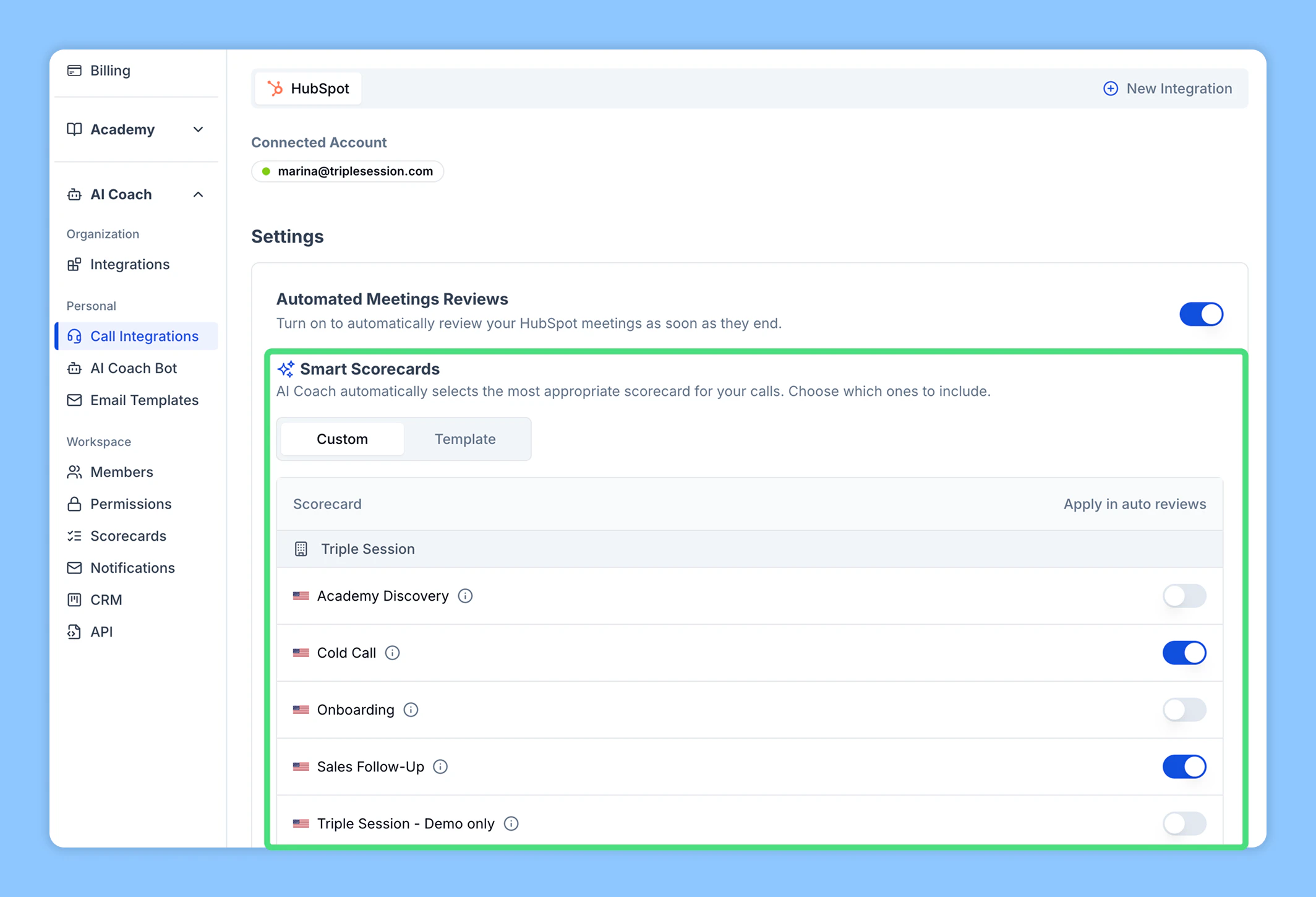
Smart Scorecards let Automated Reviews pick the right scorecard for each meeting with no manual input. AI Coach matches the call against your eligible scorecards — using each one's description and smart selection hints — and applies the best fit. By default, all workspace scorecards are eligible.
Control which scorecards AI Coach picks, and tune how it matches them, on the [Scorecards](/ai-coach/scorecards#smart-scorecards) page. Toggle **Apply in auto reviews** on a scorecard to include or exclude it.
After each meeting ends, AI Coach processes the recording and delivers results to your **AI Coach** dashboard. You can view performance scores, scorecard breakdowns, and coaching plans for every reviewed call.
## Smart Scorecards
Smart Scorecards let Automated Reviews pick the right scorecard for each meeting with no manual input. AI Coach matches the call against your eligible scorecards — using each one's description and smart selection hints — and applies the best fit. By default, all workspace scorecards are eligible.
Control which scorecards AI Coach picks, and tune how it matches them, on the [Scorecards](/ai-coach/scorecards#smart-scorecards) page. Toggle **Apply in auto reviews** on a scorecard to include or exclude it.
 ## Controlling which meetings get reviewed
You can be more selective about what AI Coach picks up:
* **AI Coach Bot recording preferences** — choose which calendar meetings the Bot records: all one-time meetings, external only, internal only, or by title keyword, with an option to include recurring meetings. See [Recording preferences](/ai-coach-bot/recording-preferences).
* **HubSpot Call Sources** — if you use HubSpot, select which call sources (VoIP and/or other integrations) AI Coach reviews. See [HubSpot](/integrations/hubspot).
## Turning off Auto Reviews
Auto Reviews are controlled per integration. If you prefer to review certain meetings manually, turn off **Automatically review meetings** for that tool in its settings panel. You can still manually upload or import meetings for review at any time.
Have questions or run into issues? Contact the support team at [support@triplesession.com](mailto:support@triplesession.com).
## Controlling which meetings get reviewed
You can be more selective about what AI Coach picks up:
* **AI Coach Bot recording preferences** — choose which calendar meetings the Bot records: all one-time meetings, external only, internal only, or by title keyword, with an option to include recurring meetings. See [Recording preferences](/ai-coach-bot/recording-preferences).
* **HubSpot Call Sources** — if you use HubSpot, select which call sources (VoIP and/or other integrations) AI Coach reviews. See [HubSpot](/integrations/hubspot).
## Turning off Auto Reviews
Auto Reviews are controlled per integration. If you prefer to review certain meetings manually, turn off **Automatically review meetings** for that tool in its settings panel. You can still manually upload or import meetings for review at any time.
Have questions or run into issues? Contact the support team at [support@triplesession.com](mailto:support@triplesession.com).