> ## Documentation Index
> Fetch the complete documentation index at: https://docs.triplesession.com/llms.txt
> Use this file to discover all available pages before exploring further.
# Company AI Chat: Ask Across Your Whole Company
> Have a back-and-forth conversation with AI about your team's performance and patterns, grounded in transcripts from across your entire company.
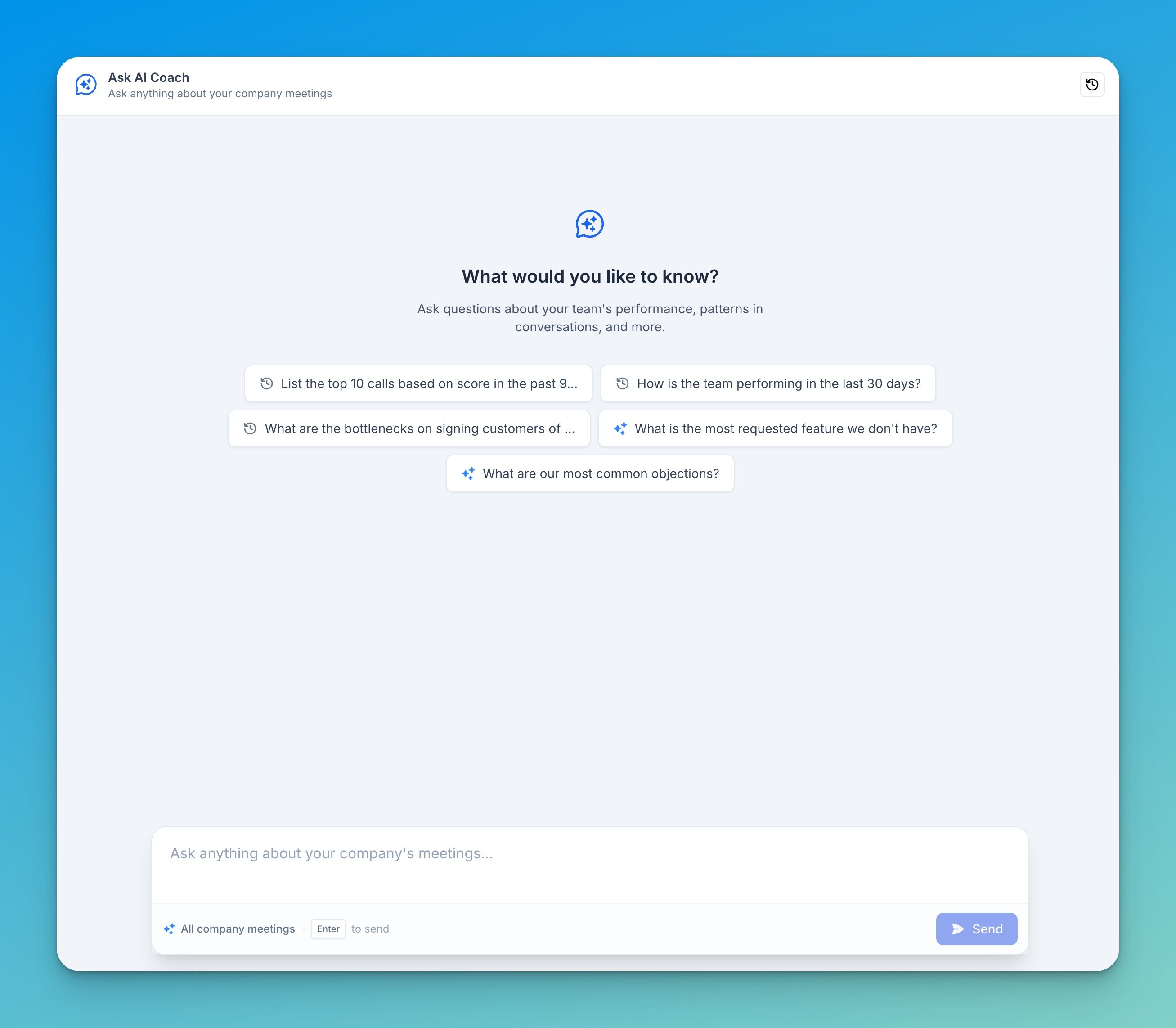
**Company AI Chat** is a conversational assistant that draws on transcripts from across your entire company. Ask about team performance, recurring patterns, objections, or competitors, and get answers in a natural back-and-forth — then keep asking follow-ups in the same thread.
 ## What you can do
* **Ask anything about company meetings** — performance, trends, objections, competitors, requested features, and more.
* **Have a conversation** — follow up, refine, and dig deeper without starting over. The chat keeps context across the thread.
* **Start from a suggestion** — pick one of the suggested prompts to get going quickly.
* **Pick up where you left off** — past conversations are saved in your chat history, so you can return to them anytime.
The scope is always **All company meetings** — every answer is grounded in your company's transcripts, with the relevant data pulled in as you ask.
## Access
Company AI Chat is available to **Admins by default**. Admins can extend access to Managers and Members from **Company Settings → AI & Integrations** by toggling **Company AI chat** on for each role.
## What you can do
* **Ask anything about company meetings** — performance, trends, objections, competitors, requested features, and more.
* **Have a conversation** — follow up, refine, and dig deeper without starting over. The chat keeps context across the thread.
* **Start from a suggestion** — pick one of the suggested prompts to get going quickly.
* **Pick up where you left off** — past conversations are saved in your chat history, so you can return to them anytime.
The scope is always **All company meetings** — every answer is grounded in your company's transcripts, with the relevant data pulled in as you ask.
## Access
Company AI Chat is available to **Admins by default**. Admins can extend access to Managers and Members from **Company Settings → AI & Integrations** by toggling **Company AI chat** on for each role.
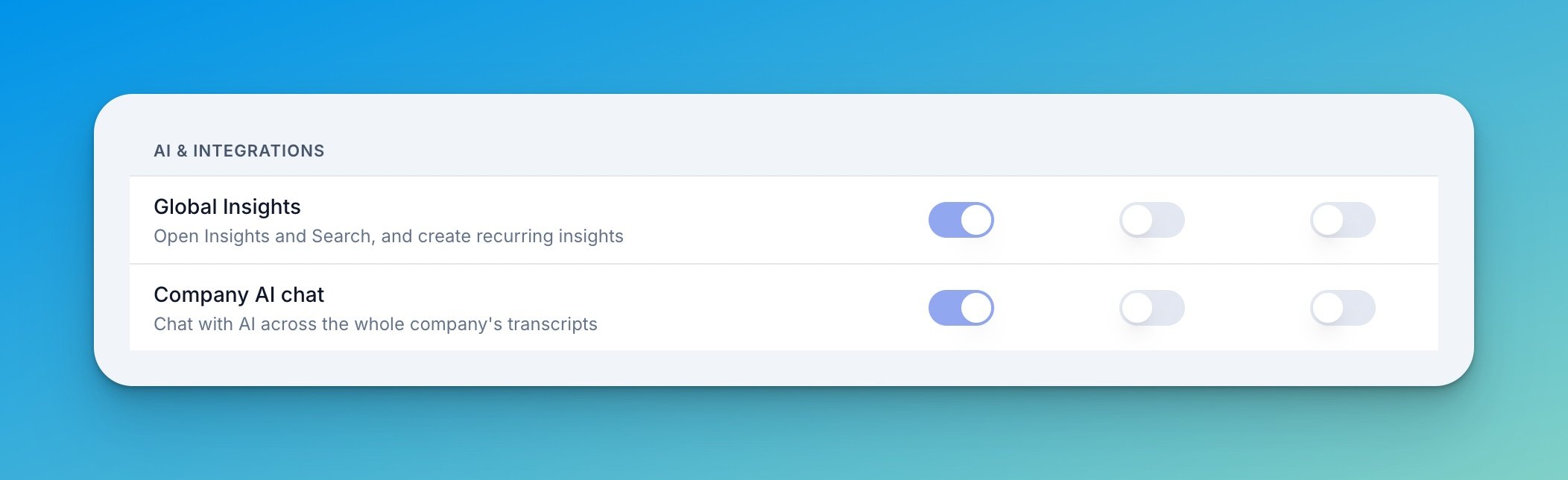 The three toggles map to the company roles **Admin**, **Manager**, and **Member**. Admins always keep access — the toggle stays on. See [Roles & Permissions](/workspace/roles-and-permissions) for how roles work.
## Example questions
* "How is the team performing in the last 30 days?"
* "What are our most common objections?"
* "What is the most requested feature we don't have?"
* "What are the bottlenecks on signing customers?"
* "List the top 10 calls based on score in the past 90 days."
## Tips for better answers
Narrow questions get sharper answers. "How did discovery calls go last month?" beats "How are we doing?"
Treat it as a conversation. Once you get an answer, drill in — "Which reps had the most of those?" — instead of rephrasing from scratch.
Open the history to return to an earlier conversation, or start a new chat when you switch topics so each thread stays focused.
For analyzed answers with patterns, examples, and recurring reports, use [Global Insights](/ai-coach/insights). For questions about a single call, use [Ask AI Coach](/ai-coach/ask-ai-coach).
The three toggles map to the company roles **Admin**, **Manager**, and **Member**. Admins always keep access — the toggle stays on. See [Roles & Permissions](/workspace/roles-and-permissions) for how roles work.
## Example questions
* "How is the team performing in the last 30 days?"
* "What are our most common objections?"
* "What is the most requested feature we don't have?"
* "What are the bottlenecks on signing customers?"
* "List the top 10 calls based on score in the past 90 days."
## Tips for better answers
Narrow questions get sharper answers. "How did discovery calls go last month?" beats "How are we doing?"
Treat it as a conversation. Once you get an answer, drill in — "Which reps had the most of those?" — instead of rephrasing from scratch.
Open the history to return to an earlier conversation, or start a new chat when you switch topics so each thread stays focused.
For analyzed answers with patterns, examples, and recurring reports, use [Global Insights](/ai-coach/insights). For questions about a single call, use [Ask AI Coach](/ai-coach/ask-ai-coach).