> ## Documentation Index
> Fetch the complete documentation index at: https://docs.triplesession.com/llms.txt
> Use this file to discover all available pages before exploring further.
# Global Insights: Query Across All Your Meetings
> Ask natural-language questions across your team's entire conversation history and surface data-backed patterns — with recurring reports and auto-updating trends.
**Global Insights** lets you ask questions in plain language across all of your team's meetings and get data-backed answers drawn from your entire conversation history. Instead of listening to recordings one by one, you type a question and Insights surfaces the main patterns and the real calls and Moments that back them up.
 ## What you can do
* **Ask in plain language** — "What objections do we hear most often?" or "How are prospects comparing us with competitors?" No special syntax.
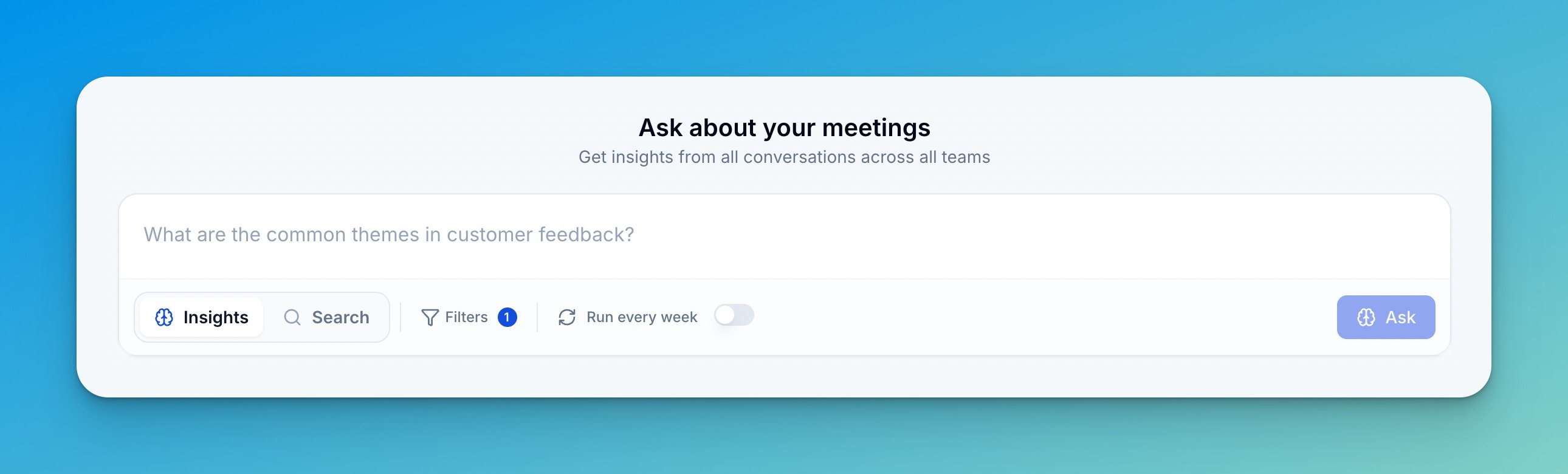
* **Switch between Insights and Search** — *Insights* generates an analyzed answer with patterns and examples. *Search* finds specific moments across transcripts by keyword.
* **Filter your question** — narrow to a date range, specific scorecards, team members, or workspaces.
* **Schedule recurring runs** — turn any question into a weekly, monthly, or quarterly report (see [Recurring insights](#recurring-insights)).
* **Browse Popular and Living insights** — see what your team is already asking and which trends are updating over time.
* **Upvote and share** — upvote useful questions so they rise to the top, and share results with teammates.
## Access
Global Insights is available to **Admins by default**. Admins can open it up to Managers and Members from **Company Settings → AI & Integrations** by toggling **Global Insights** on for each role.
## What you can do
* **Ask in plain language** — "What objections do we hear most often?" or "How are prospects comparing us with competitors?" No special syntax.
* **Switch between Insights and Search** — *Insights* generates an analyzed answer with patterns and examples. *Search* finds specific moments across transcripts by keyword.
* **Filter your question** — narrow to a date range, specific scorecards, team members, or workspaces.
* **Schedule recurring runs** — turn any question into a weekly, monthly, or quarterly report (see [Recurring insights](#recurring-insights)).
* **Browse Popular and Living insights** — see what your team is already asking and which trends are updating over time.
* **Upvote and share** — upvote useful questions so they rise to the top, and share results with teammates.
## Access
Global Insights is available to **Admins by default**. Admins can open it up to Managers and Members from **Company Settings → AI & Integrations** by toggling **Global Insights** on for each role.
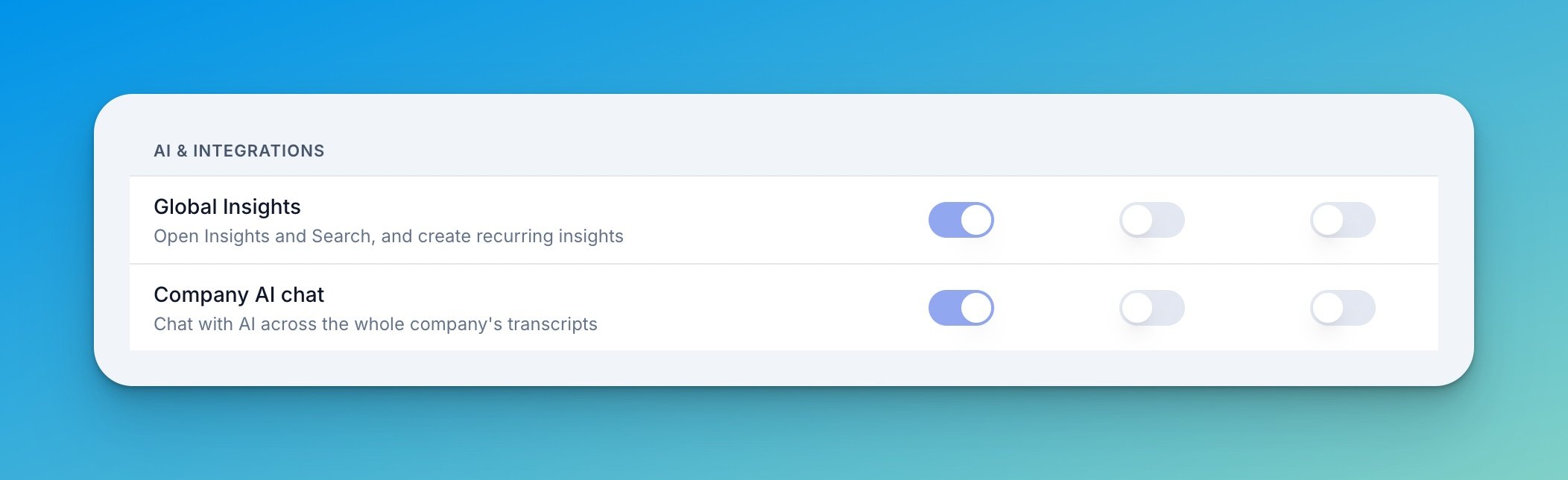 The three toggles map to the company roles **Admin**, **Manager**, and **Member**. Admins always keep access — the toggle stays on. See [Roles & Permissions](/workspace/roles-and-permissions) for how roles work.
## How to use Insights
From your Triple Session dashboard, open **AI Coach** and go to the **Insights** tab.
Keep **Insights** mode selected, enter your question, and optionally apply filters for date range, scorecards, members, or workspaces. Switch to **Search** mode if you want to find specific moments by keyword instead.
Insights analyzes your meetings and returns a main finding, related insights that expand on it, and links to the real calls and Moments behind each point. You also get an email when the answer is ready.
Click any referenced meeting to jump to the exact part of the conversation that backs up the insight.
## Popular and Living insights
The three toggles map to the company roles **Admin**, **Manager**, and **Member**. Admins always keep access — the toggle stays on. See [Roles & Permissions](/workspace/roles-and-permissions) for how roles work.
## How to use Insights
From your Triple Session dashboard, open **AI Coach** and go to the **Insights** tab.
Keep **Insights** mode selected, enter your question, and optionally apply filters for date range, scorecards, members, or workspaces. Switch to **Search** mode if you want to find specific moments by keyword instead.
Insights analyzes your meetings and returns a main finding, related insights that expand on it, and links to the real calls and Moments behind each point. You also get an email when the answer is ready.
Click any referenced meeting to jump to the exact part of the conversation that backs up the insight.
## Popular and Living insights
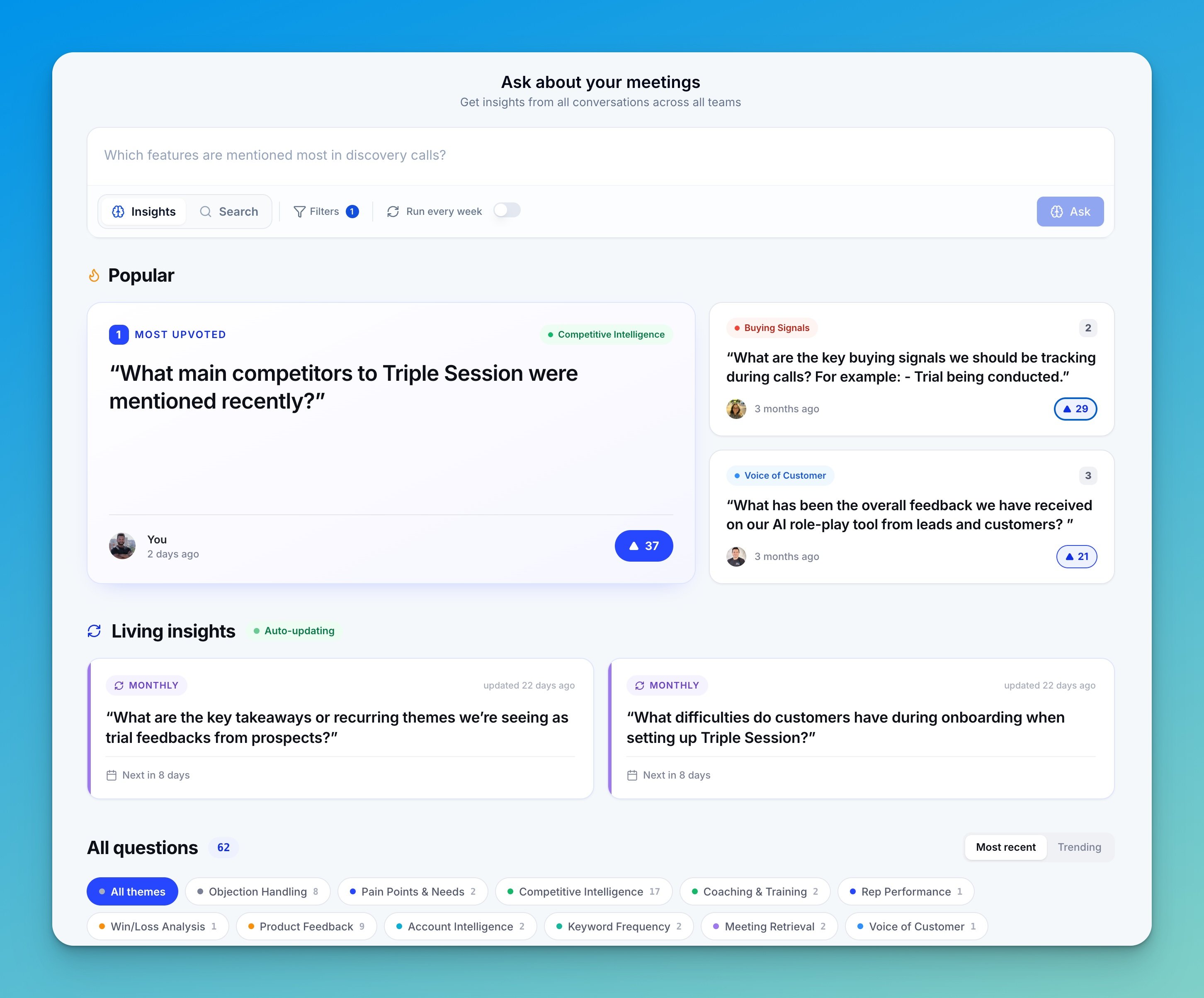 * **Popular** — the questions your team has upvoted most. Upvote any question to surface the ones worth everyone's attention.
* **Living insights** — recurring questions that update themselves on a schedule. Each run is compared to the last, so you can see what's new, rising, falling, or gone — a trend you can watch rather than a one-time answer.
* **Topics** — questions are grouped into themes like Objection Handling, Pain Points & Needs, Competitive Intelligence, and Coaching & Training, so you can browse by area of interest.
## Recurring insights
Write a question once and let it run on a schedule instead of re-asking it.
* **Cadence** — weekly, monthly, or quarterly. Runs deliver at the end of the period (weekly on Fridays; monthly and quarterly on the last day).
* **Delivery** — results are sent by email to the recipients you choose, and can post to a Slack channel automatically.
* **Trend history** — each run builds on the last, so recurring questions become the Living insights you can track over time.
To schedule a question, turn on **Run every week** (and pick the cadence) before you run it. To route results into Slack, see [Slack notifications](/automations/slack-notifications).
## Example questions to try
* "What are the most common objections that come up?"
* "How are prospects comparing us with competitors?"
* "Which features are mentioned most in discovery calls?"
* "What is the main feature request during onboarding?"
* "How does \[Sales Rep] present \[Feature]?"
* "What are the common themes in customer feedback?"
## Tips for better results
* **Target the prospect or client voice** — to understand pain points, ask what prospects are saying, not what reps are saying.
* **Hunt for patterns** — Insights works best at scale. Focus on things that happen in 10% or more of meetings to find trends that matter.
* **Ask naturally** — phrase questions the way you'd ask a colleague.
* **Use filters** — narrow to a scorecard, team, or time period for more focused answers.
For free-form, back-and-forth questions across your whole company, try [Company AI Chat](/ai-coach/company-chat). For questions about a single call, use [Ask AI Coach](/ai-coach/ask-ai-coach).
* **Popular** — the questions your team has upvoted most. Upvote any question to surface the ones worth everyone's attention.
* **Living insights** — recurring questions that update themselves on a schedule. Each run is compared to the last, so you can see what's new, rising, falling, or gone — a trend you can watch rather than a one-time answer.
* **Topics** — questions are grouped into themes like Objection Handling, Pain Points & Needs, Competitive Intelligence, and Coaching & Training, so you can browse by area of interest.
## Recurring insights
Write a question once and let it run on a schedule instead of re-asking it.
* **Cadence** — weekly, monthly, or quarterly. Runs deliver at the end of the period (weekly on Fridays; monthly and quarterly on the last day).
* **Delivery** — results are sent by email to the recipients you choose, and can post to a Slack channel automatically.
* **Trend history** — each run builds on the last, so recurring questions become the Living insights you can track over time.
To schedule a question, turn on **Run every week** (and pick the cadence) before you run it. To route results into Slack, see [Slack notifications](/automations/slack-notifications).
## Example questions to try
* "What are the most common objections that come up?"
* "How are prospects comparing us with competitors?"
* "Which features are mentioned most in discovery calls?"
* "What is the main feature request during onboarding?"
* "How does \[Sales Rep] present \[Feature]?"
* "What are the common themes in customer feedback?"
## Tips for better results
* **Target the prospect or client voice** — to understand pain points, ask what prospects are saying, not what reps are saying.
* **Hunt for patterns** — Insights works best at scale. Focus on things that happen in 10% or more of meetings to find trends that matter.
* **Ask naturally** — phrase questions the way you'd ask a colleague.
* **Use filters** — narrow to a scorecard, team, or time period for more focused answers.
For free-form, back-and-forth questions across your whole company, try [Company AI Chat](/ai-coach/company-chat). For questions about a single call, use [Ask AI Coach](/ai-coach/ask-ai-coach).