> ## Documentation Index
> Fetch the complete documentation index at: https://docs.triplesession.com/llms.txt
> Use this file to discover all available pages before exploring further.
# AI Coach Scorecards
> Scorecards power AI Coach's evaluation of every call. Learn how built-in and custom scorecards work, and how Smart Scorecards route the right scorecard to each meeting automatically.
Scorecards are the evaluation frameworks AI Coach uses to assess rep performance on every call. Each scorecard is built from consolidated playbooks and methodologies, defining the specific criteria the AI measures during a review. When you start a manual review or let [Automated Reviews](/ai-coach/automated-reviews) run, the scorecard that gets applied determines what is analyzed and how the report is structured.
## Where to find scorecards
Navigate to **Settings > Scorecards** to see all scorecards available in your workspace. Click any scorecard to open it, preview its contents, or edit it.
## What's inside a scorecard
Every scorecard has three parts that work together:
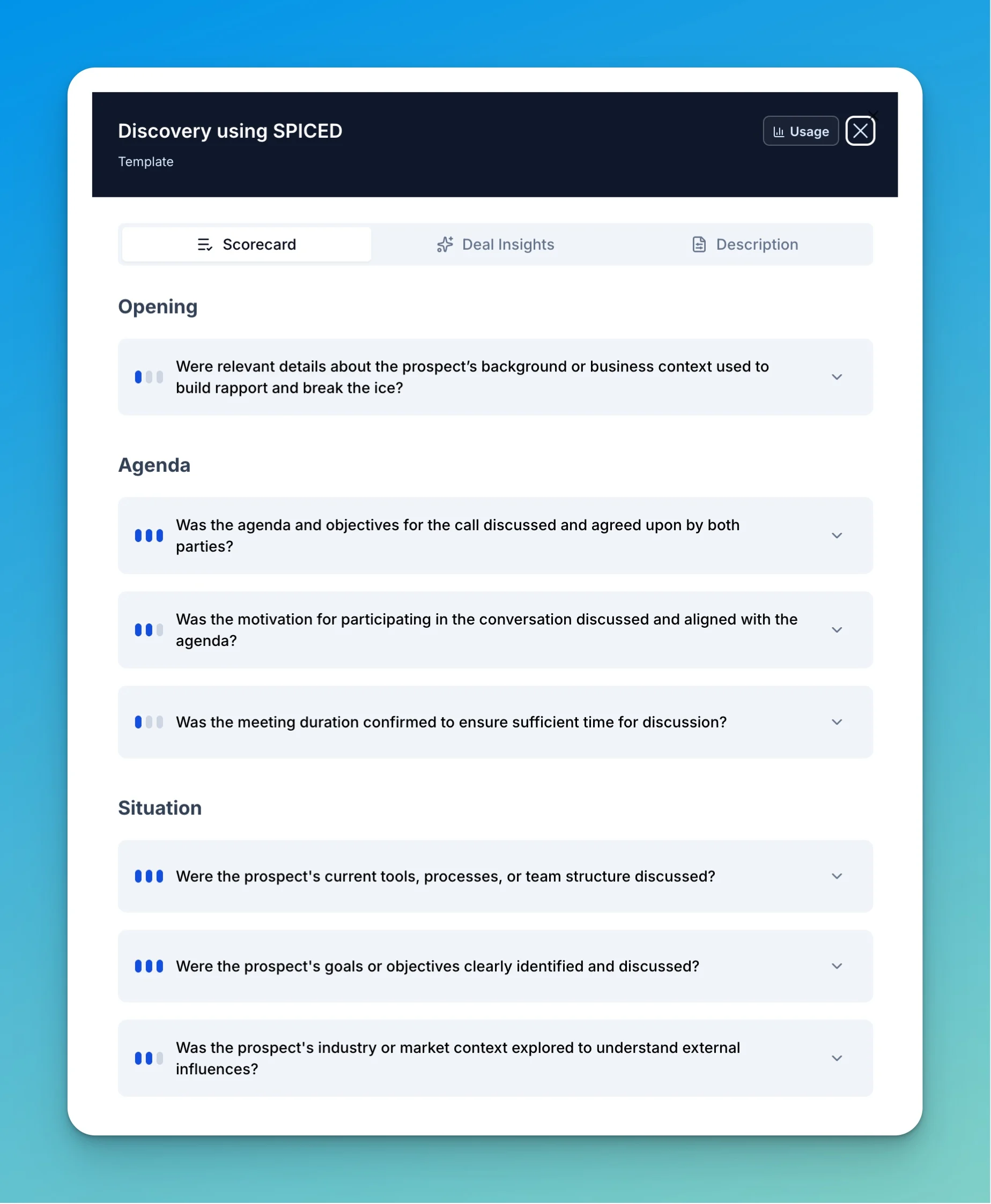
The questions AI Coach scores the call against, grouped into sections like Opening, Agenda, and Situation.
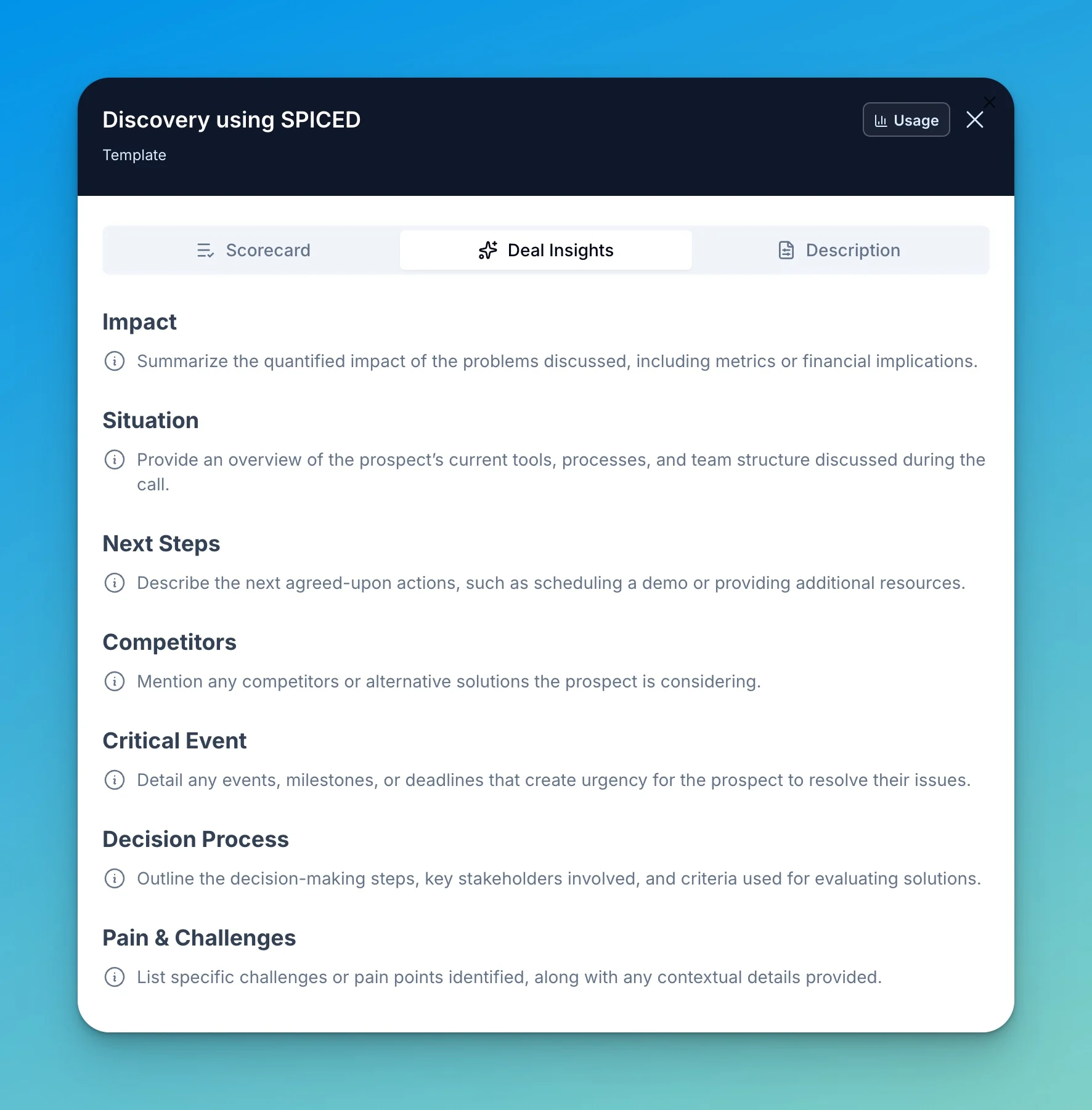
Structured information AI Coach extracts from the conversation — pain points, next steps, competitors, and more.
The signals that tell AI Coach when this scorecard should be applied to a call.
You can preview these in the scorecard template viewer. The **Scorecard** tab lists every criterion AI Coach evaluates:
 The **Insights** tab shows what AI Coach pulls out of each matching call:
 ## How criteria are scored
Each criterion is a question AI Coach answers about the call. Every criterion defines what counts as **Met**, **Partially met**, and **Not met**, so the evaluation is consistent from call to call. For example, for *"Was the agenda and objectives for the call agreed upon by both parties?"*:
> **Met:** The rep set a clear agenda and the prospect explicitly aligned on the goals for the call. **Partially met:** An agenda was mentioned, but in a superficial way or without confirming the prospect agreed. **Not met:** No agenda or objectives were established at the start of the call.
### Weight
Every criterion carries a **weight** that controls how much it moves the overall score:
| Weight | Meaning |
| -------------- | -------------------------------------------- |
| **Critical** | Must do. Affects the score significantly. |
| **Important** | Should do. Affects the score moderately. |
| **Encouraged** | Nice to do. Has a minor effect on the score. |
Use weights to reflect what matters most for a given call type — a critical step a rep must never miss versus a nice-to-have that only slightly nudges the score.
### Skippable criteria
A criterion can be marked with a **skippable condition** — a rule that tells AI Coach when the question simply doesn't apply. When the condition is true for a call, the criterion is skipped and left out of the score instead of being marked Not met.
> **Skippable Condition:** Skip if no objections were raised during this conversation.
This keeps scores fair: a rep isn't penalized for not handling objections on a call where none came up.
## Built-in scorecards
Triple Session provides a set of ready-to-use scorecards covering the most common call types:
Evaluates performance on outbound cold calling, covering how reps introduce themselves, handle early objections, and secure next steps.
Assesses how thoroughly reps uncover prospect pain points, goals, and decision-making criteria during discovery conversations.
Measures how effectively reps present the product, tie features to prospect needs, and advance the opportunity during demonstrations.
A discovery scorecard structured around the MEDDICC qualification framework — Metrics, Economic Buyer, Decision Criteria, Decision Process, Identify Pain, Champion, and Competition.
A discovery scorecard built on the SPICED methodology — Situation, Pain, Impact, Critical Event, and Decision.
## Scorecard details and language
Open a scorecard and go to the **Details** tab to set its name, language, and tags.
## How criteria are scored
Each criterion is a question AI Coach answers about the call. Every criterion defines what counts as **Met**, **Partially met**, and **Not met**, so the evaluation is consistent from call to call. For example, for *"Was the agenda and objectives for the call agreed upon by both parties?"*:
> **Met:** The rep set a clear agenda and the prospect explicitly aligned on the goals for the call. **Partially met:** An agenda was mentioned, but in a superficial way or without confirming the prospect agreed. **Not met:** No agenda or objectives were established at the start of the call.
### Weight
Every criterion carries a **weight** that controls how much it moves the overall score:
| Weight | Meaning |
| -------------- | -------------------------------------------- |
| **Critical** | Must do. Affects the score significantly. |
| **Important** | Should do. Affects the score moderately. |
| **Encouraged** | Nice to do. Has a minor effect on the score. |
Use weights to reflect what matters most for a given call type — a critical step a rep must never miss versus a nice-to-have that only slightly nudges the score.
### Skippable criteria
A criterion can be marked with a **skippable condition** — a rule that tells AI Coach when the question simply doesn't apply. When the condition is true for a call, the criterion is skipped and left out of the score instead of being marked Not met.
> **Skippable Condition:** Skip if no objections were raised during this conversation.
This keeps scores fair: a rep isn't penalized for not handling objections on a call where none came up.
## Built-in scorecards
Triple Session provides a set of ready-to-use scorecards covering the most common call types:
Evaluates performance on outbound cold calling, covering how reps introduce themselves, handle early objections, and secure next steps.
Assesses how thoroughly reps uncover prospect pain points, goals, and decision-making criteria during discovery conversations.
Measures how effectively reps present the product, tie features to prospect needs, and advance the opportunity during demonstrations.
A discovery scorecard structured around the MEDDICC qualification framework — Metrics, Economic Buyer, Decision Criteria, Decision Process, Identify Pain, Champion, and Competition.
A discovery scorecard built on the SPICED methodology — Situation, Pain, Impact, Critical Event, and Decision.
## Scorecard details and language
Open a scorecard and go to the **Details** tab to set its name, language, and tags.
 * **Scorecard Name** — How the scorecard appears in lists and reviews.
* **Scorecard language** — The language used for scorecard prompts, criteria, and generated evaluation text. Set this to the language you want the criteria breakdown and scores written in.
* **Tags** — Comma-separated labels used for quick search, grouping, and filtering in the scorecard list.
### Insights language
Insights have their own language setting, found on the **Insights** tab. **Insights language** controls the language used for generated insight titles and prompts — independent of the scorecard language. A team can score calls in English while producing insights in Portuguese, for example.
* **Scorecard Name** — How the scorecard appears in lists and reviews.
* **Scorecard language** — The language used for scorecard prompts, criteria, and generated evaluation text. Set this to the language you want the criteria breakdown and scores written in.
* **Tags** — Comma-separated labels used for quick search, grouping, and filtering in the scorecard list.
### Insights language
Insights have their own language setting, found on the **Insights** tab. **Insights language** controls the language used for generated insight titles and prompts — independent of the scorecard language. A team can score calls in English while producing insights in Portuguese, for example.
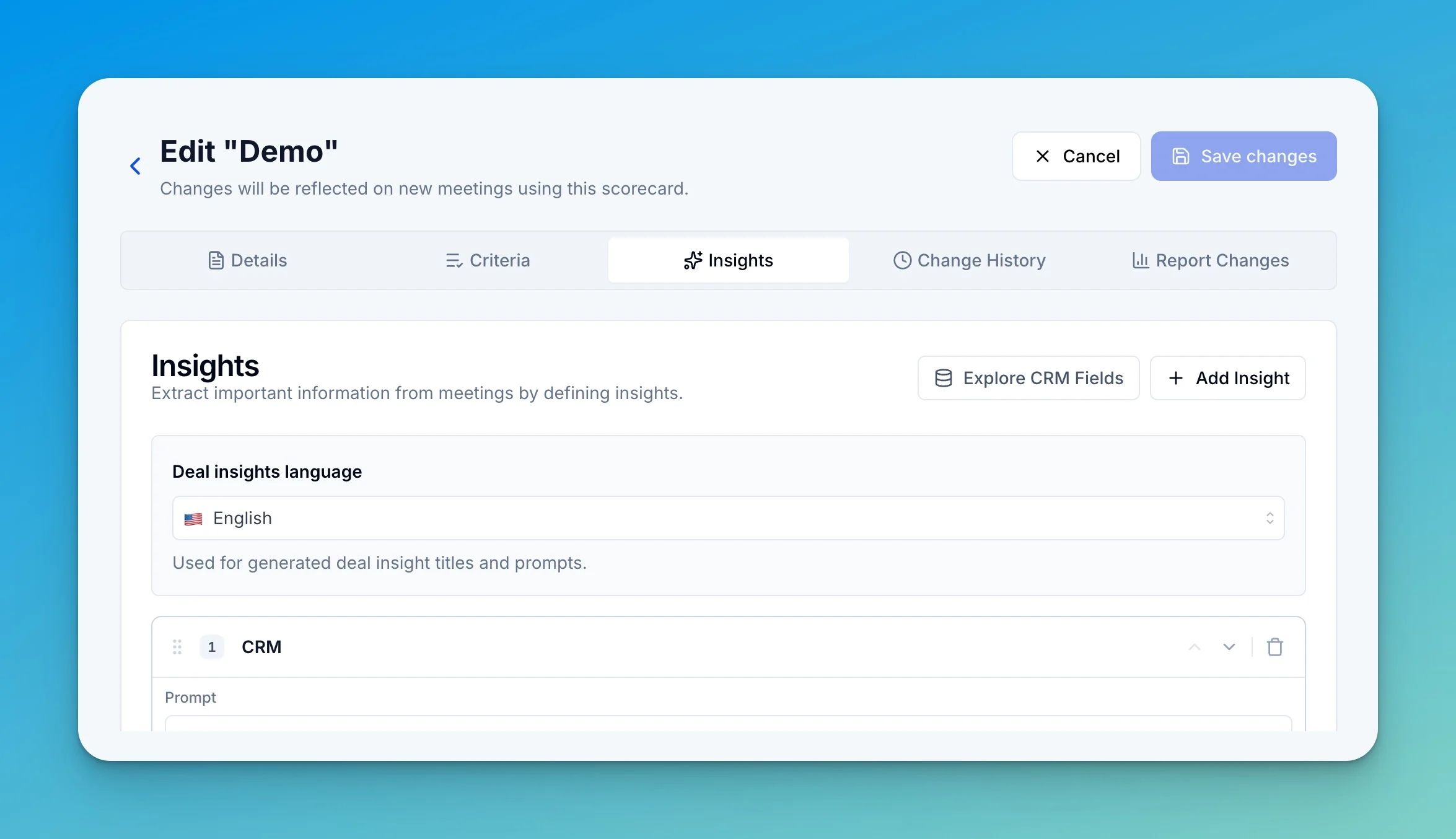 Scorecard language and insights language are set per scorecard. Changes apply to new meetings reviewed with that scorecard.
## Smart Scorecards
When you use [Automated Reviews](/ai-coach/automated-reviews), AI Coach selects the most appropriate scorecard for each meeting automatically. This is what makes a scorecard a **Smart Scorecard**.
Before reviewing a meeting, AI Coach matches the call against your eligible scorecards and picks the best fit — no manual selection needed. Two things drive the match:
1. **The description** — a plain-language explanation of when to use the scorecard.
2. **Smart selection hints** — optional structured signals that sharpen matching when the description alone is not enough.
Per-call context like the meeting provider, attendees, and duration is detected automatically, so you only need to describe what the matcher can't infer on its own.
### Choosing which scorecards apply
By default, your workspace scorecards are all eligible for Smart Scorecard selection. To control which scorecards AI Coach can pick:
Go to **AI Coach** and navigate to **Settings > Call Integrations**.
Locate the scorecard in the list.
Switch **Apply in auto reviews** ON or OFF to include or exclude that scorecard from Automated Reviews.
## Writing the description
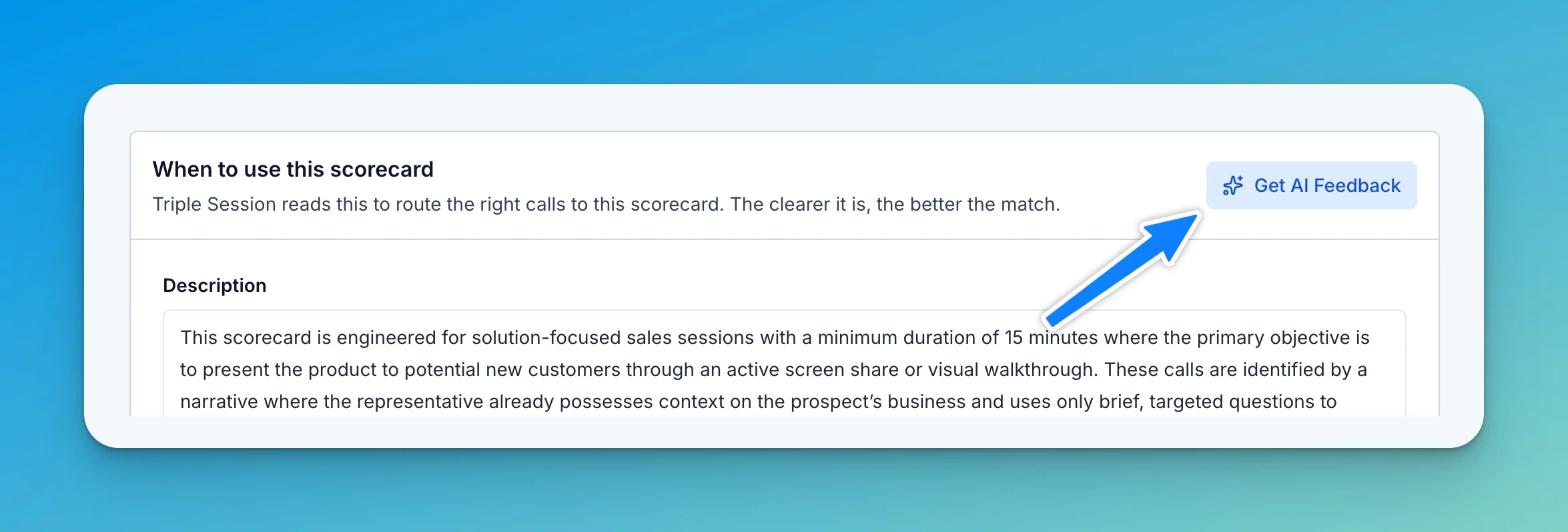
Open a scorecard and find the **When to use this scorecard** section. Triple Session reads the **Description** to route the right calls to this scorecard — the clearer it is, the better the match.
Scorecard language and insights language are set per scorecard. Changes apply to new meetings reviewed with that scorecard.
## Smart Scorecards
When you use [Automated Reviews](/ai-coach/automated-reviews), AI Coach selects the most appropriate scorecard for each meeting automatically. This is what makes a scorecard a **Smart Scorecard**.
Before reviewing a meeting, AI Coach matches the call against your eligible scorecards and picks the best fit — no manual selection needed. Two things drive the match:
1. **The description** — a plain-language explanation of when to use the scorecard.
2. **Smart selection hints** — optional structured signals that sharpen matching when the description alone is not enough.
Per-call context like the meeting provider, attendees, and duration is detected automatically, so you only need to describe what the matcher can't infer on its own.
### Choosing which scorecards apply
By default, your workspace scorecards are all eligible for Smart Scorecard selection. To control which scorecards AI Coach can pick:
Go to **AI Coach** and navigate to **Settings > Call Integrations**.
Locate the scorecard in the list.
Switch **Apply in auto reviews** ON or OFF to include or exclude that scorecard from Automated Reviews.
## Writing the description
Open a scorecard and find the **When to use this scorecard** section. Triple Session reads the **Description** to route the right calls to this scorecard — the clearer it is, the better the match.
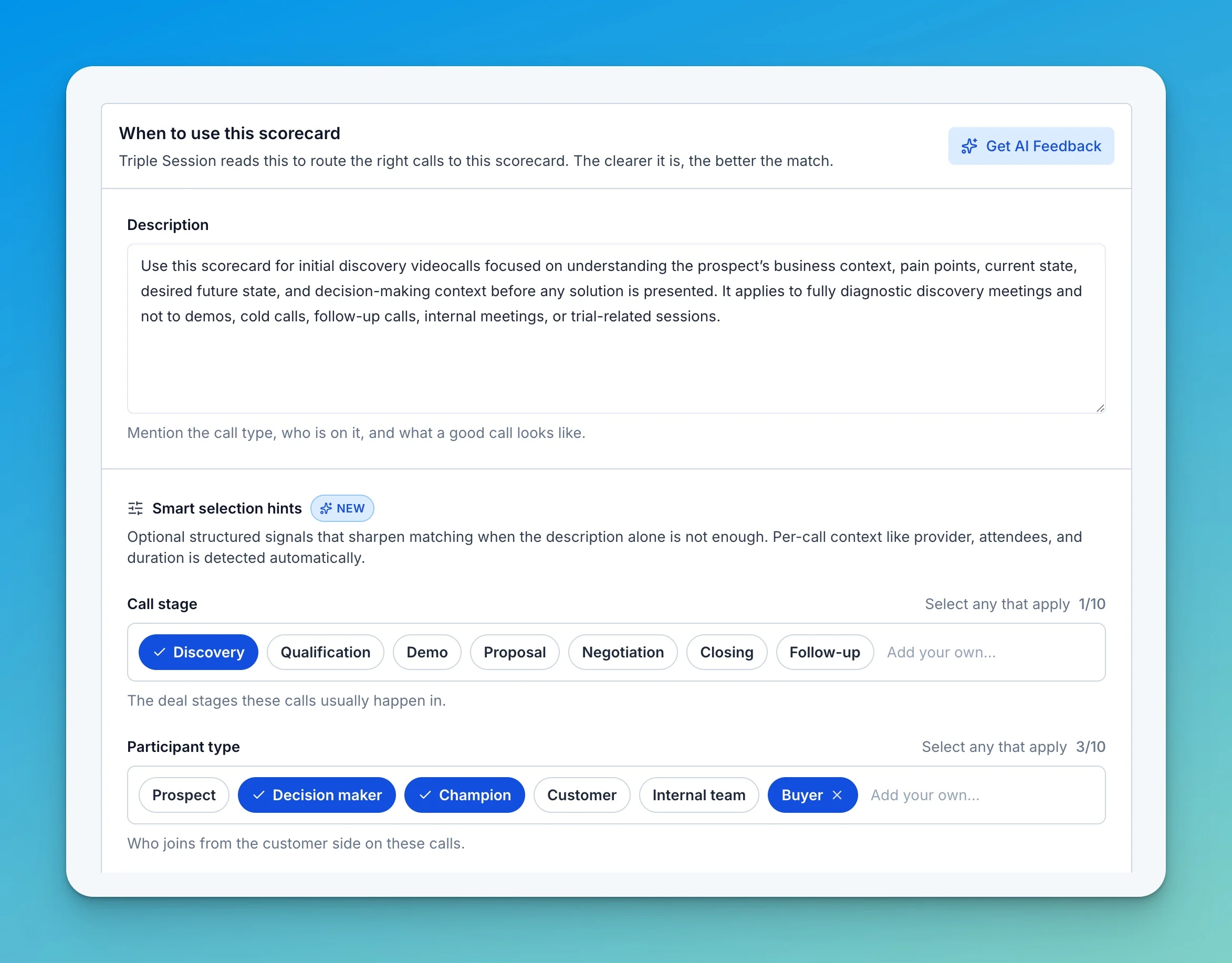 A strong description mentions the call type, who is on the call, and what a good call looks like. The most reliable descriptions cover three things:
* **Call type and stage** — for example, "initial discovery videocalls before any solution is presented."
* **Qualifiers** — minimum or maximum duration, participants, prospect vs. customer status, language.
* **Exclusions** — what calls do *not* fit, such as demos, cold calls, follow-ups, or internal meetings.
### Get AI Feedback
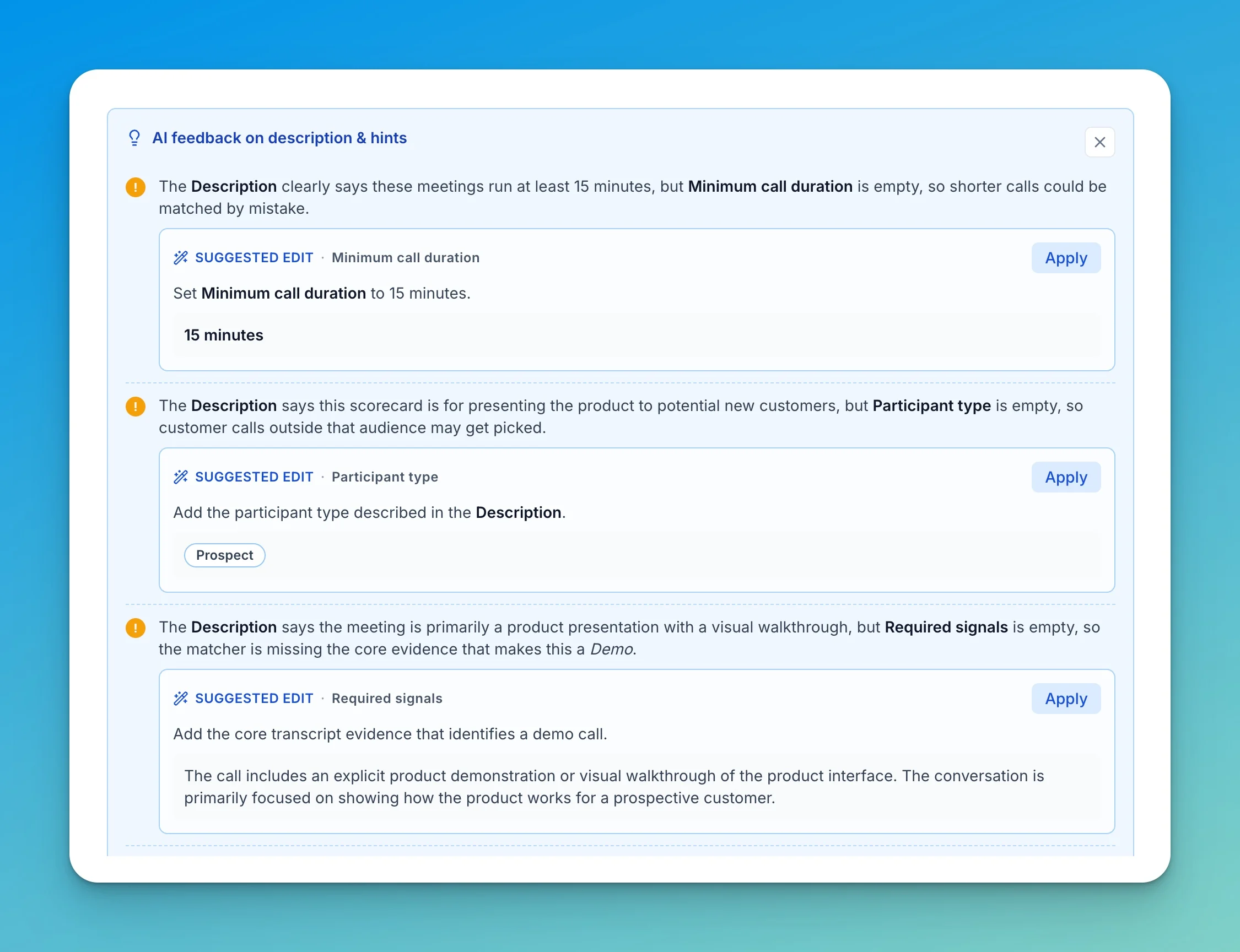
Click **Get AI Feedback** to have Triple Session review your description and hints. It checks whether the description clearly defines the call type, includes essential qualifiers, and states what's excluded — then flags gaps and offers fixes you can apply in one click.
A strong description mentions the call type, who is on the call, and what a good call looks like. The most reliable descriptions cover three things:
* **Call type and stage** — for example, "initial discovery videocalls before any solution is presented."
* **Qualifiers** — minimum or maximum duration, participants, prospect vs. customer status, language.
* **Exclusions** — what calls do *not* fit, such as demos, cold calls, follow-ups, or internal meetings.
### Get AI Feedback
Click **Get AI Feedback** to have Triple Session review your description and hints. It checks whether the description clearly defines the call type, includes essential qualifiers, and states what's excluded — then flags gaps and offers fixes you can apply in one click.
 Each suggestion is tied to a specific field. For example, if the description says calls run at least 15 minutes but **Minimum call duration** is empty, the feedback proposes setting it to 15 minutes. Click **Apply** on any suggested edit to accept it.
 ## Smart selection hints
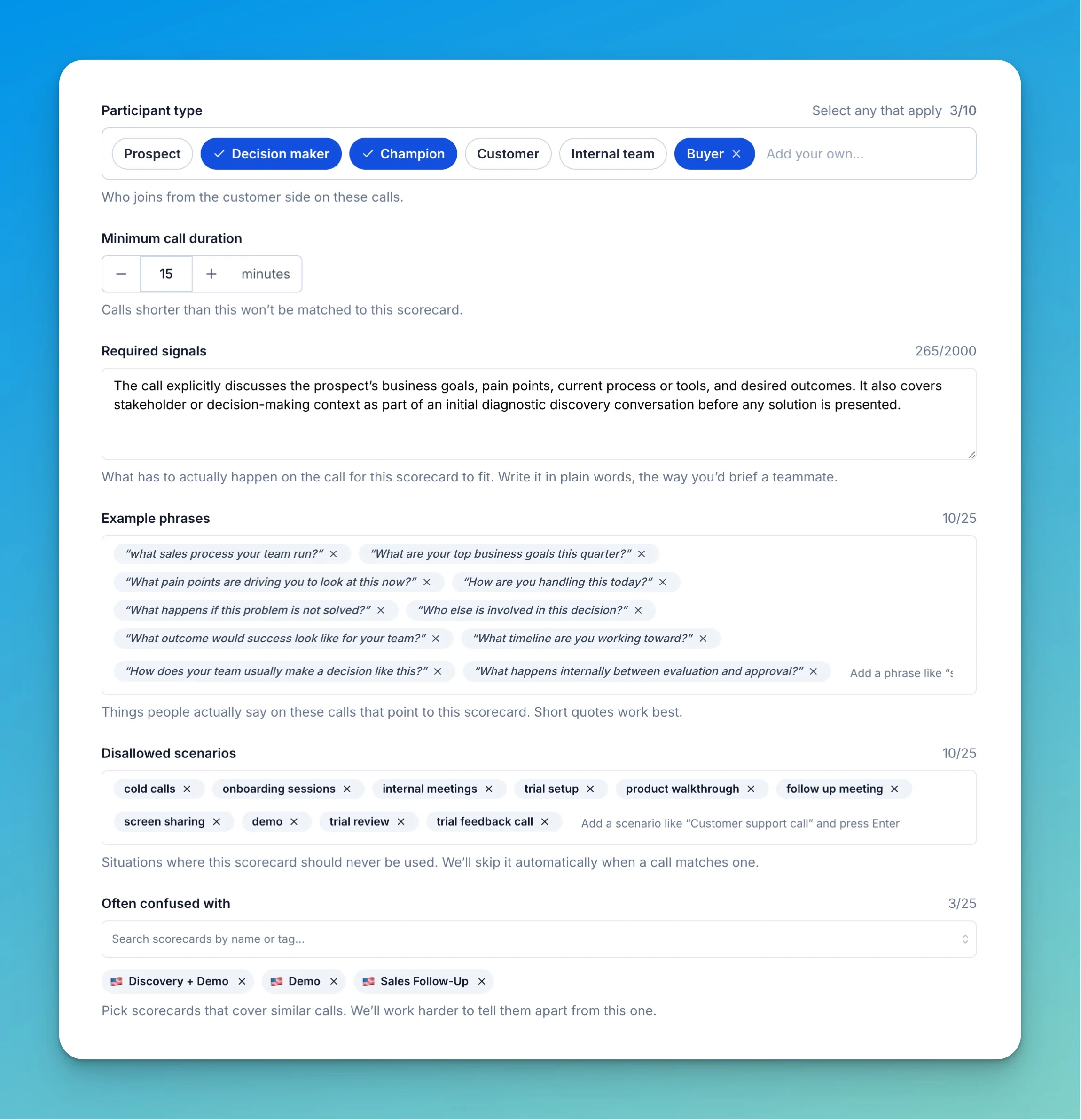
Smart selection hints are optional structured signals that sharpen matching when the description alone is not enough. Fill in as many or as few as you need — every hint you add gives the matcher one more way to confirm (or rule out) a call.
## Smart selection hints
Smart selection hints are optional structured signals that sharpen matching when the description alone is not enough. Fill in as many or as few as you need — every hint you add gives the matcher one more way to confirm (or rule out) a call.
 The stages these calls usually happen in. Select any that apply from Discovery, Qualification, Demo, Proposal, Negotiation, Closing, and Follow-up, or add your own.
Who joins from the customer side on these calls — Prospect, Decision maker, Champion, Customer, Internal team, Buyer, or a custom value. Select any that apply.
Calls shorter than this won't be matched to this scorecard. Use it to keep brief or accidental calls from being scored against a scorecard meant for longer conversations.
What has to actually happen on the call for this scorecard to fit. Write it in plain words, the way you'd brief a teammate — for example, "The call explicitly discusses the prospect's business goals, pain points, current process or tools, and desired outcomes as part of an initial diagnostic discovery conversation before any solution is presented."
Things people actually say on these calls that point to this scorecard. Short quotes work best — "What process does your team run?" or "What are your top business goals this quarter?"
Situations where this scorecard should never be used. Triple Session skips the scorecard automatically when a call matches one — for example, cold calls, onboarding sessions, internal meetings, trial setup, or product walkthroughs.
Pick scorecards that cover similar calls. Triple Session works harder to tell them apart from this one — useful when a Discovery and a Demo scorecard, for example, keep matching the same calls.
Start with a clear description, run **Get AI Feedback**, then add hints only where the feedback shows the matcher is uncertain. You rarely need every field filled in.
## Custom scorecards
If your team follows a proprietary playbook, Triple Session can build a custom scorecard tailored to your process.
To request a custom scorecard, send a message to [support@triplesession.com](mailto:support@triplesession.com) and describe your playbook. The team will build it for you.
Have questions or run into issues? Contact the support team at [support@triplesession.com](mailto:support@triplesession.com).
The stages these calls usually happen in. Select any that apply from Discovery, Qualification, Demo, Proposal, Negotiation, Closing, and Follow-up, or add your own.
Who joins from the customer side on these calls — Prospect, Decision maker, Champion, Customer, Internal team, Buyer, or a custom value. Select any that apply.
Calls shorter than this won't be matched to this scorecard. Use it to keep brief or accidental calls from being scored against a scorecard meant for longer conversations.
What has to actually happen on the call for this scorecard to fit. Write it in plain words, the way you'd brief a teammate — for example, "The call explicitly discusses the prospect's business goals, pain points, current process or tools, and desired outcomes as part of an initial diagnostic discovery conversation before any solution is presented."
Things people actually say on these calls that point to this scorecard. Short quotes work best — "What process does your team run?" or "What are your top business goals this quarter?"
Situations where this scorecard should never be used. Triple Session skips the scorecard automatically when a call matches one — for example, cold calls, onboarding sessions, internal meetings, trial setup, or product walkthroughs.
Pick scorecards that cover similar calls. Triple Session works harder to tell them apart from this one — useful when a Discovery and a Demo scorecard, for example, keep matching the same calls.
Start with a clear description, run **Get AI Feedback**, then add hints only where the feedback shows the matcher is uncertain. You rarely need every field filled in.
## Custom scorecards
If your team follows a proprietary playbook, Triple Session can build a custom scorecard tailored to your process.
To request a custom scorecard, send a message to [support@triplesession.com](mailto:support@triplesession.com) and describe your playbook. The team will build it for you.
Have questions or run into issues? Contact the support team at [support@triplesession.com](mailto:support@triplesession.com).