> ## Documentation Index
> Fetch the complete documentation index at: https://docs.triplesession.com/llms.txt
> Use this file to discover all available pages before exploring further.
# Send Call Notifications to Slack from Triple Session
> Set up a Triple Session automation to push call summaries, insights, and coaching alerts directly to your Slack channels after meetings end.
The easiest way to notify your team about reviewed calls is through Automations. Once you set up the workflow, Triple Session automatically posts a message to a Slack channel as soon as a meeting is processed — no manual steps required.
## Requirements
* Your account must have access to [Automations](/automations/getting-started).
* You must be an admin in your Triple Session workspace.
## Example use case
*"When a sales rep finishes a discovery call with a score above 70, notify the sales managers in #sales with the deal insights."*
## Setup
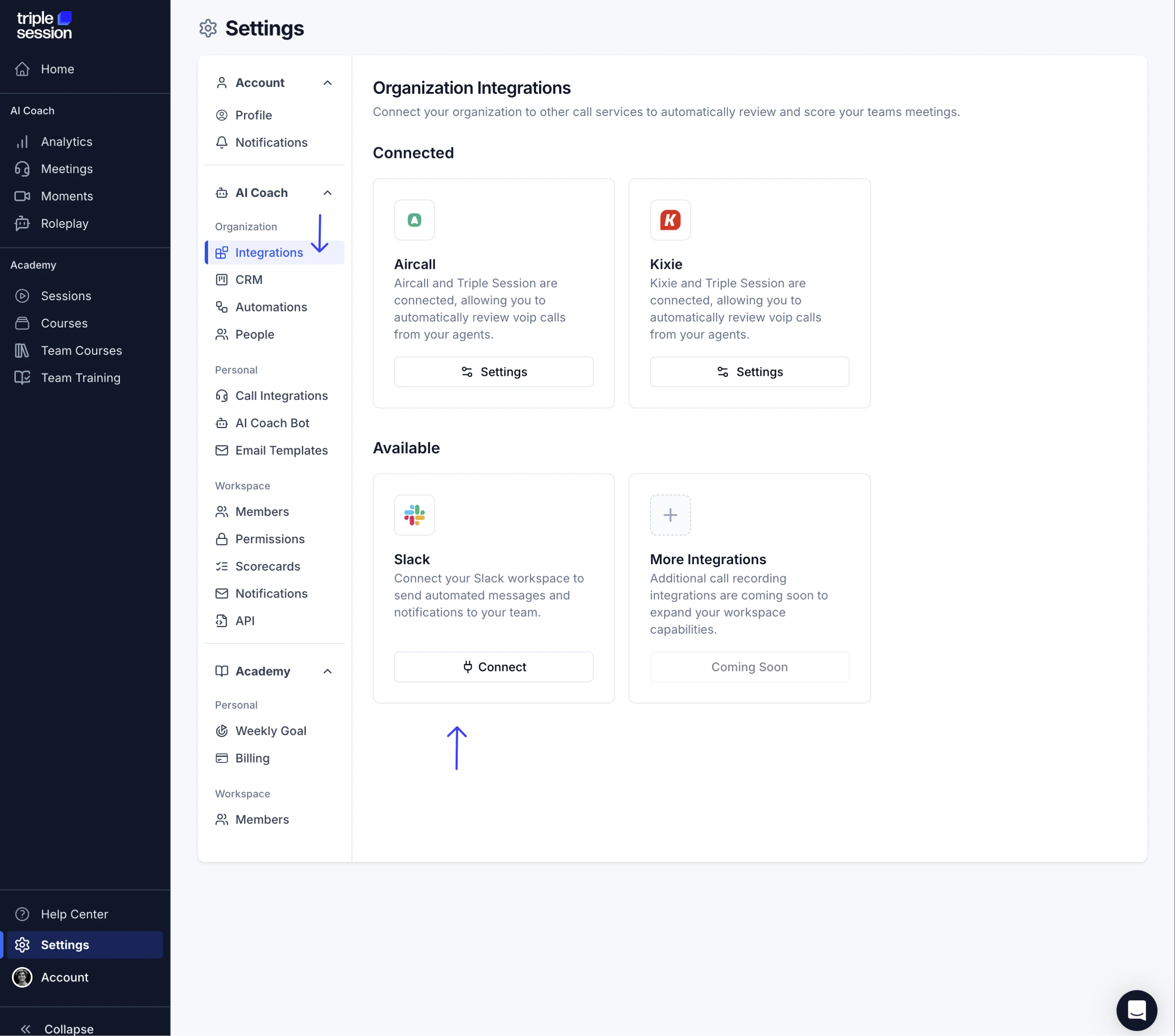
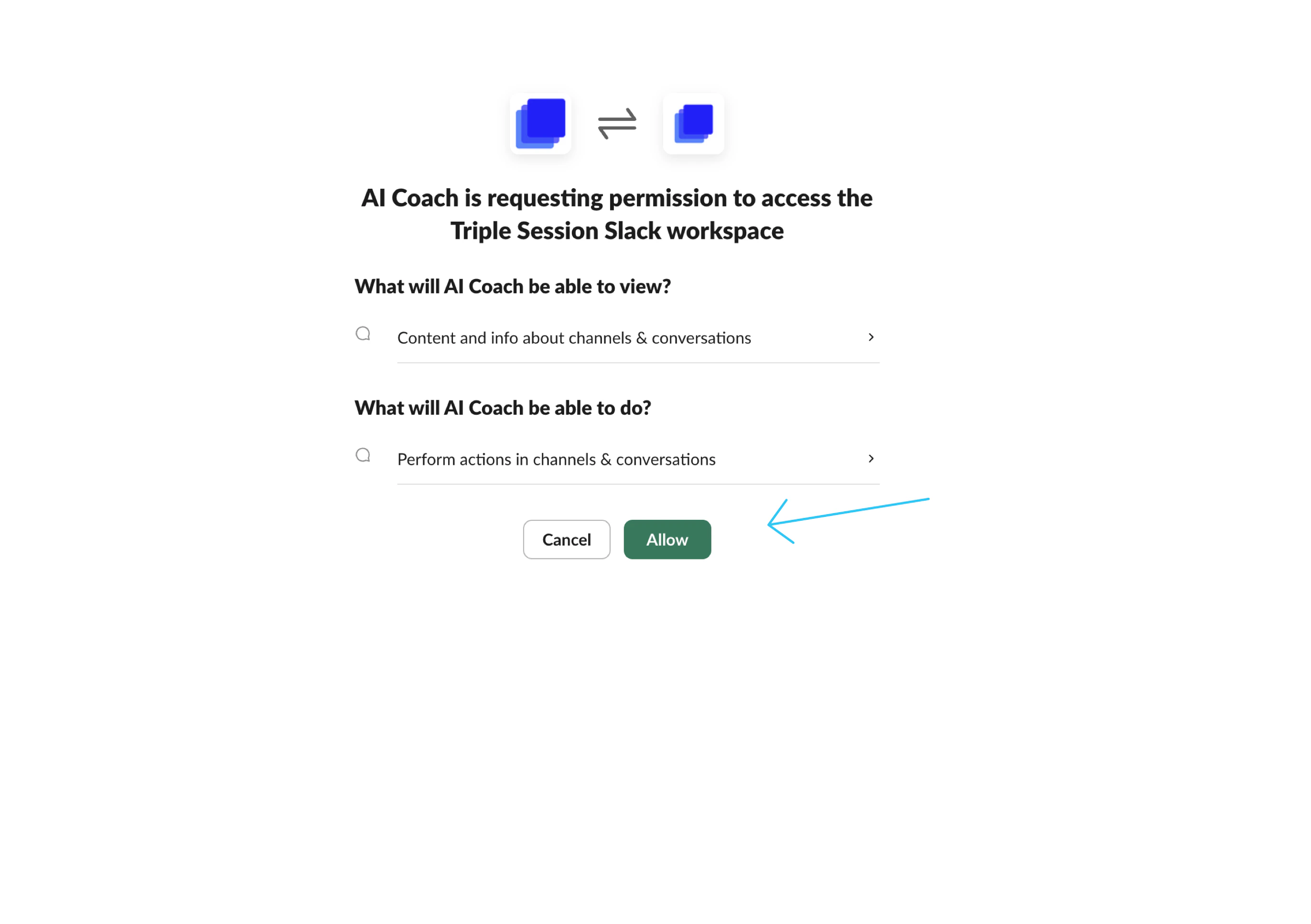
Go to **Settings > Integrations** and click **Connect** next to Slack. Follow the OAuth flow to authorize the integration.
 In Slack, open the channel where you want to receive notifications and invite the AI Coach app. This step is required — without it, the app cannot post messages to the channel.
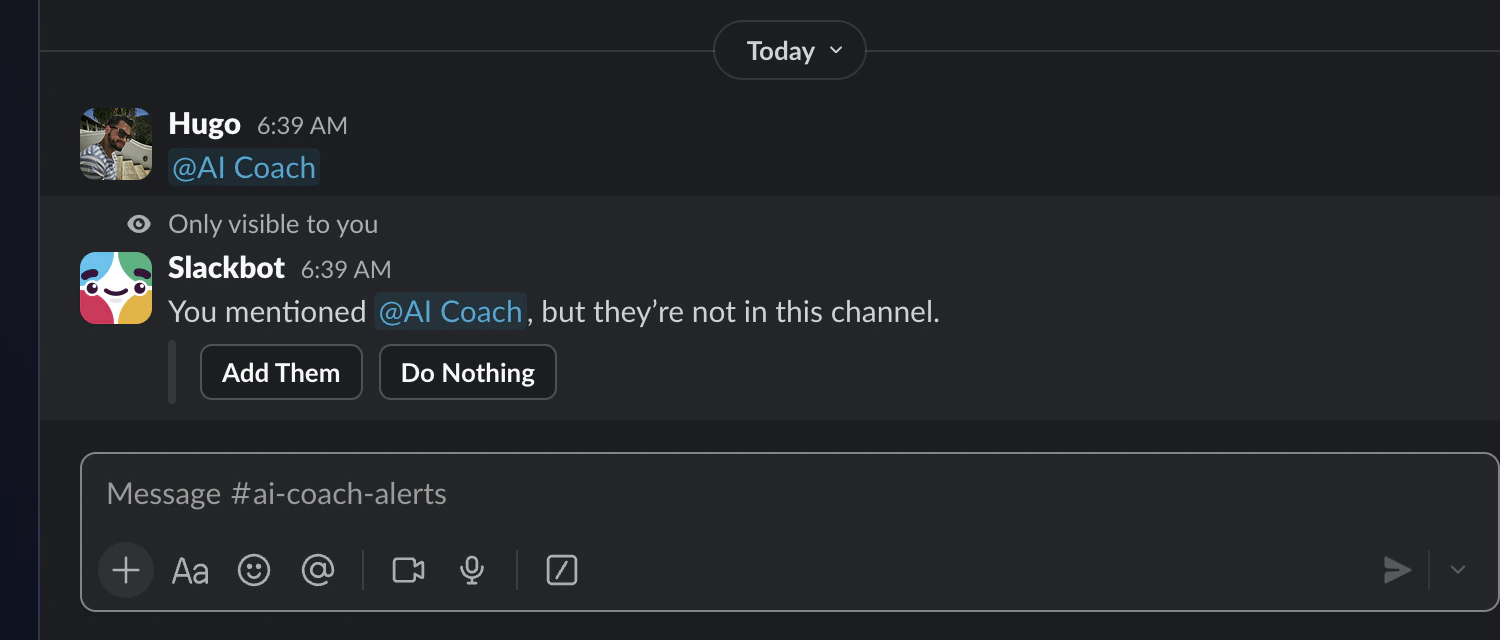 If you skip this step, the automation will be saved but notifications will not appear in the channel.
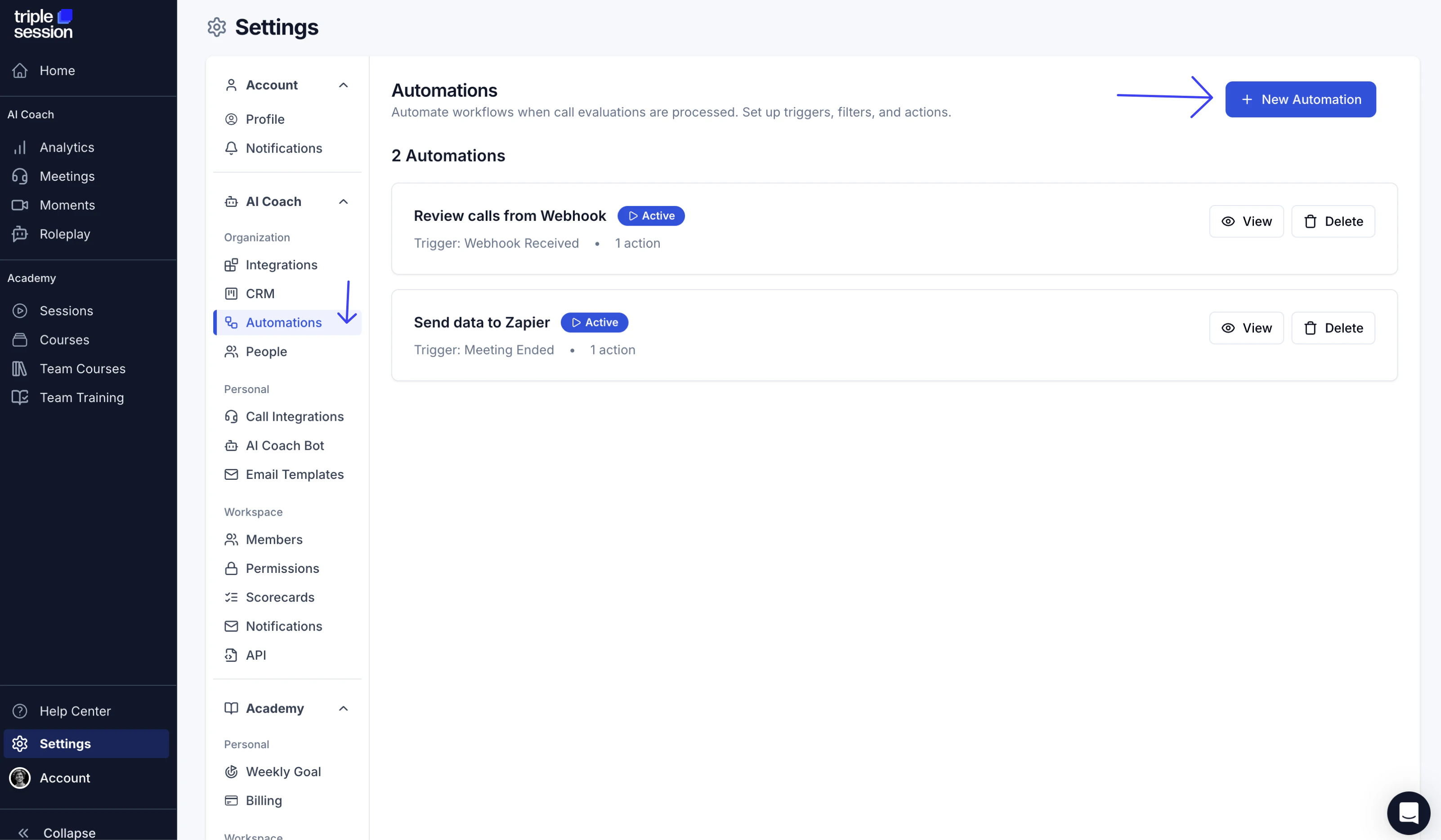
Go to **Settings > Automations** and click **New Automation**.
If you skip this step, the automation will be saved but notifications will not appear in the channel.
Go to **Settings > Automations** and click **New Automation**.
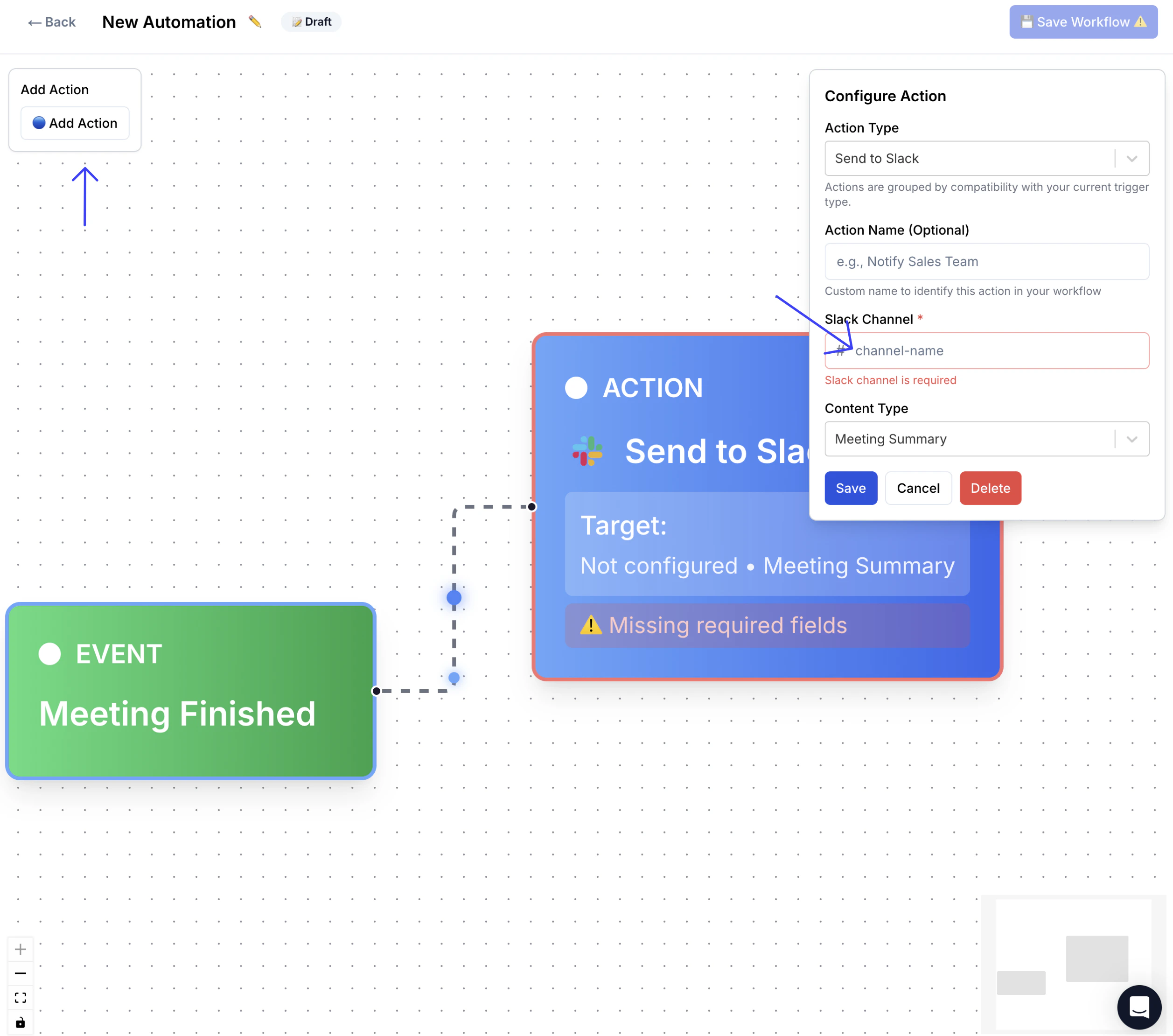
 In the automation editor:
* Set the **Trigger** to **Meeting Finished**.
* Set the **Action** to **Send to Slack**.
* Enter the name of the Slack channel you want to post to.
You can also add **Filters** to narrow when the automation fires — for example, only for meetings with a score above a certain threshold or for a specific scorecard.
In the automation editor:
* Set the **Trigger** to **Meeting Finished**.
* Set the **Action** to **Send to Slack**.
* Enter the name of the Slack channel you want to post to.
You can also add **Filters** to narrow when the automation fires — for example, only for meetings with a score above a certain threshold or for a specific scorecard.
 Click **Save Workflow**, then click **Live** to activate the automation.
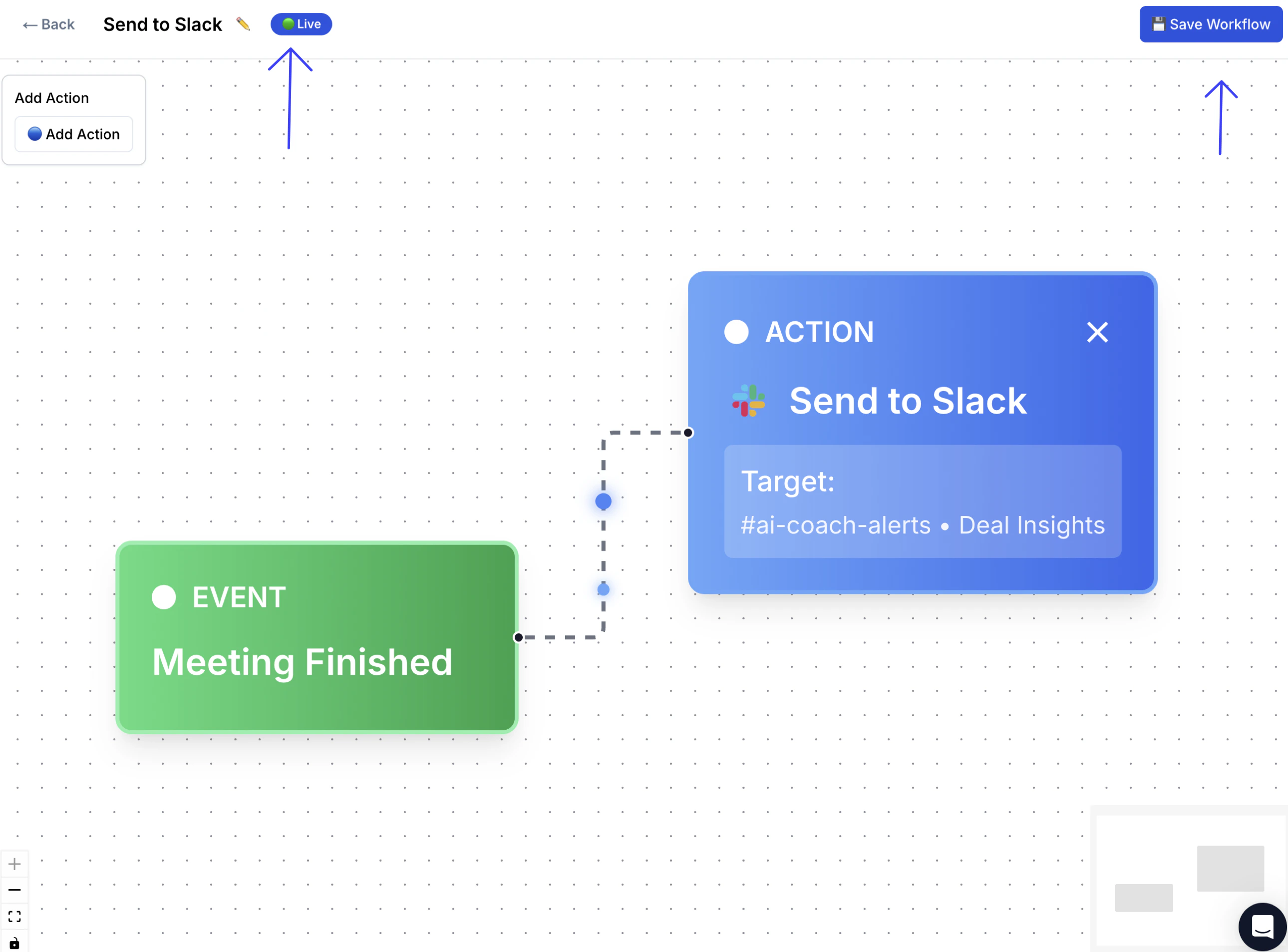 You can pause the automation at any time by switching it back to **Draft**.
## What happens next
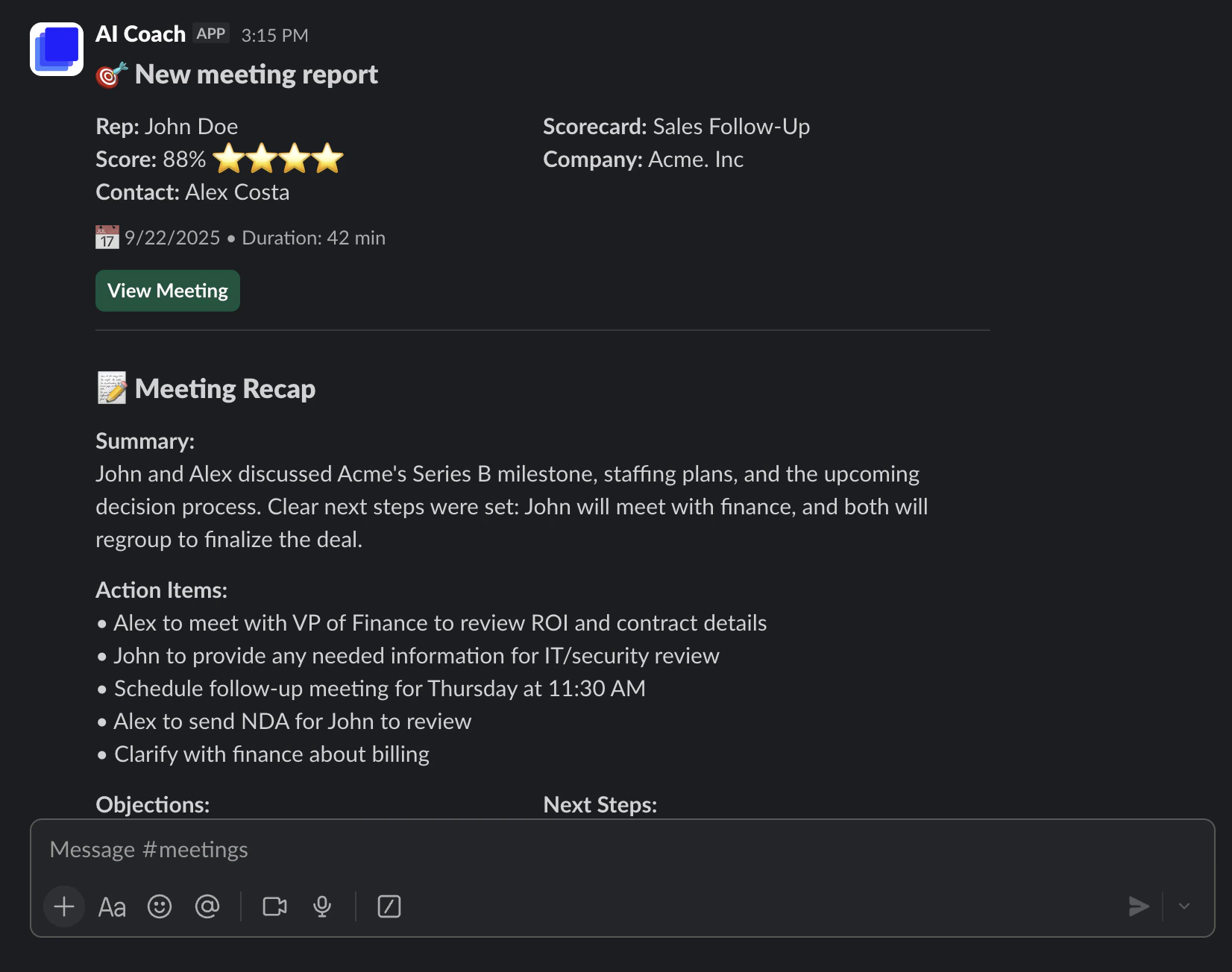
Once the automation is live, every new meeting that meets your filter criteria will trigger a Slack notification as soon as the AI Coach finishes processing it. The message appears in the channel you specified and includes the deal insights from the review.
You can pause the automation at any time by switching it back to **Draft**.
## What happens next
Once the automation is live, every new meeting that meets your filter criteria will trigger a Slack notification as soon as the AI Coach finishes processing it. The message appears in the channel you specified and includes the deal insights from the review.