> ## Documentation Index
> Fetch the complete documentation index at: https://docs.triplesession.com/llms.txt
> Use this file to discover all available pages before exploring further.
# Export meetings to CSV
> Export exactly the meetings you're looking at to a CSV file — pick your columns, and get large exports emailed to you as a download link.
August 3, 2026New
You can now export meetings straight from the **Meetings** tab in AI Coach.
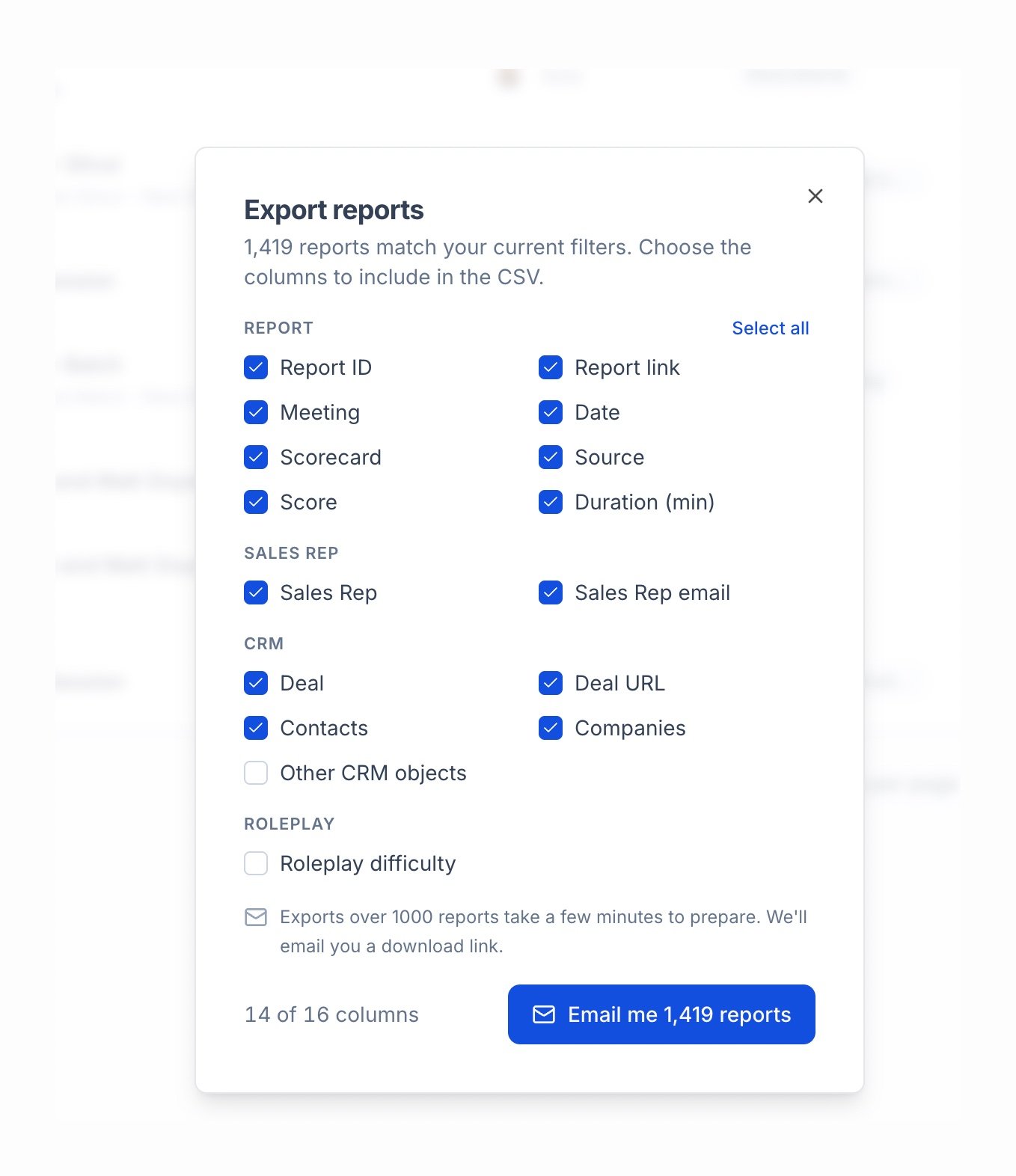 Click **Export** in the Meetings toolbar and pick which columns to include — Report details, Sales rep, CRM fields, and Roleplay difficulty are grouped separately so you can quickly select just what you need.
Exports always match exactly what's on screen: your active filters, search, and date range, plus the same visibility rules as the Meetings page itself — private and restricted meetings are never included, even for admins.
Small exports (1,000 meetings or fewer) download immediately. Larger exports are prepared in the background and emailed to you as a personal download link once ready.
Exporting is available to Admins and Managers by default; extend it to Members from **Settings → Permissions**.
See [Export Meetings](/ai-coach/export-meetings) for the full walkthrough.
Click **Export** in the Meetings toolbar and pick which columns to include — Report details, Sales rep, CRM fields, and Roleplay difficulty are grouped separately so you can quickly select just what you need.
Exports always match exactly what's on screen: your active filters, search, and date range, plus the same visibility rules as the Meetings page itself — private and restricted meetings are never included, even for admins.
Small exports (1,000 meetings or fewer) download immediately. Larger exports are prepared in the background and emailed to you as a personal download link once ready.
Exporting is available to Admins and Managers by default; extend it to Members from **Settings → Permissions**.
See [Export Meetings](/ai-coach/export-meetings) for the full walkthrough.