> ## Documentation Index
> Fetch the complete documentation index at: https://docs.triplesession.com/llms.txt
> Use this file to discover all available pages before exploring further.
# Automatically Update CRM Fields When Calls End
> Set up Triple Session to automatically push deal insights and summaries to CRM fields after every call ends — eliminating manual data entry for your reps.
Triple Session's CRM Automation lets you define rules that automatically fill or update CRM properties the moment a call is processed — no manual clicking required. Once a call ends and analysis completes, the automation runs and writes the results directly to your HubSpot or Salesforce records.
Access to Automations is required to use this feature. Contact your account manager if you don't see **Automations** in your workspace.
## Supported CRMs and objects
| CRM | Supported objects |
| ---------- | -------------------------- |
| HubSpot | Deals, Contacts, Companies |
| Salesforce | Opportunities |
## How to set up a CRM update automation
In Triple Session, navigate to **Automations** and click **New Automation**.
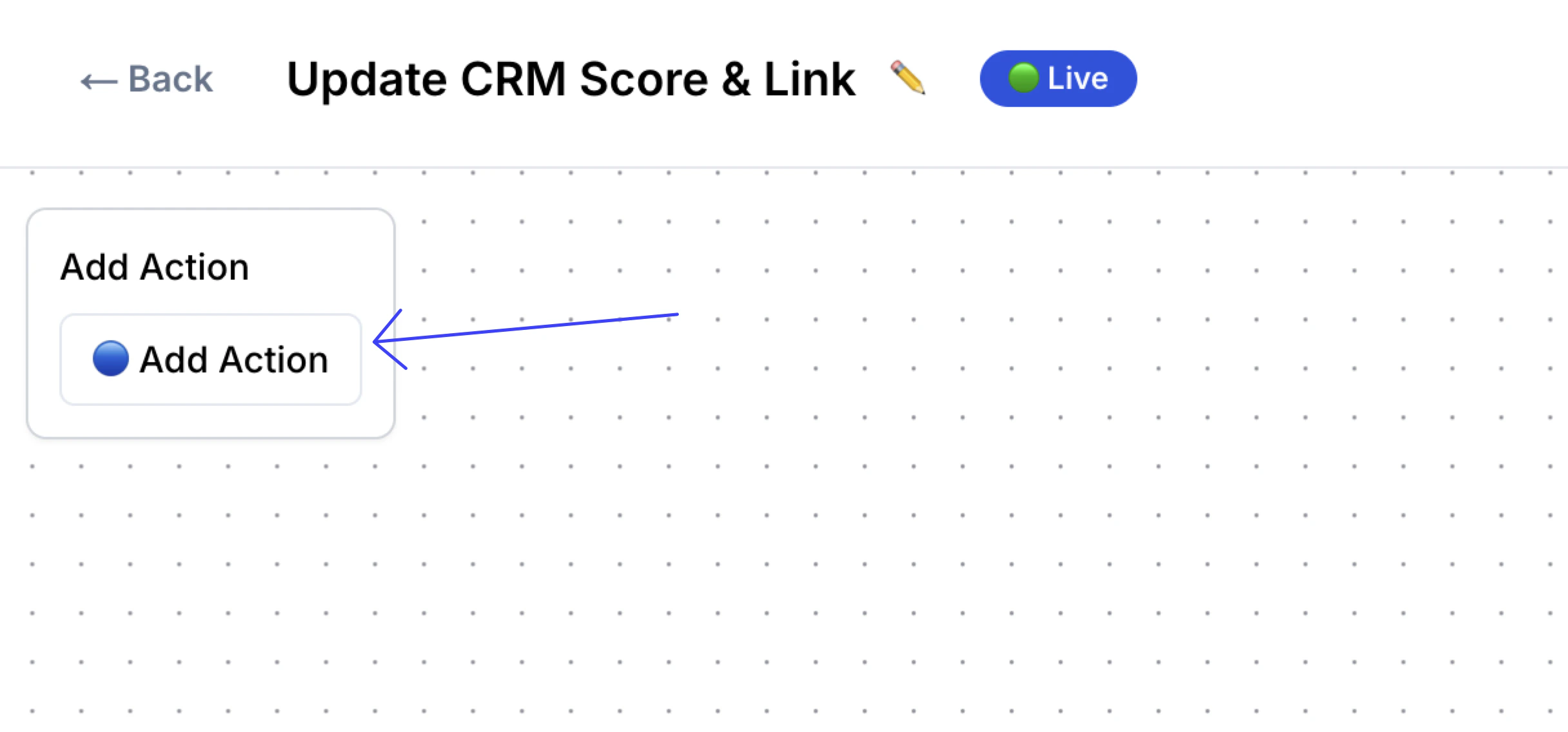
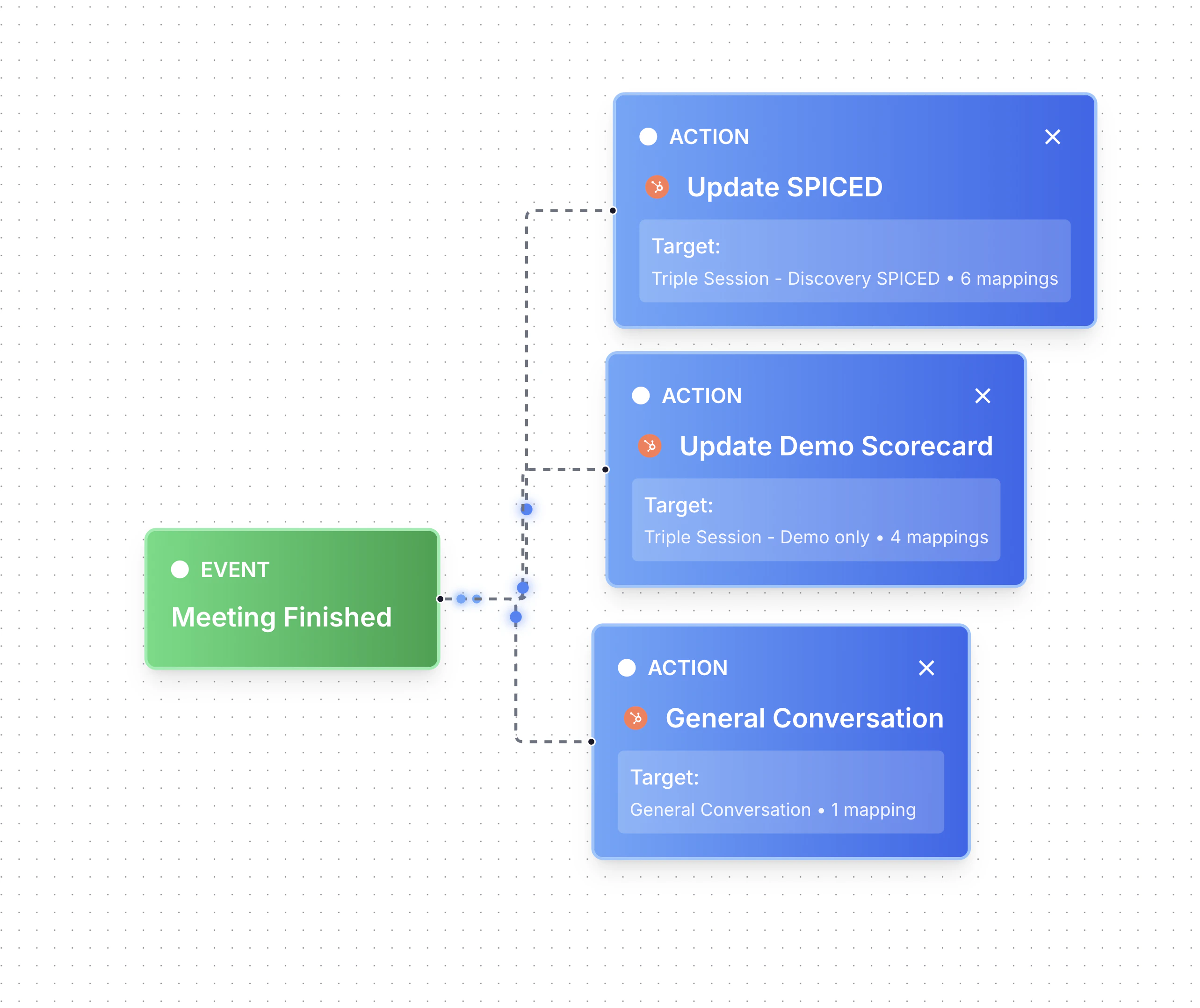 Click **Add Action**, then change the action type to **Update CRM**.
 Choose the scorecard whose results should trigger the CRM update.
Then select the CRM object you want to update — Deal, Contact, Company, or Opportunity — depending on your CRM.
Choose the scorecard whose results should trigger the CRM update.
Then select the CRM object you want to update — Deal, Contact, Company, or Opportunity — depending on your CRM.
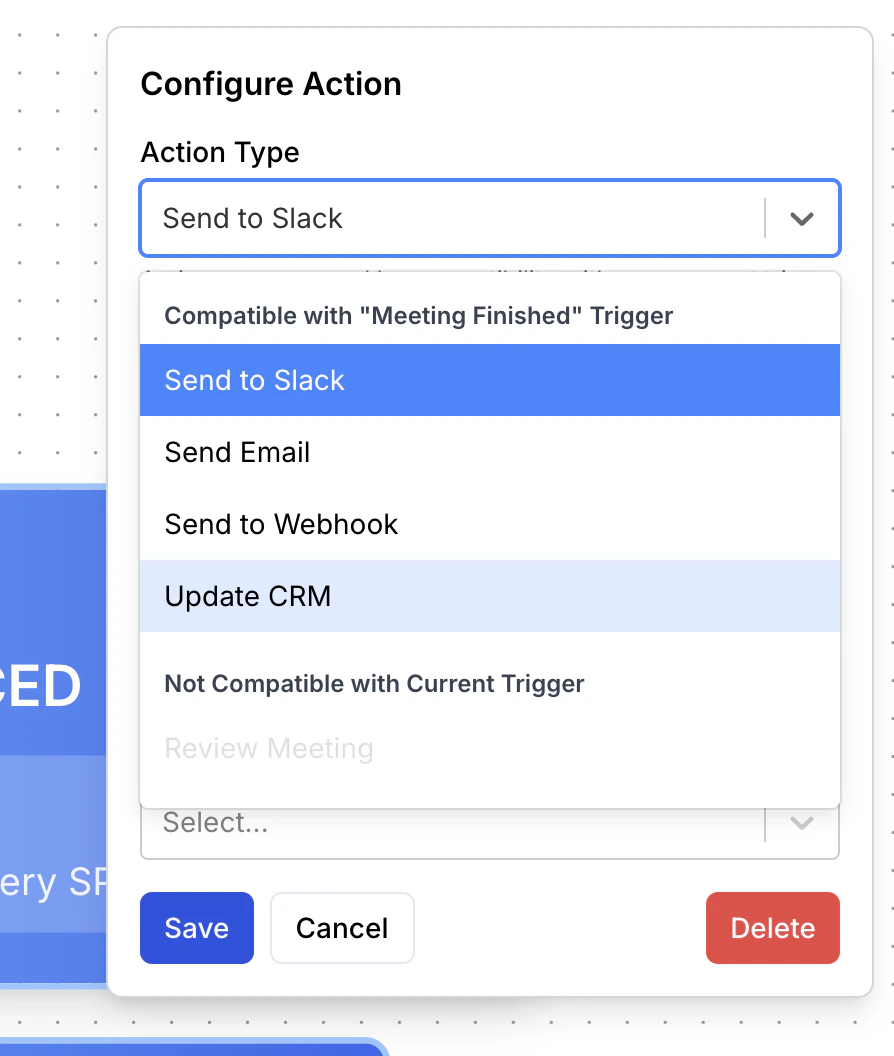 Define which CRM fields to fill or update. You can map multiple fields from the scorecard to CRM properties within a single automation.
For text fields, choose how to handle existing data:
* **Append** — adds new data to the existing field content.
* **Replace** — overwrites the existing content entirely.
Each automation applies to one scorecard and one object type.
Define which CRM fields to fill or update. You can map multiple fields from the scorecard to CRM properties within a single automation.
For text fields, choose how to handle existing data:
* **Append** — adds new data to the existing field content.
* **Replace** — overwrites the existing content entirely.
Each automation applies to one scorecard and one object type.
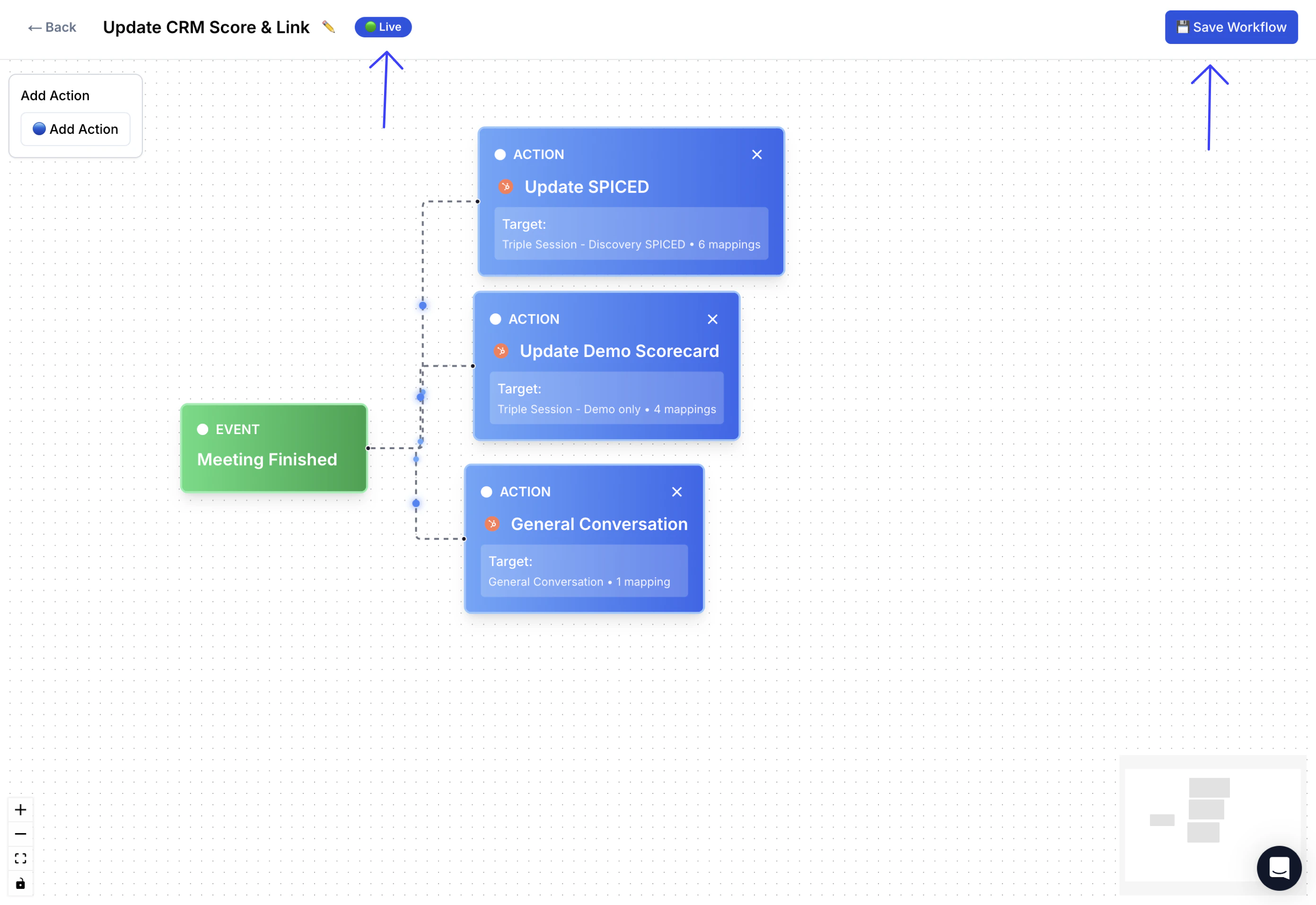
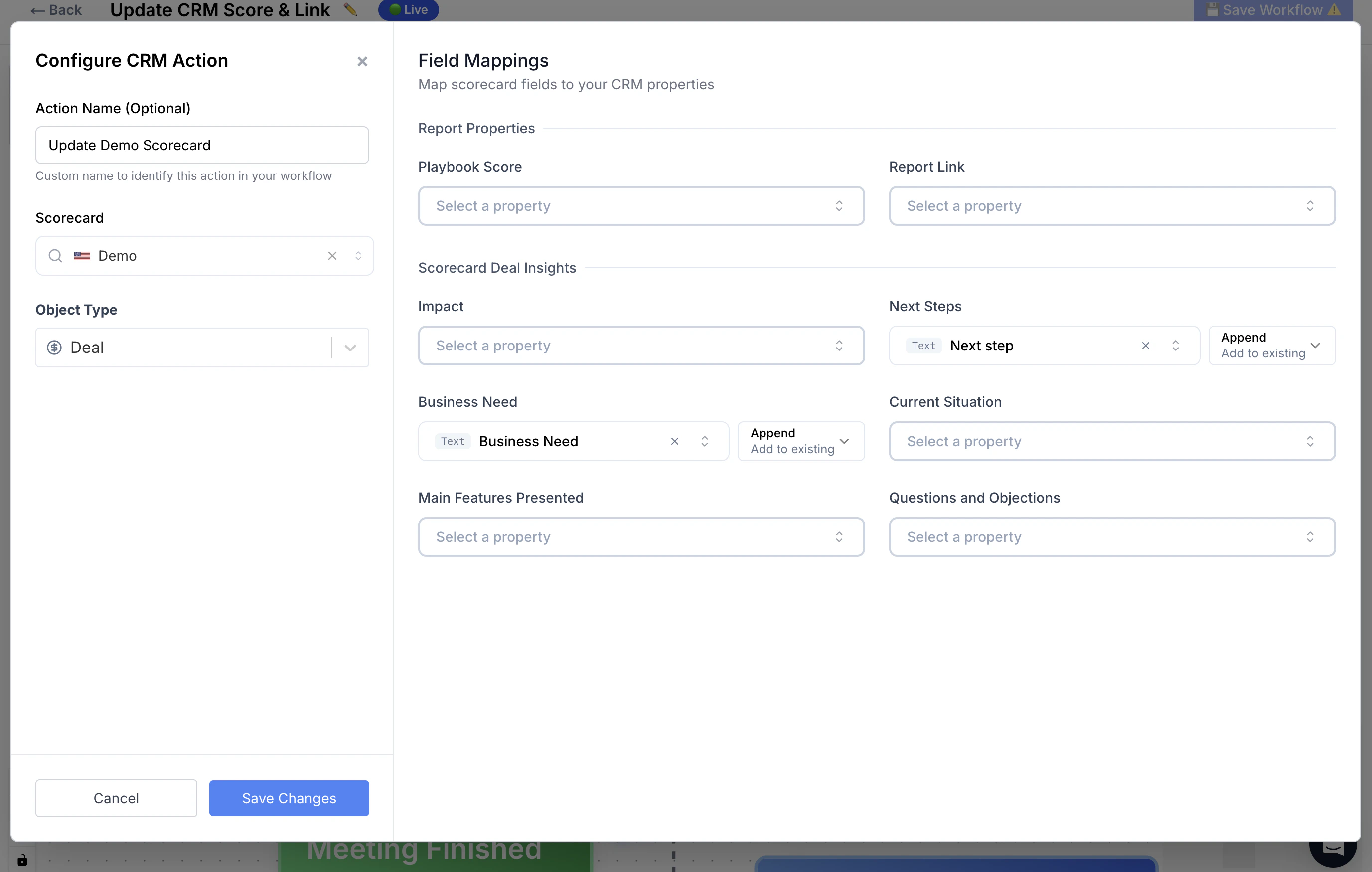 Click **Save**, then change the status from **Draft** to **Live**.
The automation starts running as soon as calls end.
Click **Save**, then change the status from **Draft** to **Live**.
The automation starts running as soon as calls end.
 ## Monitor results
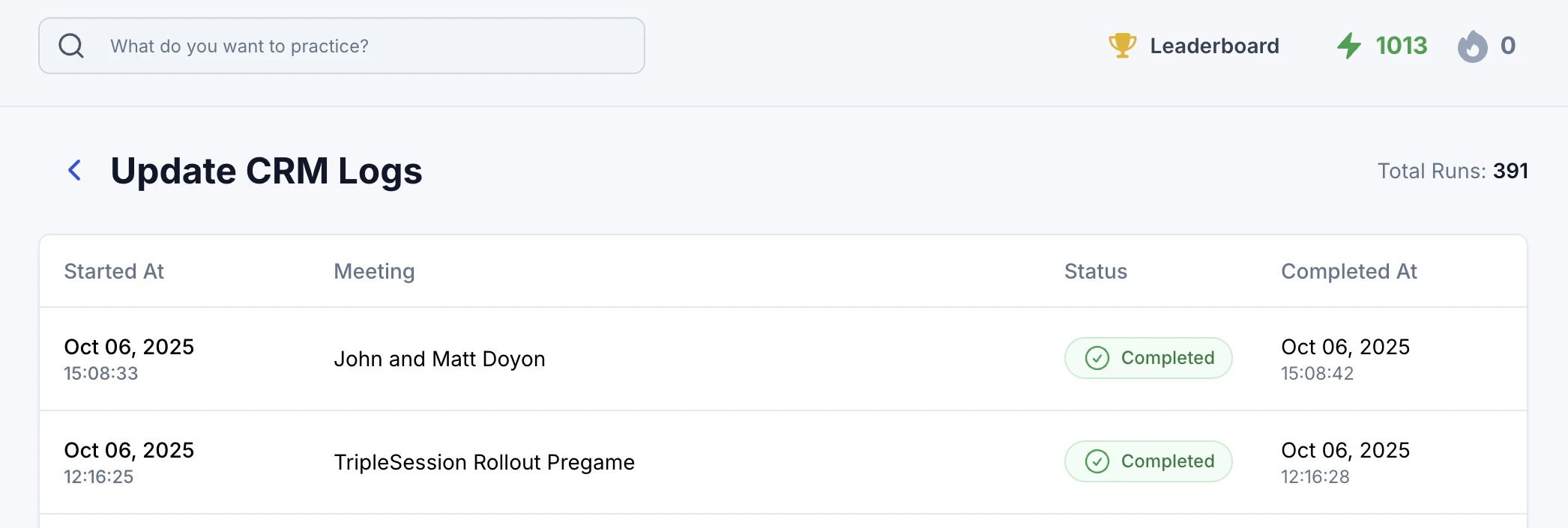
Click **Logs** at any time to review how the automation is performing. The log shows:
* How many times the automation has run
* Success or error status for each execution
## Monitor results
Click **Logs** at any time to review how the automation is performing. The log shows:
* How many times the automation has run
* Success or error status for each execution
 ## Automation settings for notes (Settings > AI Coach > CRM)
In addition to the Automations builder above, Triple Session also provides a simpler toggle-based approach for automatically pushing **Notes** to your CRM after every call. You can find these settings under **Settings > AI Coach > CRM**.
The settings-based automatic push only sends information as **CRM Notes**. It does not automatically update specific **CRM Properties**. To automatically update properties, use the Automations builder described in the steps above.
When you enable **Automatically Push Notes to CRM**, you can configure:
* **Which objects** receive the notes (Deal, Contact, Company, Lead).
* **What content** to push — **Summary**, **Deal Insights**, or **Summary + Deal Insights**.
* **Where** notes are stored — the CRM **Notes** object or the **Meetings** object.
Field mappings for property updates are always configured separately in **Settings > CRM**. See [Map Fields](/crm/map-fields) for instructions.
## Security and control
* Data is only written to CRM fields you explicitly define in the automation.
* You can pause any automation at any time by toggling its status from **Live** back to **Draft**.
* Logs give full visibility into every automation execution.
## Best practices
* **Start with one scorecard.** Validate that the field mapping works as expected before rolling out additional automations.
* **Use append mode** when syncing qualitative feedback or notes, so existing context isn't lost.
## Automation settings for notes (Settings > AI Coach > CRM)
In addition to the Automations builder above, Triple Session also provides a simpler toggle-based approach for automatically pushing **Notes** to your CRM after every call. You can find these settings under **Settings > AI Coach > CRM**.
The settings-based automatic push only sends information as **CRM Notes**. It does not automatically update specific **CRM Properties**. To automatically update properties, use the Automations builder described in the steps above.
When you enable **Automatically Push Notes to CRM**, you can configure:
* **Which objects** receive the notes (Deal, Contact, Company, Lead).
* **What content** to push — **Summary**, **Deal Insights**, or **Summary + Deal Insights**.
* **Where** notes are stored — the CRM **Notes** object or the **Meetings** object.
Field mappings for property updates are always configured separately in **Settings > CRM**. See [Map Fields](/crm/map-fields) for instructions.
## Security and control
* Data is only written to CRM fields you explicitly define in the automation.
* You can pause any automation at any time by toggling its status from **Live** back to **Draft**.
* Logs give full visibility into every automation execution.
## Best practices
* **Start with one scorecard.** Validate that the field mapping works as expected before rolling out additional automations.
* **Use append mode** when syncing qualitative feedback or notes, so existing context isn't lost.