> ## Documentation Index
> Fetch the complete documentation index at: https://docs.triplesession.com/llms.txt
> Use this file to discover all available pages before exploring further.
# Connect HubSpot CRM
> Connect HubSpot to Triple Session AI Coach to push call evaluation insights directly to your deals and keep your CRM automatically updated.
Triple Session AI Coach integrates with HubSpot CRM to push call evaluation insights directly to your deals. This integration streamlines CRM updates, enabling sales reps to keep their pipeline data accurate with minimal administrative effort.
## Prerequisites
Before connecting, make sure you have:
* **HubSpot admin access** — required to create a private app in HubSpot.
* **Triple Session admin access** — required to connect a CRM integration in Workspace Settings.
## What the integration does
Triple Session AI Coach uses a **HubSpot Private App** to securely interact with your CRM. Once connected, the integration can:
* **Fetch deals** — retrieve details about open deals to provide relevant context during call evaluations.
* **Map deal objects to AI Coach Deal Insights** — connect your HubSpot Deal object to an AI Coach Deal Insight.
* **Update deals** — automatically push evaluation data to HubSpot to keep your CRM up to date.
* **Access contact and company data** — use HubSpot CRM objects to enrich call context with account and contact information.
## Connect HubSpot to AI Coach
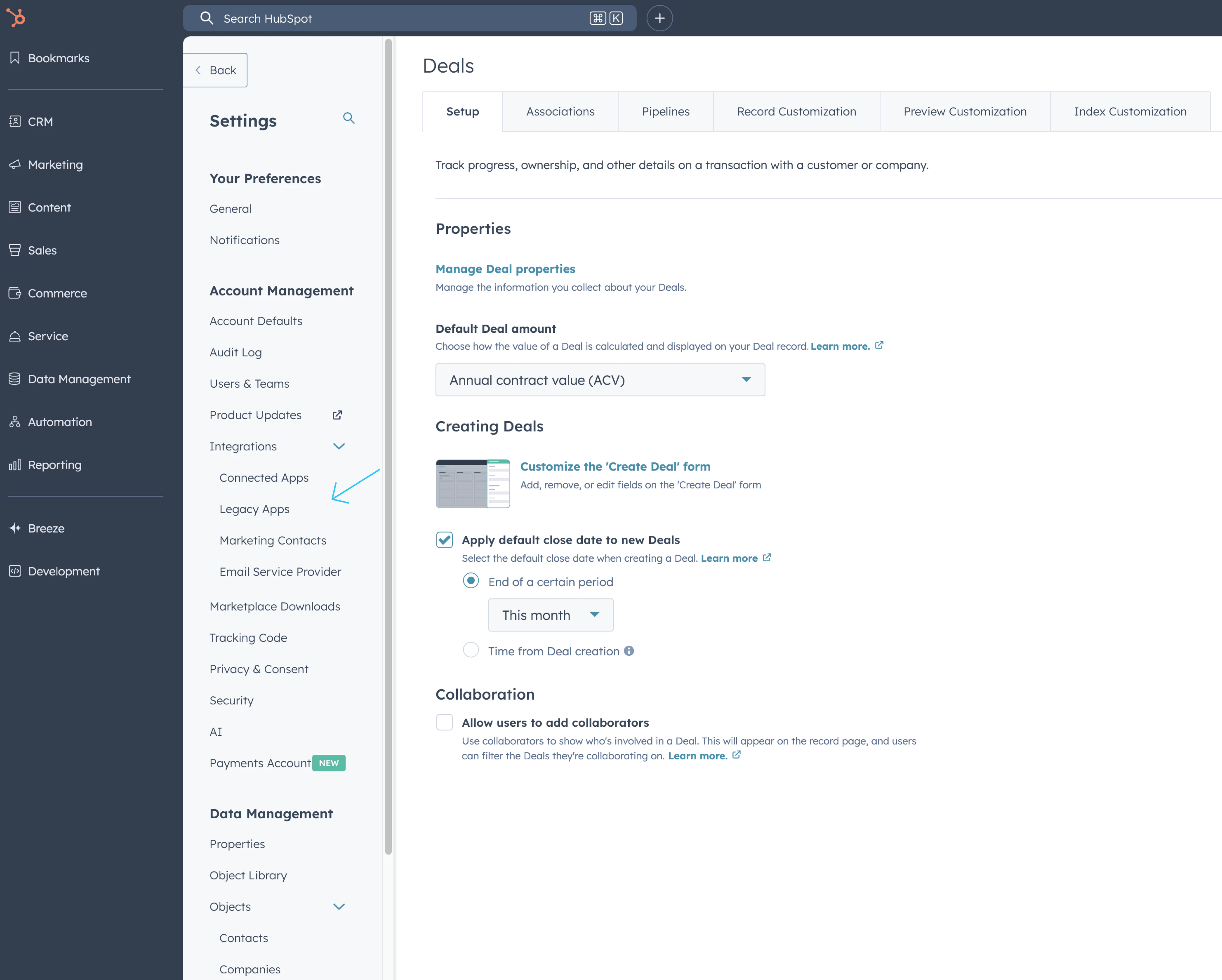
In HubSpot, open **Settings**. In the left sidebar, expand **Integrations** and click **Legacy Apps**.
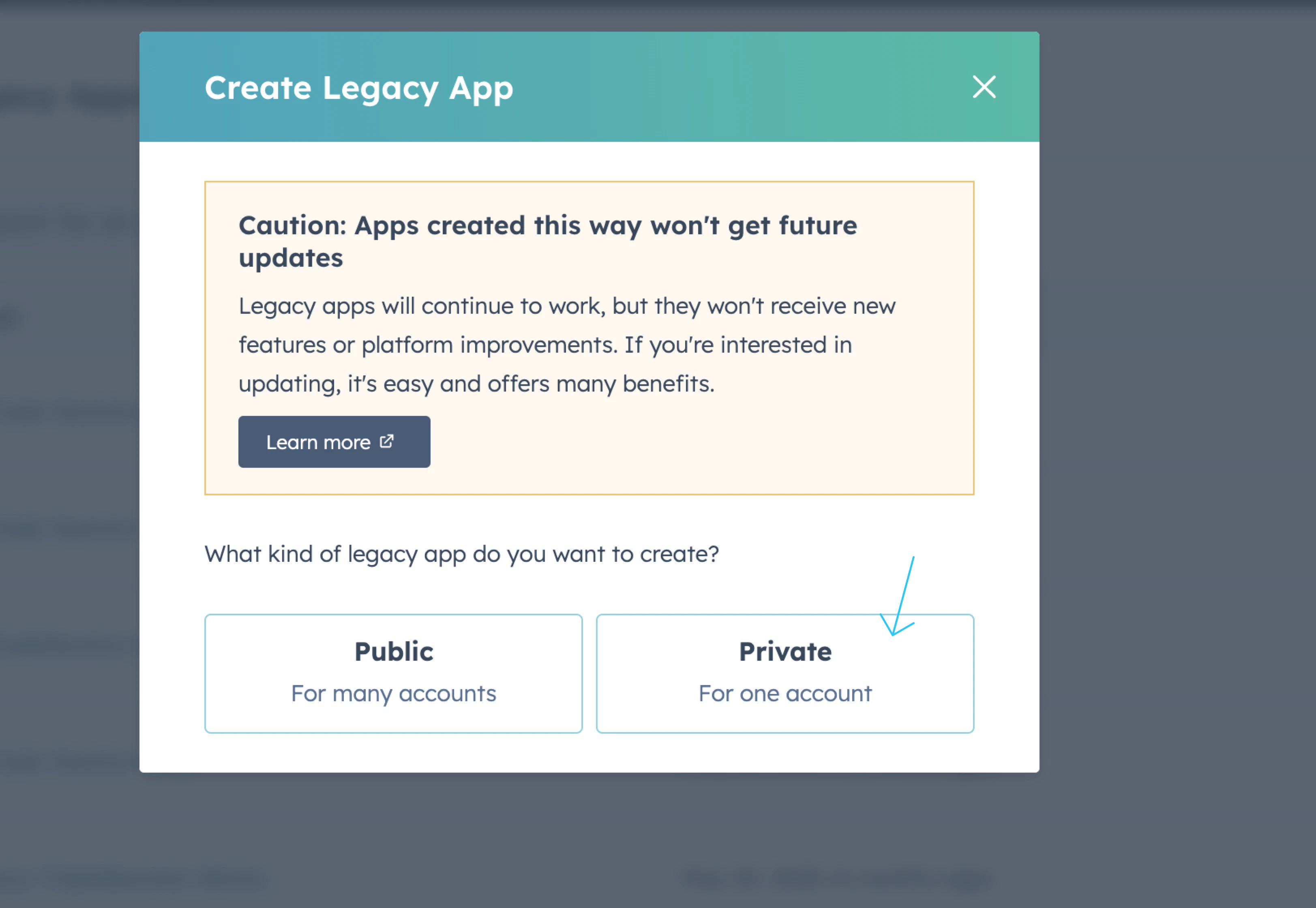
 Click **Create** to start creating a new legacy app. When asked what kind of legacy app to create, select **Private** — for one account.
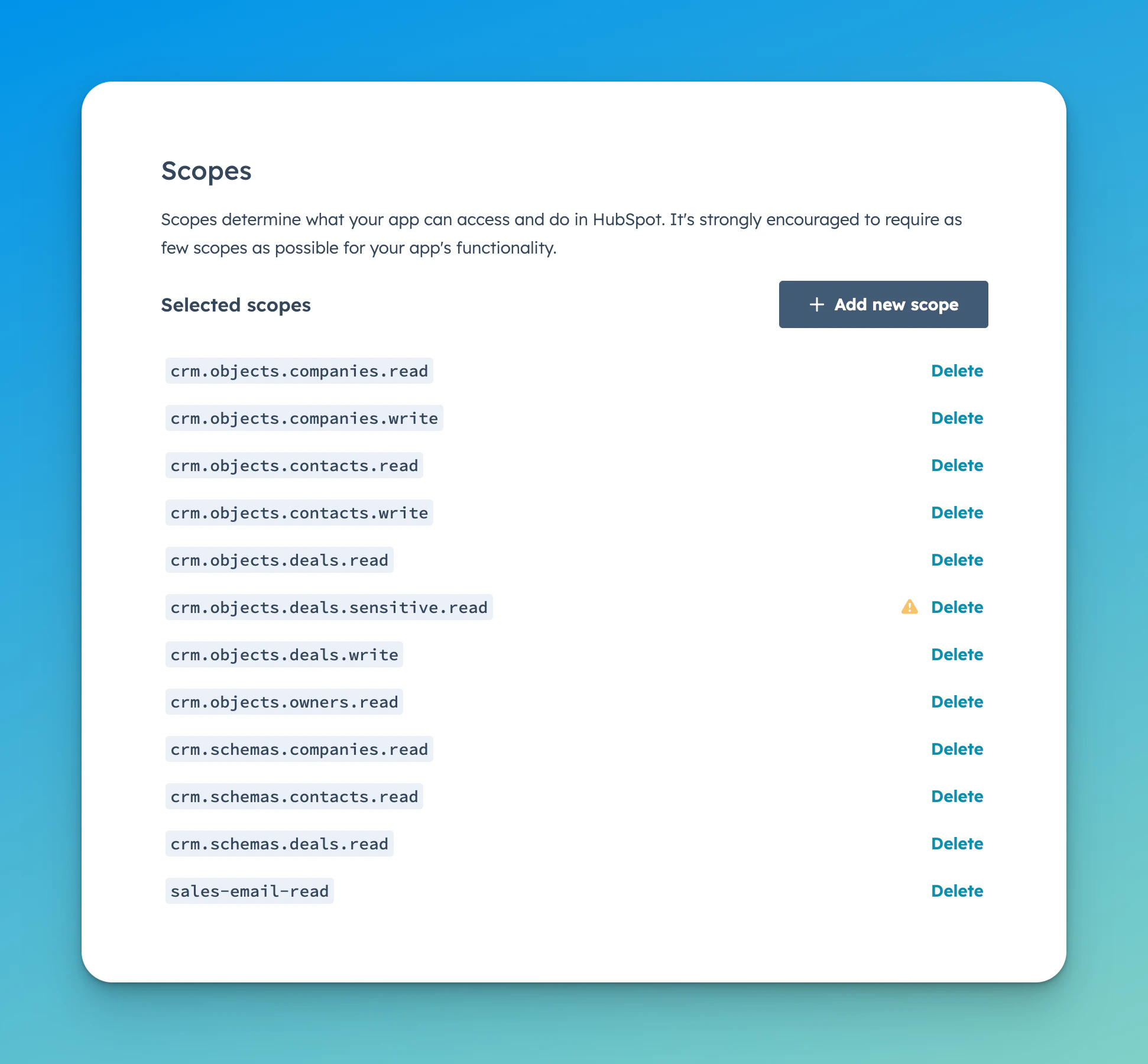
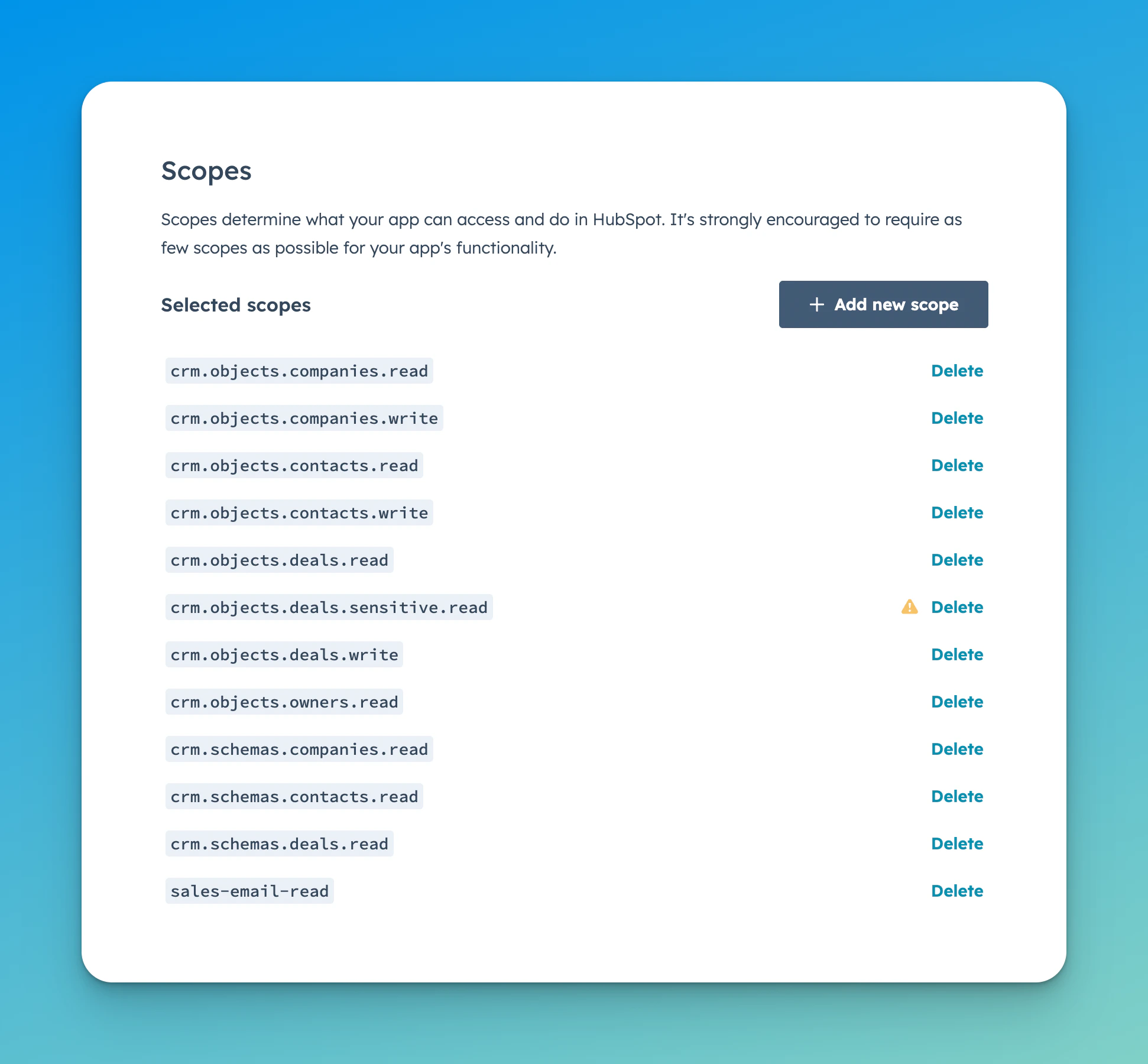
 In the app configuration, go to the **Scopes** section. Add the following scopes exactly as listed:
```
crm.objects.companies.read
crm.objects.companies.write
crm.objects.contacts.read
crm.objects.contacts.write
crm.objects.deals.read
crm.objects.deals.sensitive.read
crm.objects.deals.write
crm.objects.owners.read
crm.schemas.companies.read
crm.schemas.contacts.read
crm.schemas.deals.read
sales-email-read
```
In the app configuration, go to the **Scopes** section. Add the following scopes exactly as listed:
```
crm.objects.companies.read
crm.objects.companies.write
crm.objects.contacts.read
crm.objects.contacts.write
crm.objects.deals.read
crm.objects.deals.sensitive.read
crm.objects.deals.write
crm.objects.owners.read
crm.schemas.companies.read
crm.schemas.contacts.read
crm.schemas.deals.read
sales-email-read
```
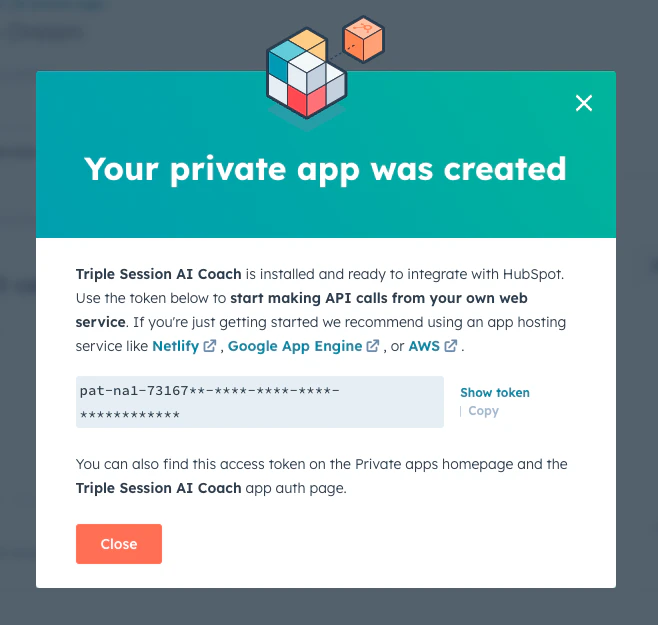
 Complete the app setup. Once the app is created, HubSpot will display your access token. Copy the token — you'll need it in the next step.
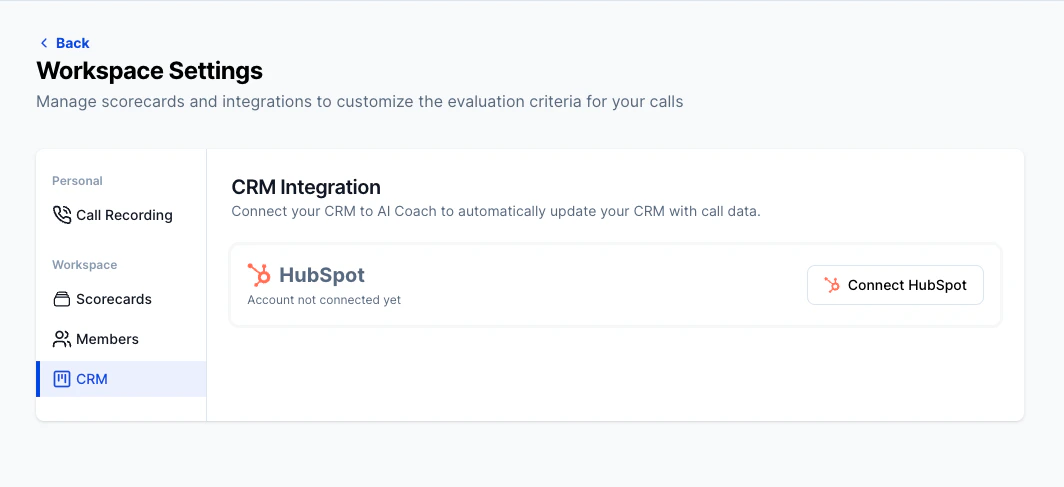
 In Triple Session, open **Settings** from the sidebar. Under **Workspace**, select **CRM**. You'll see HubSpot listed with a **Connect HubSpot** button.
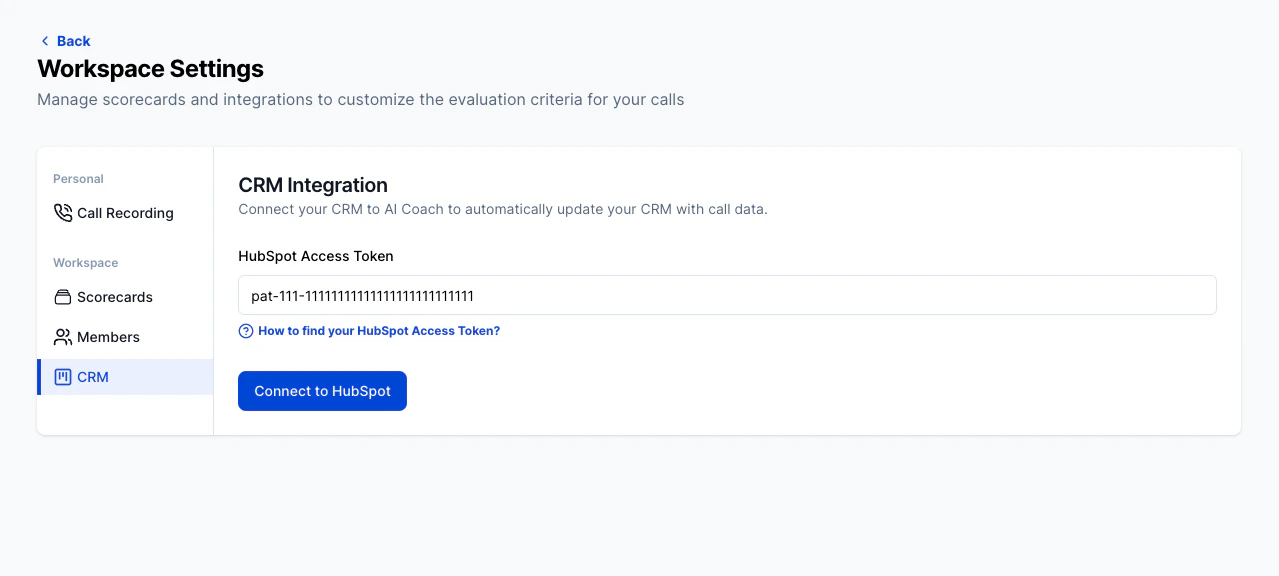
 Paste the access token from HubSpot into the **HubSpot Access Token** field, then click **Connect to HubSpot**.
 ***
After connecting, see [Keep Your CRM Updated](/crm/keep-crm-updated) to learn how to push insights manually or automatically, and [Map Fields](/crm/map-fields) to configure which deal properties get updated.
***
## How to find your access token for an existing app
If you already created a HubSpot private app for Triple Session and need to retrieve the token:
In HubSpot, open **Settings** → **Integrations** → **Legacy Apps**.
***
After connecting, see [Keep Your CRM Updated](/crm/keep-crm-updated) to learn how to push insights manually or automatically, and [Map Fields](/crm/map-fields) to configure which deal properties get updated.
***
## How to find your access token for an existing app
If you already created a HubSpot private app for Triple Session and need to retrieve the token:
In HubSpot, open **Settings** → **Integrations** → **Legacy Apps**.
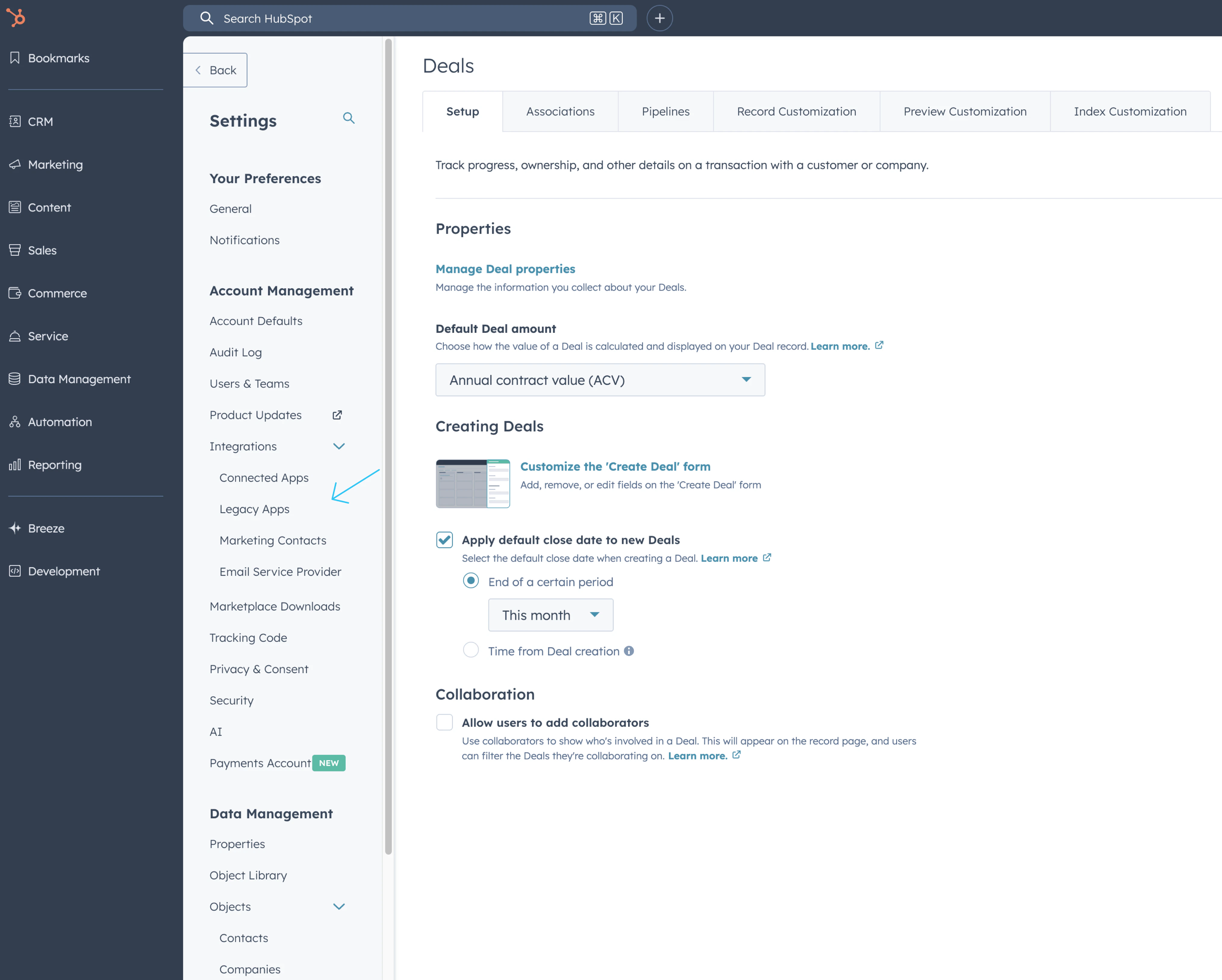 In the **Development** section, navigate to **Legacy Apps**. Click on your **Triple-Session-AICoach** private app.
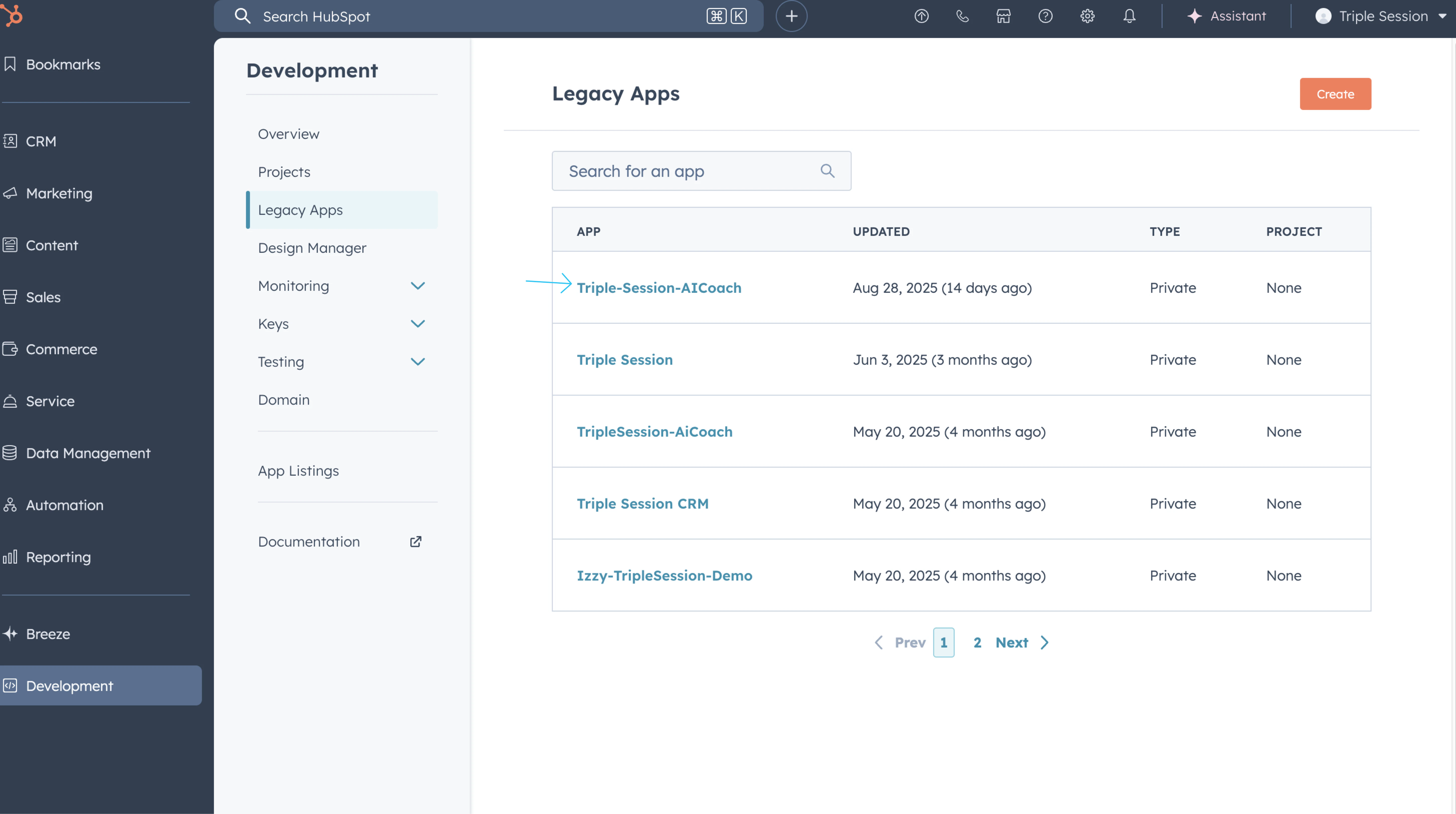 Confirm the required scopes are present in the **Scopes** section. Then navigate to the **Auth** tab to copy your access token.
 ***
## Support
* **Missing scopes:** If the connection fails, double-check that all twelve scopes listed above are added to the private app.
* **Need help?** Contact the Triple Session support team at **[support@triplesession.com](mailto:support@triplesession.com)**.
***
## Support
* **Missing scopes:** If the connection fails, double-check that all twelve scopes listed above are added to the private app.
* **Need help?** Contact the Triple Session support team at **[support@triplesession.com](mailto:support@triplesession.com)**.