> ## Documentation Index
> Fetch the complete documentation index at: https://docs.triplesession.com/llms.txt
> Use this file to discover all available pages before exploring further.
# Connect Salesforce CRM
> Connect Salesforce to Triple Session AI Coach to push call evaluation insights directly to your opportunities and keep your CRM automatically updated.
Connect Salesforce as a CRM sync destination to push AI Coach call evaluation insights directly to your opportunities.
## Prerequisites
Before connecting, make sure your Salesforce account meets the following requirements:
**Supported Salesforce editions:**
* **Enterprise Edition (EE)**
* **Unlimited Edition (UE)**
* **Professional Edition (PE)** — with API access enabled
* **Starter Edition (S)** — with API access enabled via AppExchange
API access is required. If you are on the **Professional** or **Starter** edition, confirm with your Salesforce administrator that API access is enabled before proceeding.
## What the integration does
Triple Session AI Coach uses a **Salesforce Connected App** to securely interact with your CRM. Once connected, the integration can:
* **Fetch opportunities** — retrieve details about open opportunities to provide relevant context during call evaluations.
* **Map opportunity objects to AI Coach Deal Insights** — connect your Salesforce Opportunity object to an AI Coach Deal Insight.
* **Update opportunities** — automatically push evaluation data to Salesforce to keep your CRM up to date.
* **Access user information** — use Salesforce identity services to authenticate and personalize the experience for your sales reps.
## Connect Salesforce to AI Coach
Open **AI Coach** in your workspace. Click **Settings** in the left-hand menu, then under **Workspace Settings**, select **CRM**.
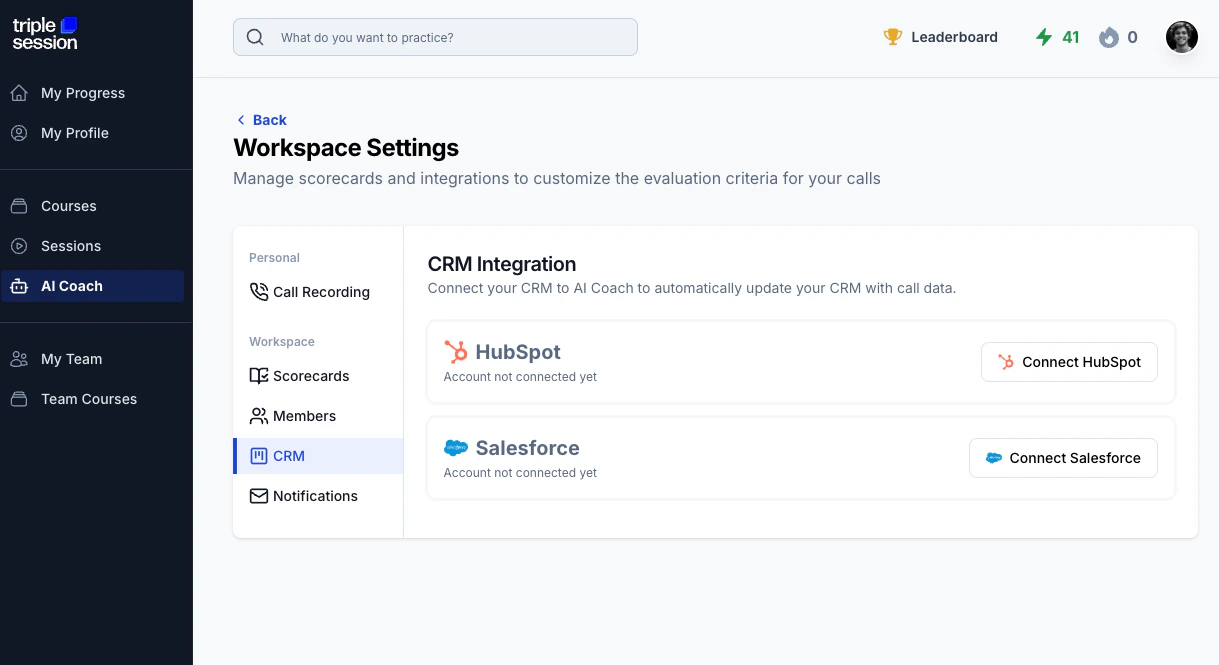 Click the **Connect Salesforce** button. You'll be redirected to Salesforce to authenticate your account.
 Log in to your Salesforce account and approve the requested permissions for Triple Session AI Coach.
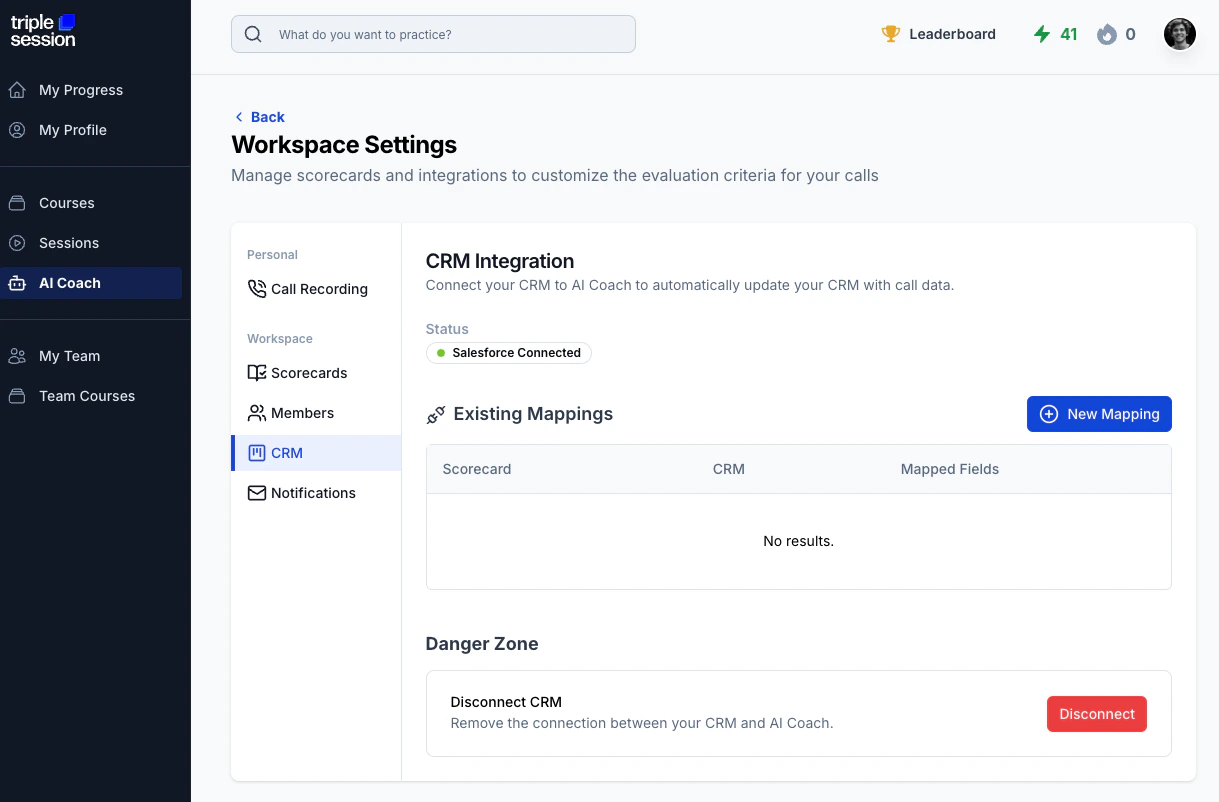
 Once authorized, you'll be redirected back to AI Coach. A confirmation message will indicate that Salesforce is now connected.
 ***
After connecting, see [Keep Your CRM Updated](/crm/keep-crm-updated) to learn how to push insights manually or automatically, and [Map Fields](/crm/map-fields) to configure which properties get updated.
***
## Troubleshooting
### The app is requesting to reconnect
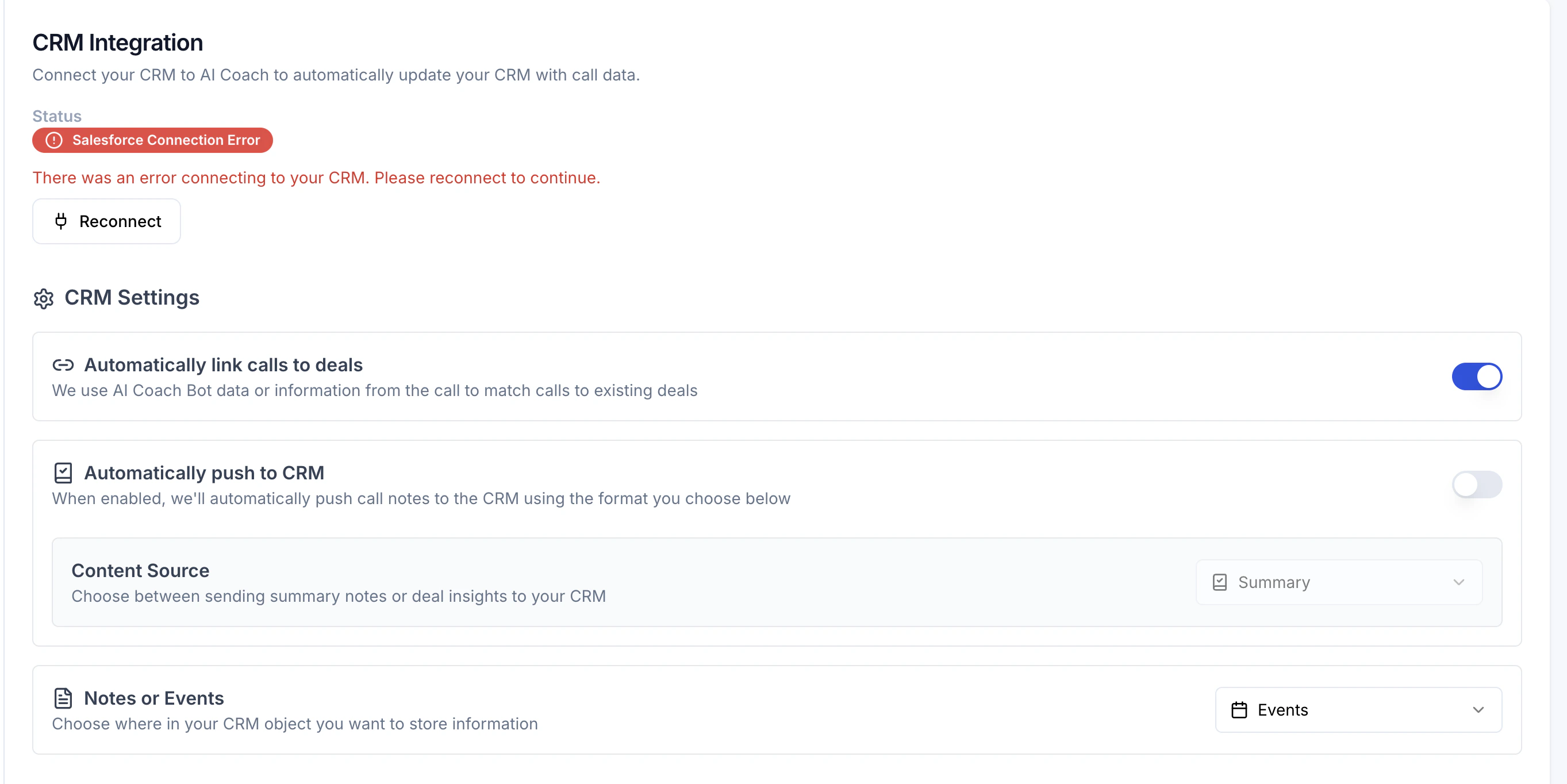
If AI Coach is prompting you to reconnect Salesforce, the refresh token may have been revoked. To prevent this, review the Connected App policies in Salesforce:
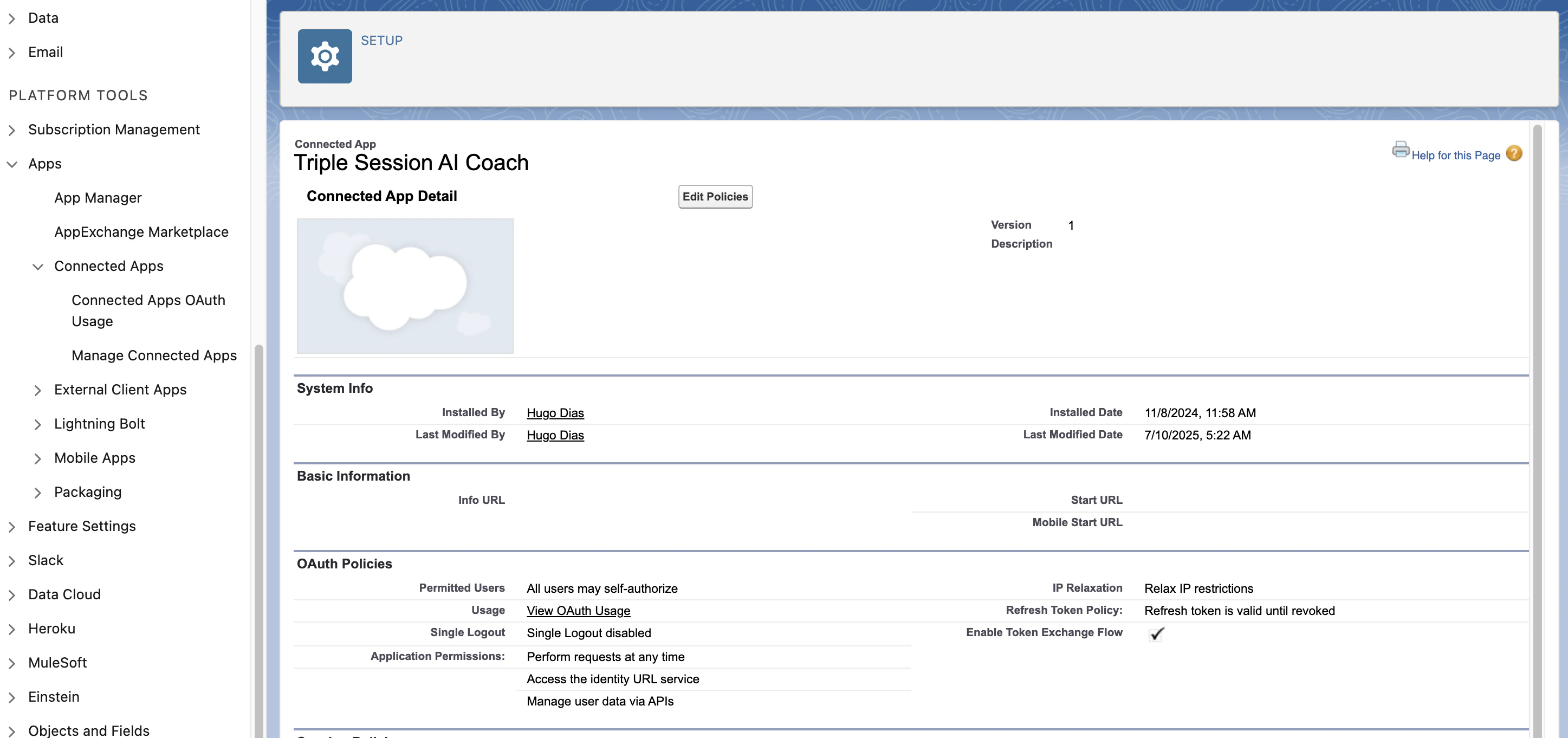
In Salesforce, go to **Setup → Apps → Connected Apps → Manage Connected Apps**.
Find **Triple Session AI Coach** in the list and click **Edit**.
Ensure the app has the following settings:
* **Refresh Token Policy:** Refresh token is valid until revoked
* **IP Relaxation:** Relax IP restrictions
* **Permitted Users:** All users may self-authorize
* **Enable Token Exchange Flow:** Checked
***
After connecting, see [Keep Your CRM Updated](/crm/keep-crm-updated) to learn how to push insights manually or automatically, and [Map Fields](/crm/map-fields) to configure which properties get updated.
***
## Troubleshooting
### The app is requesting to reconnect
If AI Coach is prompting you to reconnect Salesforce, the refresh token may have been revoked. To prevent this, review the Connected App policies in Salesforce:
In Salesforce, go to **Setup → Apps → Connected Apps → Manage Connected Apps**.
Find **Triple Session AI Coach** in the list and click **Edit**.
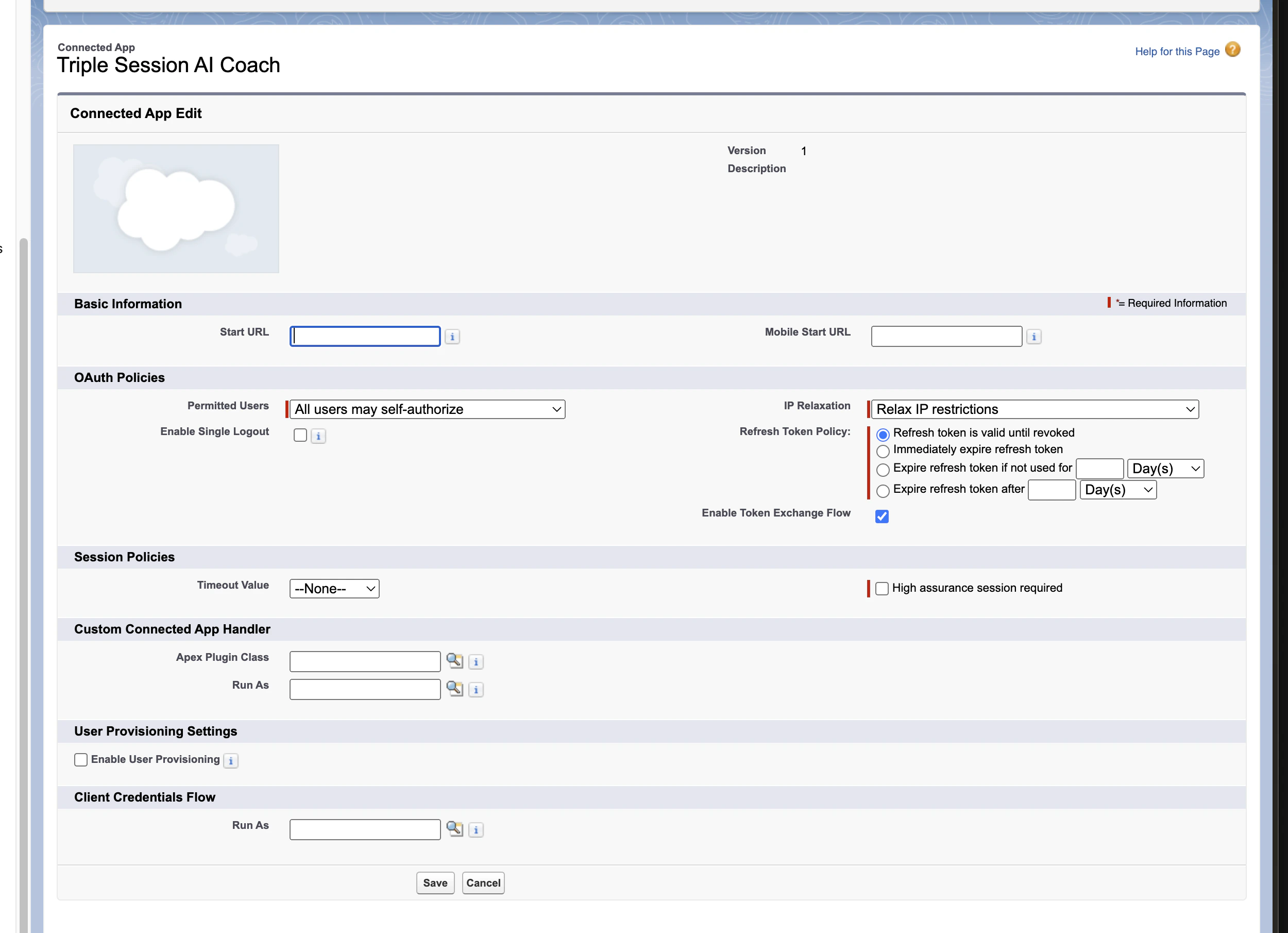
Ensure the app has the following settings:
* **Refresh Token Policy:** Refresh token is valid until revoked
* **IP Relaxation:** Relax IP restrictions
* **Permitted Users:** All users may self-authorize
* **Enable Token Exchange Flow:** Checked
 ***
## Support
* **API access issues:** If you're on the Professional or Starter edition and encounter problems, ask your Salesforce administrator to verify that API access is enabled.
* **Need help?** Contact the Triple Session support team at **[support@triplesession.com](mailto:support@triplesession.com)**.
***
## Support
* **API access issues:** If you're on the Professional or Starter edition and encounter problems, ask your Salesforce administrator to verify that API access is enabled.
* **Need help?** Contact the Triple Session support team at **[support@triplesession.com](mailto:support@triplesession.com)**.