> ## Documentation Index
> Fetch the complete documentation index at: https://docs.triplesession.com/llms.txt
> Use this file to discover all available pages before exploring further.
# Use HubSpot Custom Objects
> Configure HubSpot custom objects in Triple Session to link calls, browse CRM activity, update properties, and push notes or meetings.
HubSpot custom objects let you organize records that do not fit standard objects such as Deals, Companies, or Contacts. After you enable a custom object in Triple Session, AI Coach can link calls to its records and use it across CRM browsing, field mappings, manual updates, automatic notes or meetings, and Automations.
Custom object support is available for selected HubSpot accounts. Contact your Triple Session account manager or [support@triplesession.com](mailto:support@triplesession.com) if you do not see **Custom HubSpot objects** in CRM settings.
## Prerequisites
Before you configure custom objects, make sure you have:
* A HubSpot Enterprise subscription that supports custom objects.
* At least one custom object already created in HubSpot.
* HubSpot associations between that custom object and Contacts. You can also use associations with Deals and Companies as optional matching paths.
* Triple Session company admin access.
* An active [HubSpot CRM connection](/crm/connect-hubspot).
* The three custom object scopes listed below on the HubSpot private app used by Triple Session.
## Add the required HubSpot permissions
Add these scopes to your HubSpot private app:
```text theme={null}
crm.schemas.custom.read
crm.objects.custom.read
crm.objects.custom.write
```
| Scope | How Triple Session uses it |
| -------------------------- | --------------------------------------------------------------------- |
| `crm.schemas.custom.read` | Discovers your custom object types and their writable properties. |
| `crm.objects.custom.read` | Finds, searches, and displays custom object records and associations. |
| `crm.objects.custom.write` | Updates the custom object properties you explicitly map or select. |
All three scopes are required for the complete custom object workflow. Missing custom object scopes do not stop standard HubSpot features, but custom objects may be unavailable for discovery, search, mapping, or updates.
In HubSpot, go to **Settings** > **Integrations** > **Legacy Apps**. Open the private app used by Triple Session.
Open the app's **Scopes** section and add the three scopes exactly as listed above. Save the app.
In Triple Session, go to **Settings** > **CRM** > **Settings**. In **Custom HubSpot objects**, click **Refresh from HubSpot**.
If your HubSpot connection uses OAuth instead of a private app, use **Update access** in CRM settings to approve the custom object permissions, then refresh the catalog.
## Enable a custom object and automatic linking
Enabling an object makes it available in AI Coach. Automatic linking is a separate setting, so you can enable an object for search and manual updates without linking it to every future call.
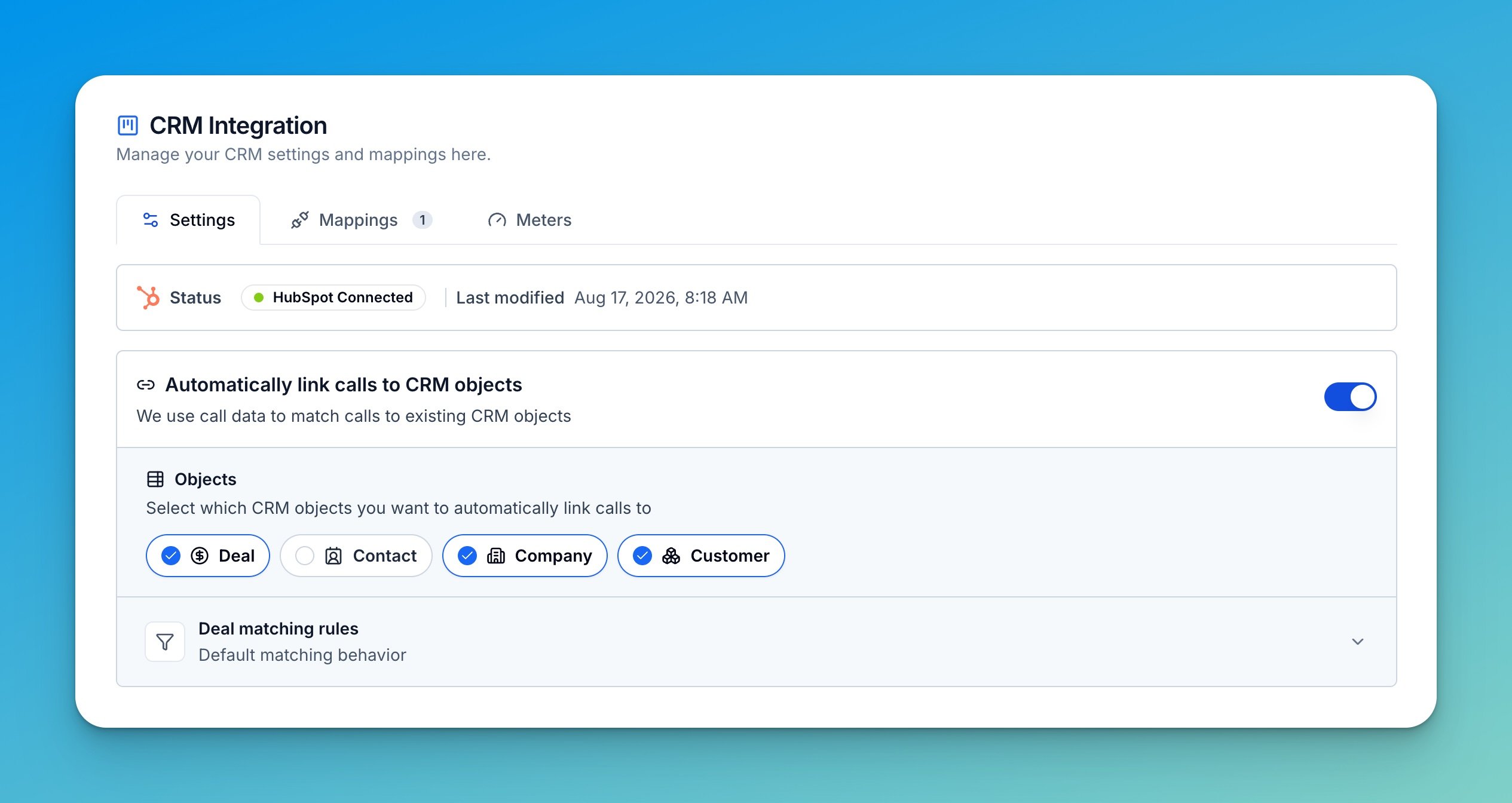
In **Settings** > **CRM** > **Settings**, find **Custom HubSpot objects**. Click **Refresh from HubSpot** if the object is not listed, then turn on **Use in AI Coach** for each object you want to use.
Turn on **Automatically link calls to CRM objects** and select the custom object under **Objects**.
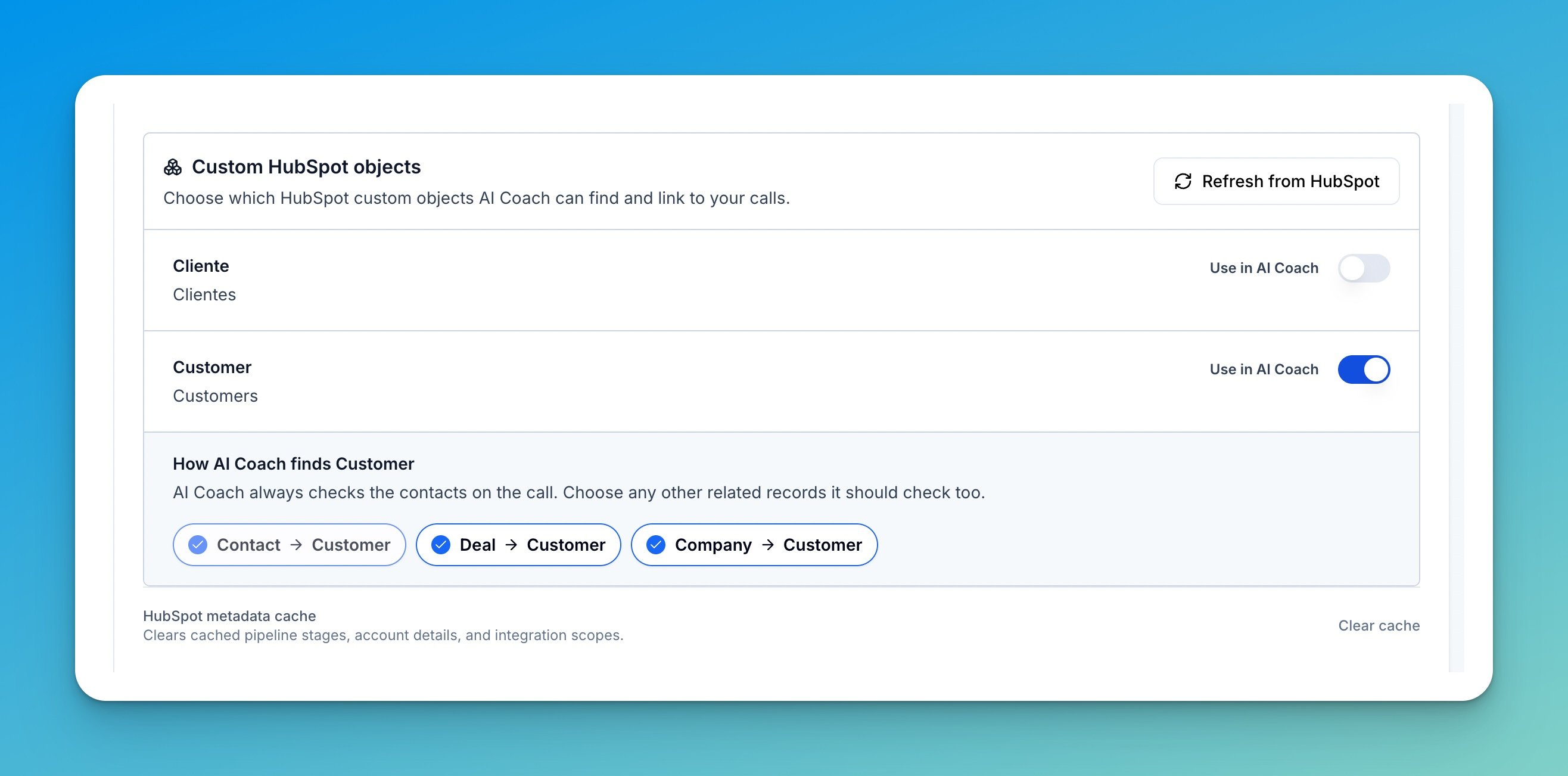
 Return to the custom object in **Custom HubSpot objects** and choose its association paths:
* **Contact → Custom object** is always active. AI Coach checks custom records associated with contacts on the call.
* **Deal → Custom object** also checks custom records associated with deals found for the call.
* **Company → Custom object** also checks custom records associated with companies found for the call.
Return to the custom object in **Custom HubSpot objects** and choose its association paths:
* **Contact → Custom object** is always active. AI Coach checks custom records associated with contacts on the call.
* **Deal → Custom object** also checks custom records associated with deals found for the call.
* **Company → Custom object** also checks custom records associated with companies found for the call.
 The Deal and Company options only use existing HubSpot associations. AI Coach does not use fuzzy or AI-based matching for custom objects, and it does not recursively search through unrelated CRM records.
Changes to automatic linking apply to calls processed after you save the setting. Existing call associations stay unchanged.
## What you can do with enabled custom objects
| Area | Available behavior |
| -------------------- | ----------------------------------------------------------------------------------------------------------------------------------------- |
| CRM pages | Browse custom records linked to calls, search live records in HubSpot, open read-only details, and review linked Triple Session activity. |
| Scorecard mappings | Map scorecard and report fields to writable properties on the custom object. |
| Call report Autofill | Search standard and custom records together, update mapped properties, and link the selected custom record to the call. |
| Automatic linking | Link calls through Contact associations and optional Deal or Company association paths. |
| Notes and Meetings | Send call summaries or Deal Insights to an associated custom record manually or automatically. |
| Automations | Use **Update CRM** to update properties on one exact custom record associated with the call. |
### Browse records and linked call activity
Each enabled custom object appears in the AI Coach CRM navigation using its HubSpot label. The default list shows records already linked to Triple Session calls. Use search to find live HubSpot records, including records that do not have linked calls yet.
A custom object's detail page shows its primary display property, mapped properties, a link to HubSpot, and linked call activity. The page is read-only; use Autofill or an Automation to update CRM properties.
### Map and update custom object properties
Open **Settings** > **CRM** > **Mappings** to create a scorecard mapping. Select the enabled custom object, then map Triple Session fields to writable HubSpot properties. See [Map Fields](/crm/map-fields) for the mapping workflow.
From a call report, **Update CRM** searches across standard and enabled custom objects. When you select and update a custom record, Triple Session also links that exact record to the call. Repeating the update reuses the association instead of creating a duplicate.
Updating a mapped property can overwrite its current HubSpot value. Map only properties that Triple Session should control.
## Push notes or meetings to custom objects
An enabled custom object can receive the same call summary or Deal Insights content as a standard HubSpot object. The call must already be linked to the exact custom record, either through automatic linking or manual Autofill.
To configure automatic pushes:
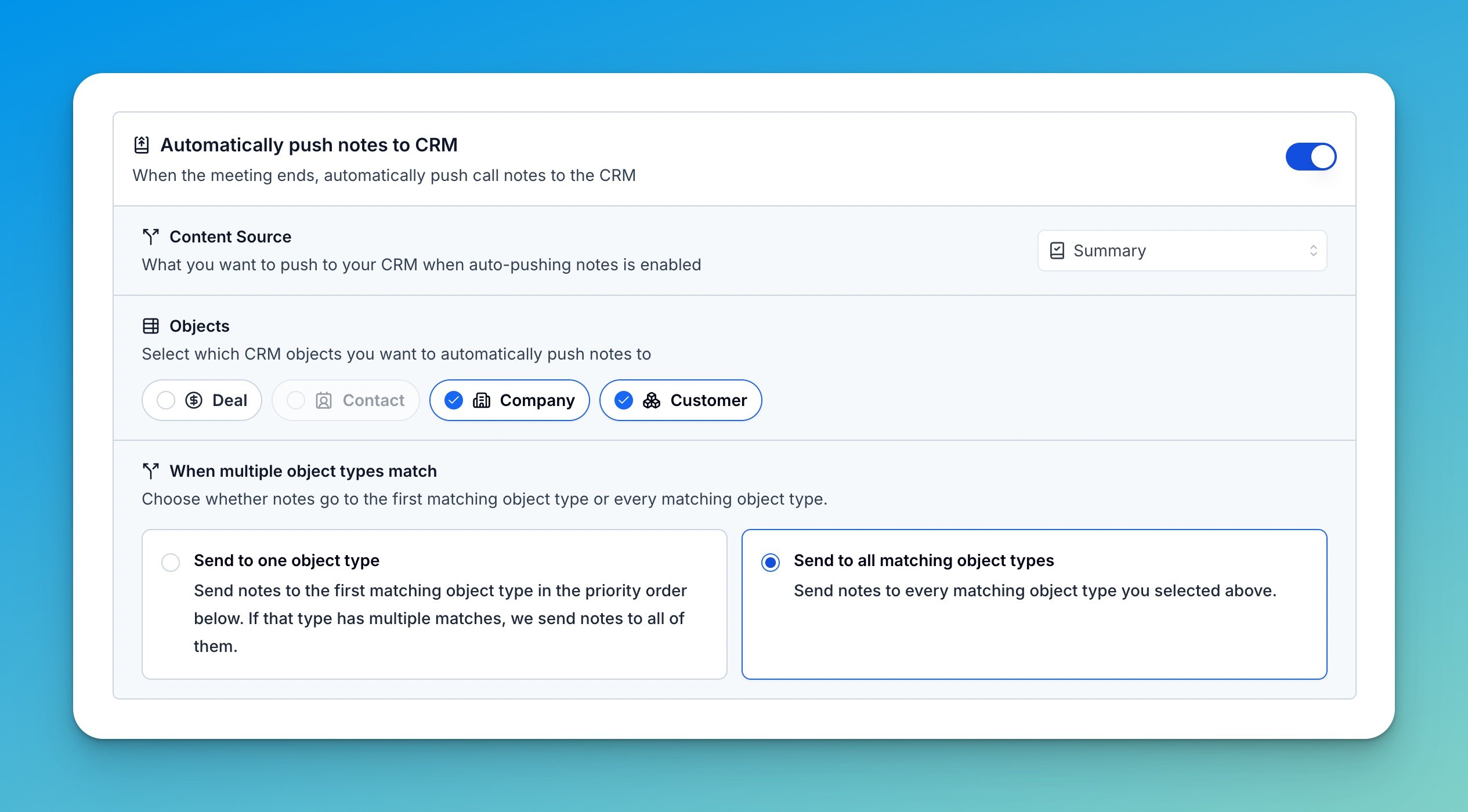
In **Settings** > **CRM** > **Settings**, turn on **Automatically push notes to CRM**.
Select **Summary**, **Deal Insights**, or **Summary + Deal Insights**, then select the custom object under **Objects**.
Select **Send to one object type** to use your priority order, or **Send to all matching object types** to write to every selected object type linked to the call.
The Deal and Company options only use existing HubSpot associations. AI Coach does not use fuzzy or AI-based matching for custom objects, and it does not recursively search through unrelated CRM records.
Changes to automatic linking apply to calls processed after you save the setting. Existing call associations stay unchanged.
## What you can do with enabled custom objects
| Area | Available behavior |
| -------------------- | ----------------------------------------------------------------------------------------------------------------------------------------- |
| CRM pages | Browse custom records linked to calls, search live records in HubSpot, open read-only details, and review linked Triple Session activity. |
| Scorecard mappings | Map scorecard and report fields to writable properties on the custom object. |
| Call report Autofill | Search standard and custom records together, update mapped properties, and link the selected custom record to the call. |
| Automatic linking | Link calls through Contact associations and optional Deal or Company association paths. |
| Notes and Meetings | Send call summaries or Deal Insights to an associated custom record manually or automatically. |
| Automations | Use **Update CRM** to update properties on one exact custom record associated with the call. |
### Browse records and linked call activity
Each enabled custom object appears in the AI Coach CRM navigation using its HubSpot label. The default list shows records already linked to Triple Session calls. Use search to find live HubSpot records, including records that do not have linked calls yet.
A custom object's detail page shows its primary display property, mapped properties, a link to HubSpot, and linked call activity. The page is read-only; use Autofill or an Automation to update CRM properties.
### Map and update custom object properties
Open **Settings** > **CRM** > **Mappings** to create a scorecard mapping. Select the enabled custom object, then map Triple Session fields to writable HubSpot properties. See [Map Fields](/crm/map-fields) for the mapping workflow.
From a call report, **Update CRM** searches across standard and enabled custom objects. When you select and update a custom record, Triple Session also links that exact record to the call. Repeating the update reuses the association instead of creating a duplicate.
Updating a mapped property can overwrite its current HubSpot value. Map only properties that Triple Session should control.
## Push notes or meetings to custom objects
An enabled custom object can receive the same call summary or Deal Insights content as a standard HubSpot object. The call must already be linked to the exact custom record, either through automatic linking or manual Autofill.
To configure automatic pushes:
In **Settings** > **CRM** > **Settings**, turn on **Automatically push notes to CRM**.
Select **Summary**, **Deal Insights**, or **Summary + Deal Insights**, then select the custom object under **Objects**.
Select **Send to one object type** to use your priority order, or **Send to all matching object types** to write to every selected object type linked to the call.
 Use **Notes or Meetings** to choose how HubSpot stores the activity. The existing HubSpot meeting write mode and meeting type settings also apply to custom object targets.
Selecting a custom object as an automatic push target does not search HubSpot at push time. Triple Session only writes to records already linked to that call. You can also push a note or meeting manually to an associated custom record even when automatic linking or automatic push is turned off.
See [CRM Sync Settings](/crm/autofill-settings) for content sources, routing, and HubSpot Meeting options.
## Update custom objects with Automations
In an **Update CRM** Automation action, select an enabled custom object and map the fields you want to update. Triple Session updates the record only when exactly one record of that custom object type is linked to the call.
* If no matching custom record is linked, the action skips the update.
* If multiple records of the same custom object type are linked, the action skips the update instead of choosing one or changing several records.
* The action does not search HubSpot or create a new custom record.
See [Automatically Update CRM Fields When Calls End](/crm/auto-update-fields) for the Automation setup flow.
## Current limitations
* Custom objects are supported for HubSpot only. Salesforce custom objects are not supported.
* Triple Session reads and updates existing custom object records; it does not create or delete them.
* Triple Session does not create action-item tasks for custom objects.
## Troubleshooting
| Problem | What to check |
| -------------------------------------- | ------------------------------------------------------------------------------------------------------------------------------------------------------------------------------------------ |
| A custom object does not appear | Confirm the feature is enabled for your account, add all three scopes, click **Refresh from HubSpot**, and turn on **Use in AI Coach**. |
| Calls are not linked automatically | Turn on automatic linking, select the custom object, and verify the required Contact, Deal, or Company associations exist in HubSpot. |
| Properties cannot be mapped or updated | Confirm `crm.schemas.custom.read` and `crm.objects.custom.write` are present and that the HubSpot property is writable. |
| Notes or meetings are not pushed | Confirm the exact custom record is linked to the call and the object type is selected as an automatic push target. |
| The object shows **Not available** | Confirm the object still exists in HubSpot and the permissions are active, then refresh the catalog. Existing mappings and associations are preserved while new operations remain blocked. |
If the issue continues, contact **[support@triplesession.com](mailto:support@triplesession.com)**.
Use **Notes or Meetings** to choose how HubSpot stores the activity. The existing HubSpot meeting write mode and meeting type settings also apply to custom object targets.
Selecting a custom object as an automatic push target does not search HubSpot at push time. Triple Session only writes to records already linked to that call. You can also push a note or meeting manually to an associated custom record even when automatic linking or automatic push is turned off.
See [CRM Sync Settings](/crm/autofill-settings) for content sources, routing, and HubSpot Meeting options.
## Update custom objects with Automations
In an **Update CRM** Automation action, select an enabled custom object and map the fields you want to update. Triple Session updates the record only when exactly one record of that custom object type is linked to the call.
* If no matching custom record is linked, the action skips the update.
* If multiple records of the same custom object type are linked, the action skips the update instead of choosing one or changing several records.
* The action does not search HubSpot or create a new custom record.
See [Automatically Update CRM Fields When Calls End](/crm/auto-update-fields) for the Automation setup flow.
## Current limitations
* Custom objects are supported for HubSpot only. Salesforce custom objects are not supported.
* Triple Session reads and updates existing custom object records; it does not create or delete them.
* Triple Session does not create action-item tasks for custom objects.
## Troubleshooting
| Problem | What to check |
| -------------------------------------- | ------------------------------------------------------------------------------------------------------------------------------------------------------------------------------------------ |
| A custom object does not appear | Confirm the feature is enabled for your account, add all three scopes, click **Refresh from HubSpot**, and turn on **Use in AI Coach**. |
| Calls are not linked automatically | Turn on automatic linking, select the custom object, and verify the required Contact, Deal, or Company associations exist in HubSpot. |
| Properties cannot be mapped or updated | Confirm `crm.schemas.custom.read` and `crm.objects.custom.write` are present and that the HubSpot property is writable. |
| Notes or meetings are not pushed | Confirm the exact custom record is linked to the call and the object type is selected as an automatic push target. |
| The object shows **Not available** | Confirm the object still exists in HubSpot and the permissions are active, then refresh the catalog. Existing mappings and associations are preserved while new operations remain blocked. |
If the issue continues, contact **[support@triplesession.com](mailto:support@triplesession.com)**.