> ## Documentation Index
> Fetch the complete documentation index at: https://docs.triplesession.com/llms.txt
> Use this file to discover all available pages before exploring further.
# Push Call Data to Your CRM
> Push call summaries and deal insights to HubSpot or Salesforce as Notes or Properties — manually from any recording or automatically after every call.
Triple Session gives you two ways to push call data into your CRM: update specific deal properties with structured insights, or log information as timestamped notes on Deal, Company, or Contact records. You can trigger either method manually from a recording, or configure automation so the sync happens as soon as every call ends.
Before syncing data, make sure your CRM is connected. See [Connect HubSpot CRM](/crm/connect-hubspot) or [Connect Salesforce CRM](/crm/connect-salesforce) to get started.
To configure automatic note pushes, object matching, routing, HubSpot Meetings, Salesforce Events, and task creation, see [Sync Settings](/crm/autofill-settings).
## Method 1: Update specific CRM properties
Use this method when you want to write targeted insights — such as next steps, budget, or key pain points — into pre-defined fields on a Deal record. Each insight maps to a specific CRM property, so your data lands exactly where it needs to be for reporting and filtering.
An admin must map Triple Session insight fields to CRM properties first. Without a mapping, there are no properties to update. See **Map Fields** to set this up.
**Key considerations:**
* Sending to a property **overwrites** any existing value in that CRM field.
* Only available when syncing to a **Deal** record.
Navigate to a meeting recording and click the **Deal Insights** tab.
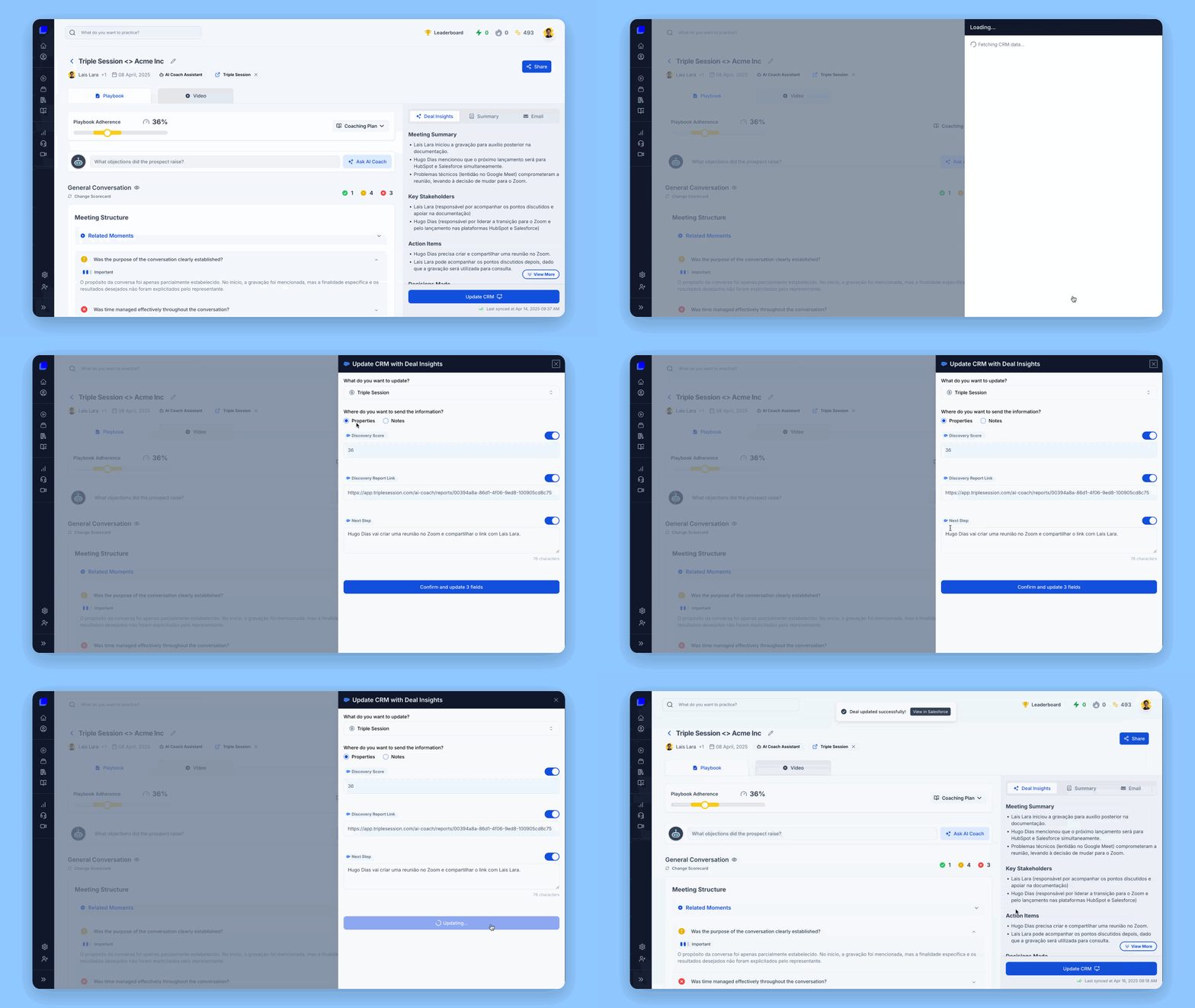 Click the **Update CRM** button.
Confirm the correct **Deal** is selected — search for one if it isn't already associated. Make sure the **Properties** option is selected.
Click the **Update CRM** button.
Confirm the correct **Deal** is selected — search for one if it isn't already associated. Make sure the **Properties** option is selected.
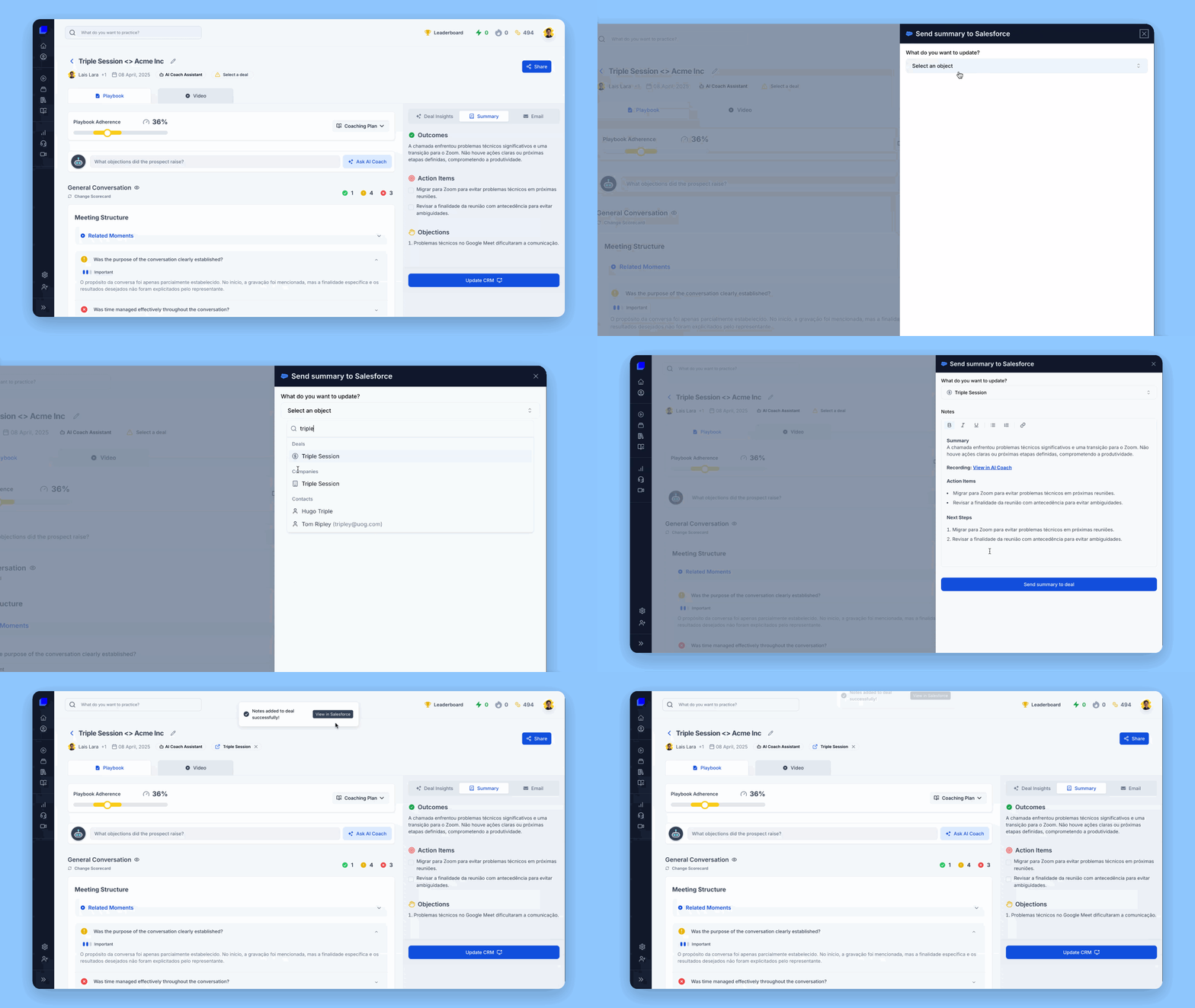 Triple Session shows which CRM fields will be updated based on your admin's mapping configuration.
Click **Confirm and update fields** to push the data to your CRM.
## Method 2: Send information as CRM notes
Use this method to log a full meeting summary or specific deal insights as an activity note on a Deal, Company, or Contact record. Notes create a chronological history on the CRM record without overwriting any structured fields, and they work without any field mapping setup.
**Key benefits:**
* No field mapping required — works immediately after connecting your CRM.
* Preserves a chronological activity log on the CRM record.
* Does not overwrite data in structured CRM fields.
* Supports Deals, Companies, and Contacts.
### Send a summary as a note
Navigate to a meeting recording and click the **Summary** tab.
Triple Session shows which CRM fields will be updated based on your admin's mapping configuration.
Click **Confirm and update fields** to push the data to your CRM.
## Method 2: Send information as CRM notes
Use this method to log a full meeting summary or specific deal insights as an activity note on a Deal, Company, or Contact record. Notes create a chronological history on the CRM record without overwriting any structured fields, and they work without any field mapping setup.
**Key benefits:**
* No field mapping required — works immediately after connecting your CRM.
* Preserves a chronological activity log on the CRM record.
* Does not overwrite data in structured CRM fields.
* Supports Deals, Companies, and Contacts.
### Send a summary as a note
Navigate to a meeting recording and click the **Summary** tab.
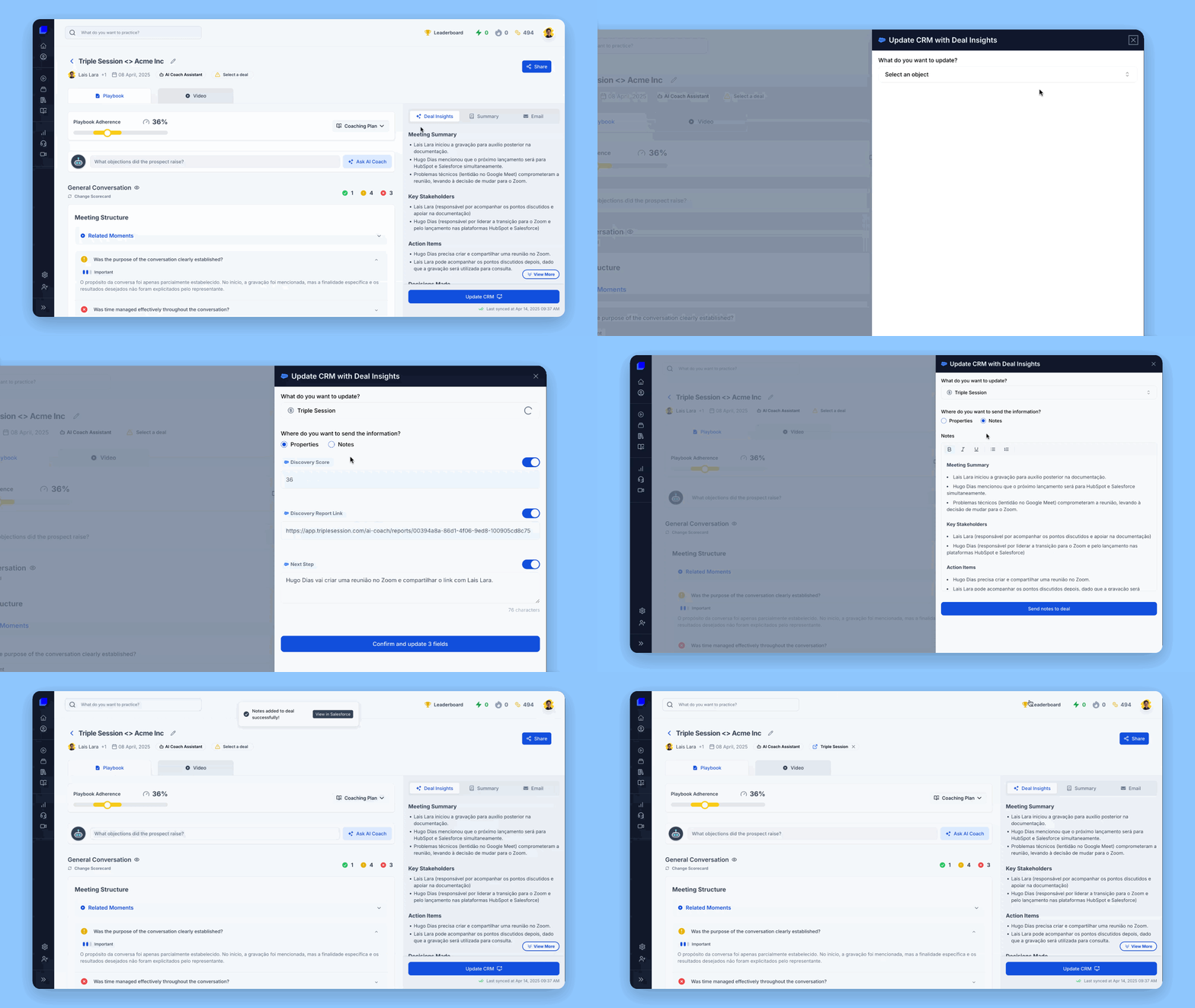 Click the **Update CRM** button on the Summary tab.
Choose the destination — **Deal**, **Company**, or **Contact** — and search for the record if one isn't already associated. Confirm that **Notes** is selected.
Click the **Update CRM** button on the Summary tab.
Choose the destination — **Deal**, **Company**, or **Contact** — and search for the record if one isn't already associated. Confirm that **Notes** is selected.
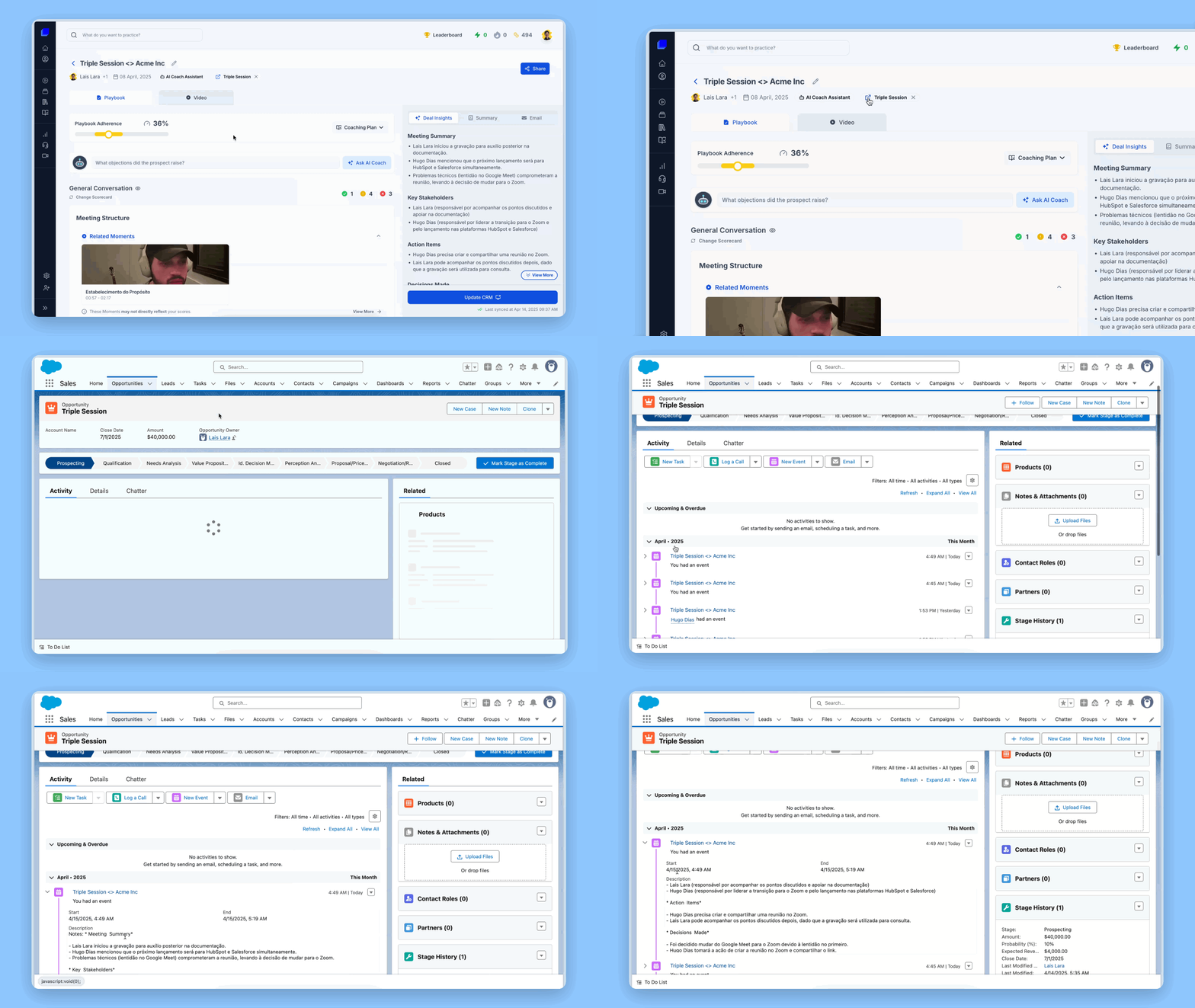 The summary text appears in the editor. Edit it if needed before sending.
Click **Confirm and Update fields** to log the note in your CRM.
### Send deal insights as a note
Navigate to a meeting recording and click the **Deal Insights** tab.
Choose **Deal**, **Company**, or **Contact** as the destination record.
Select the **Notes** option.
Review or edit the text in the editor.
Click **Confirm and Update fields** to log the note in your CRM.
The summary text appears in the editor. Edit it if needed before sending.
Click **Confirm and Update fields** to log the note in your CRM.
### Send deal insights as a note
Navigate to a meeting recording and click the **Deal Insights** tab.
Choose **Deal**, **Company**, or **Contact** as the destination record.
Select the **Notes** option.
Review or edit the text in the editor.
Click **Confirm and Update fields** to log the note in your CRM.