> ## Documentation Index
> Fetch the complete documentation index at: https://docs.triplesession.com/llms.txt
> Use this file to discover all available pages before exploring further.
# Invite Your Team to Triple Session
> Add your first teammates to Triple Session and choose their role, seat type, and analytics visibility as you invite them.
Building your team inside Triple Session is the first step to unlocking collaborative coaching and performance insights. As a manager, you can invite teammates individually or in bulk and, on the same screen, choose each person's role, seat type, and analytics visibility.
## Invite members to your workspace
Go to **Settings > Workspace > Members** and click **Invite members** in the top right of the Members table.
Enter a team member's email, then set their **Role**, **Seat type**, and **Visibility** on that row. Click **+ Add another email** for more invitees, or switch to **Bulk invite** to paste a list and apply the same settings to everyone.
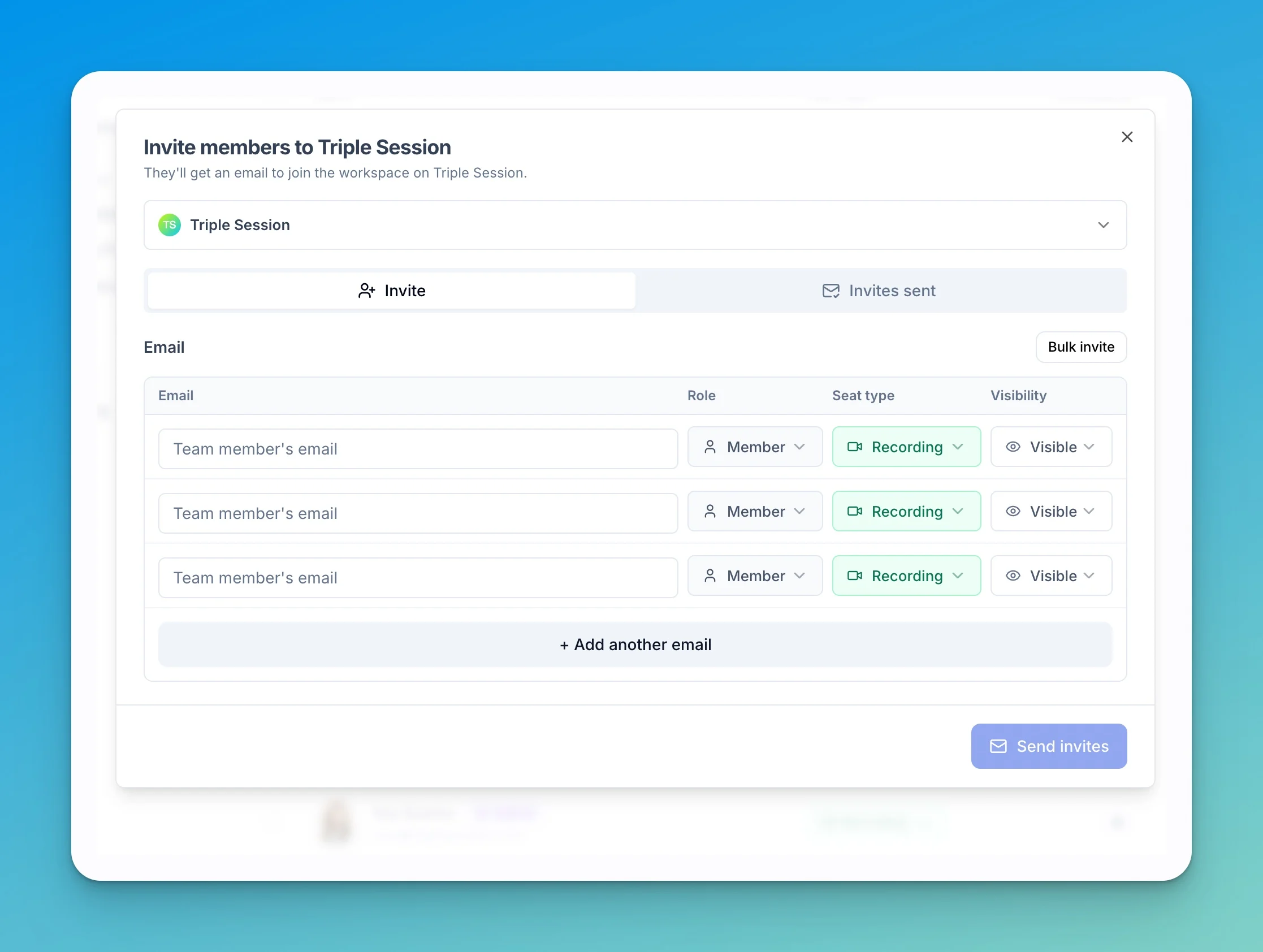 * **Role** — **Member** (sees only their own data) or **Manager** (sees the whole team's).
* **Seat type** — **Recording** (calls recorded by the bot) or **Viewer** (review-only).
* **Visibility** — **Visible** or **Hidden** in team analytics, digests, and leaderboards.
For what each option means, see [Roles & Permissions](/workspace/roles-and-permissions).
Click **Send Invites**. Each invited user receives an email from **[support@triplesession.com](mailto:support@triplesession.com)** with a link to join the workspace.
Invited users receive their invitation from **[support@triplesession.com](mailto:support@triplesession.com)**. Let new teammates know to check their spam or junk folder if they don't see the email in their inbox.
## Next steps
* **[Manage Members](/workspace/manage-members)** — track invitation status, change visibility, and remove members.
* **[Roles & Permissions](/workspace/roles-and-permissions)** — full reference for seat types, user roles, and visibility.
* **Role** — **Member** (sees only their own data) or **Manager** (sees the whole team's).
* **Seat type** — **Recording** (calls recorded by the bot) or **Viewer** (review-only).
* **Visibility** — **Visible** or **Hidden** in team analytics, digests, and leaderboards.
For what each option means, see [Roles & Permissions](/workspace/roles-and-permissions).
Click **Send Invites**. Each invited user receives an email from **[support@triplesession.com](mailto:support@triplesession.com)** with a link to join the workspace.
Invited users receive their invitation from **[support@triplesession.com](mailto:support@triplesession.com)**. Let new teammates know to check their spam or junk folder if they don't see the email in their inbox.
## Next steps
* **[Manage Members](/workspace/manage-members)** — track invitation status, change visibility, and remove members.
* **[Roles & Permissions](/workspace/roles-and-permissions)** — full reference for seat types, user roles, and visibility.