> ## Documentation Index
> Fetch the complete documentation index at: https://docs.triplesession.com/llms.txt
> Use this file to discover all available pages before exploring further.
# Connect Aircall to Triple Session AI Coach
> Sync your Aircall calls with Triple Session's AI Coach to automatically analyze phone conversations and get scorecard-based coaching insights for your team.
Triple Session's AI Coach integrates with Aircall to automatically pull in your team's phone calls and analyze them using your active Smart Scorecards. This is an organization-wide integration — one Company Admin connects Aircall on behalf of the whole team, so individual reps don't need to set anything up themselves.
This integration must be set up by a **Company Admin** in Triple Session. Unlike other integrations such as Zoom or Google Meet, individual team members cannot connect their own accounts.
## Requirements
Before setting up the Aircall integration, make sure you meet these requirements:
* **Aircall plan with AI Assist:** Your company must be on an Aircall plan that includes **AI Assist**.
* **Admin access in Triple Session:** Only users with **Company Admin** privileges can complete this setup.
## Connect Aircall to AI Coach
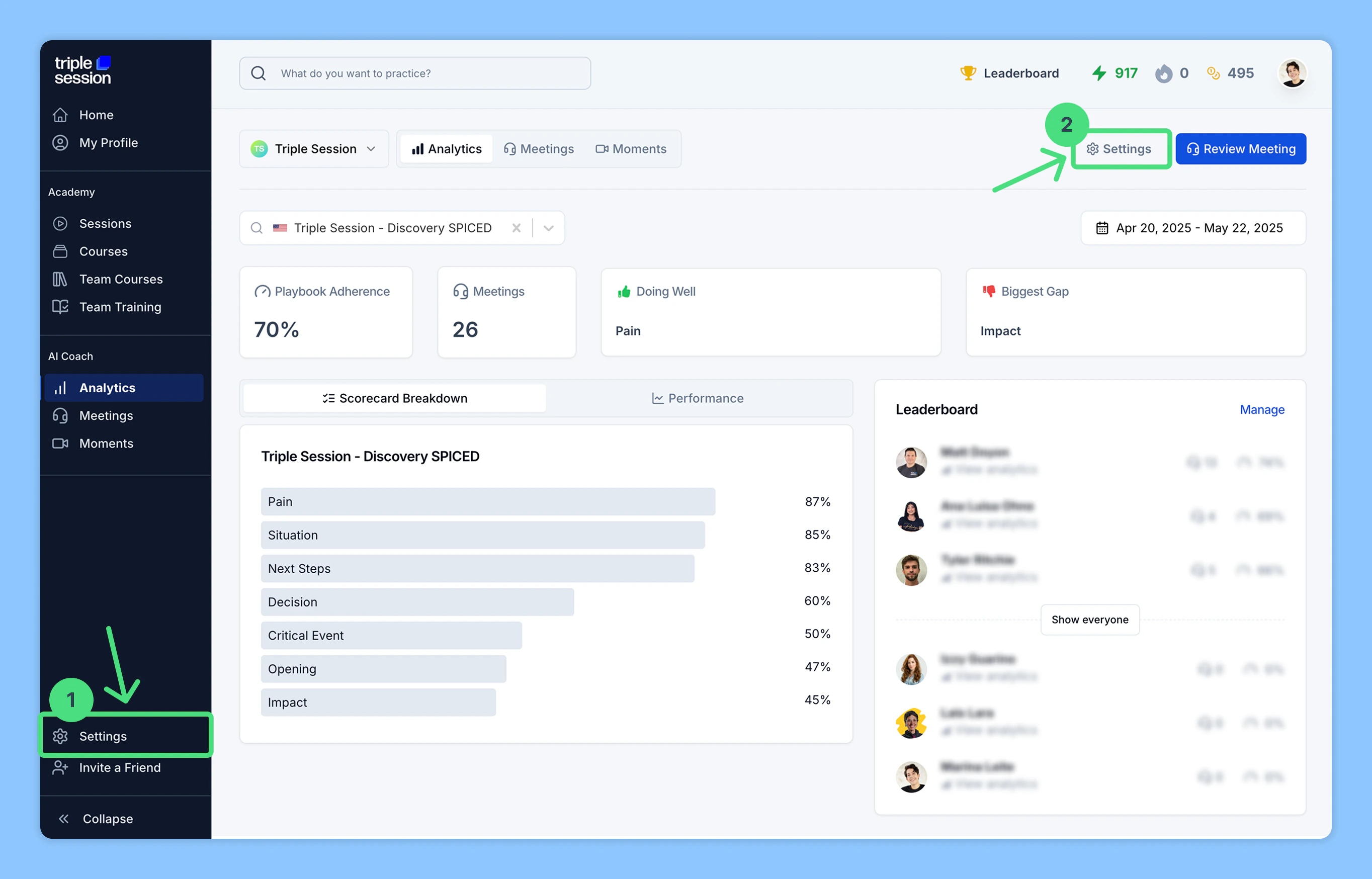
Log into your Triple Session account. Click the **Settings** tab from the sidebar menu. You can also access **Settings** from within any AI Coach page — **Analytics**, **Meetings**, or **Moments**.
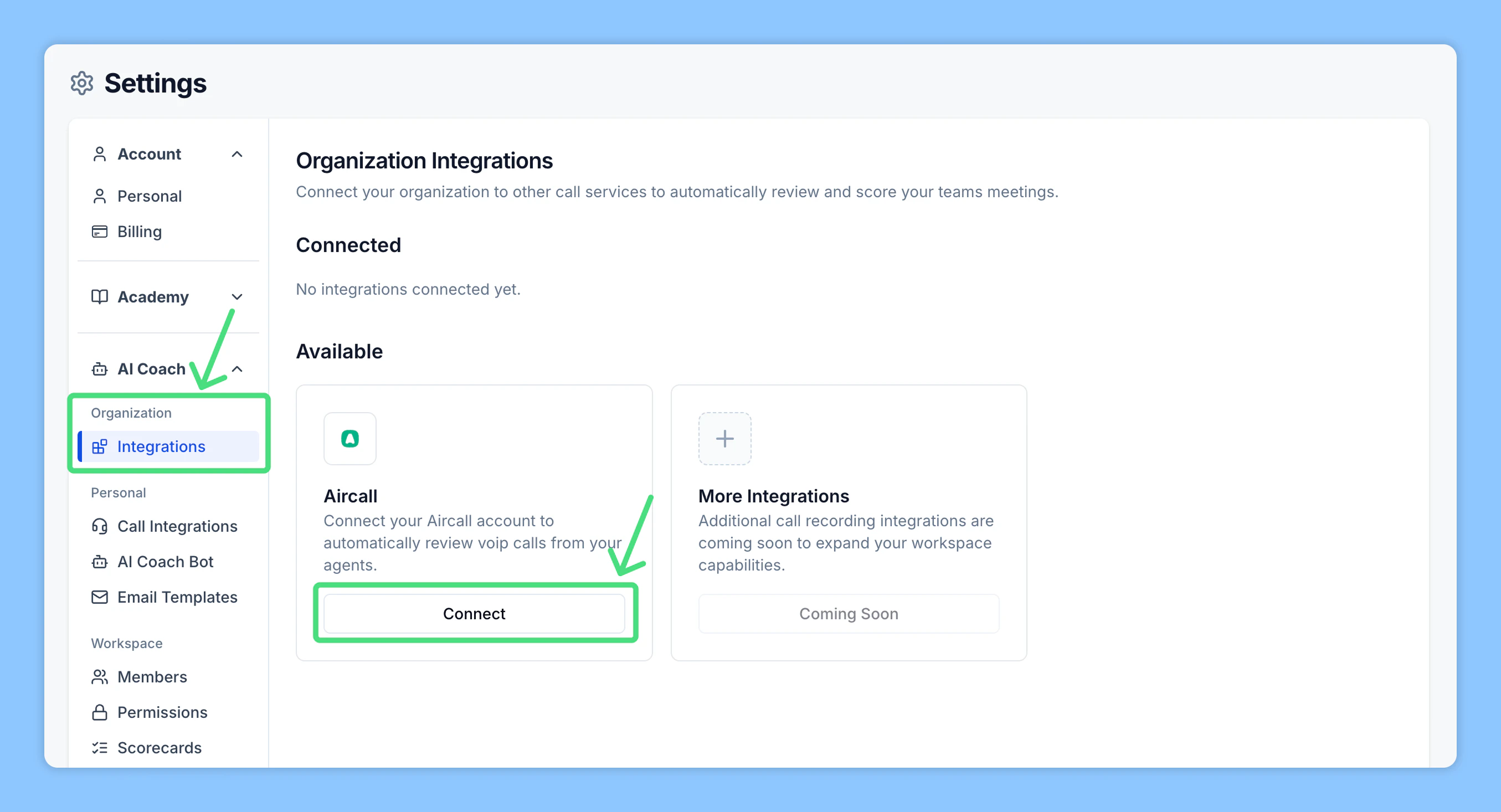
 In the **AI Coach** section, navigate to the **Organization** subsection. Click **Integrations**, find **Aircall**, then click **Connect**.
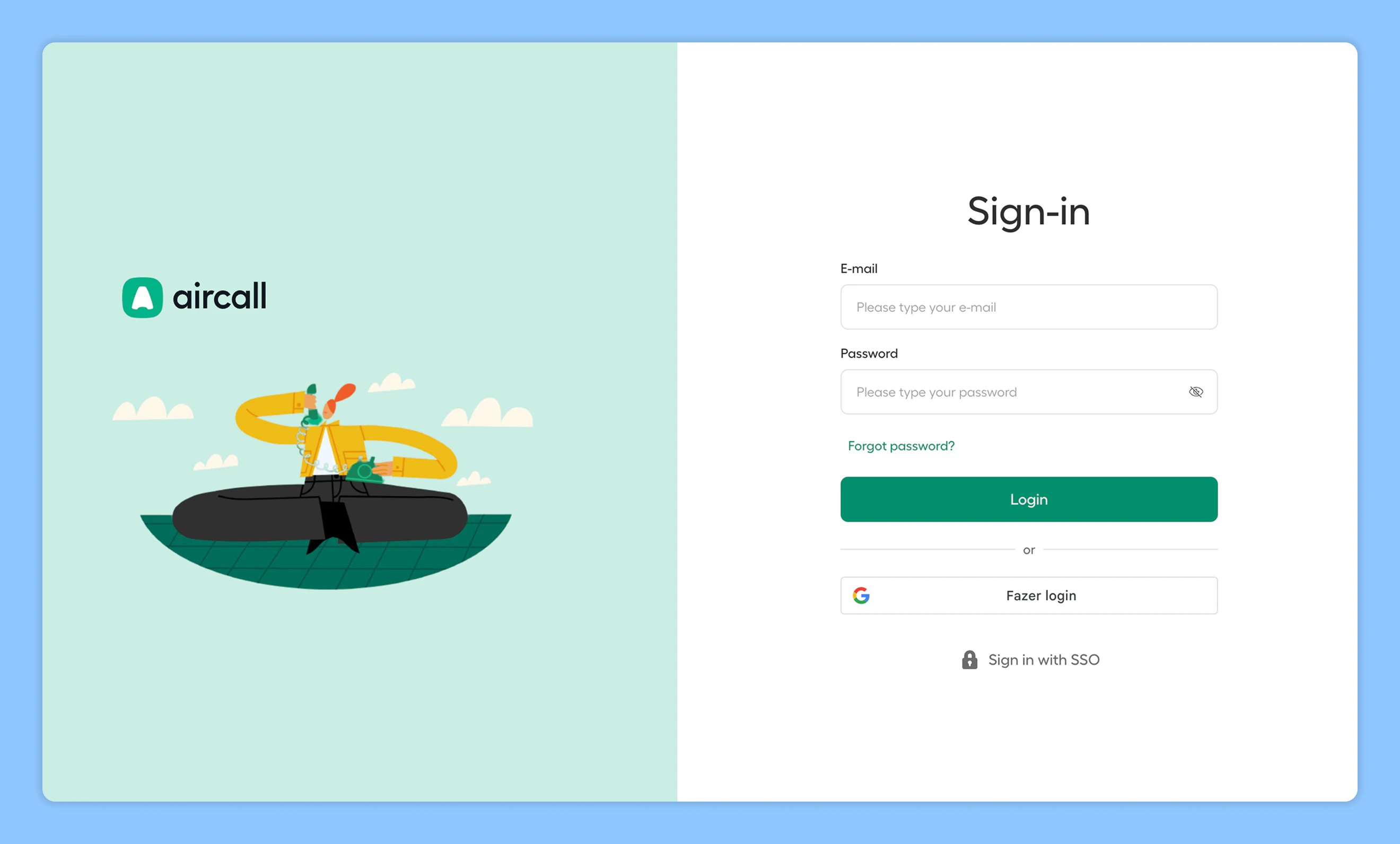
 Sign in to your Aircall account and authorize AI Coach to access your team's Aircall recordings and call data.
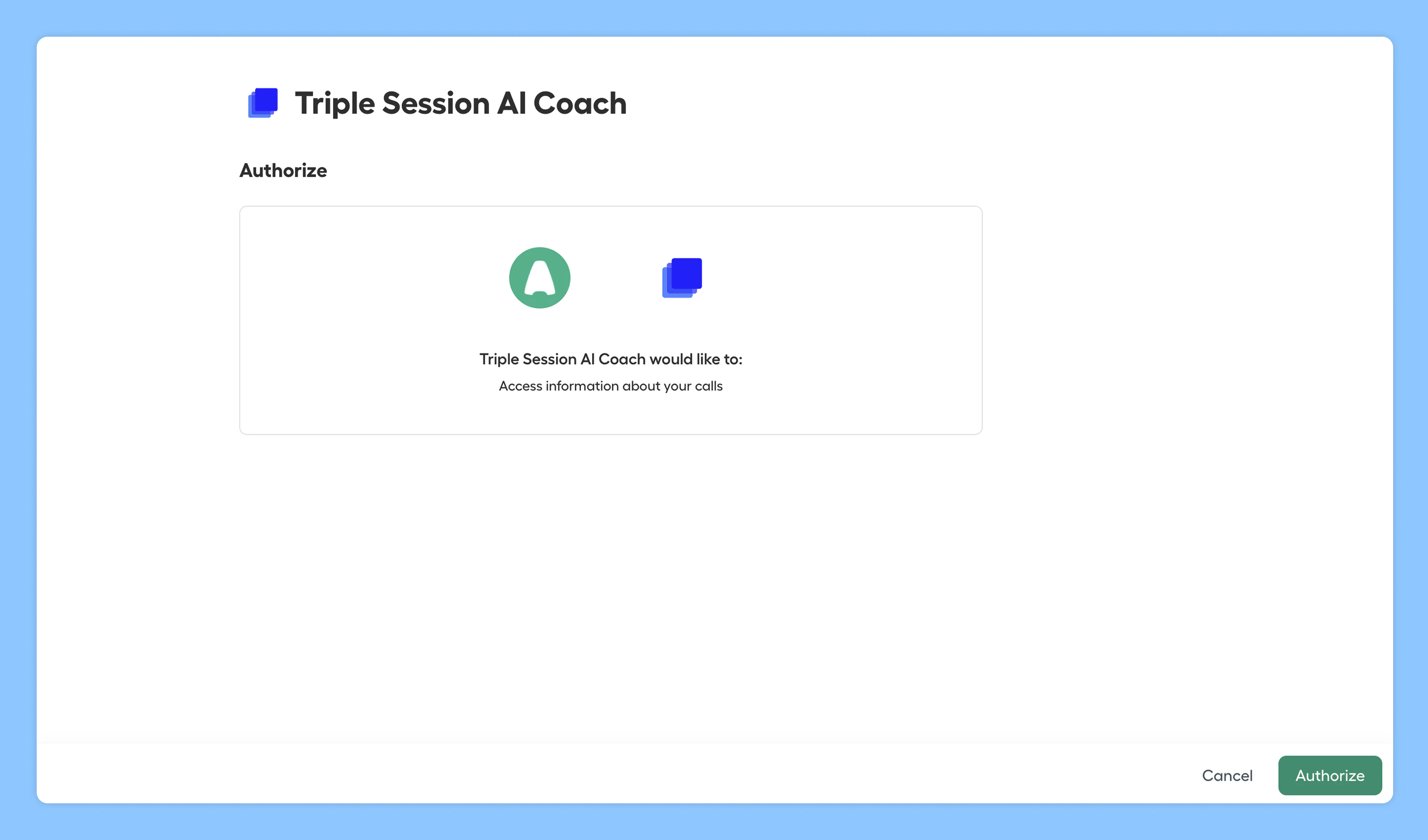 Choose the phone numbers Triple Session should have access to. Once authorized, you'll be redirected back to Triple Session.
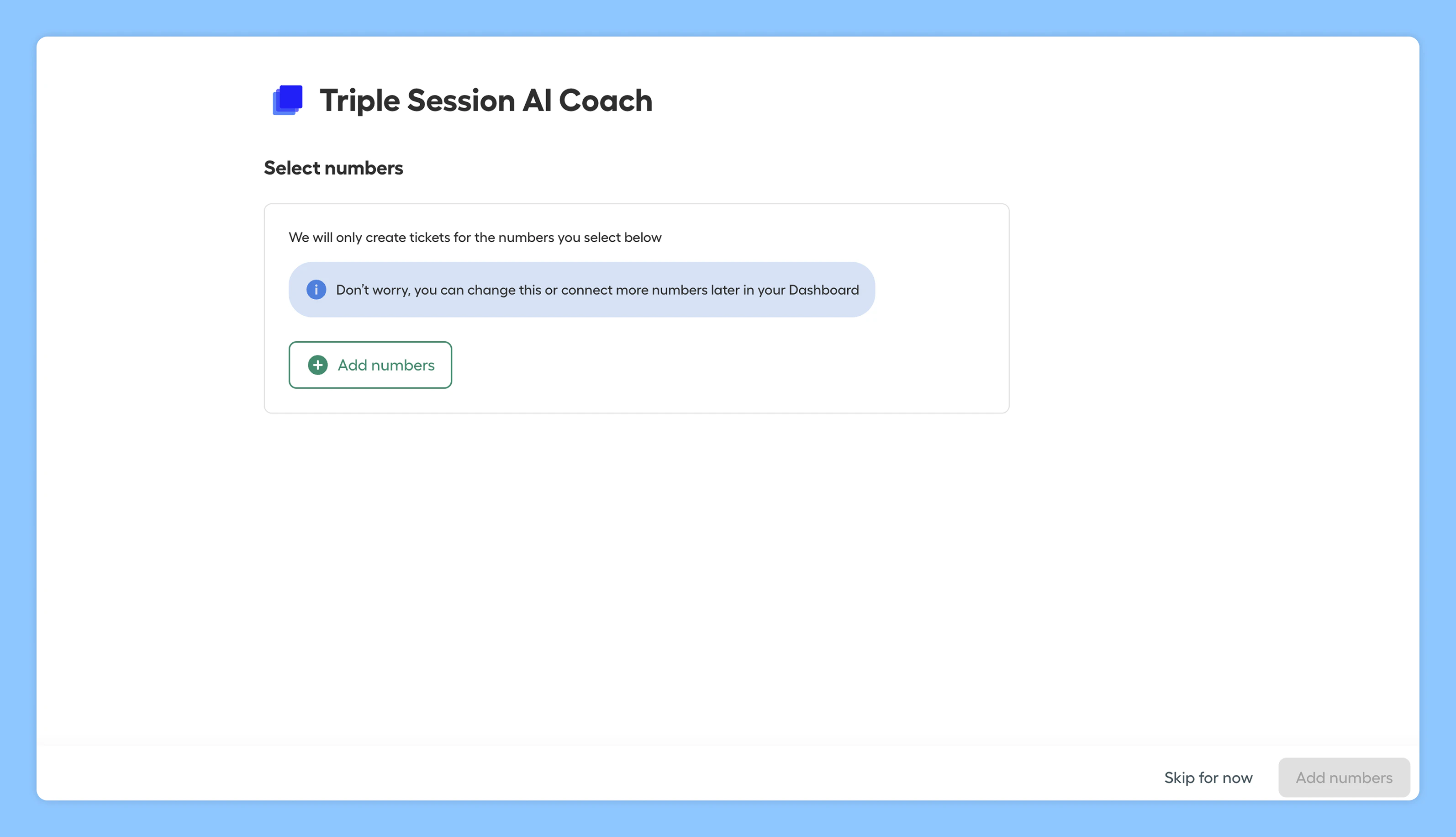 You'll see a confirmation message once the integration is active. Triple Session will start matching calls by user email and analyzing them with your active Smart Scorecards.
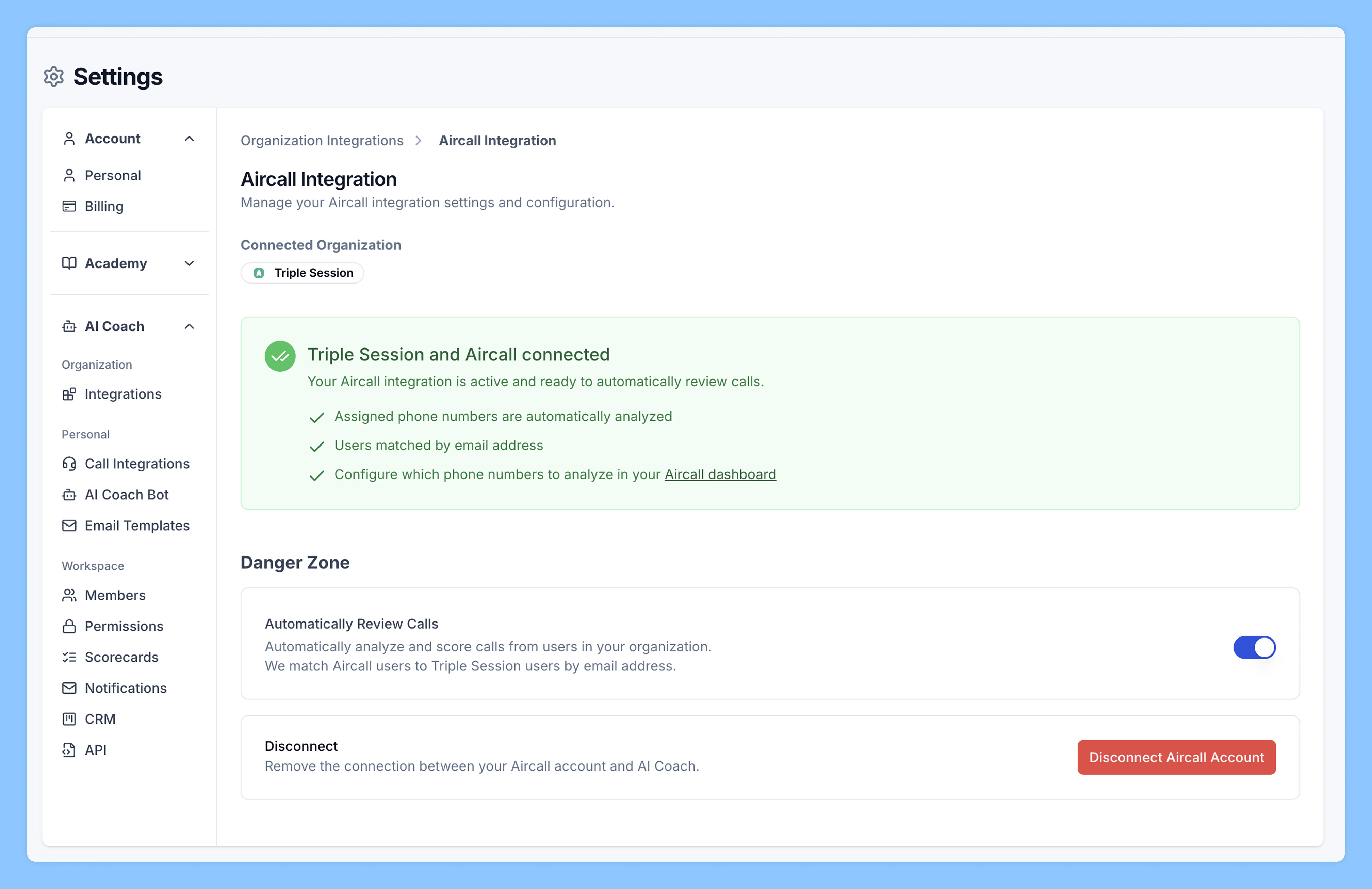 Once connected, if a rep's Aircall number is included in the selected numbers, their calls will be pulled in and analyzed automatically.
***
## Troubleshooting: why aren't some calls being reviewed?
If the integration is active but a rep's calls aren't appearing in AI Coach, check these common issues.
### Check if the rep's numbers were selected in Aircall
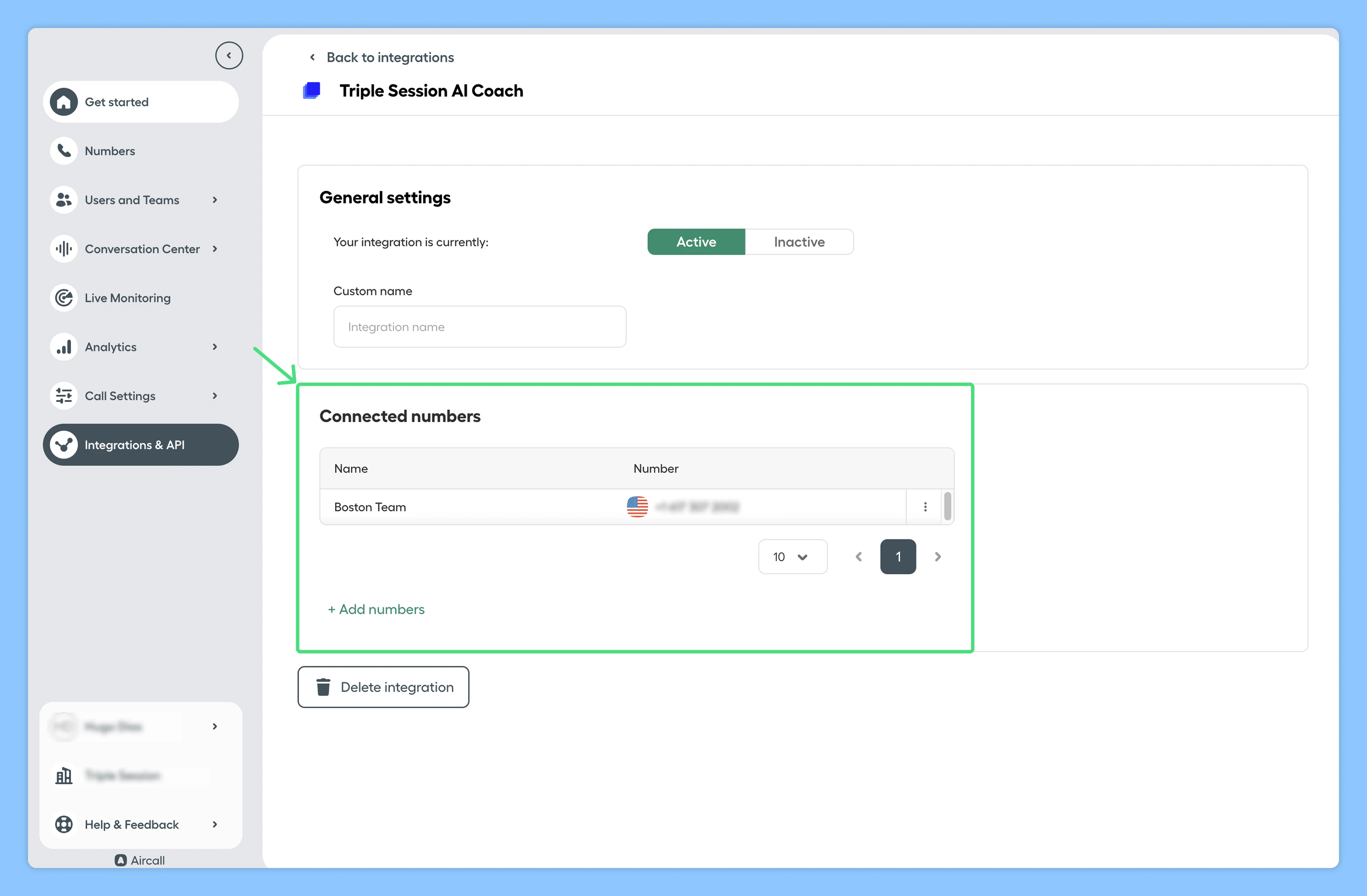
Make sure the rep's specific number was selected during the Aircall integration setup.
**Admin action:**
1. Go to **Integrations & API** in your Aircall account.
2. Review the list of connected numbers and verify the rep's number is included.
Once connected, if a rep's Aircall number is included in the selected numbers, their calls will be pulled in and analyzed automatically.
***
## Troubleshooting: why aren't some calls being reviewed?
If the integration is active but a rep's calls aren't appearing in AI Coach, check these common issues.
### Check if the rep's numbers were selected in Aircall
Make sure the rep's specific number was selected during the Aircall integration setup.
**Admin action:**
1. Go to **Integrations & API** in your Aircall account.
2. Review the list of connected numbers and verify the rep's number is included.
 ### Check if Smart Scorecards are enabled for Automated Reviews
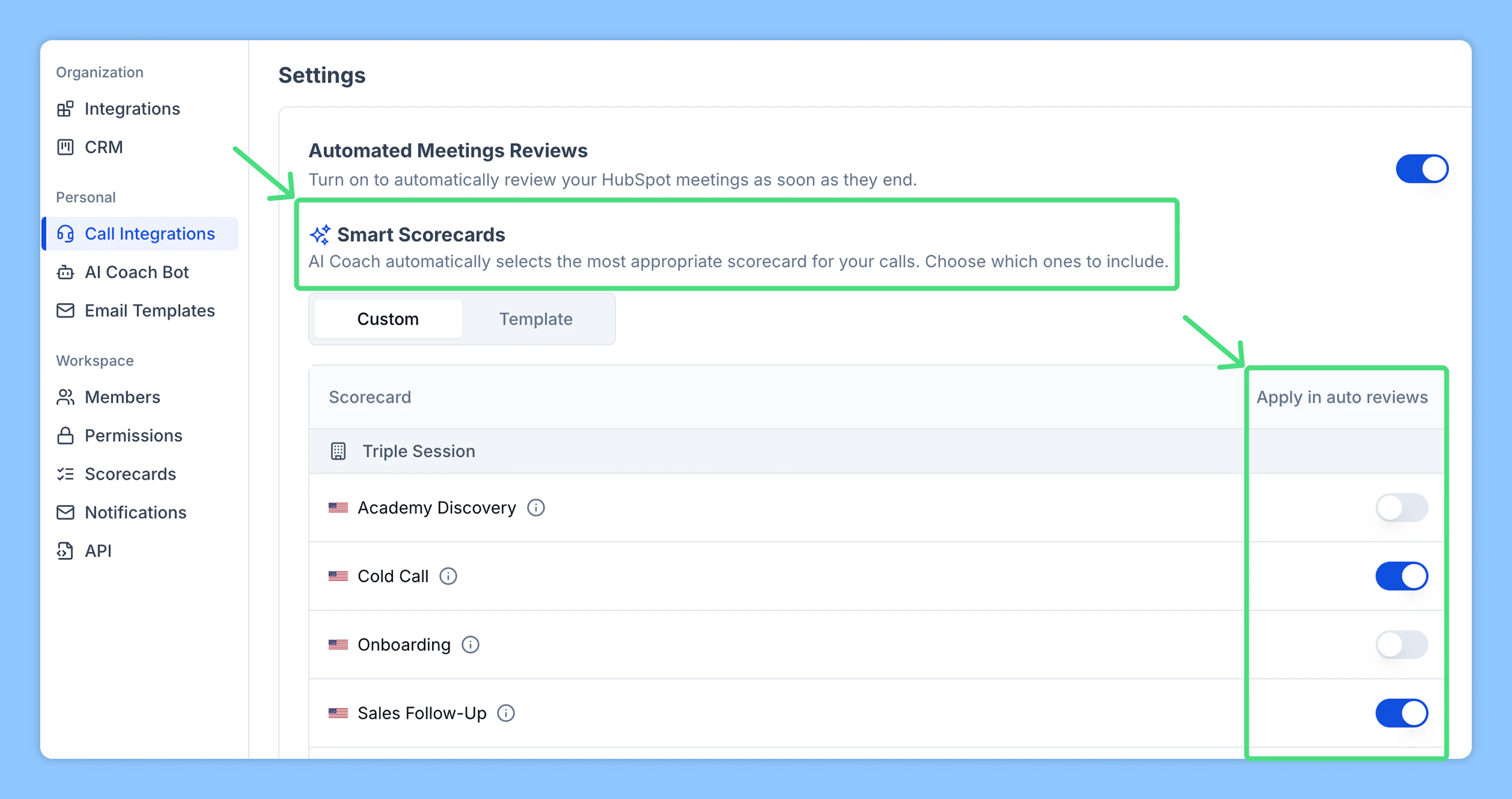
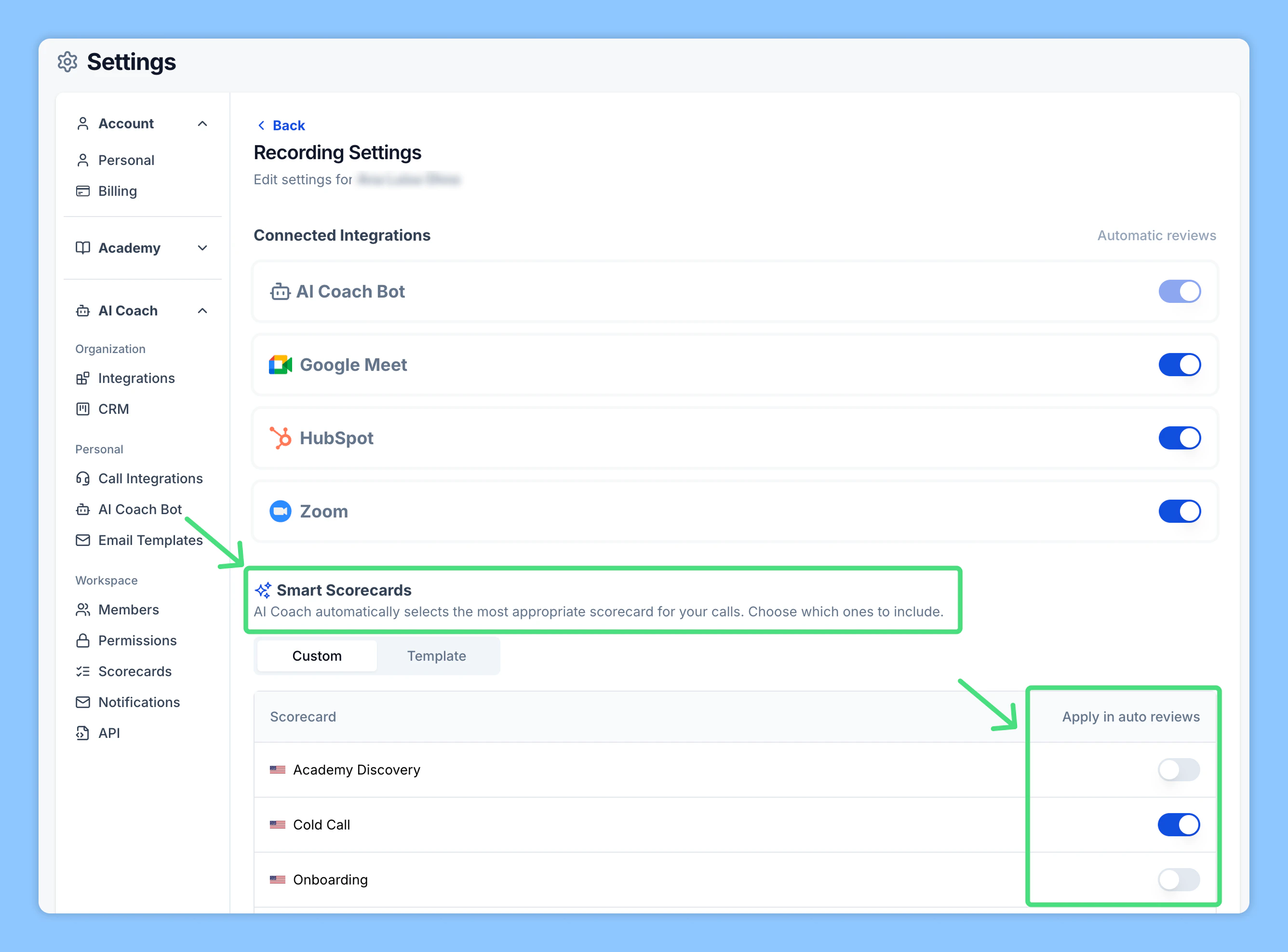
Make sure at least one Smart Scorecard is set to **Apply in auto reviews** for each rep in Triple Session's AI Coach.
**Rep action:**
1. Go to **Call Integrations** in your AI Coach settings.
2. Check if you have Smart Scorecards selected. If not, select at least one.
### Check if Smart Scorecards are enabled for Automated Reviews
Make sure at least one Smart Scorecard is set to **Apply in auto reviews** for each rep in Triple Session's AI Coach.
**Rep action:**
1. Go to **Call Integrations** in your AI Coach settings.
2. Check if you have Smart Scorecards selected. If not, select at least one.
 **Admin action:**
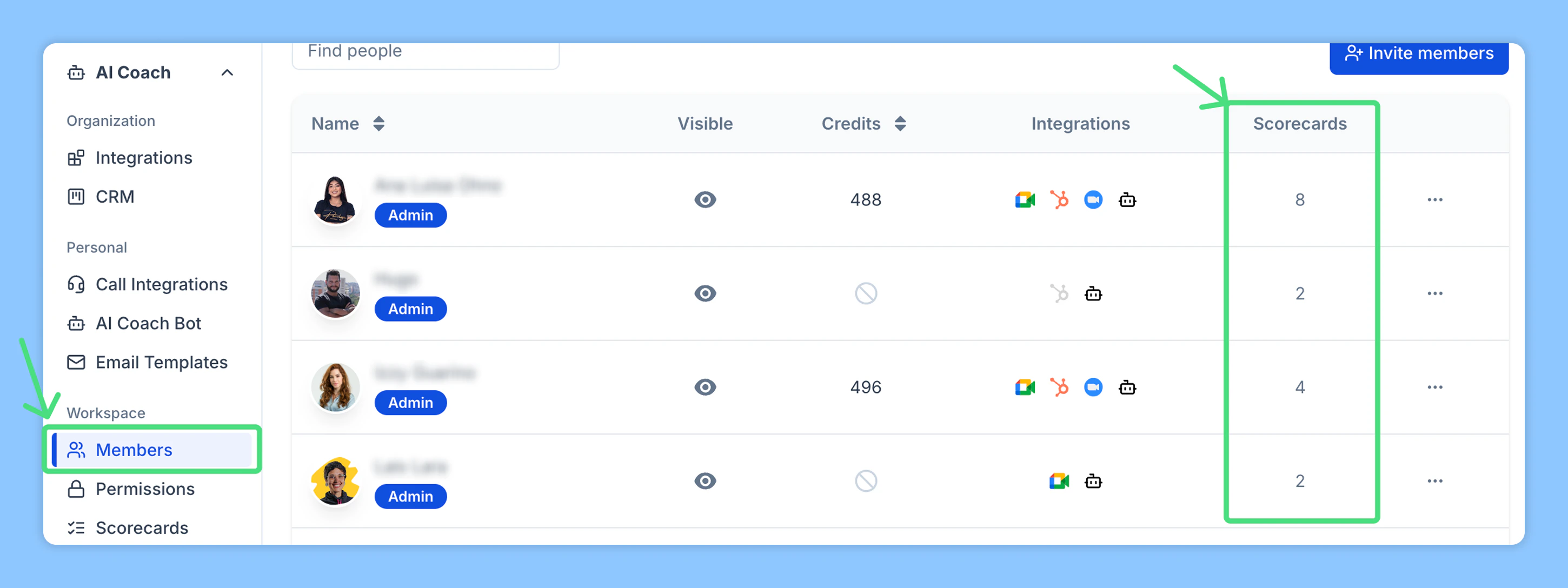
1. Go to **Members** in your AI Coach settings.
2. Check the **Scorecards** column. If it shows **0**, the rep has no Smart Scorecards selected.
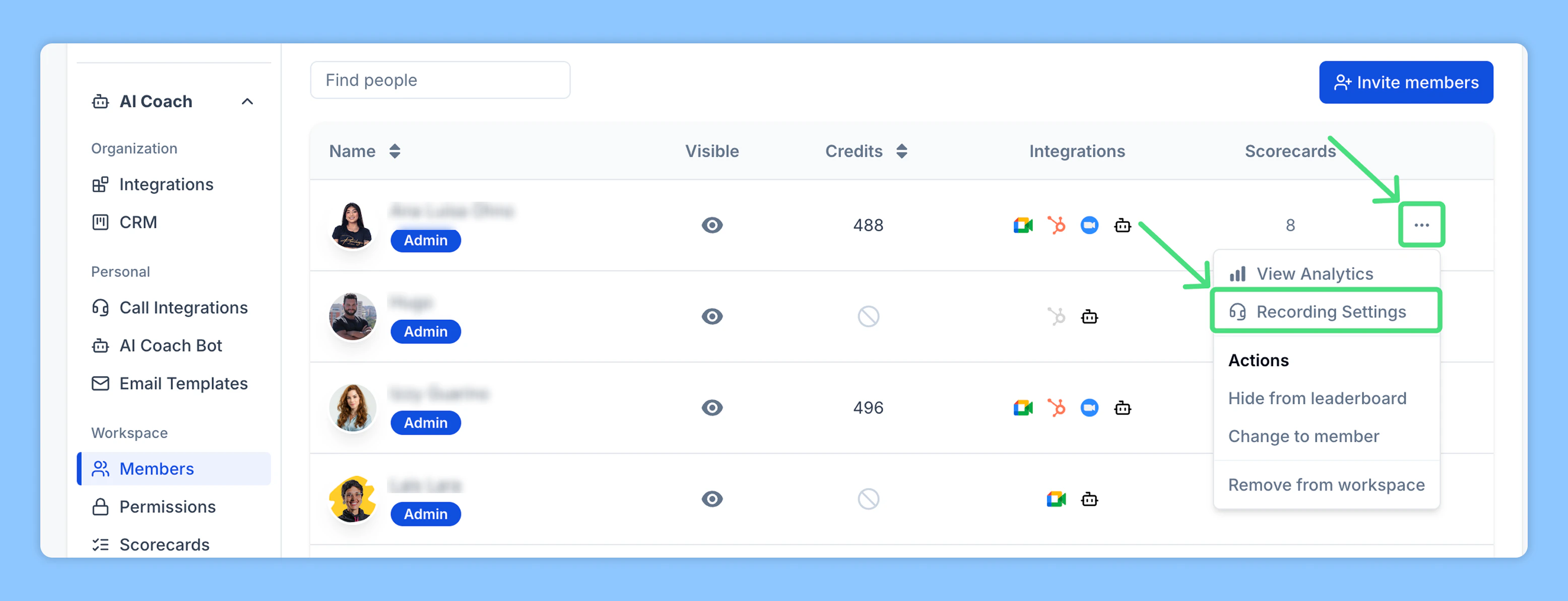
3. Click the icon to open options, then click **Recording Settings**.
4. Select Smart Scorecards for the rep.
**Admin action:**
1. Go to **Members** in your AI Coach settings.
2. Check the **Scorecards** column. If it shows **0**, the rep has no Smart Scorecards selected.
3. Click the icon to open options, then click **Recording Settings**.
4. Select Smart Scorecards for the rep.
 ***
## Managing the Aircall integration
Only users with **Company Admin** permissions can view or manage Aircall integration settings in Triple Session. If you don't see the Aircall integration option, you may not have admin rights.
If you run into any issues during setup, contact support at **[support@triplesession.com](mailto:support@triplesession.com)**.
***
## Managing the Aircall integration
Only users with **Company Admin** permissions can view or manage Aircall integration settings in Triple Session. If you don't see the Aircall integration option, you may not have admin rights.
If you run into any issues during setup, contact support at **[support@triplesession.com](mailto:support@triplesession.com)**.