> ## Documentation Index
> Fetch the complete documentation index at: https://docs.triplesession.com/llms.txt
> Use this file to discover all available pages before exploring further.
# Connect Fireflies to Triple Session AI Coach
> Import Fireflies transcripts and recordings into Triple Session AI Coach to analyze past and future conversations for performance insights and coaching.
Triple Session's AI Coach integrates with Fireflies using an API key, giving you the ability to automatically review your Fireflies meetings or manually import past recordings for analysis.
## Connect Fireflies to AI Coach
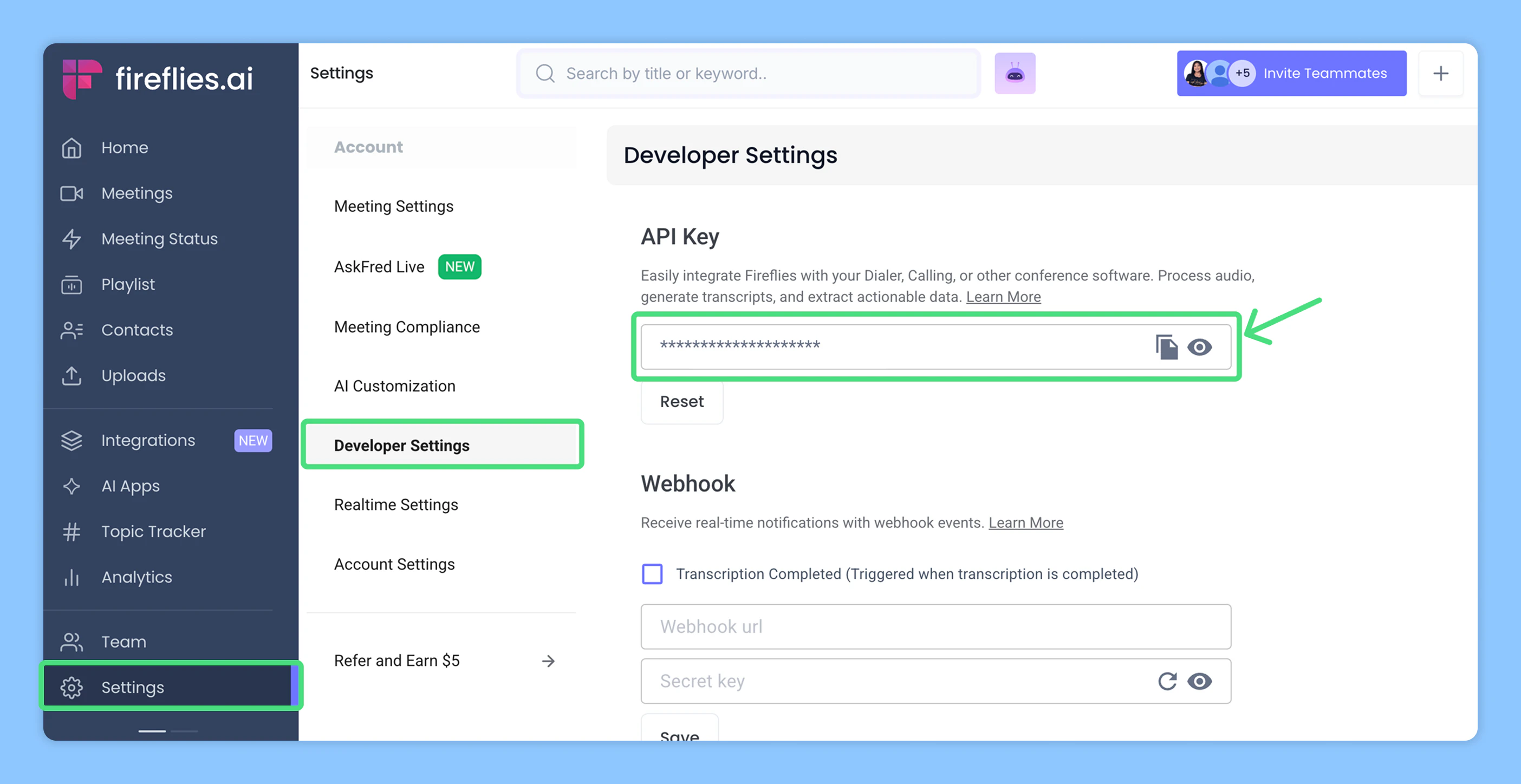
Log into your Fireflies account. Click **Settings**, then **Developer Settings**. Copy your **API Key** — you'll need it in a later step.
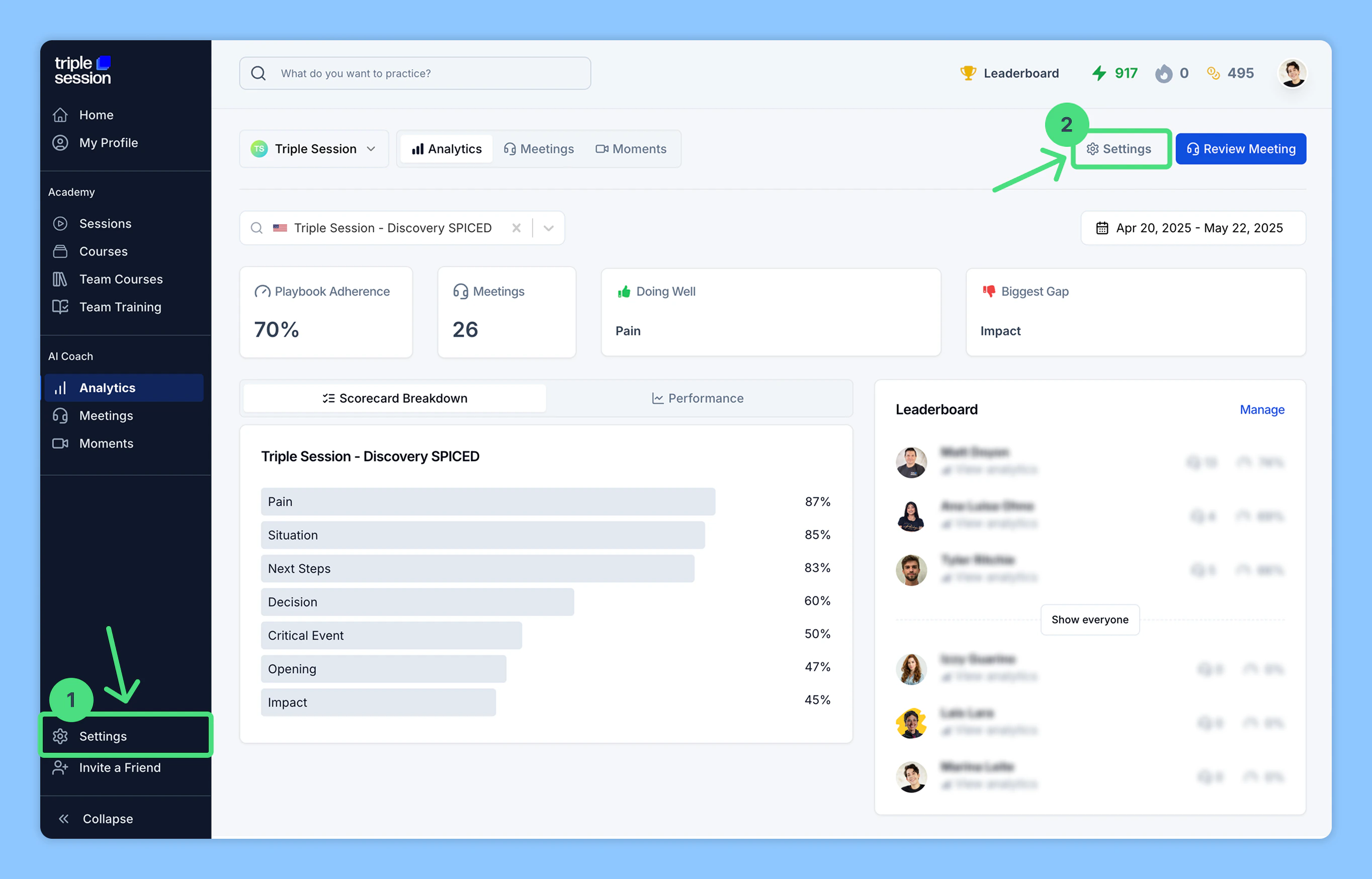
 Log into your Triple Session account. Click the **Settings** tab from the sidebar menu. You can also access **Settings** from within any AI Coach page — **Analytics**, **Meetings**, or **Moments**.
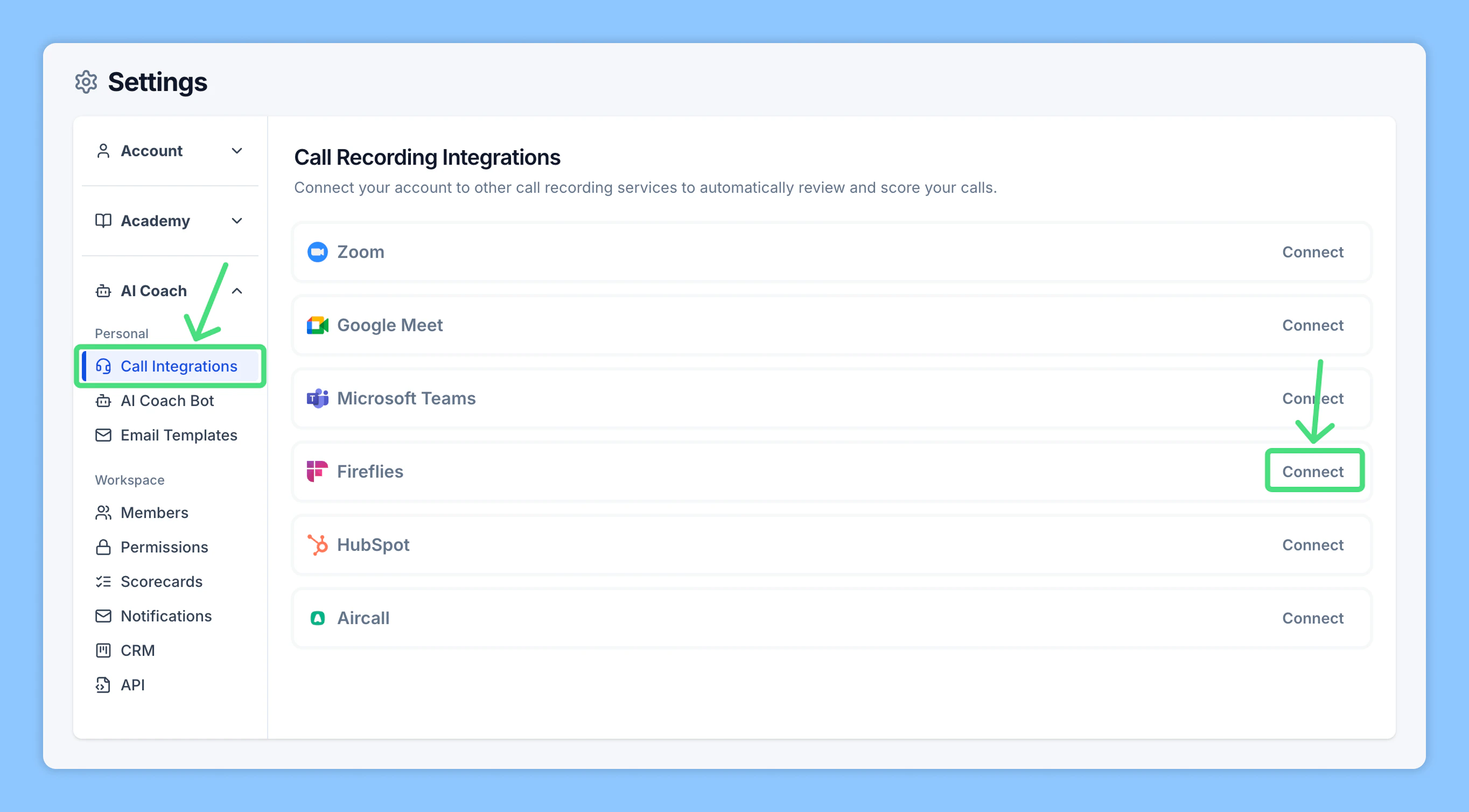
 In the **Settings** page, navigate to the **AI Coach** section. Click **Call Integrations**, find **Fireflies** among the listed call recording tools, then click **Connect**.
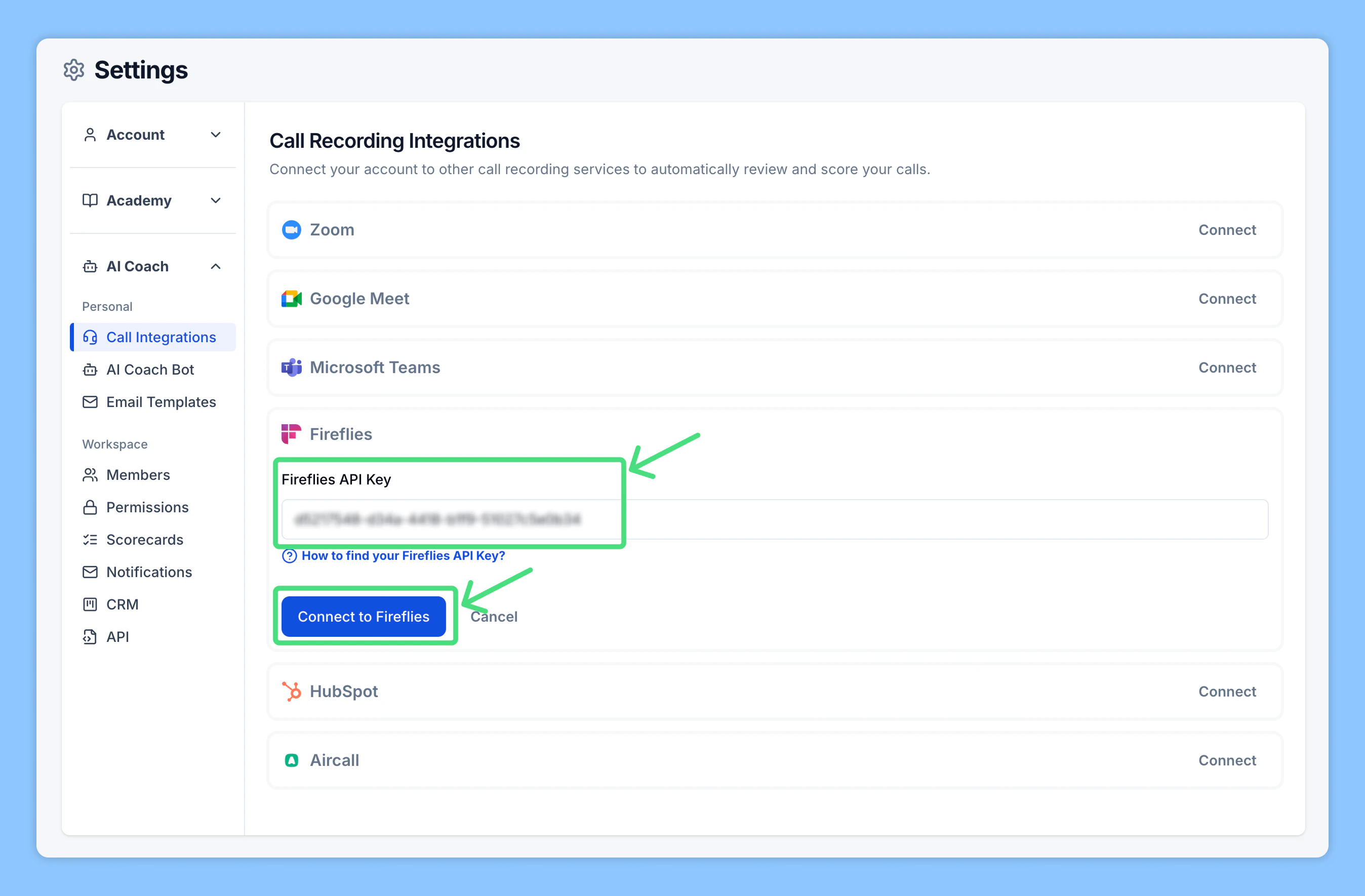
 Paste the API key you copied from your Fireflies account, then click **Connect to Fireflies**.
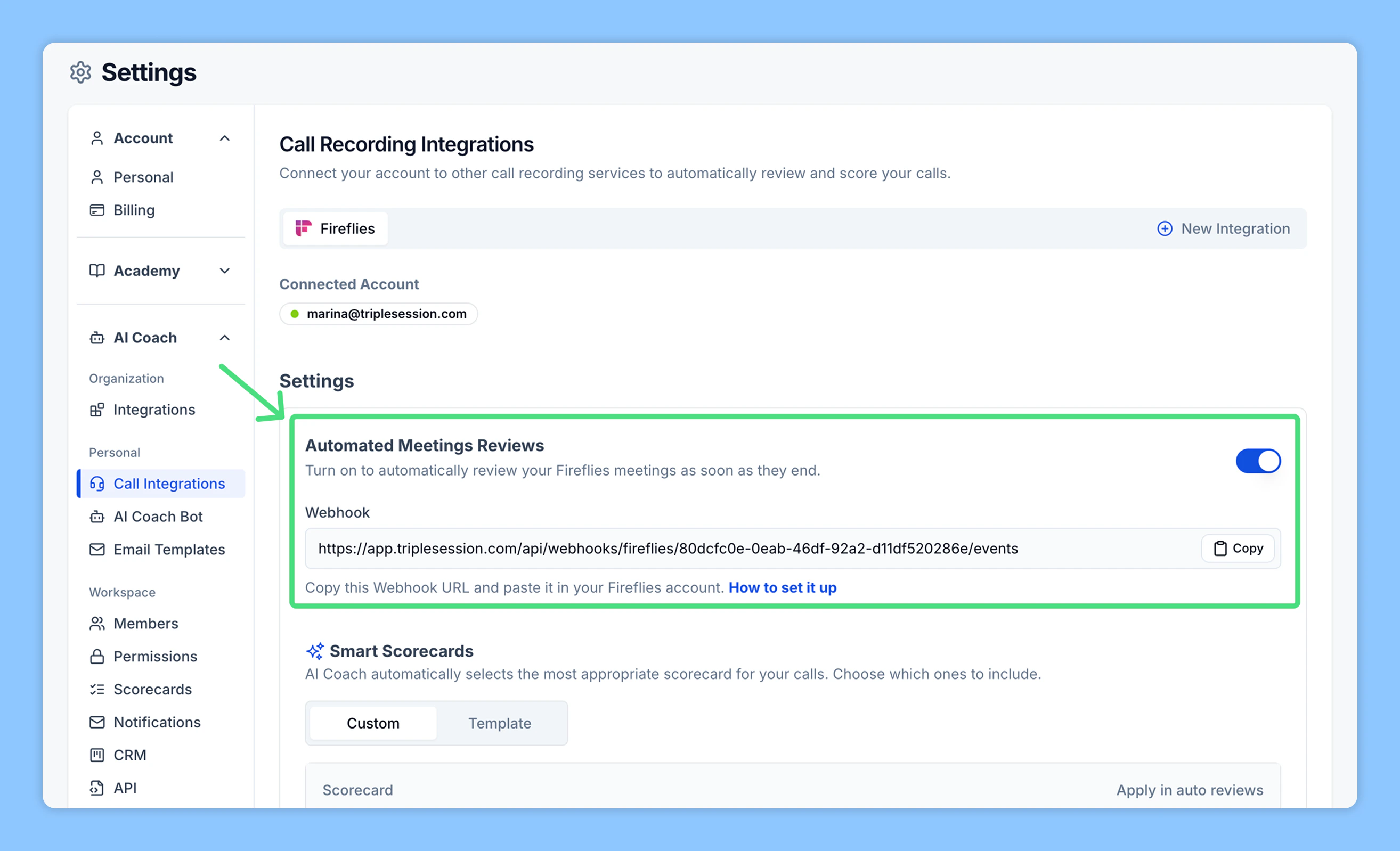
 Once Fireflies is connected, you'll see a unique **Webhook URL** generated by AI Coach.
1. Turn on **Automated Reviews**.
2. Copy the **Webhook URL** displayed.
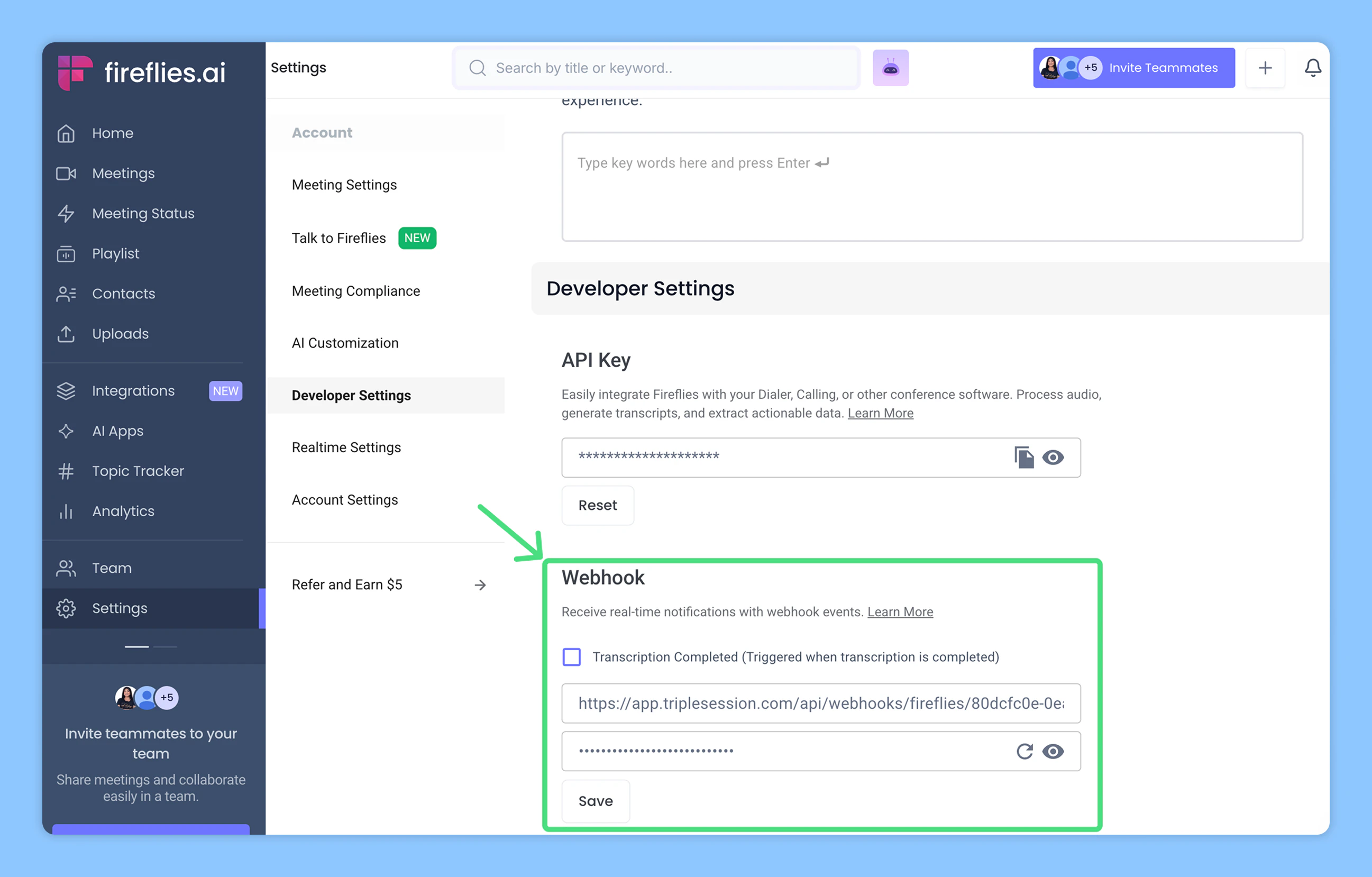
3. Go back to your Fireflies account → **Settings** → **Developer Settings**.
4. Paste the webhook into the appropriate field and save your changes.
Once the webhook is saved, Automated Reviews will be active. AI Coach will automatically review your Fireflies meetings shortly after they're processed.
Once Fireflies is connected, you'll see a unique **Webhook URL** generated by AI Coach.
1. Turn on **Automated Reviews**.
2. Copy the **Webhook URL** displayed.
3. Go back to your Fireflies account → **Settings** → **Developer Settings**.
4. Paste the webhook into the appropriate field and save your changes.
Once the webhook is saved, Automated Reviews will be active. AI Coach will automatically review your Fireflies meetings shortly after they're processed.
 If you prefer to review meetings manually, you can disable Automated Reviews at any point. In that case, you have two options:
* **Import from Fireflies:** Use the integration to select and import past meetings.
* **Upload a file:** Upload a Fireflies meeting file directly (video, audio, or transcript).
***
## Import calls from Fireflies
You can manually import individual Fireflies recordings for analysis at any time.
**Before you start:**
* Make sure you've connected Triple Session and Fireflies using the API key.
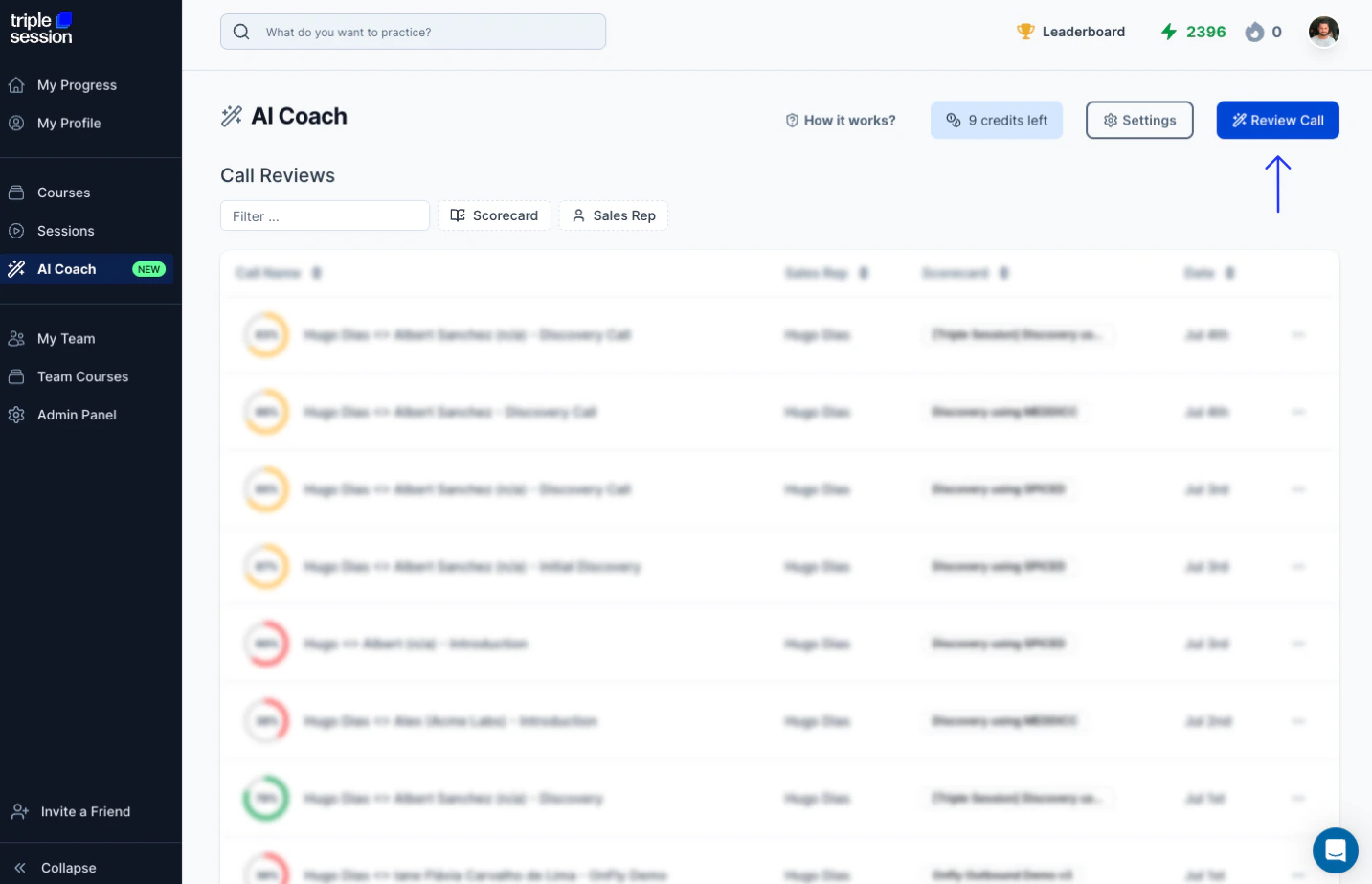
In AI Coach, click **Review Call** to open the review options.
If you prefer to review meetings manually, you can disable Automated Reviews at any point. In that case, you have two options:
* **Import from Fireflies:** Use the integration to select and import past meetings.
* **Upload a file:** Upload a Fireflies meeting file directly (video, audio, or transcript).
***
## Import calls from Fireflies
You can manually import individual Fireflies recordings for analysis at any time.
**Before you start:**
* Make sure you've connected Triple Session and Fireflies using the API key.
In AI Coach, click **Review Call** to open the review options.
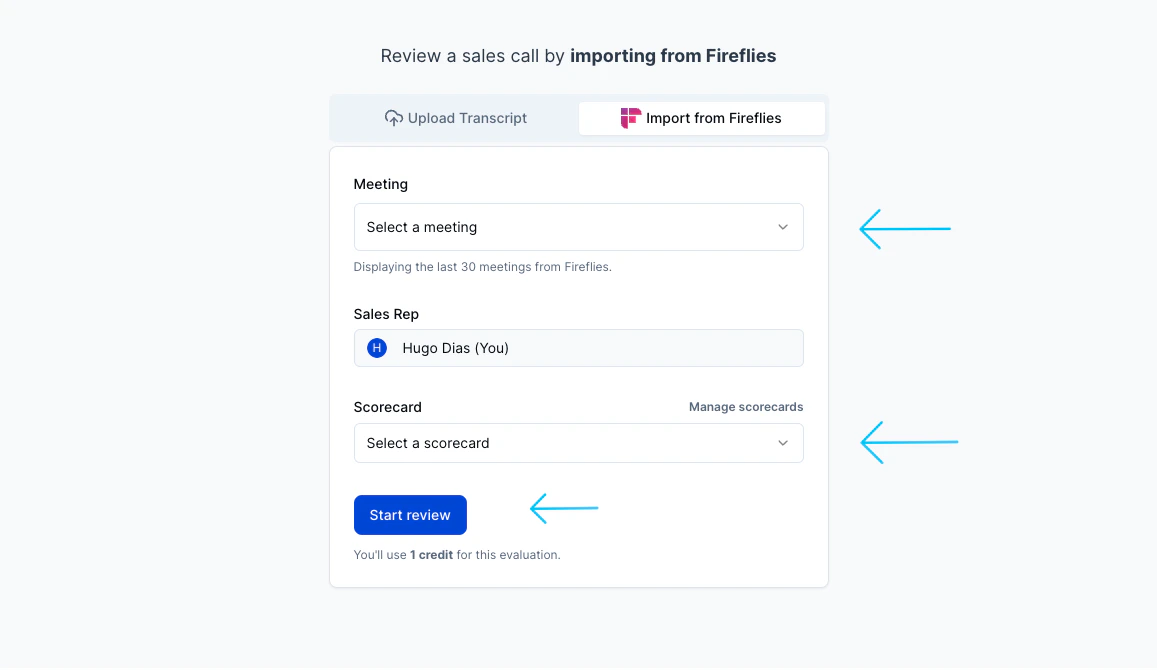
 Under **Import from Fireflies**, pick the meeting you want to review from your Fireflies account. Then select a scorecard and click **Start Review**.
 ***
## Download transcripts from Fireflies
You can download transcript files from Fireflies and upload them directly to AI Coach.
In your Fireflies account, click **Meetings**.
Choose the meeting you want to export.
From your Notepad, click **Download**, then select **Download Transcript**.
Select the **SRT** format. Enable the **timestamp** and **speaker** toggles before downloading.
In AI Coach, start a new review. Name the rep, select a scorecard, and upload the SRT file you downloaded from Fireflies. Click **Start Analysis** — your report will be ready in about 4 minutes.
***
## Download transcripts from Fireflies
You can download transcript files from Fireflies and upload them directly to AI Coach.
In your Fireflies account, click **Meetings**.
Choose the meeting you want to export.
From your Notepad, click **Download**, then select **Download Transcript**.
Select the **SRT** format. Enable the **timestamp** and **speaker** toggles before downloading.
In AI Coach, start a new review. Name the rep, select a scorecard, and upload the SRT file you downloaded from Fireflies. Click **Start Analysis** — your report will be ready in about 4 minutes.