> ## Documentation Index
> Fetch the complete documentation index at: https://docs.triplesession.com/llms.txt
> Use this file to discover all available pages before exploring further.
# Connect Google Meet to Triple Session AI Coach
> Link your Google Meet account to Triple Session's AI Coach to automatically sync recorded meetings and get instant call analysis and coaching insights.
Triple Session's AI Coach integrates with Google Meet to deliver AI-powered insights on your recorded meetings. Once connected, AI Coach automatically analyzes your calls — no manual uploads required.
## Connect Google Meet to AI Coach
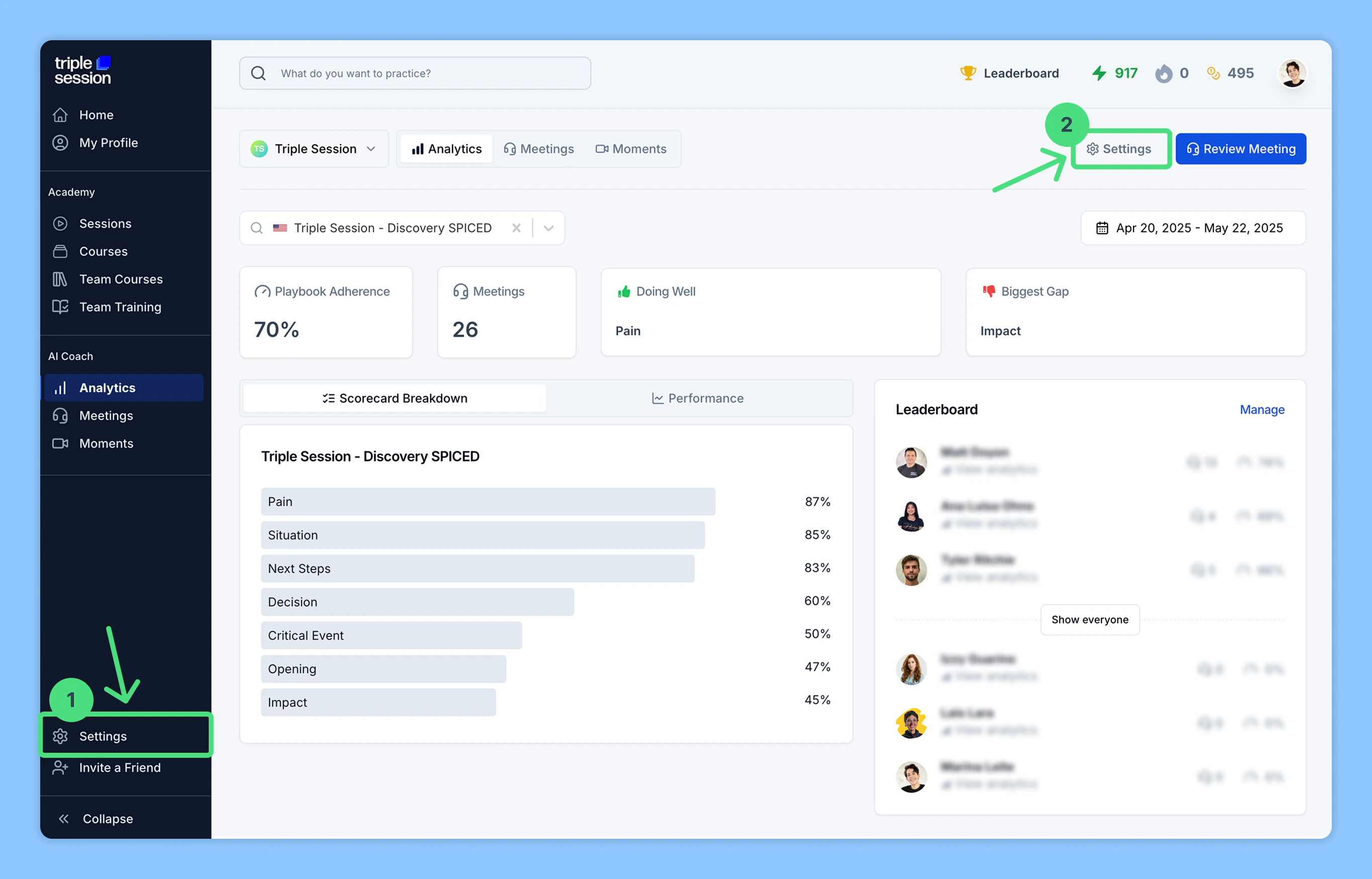
Log into your Triple Session account. Click the **Settings** tab from the sidebar menu. You can also access **Settings** from within any AI Coach page — **Analytics**, **Meetings**, or **Moments**.
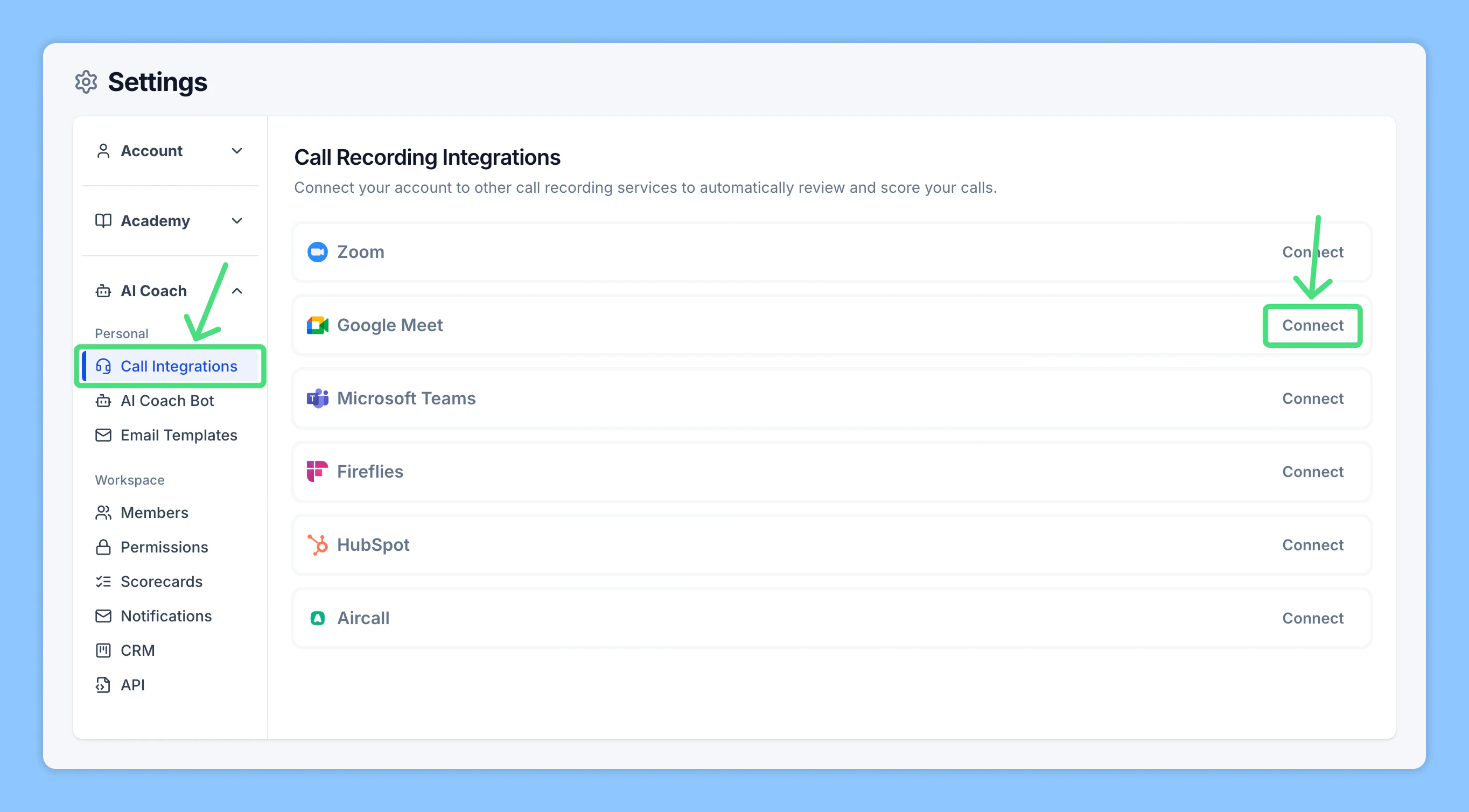
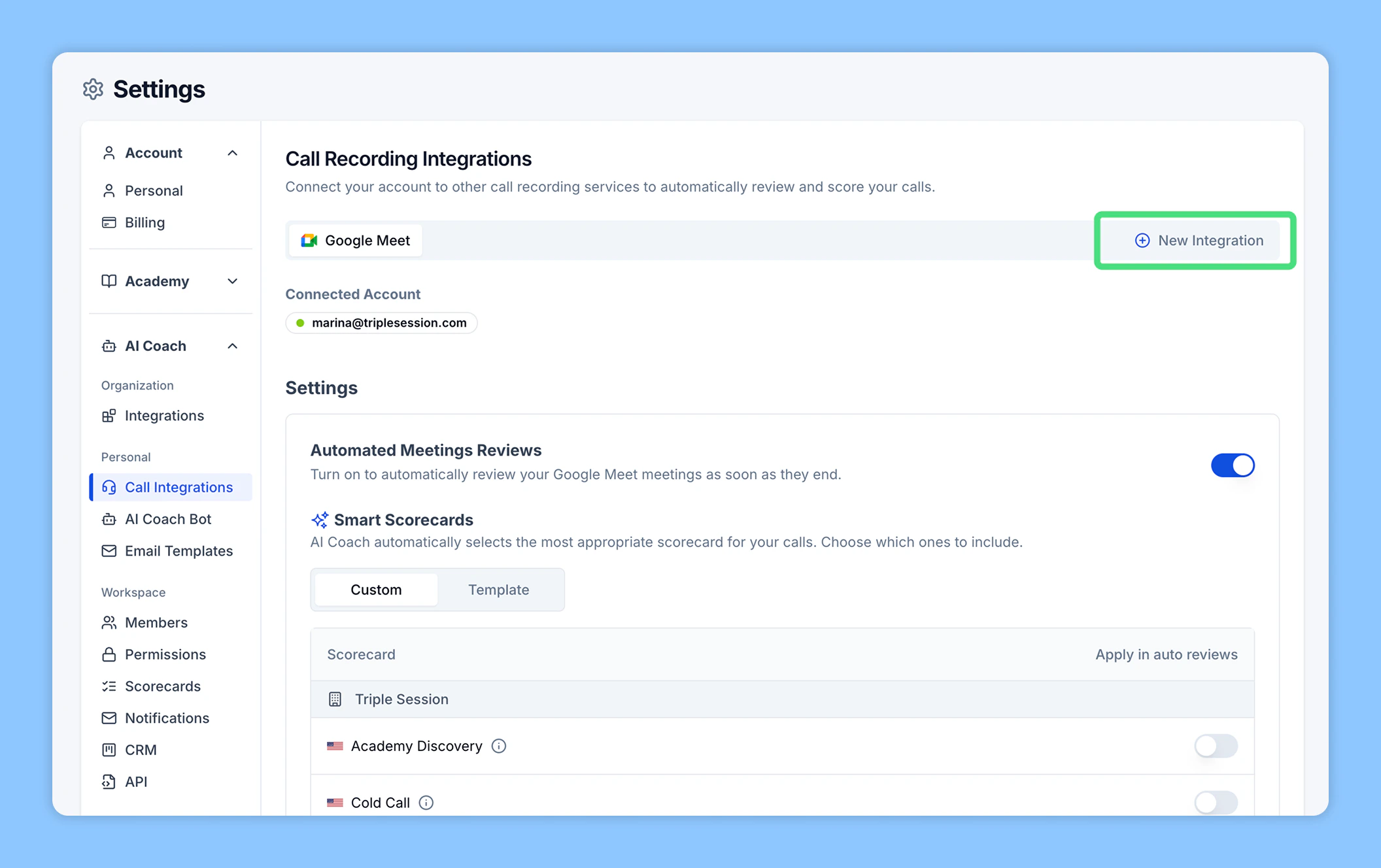
 In the **Settings** page, navigate to the **AI Coach** section. Click **Call Integrations**, find **Google Meet** among the listed call recording tools, then click **Connect**.
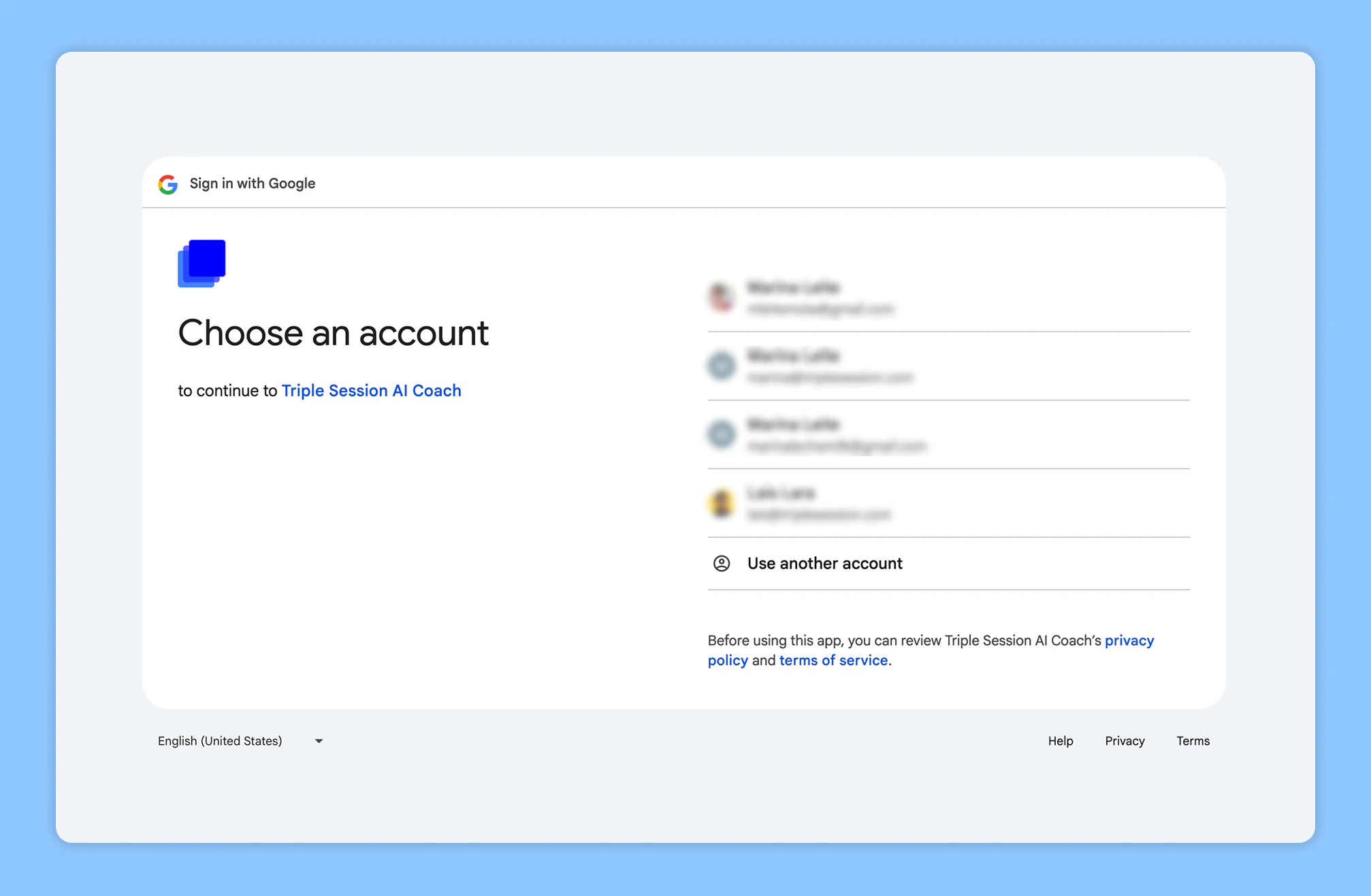
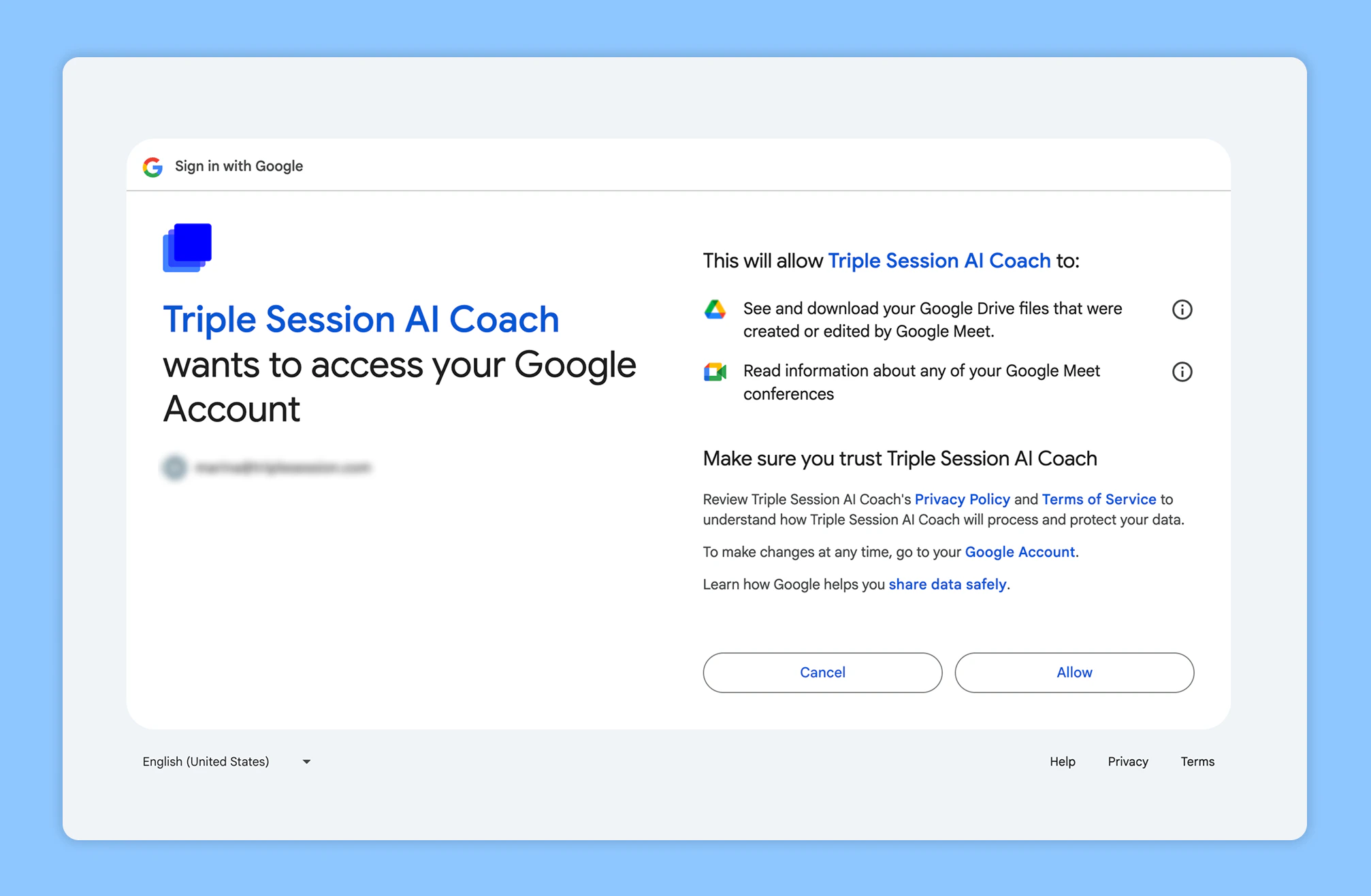
 Sign in to your Google Meet account and grant permission for AI Coach to access your Google Meet recordings and meeting data.
 Once Google Meet is connected, AI Coach will automatically begin analyzing your meetings through **Automated Reviews**.
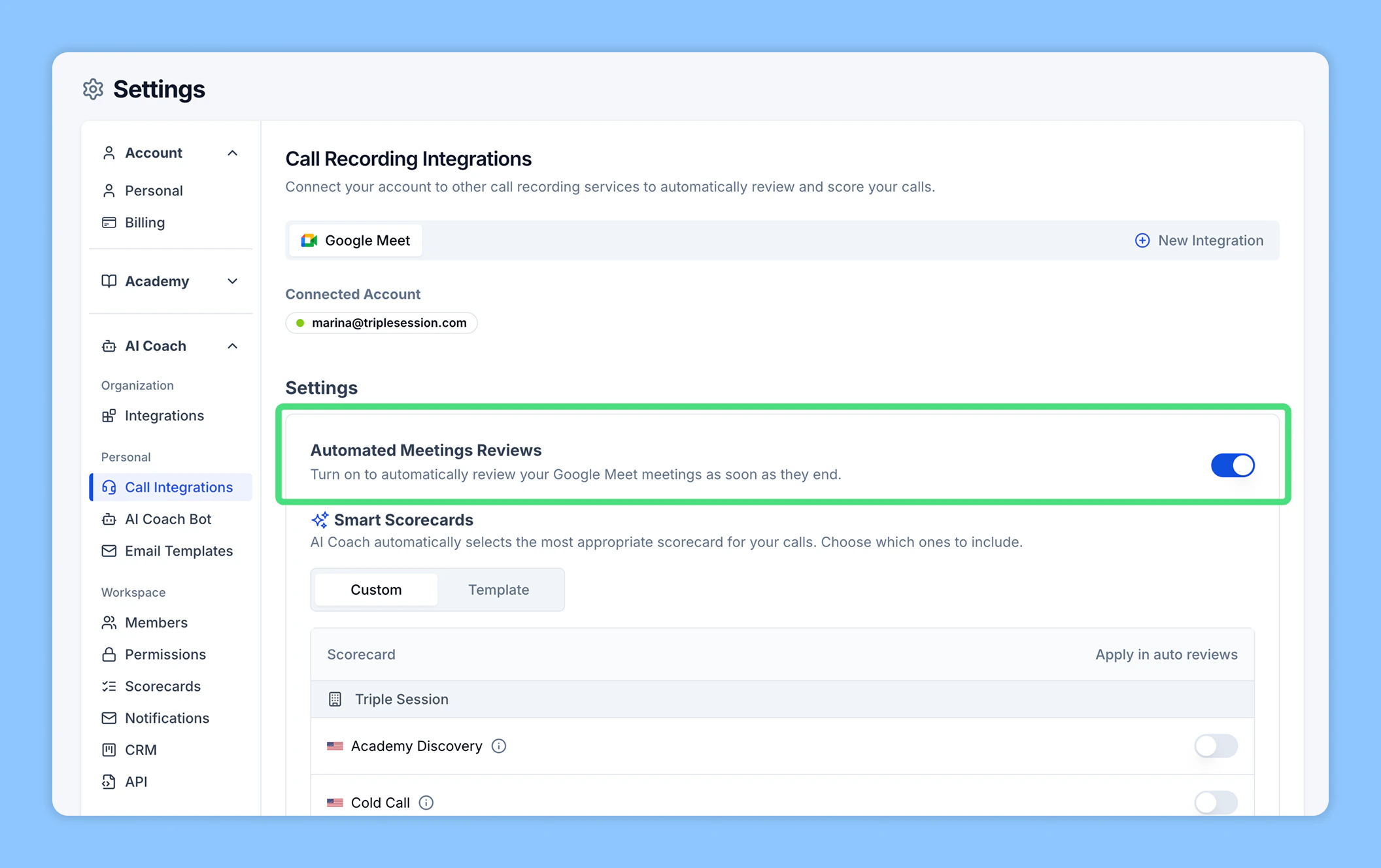
 **Automated Reviews are enabled by default.** AI Coach will automatically review and summarize your Google Meet calls shortly after they end — no manual action needed. You can disable Automated Reviews at any point from your settings.
If you prefer to review meetings manually, you have two options:
* **Import from Google Meet:** Use the integration to select and import past meetings.
* **Upload a file:** Upload a Google Meet meeting file directly (video, audio, or transcript).
**Automated Reviews are enabled by default.** AI Coach will automatically review and summarize your Google Meet calls shortly after they end — no manual action needed. You can disable Automated Reviews at any point from your settings.
If you prefer to review meetings manually, you have two options:
* **Import from Google Meet:** Use the integration to select and import past meetings.
* **Upload a file:** Upload a Google Meet meeting file directly (video, audio, or transcript).