> ## Documentation Index
> Fetch the complete documentation index at: https://docs.triplesession.com/llms.txt
> Use this file to discover all available pages before exploring further.
# Review meetings from external platforms
> Upload recordings or transcripts from any platform into Triple Session AI Coach with optional metadata for smarter review routing.
If your call recording tool isn't natively supported by Triple Session, you can still analyze your calls using an incoming webhook. Send a transcript or recording URL to AI Coach and it will automatically review the meeting using the appropriate scorecard, whether it's a sales call transcript, a WhatsApp conversation, or a recording from an internal system.
This approach uses Triple Session's **Automations** feature with a **Webhook Received** trigger and a **Review Meeting** action, coordinated through a tool like Zapier.
## Supported file types
AI Coach accepts the following formats when uploading transcripts manually or via webhook:
Plain text transcript files
WebVTT transcript files (recommended for accuracy)
SRT subtitle/transcript files
Video recording files
Audio recording files
Audio recording files
***
## Set up webhook-based reviews
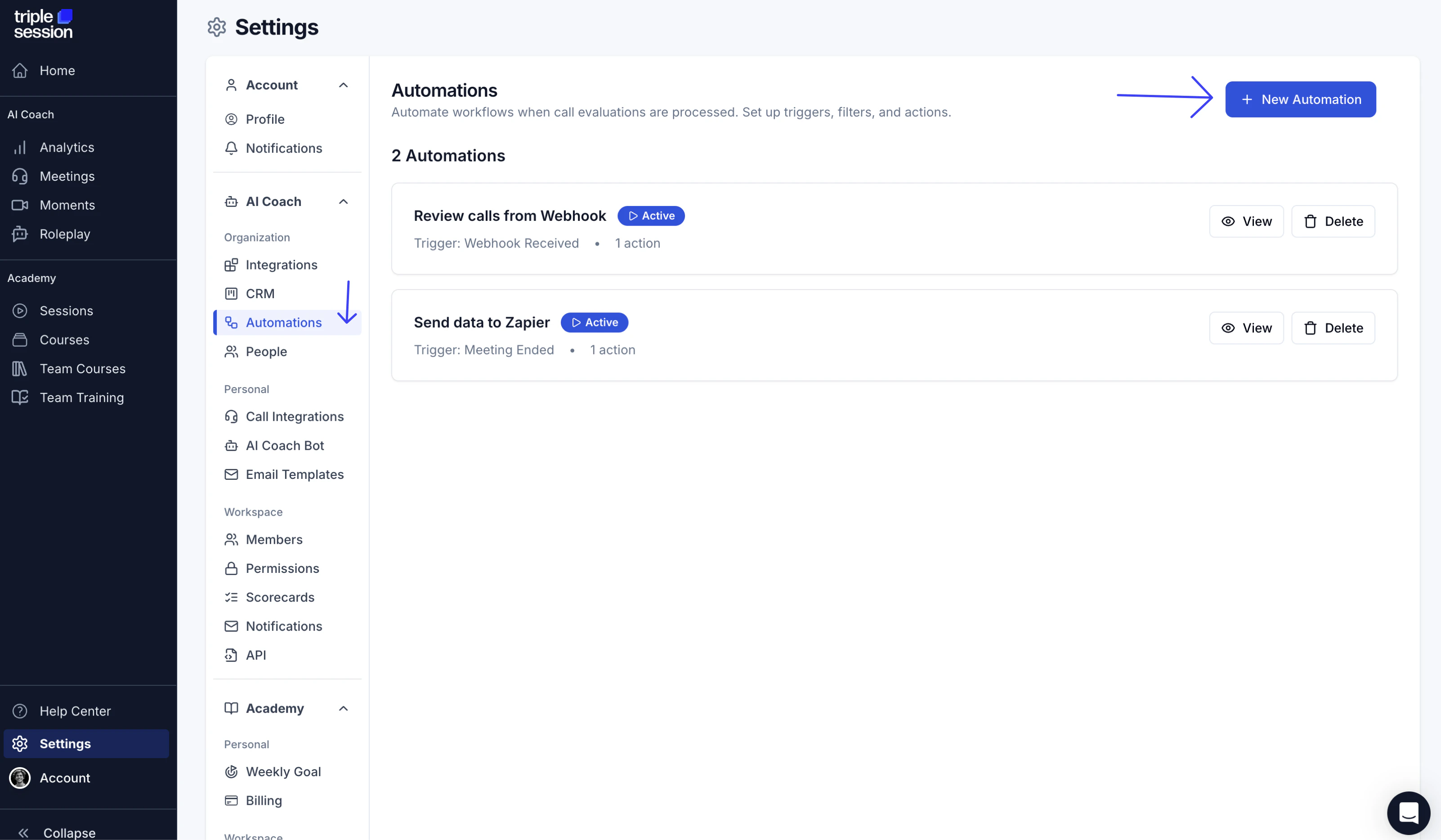
In Triple Session, go to **Settings → Integrations → Connect** to access the Automations webhook setup.
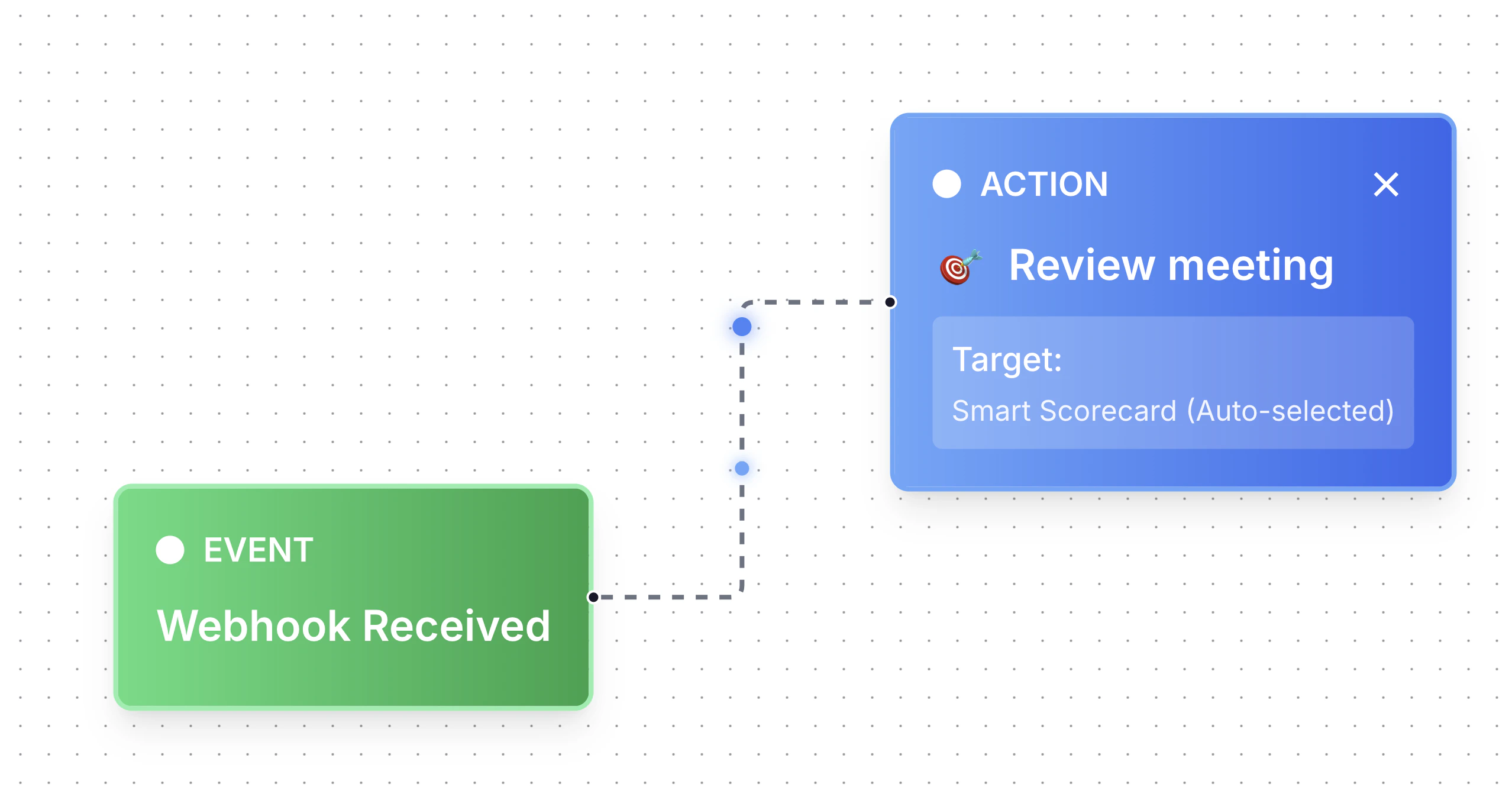
 Create an automation using the **Webhook Received** trigger connected to the **Review Meeting** action.
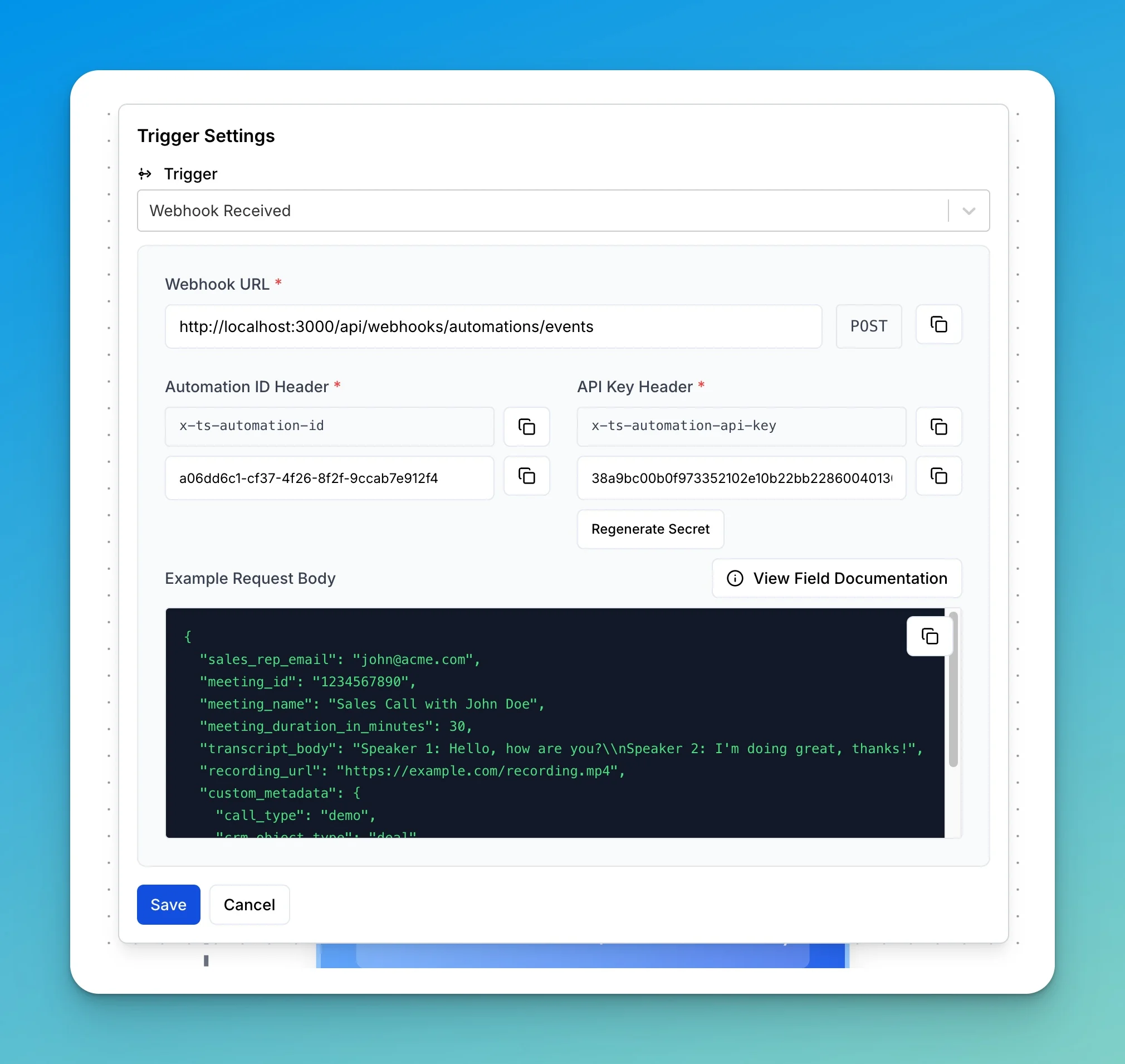
 Copy the **Webhook URL**, **Automation ID** header, and **API Key** header. You'll need to paste these into your automation tool (such as Zapier) to authenticate requests.
 Once the webhook receives a payload, AI Coach automatically reviews the meeting using the appropriate scorecard.
***
## Webhook payload schema
The automation webhook expects a JSON payload with the following structure.
### Required fields
* **`sales_rep_email`** (string) — the email address of the sales representative. Must match a Triple Session user email in your company.
### Meeting content
Provide at least one of these fields:
* **`transcript_body`** (string) — the full transcript content of the meeting.
* **`recording_url`** (string) — the URL of the recording in `mp4`, `mp3`, or `wav` format.
### Optional fields
* **`meeting_id`** (string) — unique identifier for the meeting. Strongly recommended to prevent duplicate reviews.
* **`meeting_name`** (string) — name or title of the meeting. If omitted, AI Coach generates a name automatically.
* **`meeting_date`** (string) — original meeting date.
* **`meeting_duration_in_minutes`** (number) — duration of the meeting in minutes.
* **`custom_metadata`** (object) — optional JSON object with context from your external system. Use it to send routing hints such as call type, CRM object type, direction, stage, pipeline, or source platform.
### Meeting date examples
Send a date-only value when you only know the meeting's calendar date:
```json theme={null}
{
"meeting_date": "2026-06-20"
}
```
Date-only values are stored at noon UTC, so the evaluation date stays on the intended calendar day.
Send an ISO datetime with a timezone offset when you know the exact local meeting time:
```json theme={null}
{
"meeting_date": "2026-06-20T15:30:00-03:00"
}
```
Send an ISO datetime with `Z` when you already have the exact UTC time:
```json theme={null}
{
"meeting_date": "2026-06-20T18:30:00Z"
}
```
Do not send a datetime without a timezone, such as `2026-06-20T15:30:00`.
### Custom metadata
Use `custom_metadata` when the source platform knows context that is not obvious from the transcript or recording. For example, you can send whether the call was a demo, renewal, discovery call, or outbound conversation.
When the **Review Meeting** action uses smart scorecard selection, AI Coach uses this metadata as extra context to choose the best matching scorecard. If the action uses a fixed scorecard, the metadata is accepted but does not change scorecard selection.
The value must be a JSON object. Keep it concise. Triple Session accepts up to 10,000 characters after the metadata object is serialized.
### Example payload
```json theme={null}
{
"sales_rep_email": "john.doe@company.com",
"meeting_id": "meeting_12345",
"meeting_name": "Q4 Sales Review with Acme Corp",
"meeting_date": "2026-06-20",
"meeting_duration_in_minutes": 45,
"transcript_body": "John: Good morning, thank you for joining us today...",
"recording_url": "https://example.com/recording-123",
"custom_metadata": {
"call_type": "demo",
"crm_object_type": "deal",
"direction": "outbound",
"stage": "evaluation"
}
}
```
### Required headers
* **`X-Automation-ID`** — the automation ID
* **`X-Automation-API-Key`** — the webhook secret/API key
### Response codes
| Code | Meaning |
| ----- | -------------------------------------------- |
| `200` | Success — automation job enqueued |
| `400` | Bad request — invalid payload format or data |
| `401` | Unauthorized — invalid automation signature |
| `429` | Rate limit exceeded |
| `500` | Internal server error |
***
## Additional notes
* The `sales_rep_email` must match a Triple Session user email that belongs to your company.
* Sending a value in `meeting_id` is strongly recommended — it prevents duplicate reviews and adds idempotency to the endpoint.
* The transcript body must be a string in the `transcript_body` field. VTT format is recommended for the best accuracy.
* The recording URL must point to a publicly downloadable file. Supported formats are `mp3`, `mp4`, and `wav`.
* `custom_metadata` should contain short, structured values that help classify the meeting. Don't send full transcripts, recordings, or large notes in this field.
***
## Download transcripts from supported platforms
If you need to export transcripts from Zoom or Fireflies to upload manually, follow these steps.
### Download a transcript from Zoom
Visit the recordings section of your Zoom account to find all available cloud recordings.
Find the recording you want to analyze and click **Download**. This downloads all associated files, including the transcript.
Your download will include a file with a `.vtt` extension. This is the transcript file AI Coach uses for analysis.
Go to AI Coach, upload the `.vtt` transcript file, fill out the review details (rep name and scorecard), and click **Start Review**.
### Download a transcript from Fireflies
In your Fireflies account, click **Meetings**.
Choose the meeting you want to export.
From your Notepad, click **Download**, then select **Download Transcript**.
Select the **SRT** format. Enable the **timestamp** and **speaker** toggles before downloading.
In AI Coach, start a new review. Name the rep, select a scorecard, upload the SRT file, and click **Start Analysis**.
Once the webhook receives a payload, AI Coach automatically reviews the meeting using the appropriate scorecard.
***
## Webhook payload schema
The automation webhook expects a JSON payload with the following structure.
### Required fields
* **`sales_rep_email`** (string) — the email address of the sales representative. Must match a Triple Session user email in your company.
### Meeting content
Provide at least one of these fields:
* **`transcript_body`** (string) — the full transcript content of the meeting.
* **`recording_url`** (string) — the URL of the recording in `mp4`, `mp3`, or `wav` format.
### Optional fields
* **`meeting_id`** (string) — unique identifier for the meeting. Strongly recommended to prevent duplicate reviews.
* **`meeting_name`** (string) — name or title of the meeting. If omitted, AI Coach generates a name automatically.
* **`meeting_date`** (string) — original meeting date.
* **`meeting_duration_in_minutes`** (number) — duration of the meeting in minutes.
* **`custom_metadata`** (object) — optional JSON object with context from your external system. Use it to send routing hints such as call type, CRM object type, direction, stage, pipeline, or source platform.
### Meeting date examples
Send a date-only value when you only know the meeting's calendar date:
```json theme={null}
{
"meeting_date": "2026-06-20"
}
```
Date-only values are stored at noon UTC, so the evaluation date stays on the intended calendar day.
Send an ISO datetime with a timezone offset when you know the exact local meeting time:
```json theme={null}
{
"meeting_date": "2026-06-20T15:30:00-03:00"
}
```
Send an ISO datetime with `Z` when you already have the exact UTC time:
```json theme={null}
{
"meeting_date": "2026-06-20T18:30:00Z"
}
```
Do not send a datetime without a timezone, such as `2026-06-20T15:30:00`.
### Custom metadata
Use `custom_metadata` when the source platform knows context that is not obvious from the transcript or recording. For example, you can send whether the call was a demo, renewal, discovery call, or outbound conversation.
When the **Review Meeting** action uses smart scorecard selection, AI Coach uses this metadata as extra context to choose the best matching scorecard. If the action uses a fixed scorecard, the metadata is accepted but does not change scorecard selection.
The value must be a JSON object. Keep it concise. Triple Session accepts up to 10,000 characters after the metadata object is serialized.
### Example payload
```json theme={null}
{
"sales_rep_email": "john.doe@company.com",
"meeting_id": "meeting_12345",
"meeting_name": "Q4 Sales Review with Acme Corp",
"meeting_date": "2026-06-20",
"meeting_duration_in_minutes": 45,
"transcript_body": "John: Good morning, thank you for joining us today...",
"recording_url": "https://example.com/recording-123",
"custom_metadata": {
"call_type": "demo",
"crm_object_type": "deal",
"direction": "outbound",
"stage": "evaluation"
}
}
```
### Required headers
* **`X-Automation-ID`** — the automation ID
* **`X-Automation-API-Key`** — the webhook secret/API key
### Response codes
| Code | Meaning |
| ----- | -------------------------------------------- |
| `200` | Success — automation job enqueued |
| `400` | Bad request — invalid payload format or data |
| `401` | Unauthorized — invalid automation signature |
| `429` | Rate limit exceeded |
| `500` | Internal server error |
***
## Additional notes
* The `sales_rep_email` must match a Triple Session user email that belongs to your company.
* Sending a value in `meeting_id` is strongly recommended — it prevents duplicate reviews and adds idempotency to the endpoint.
* The transcript body must be a string in the `transcript_body` field. VTT format is recommended for the best accuracy.
* The recording URL must point to a publicly downloadable file. Supported formats are `mp3`, `mp4`, and `wav`.
* `custom_metadata` should contain short, structured values that help classify the meeting. Don't send full transcripts, recordings, or large notes in this field.
***
## Download transcripts from supported platforms
If you need to export transcripts from Zoom or Fireflies to upload manually, follow these steps.
### Download a transcript from Zoom
Visit the recordings section of your Zoom account to find all available cloud recordings.
Find the recording you want to analyze and click **Download**. This downloads all associated files, including the transcript.
Your download will include a file with a `.vtt` extension. This is the transcript file AI Coach uses for analysis.
Go to AI Coach, upload the `.vtt` transcript file, fill out the review details (rep name and scorecard), and click **Start Review**.
### Download a transcript from Fireflies
In your Fireflies account, click **Meetings**.
Choose the meeting you want to export.
From your Notepad, click **Download**, then select **Download Transcript**.
Select the **SRT** format. Enable the **timestamp** and **speaker** toggles before downloading.
In AI Coach, start a new review. Name the rep, select a scorecard, upload the SRT file, and click **Start Analysis**.