> ## Documentation Index
> Fetch the complete documentation index at: https://docs.triplesession.com/llms.txt
> Use this file to discover all available pages before exploring further.
# Connect Zoom to Triple Session AI Coach
> Integrate your Zoom account with Triple Session to automatically import call recordings and transcripts for AI Coach analysis and scoring.
Triple Session's AI Coach connects with Zoom to read transcripts from your cloud recordings and deliver insights and coaching recommendations on your sales calls. Once connected, AI Coach can pull cloud recordings with transcripts from the past 30 days using the Zoom API.
## Connect Zoom to AI Coach
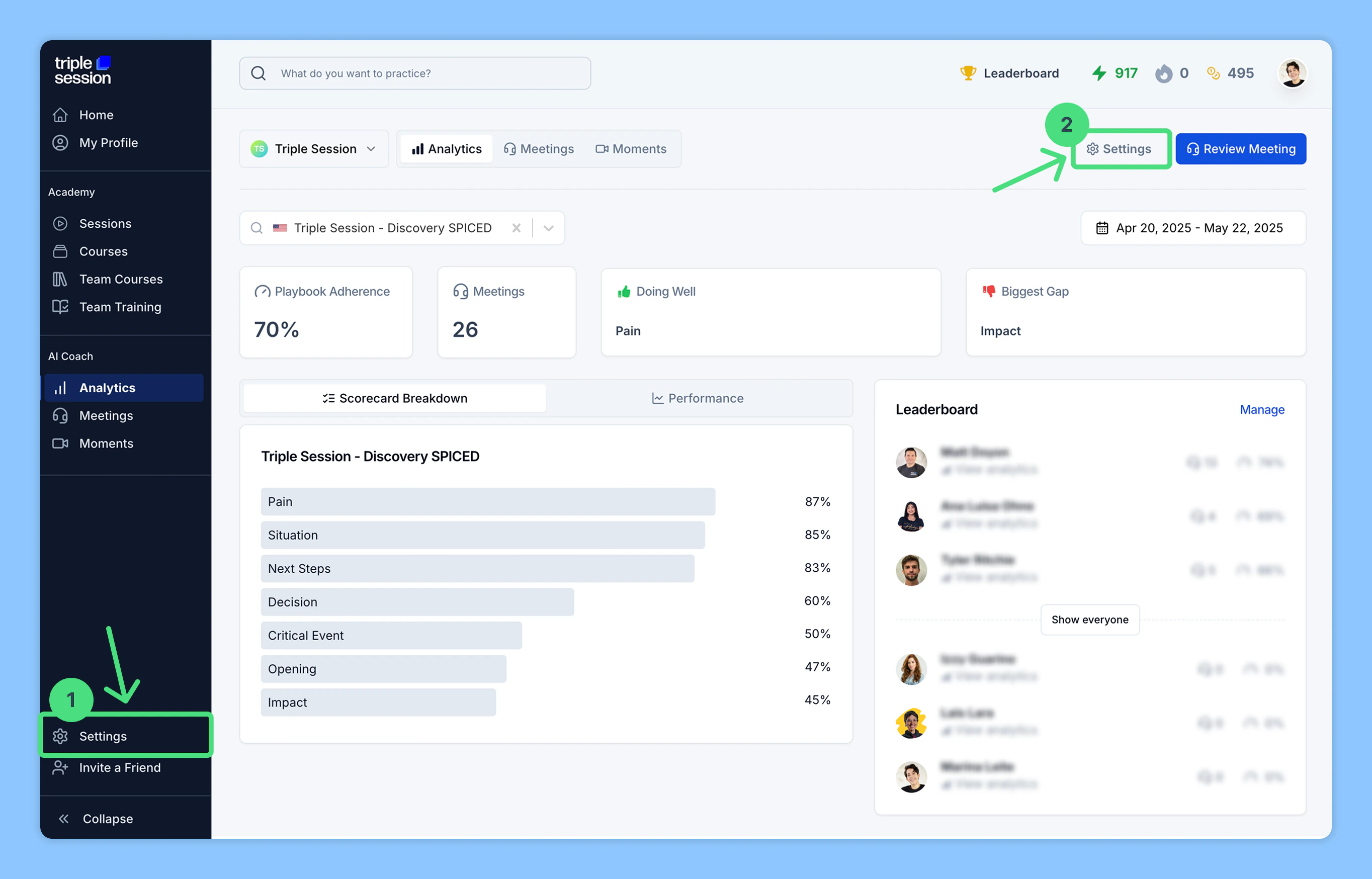
Log into your Triple Session account. Click the **Settings** tab from the sidebar menu. You can also access **Settings** from within any AI Coach page — **Analytics**, **Meetings**, or **Moments**.
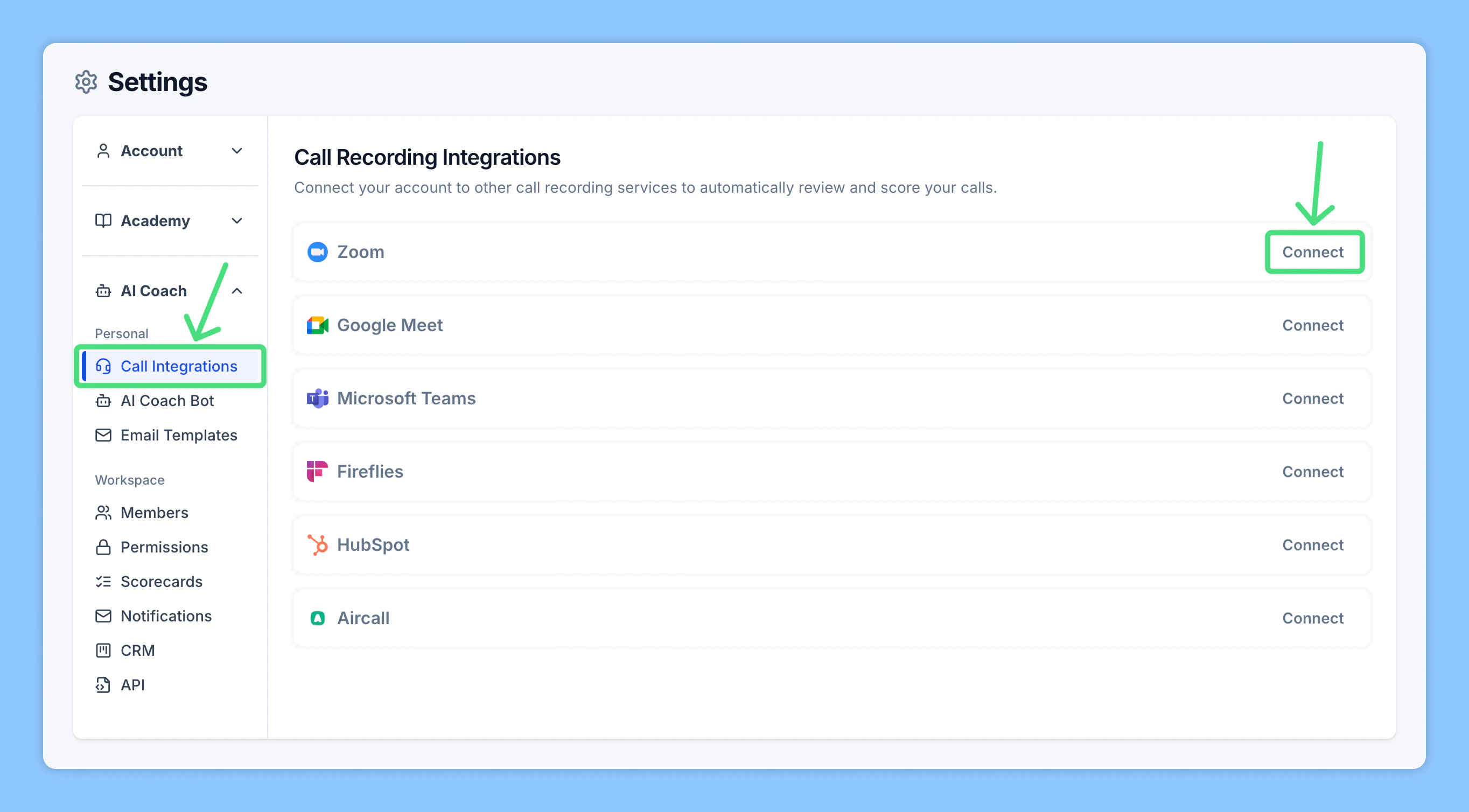
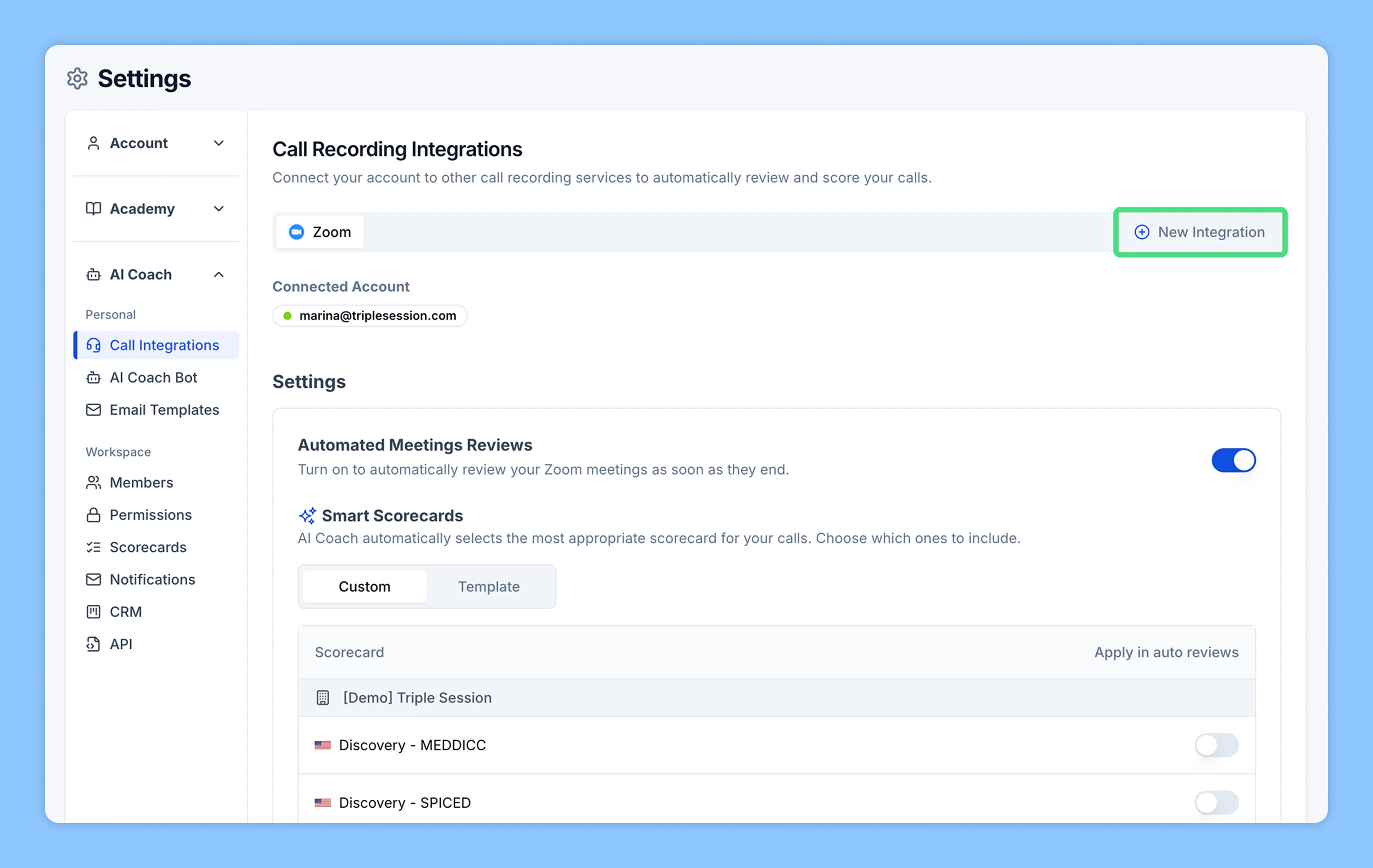
 In the **Settings** page, navigate to the **AI Coach** section. Click **Call Integrations**, find **Zoom** among the listed call recording tools, then click **Connect**.
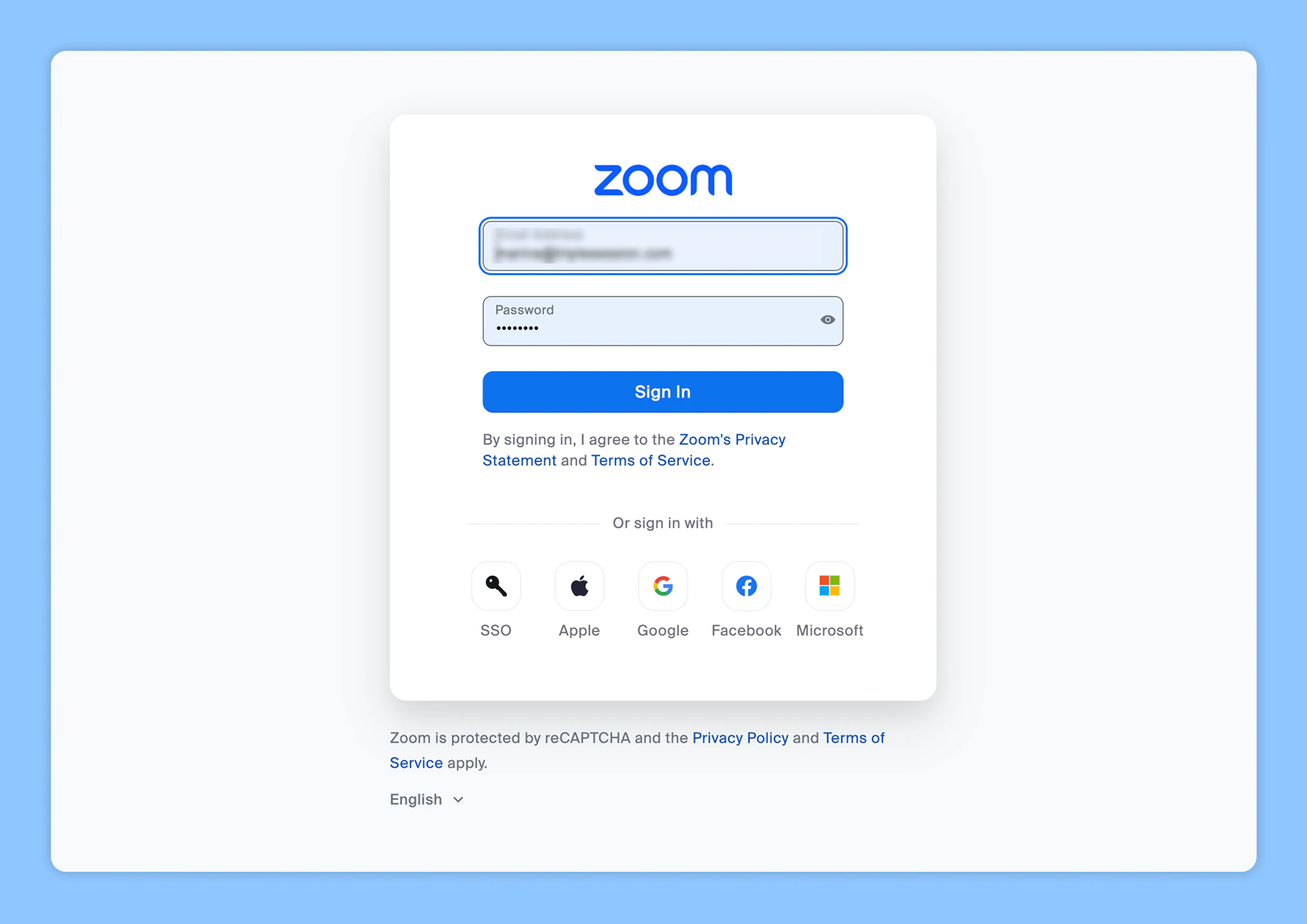
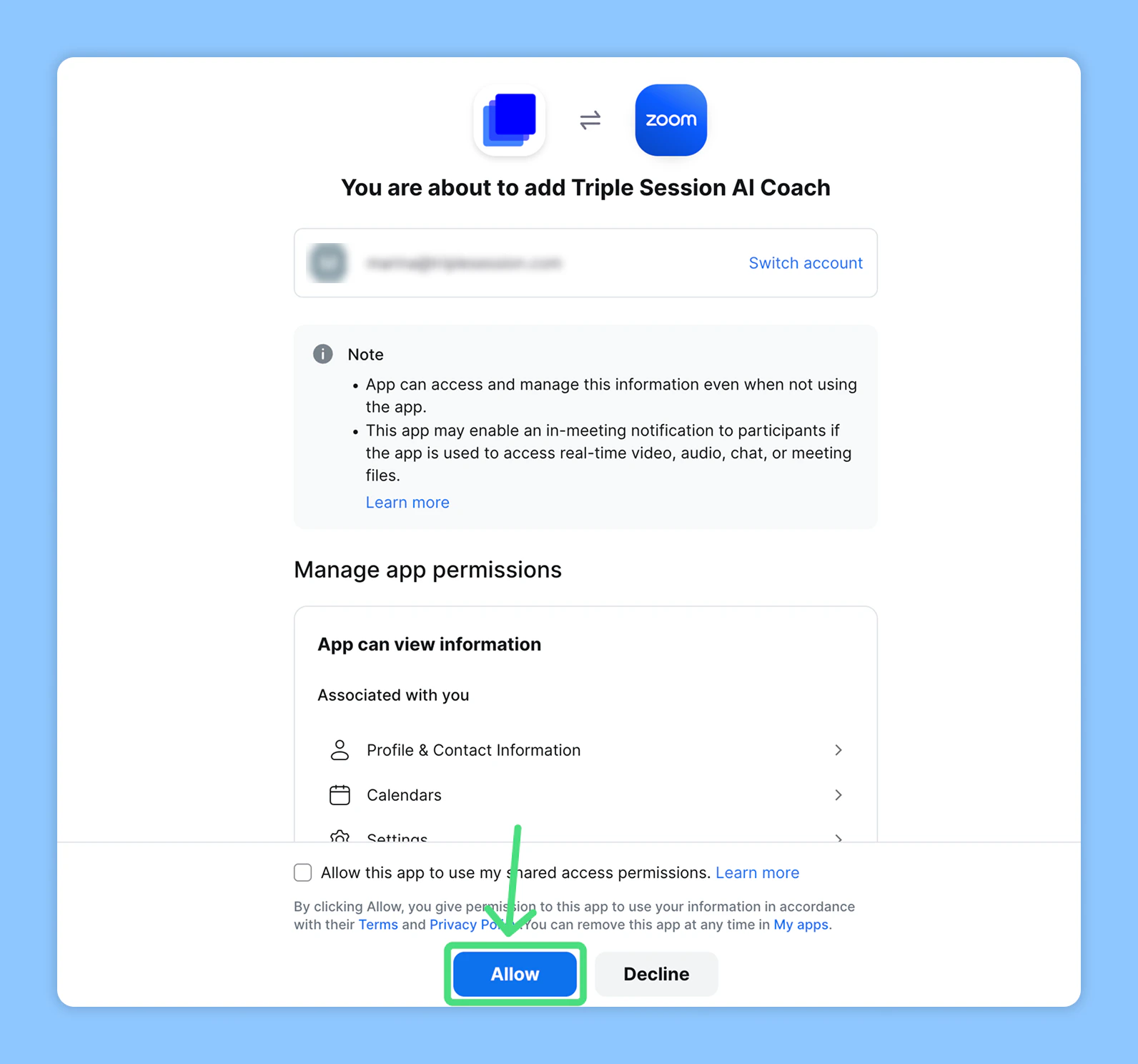
 Sign in to your Zoom account and grant permission for AI Coach to access your Zoom recordings and meeting data.
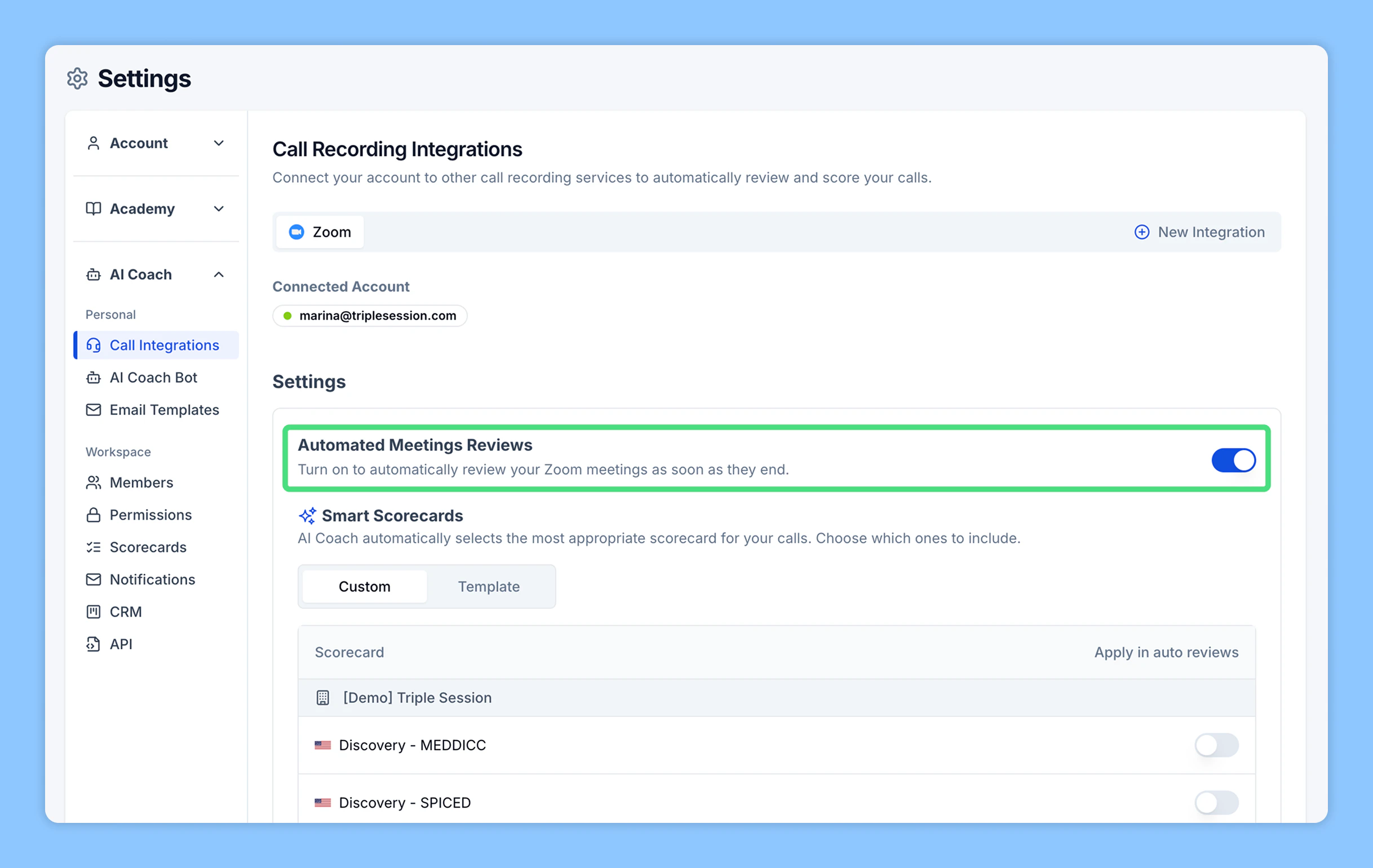
 Once Zoom is connected, **Automated Reviews are enabled by default**. AI Coach will automatically review and summarize your Zoom calls shortly after they end — no manual action needed. You can disable Automated Reviews at any point from your settings.
 If you prefer to review meetings manually, you have two options:
* **Import from Zoom:** Use the integration to select and import past meetings.
* **Upload a file:** Upload a Zoom meeting file directly (video, audio, or transcript).
***
## Configure Zoom for AI Coach
To ensure AI Coach can access your recordings, you must enable cloud recording with transcripts in your Zoom account.
Visit your Zoom profile settings page at `https://zoom.us/profile/setting` and click **Recording** at the top.
If you prefer to review meetings manually, you have two options:
* **Import from Zoom:** Use the integration to select and import past meetings.
* **Upload a file:** Upload a Zoom meeting file directly (video, audio, or transcript).
***
## Configure Zoom for AI Coach
To ensure AI Coach can access your recordings, you must enable cloud recording with transcripts in your Zoom account.
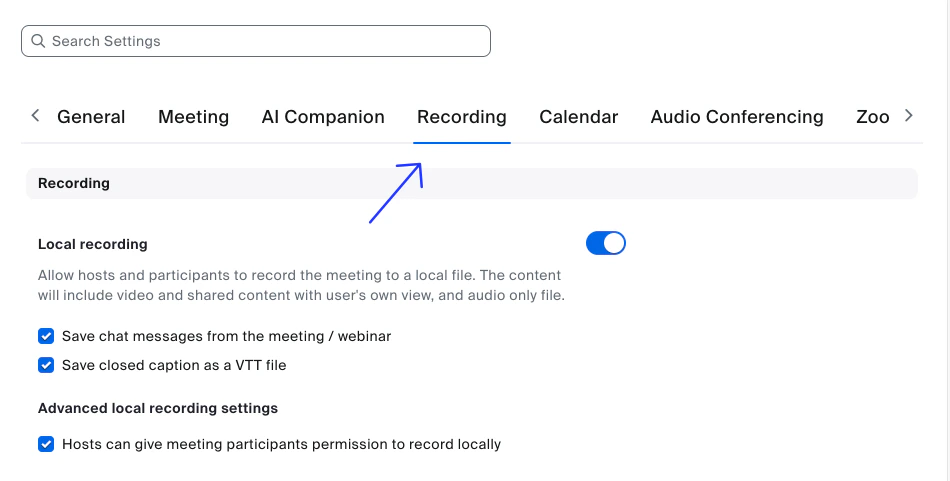
Visit your Zoom profile settings page at `https://zoom.us/profile/setting` and click **Recording** at the top.
 Scroll down to **Cloud Recording** and make sure it is enabled. This ensures that meetings are stored in the cloud so that AI Coach can access them.
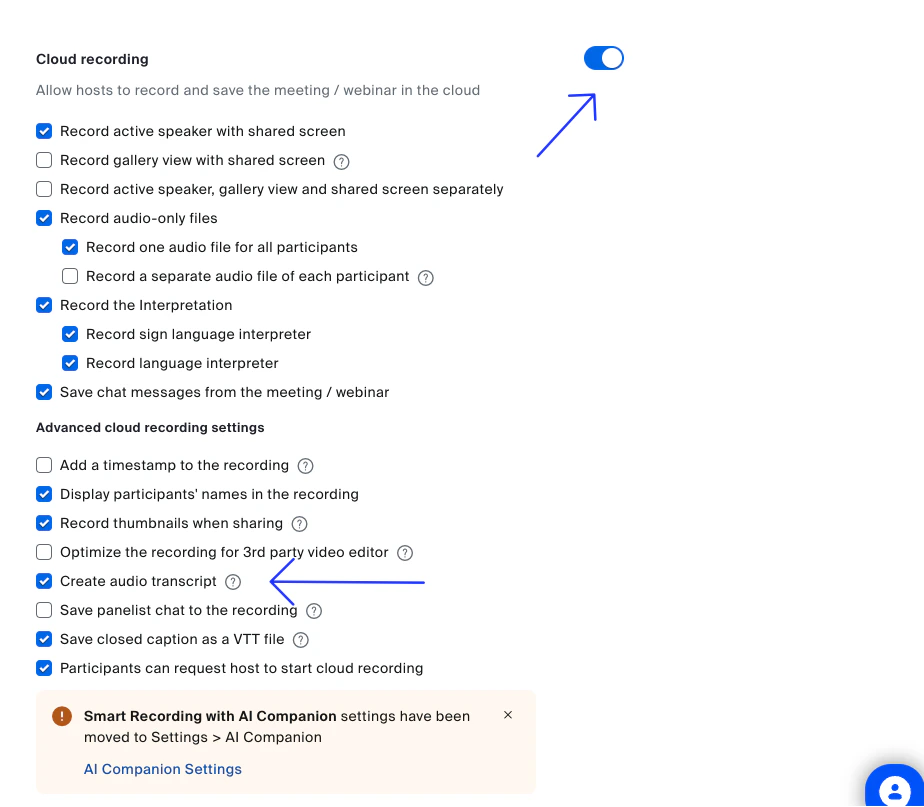 Inside **Advanced cloud recording settings**, enable the **Create audio transcript** option.
***
## Import calls from Zoom
If Automated Reviews are disabled, you can manually import individual recordings for analysis.
**Before you start:**
* Make sure your Zoom account is connected to AI Coach.
* Make sure Cloud Recordings are enabled in your Zoom account.
* Make sure you have available credits in your account. Each call review consumes one credit.
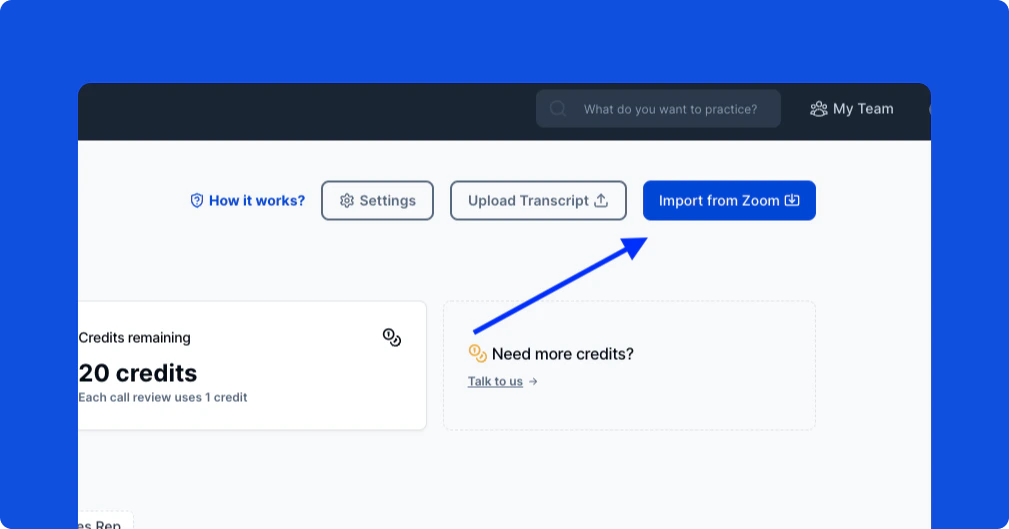
In AI Coach, click **Import from Zoom** to get started.
Inside **Advanced cloud recording settings**, enable the **Create audio transcript** option.
***
## Import calls from Zoom
If Automated Reviews are disabled, you can manually import individual recordings for analysis.
**Before you start:**
* Make sure your Zoom account is connected to AI Coach.
* Make sure Cloud Recordings are enabled in your Zoom account.
* Make sure you have available credits in your account. Each call review consumes one credit.
In AI Coach, click **Import from Zoom** to get started.
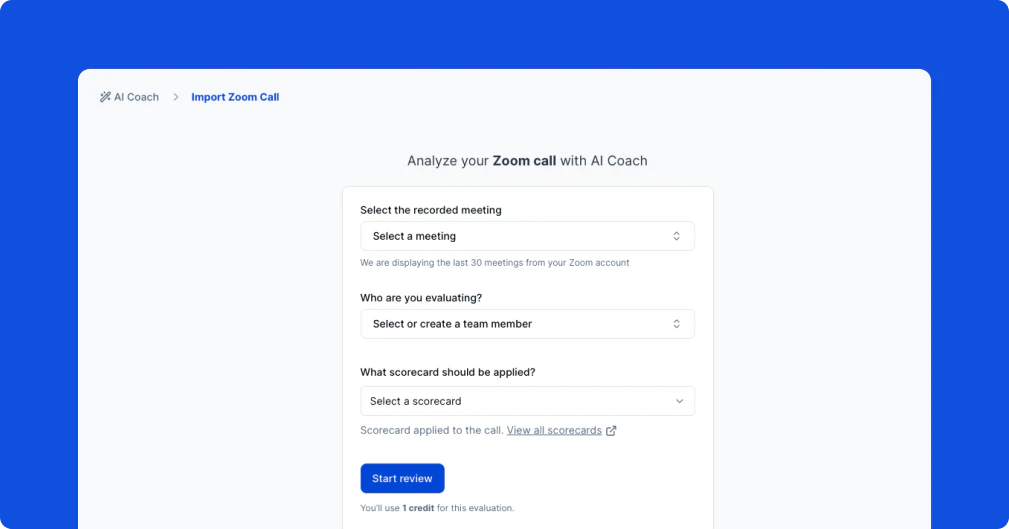
 Select the Zoom recording you want to analyze. AI Coach displays cloud-recorded meetings with transcripts from the past 30 days. Then:
* Name the **rep** who made the call.
* Select the **scorecard** to use for the evaluation.
Select the Zoom recording you want to analyze. AI Coach displays cloud-recorded meetings with transcripts from the past 30 days. Then:
* Name the **rep** who made the call.
* Select the **scorecard** to use for the evaluation.
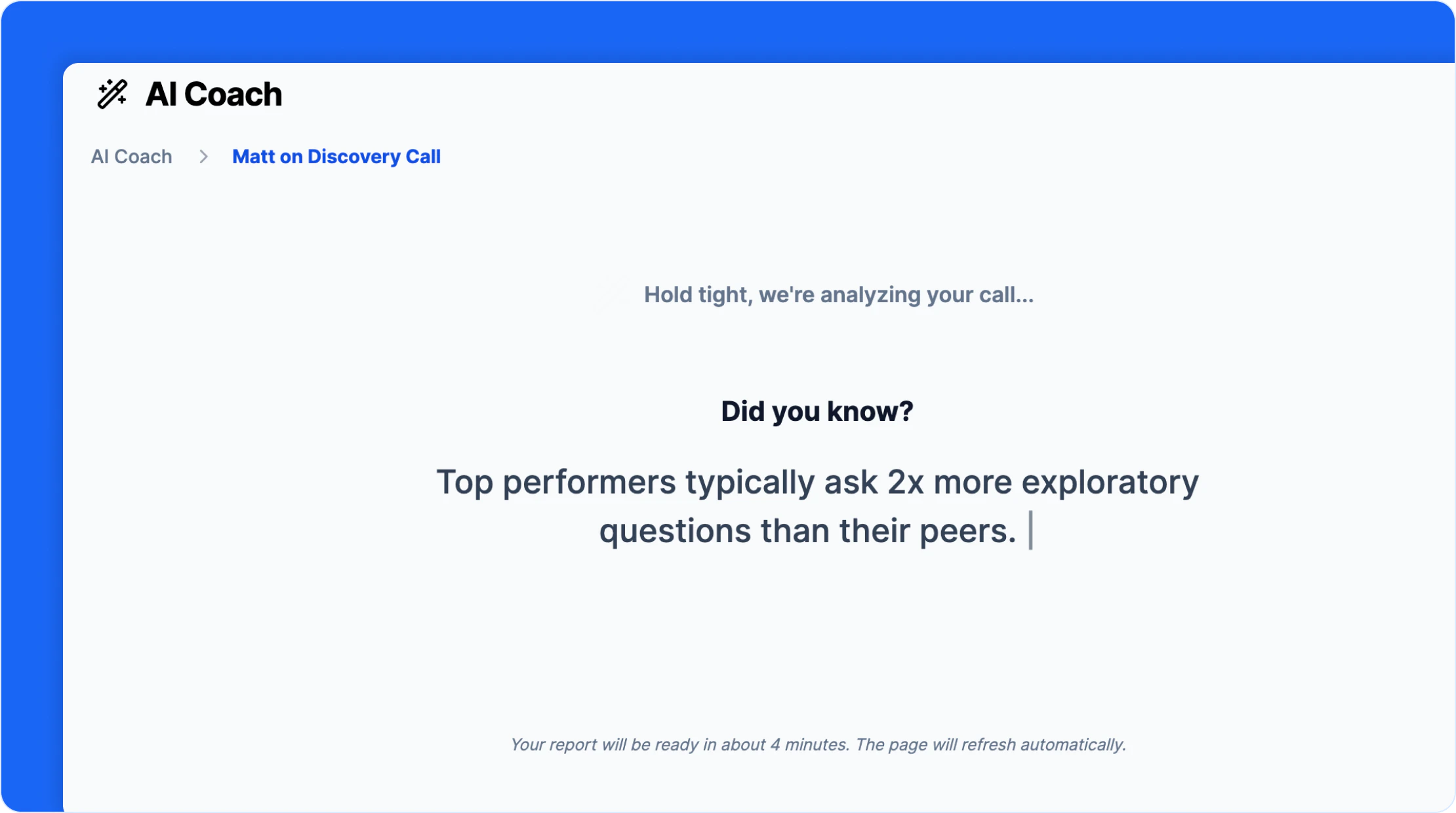
 Click **Start Analysis**. The report will be ready in about 4 minutes, depending on the transcript length. You can leave the page — AI Coach will email you when it's done.
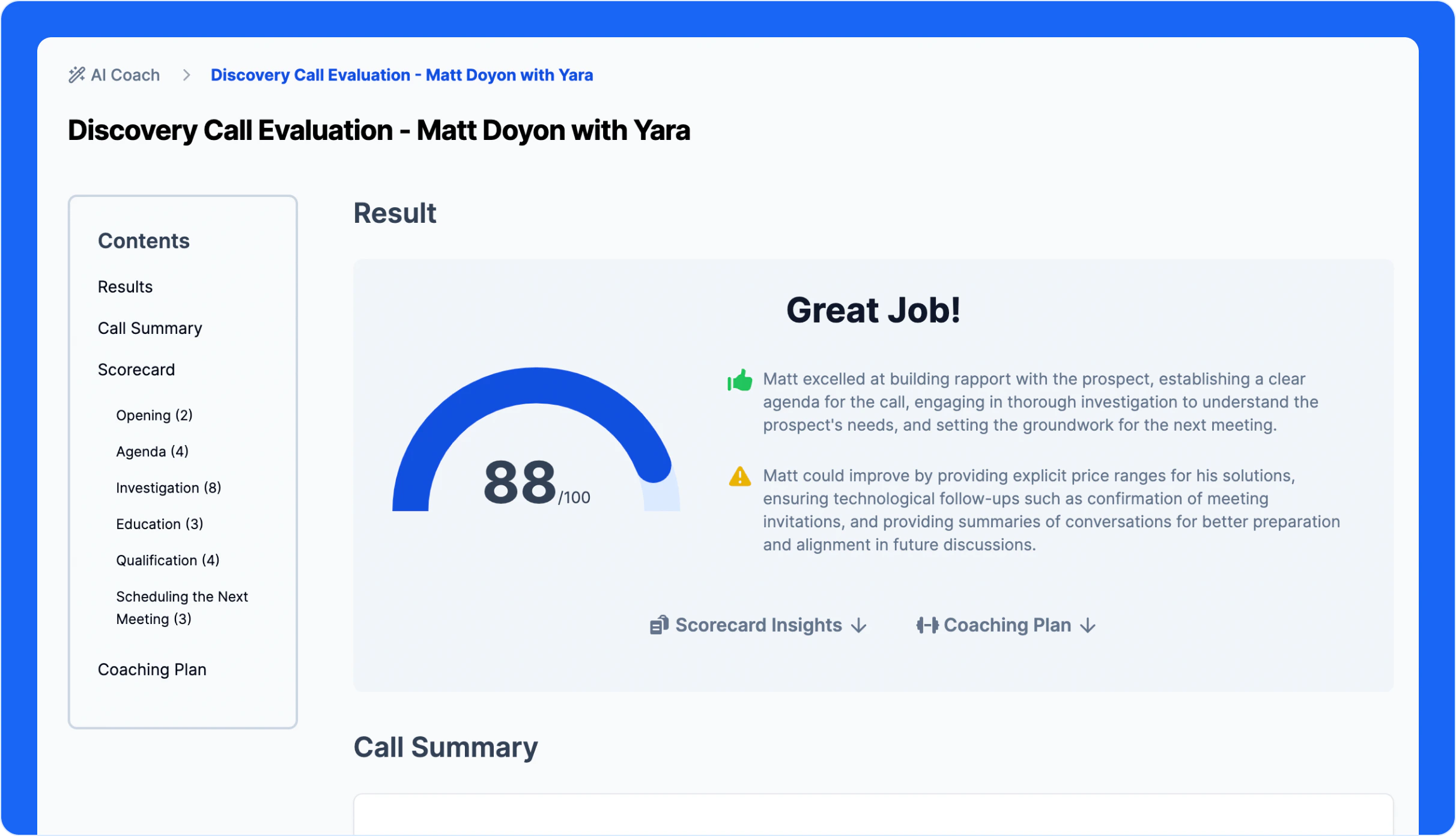
 Your report details how the rep performed against each scorecard criterion, along with a personalized coaching plan targeting the key area where AI Coach identified room for growth.
 ***
## Download transcripts from Zoom
You can also download transcript files from Zoom and upload them directly to AI Coach.
Visit the recordings section of your Zoom account. You'll find a list of recordings with downloadable files, including the transcript.
Find the recording you want to analyze and click **Download** to download all files associated with it.
You'll now have a file with a `.vtt` extension. Go to AI Coach, upload the transcript file, fill out the review details, and click **Start Review**.
***
## Disconnect Zoom
Log into your Triple Session account and click **Settings** from the sidebar.
In the **Settings** menu, click **Call Integrations** to view all connected services.
Locate the Zoom integration section and review the current connection status.
***
## Download transcripts from Zoom
You can also download transcript files from Zoom and upload them directly to AI Coach.
Visit the recordings section of your Zoom account. You'll find a list of recordings with downloadable files, including the transcript.
Find the recording you want to analyze and click **Download** to download all files associated with it.
You'll now have a file with a `.vtt` extension. Go to AI Coach, upload the transcript file, fill out the review details, and click **Start Review**.
***
## Disconnect Zoom
Log into your Triple Session account and click **Settings** from the sidebar.
In the **Settings** menu, click **Call Integrations** to view all connected services.
Locate the Zoom integration section and review the current connection status.
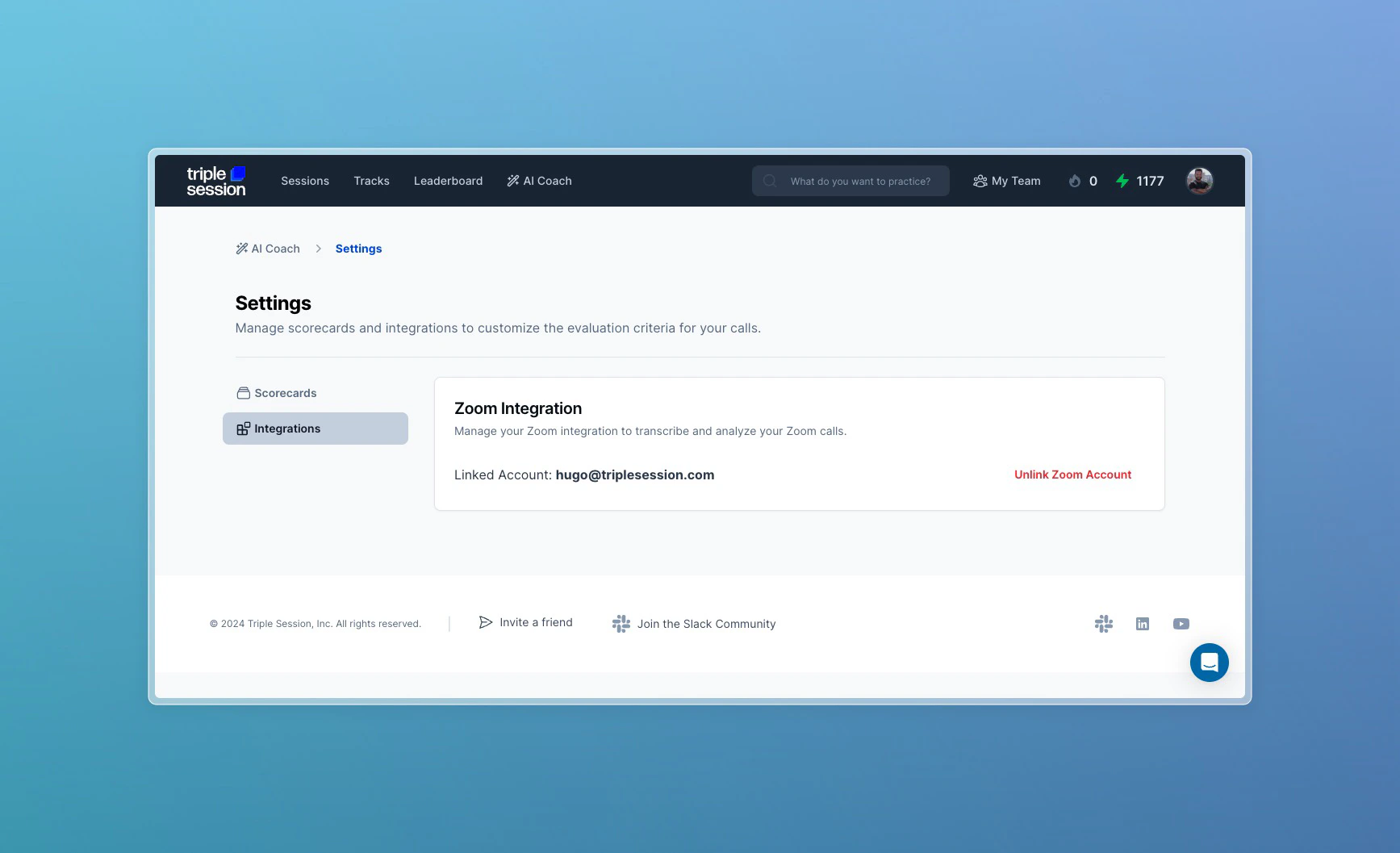 Click **Unlink Zoom Account**. You'll be redirected back to the integrations page, and Zoom will no longer be connected.
Once disconnected, AI Coach will no longer analyze calls from your Zoom account. Any existing analyses remain available, but no new Zoom calls will be imported. You can reconnect at any time.
Click **Unlink Zoom Account**. You'll be redirected back to the integrations page, and Zoom will no longer be connected.
Once disconnected, AI Coach will no longer analyze calls from your Zoom account. Any existing analyses remain available, but no new Zoom calls will be imported. You can reconnect at any time.