> ## Documentation Index
> Fetch the complete documentation index at: https://docs.triplesession.com/llms.txt
> Use this file to discover all available pages before exploring further.
# MCP
> Connect Claude, ChatGPT, and other AI assistants directly to your Triple Session coaching data using the Model Context Protocol.
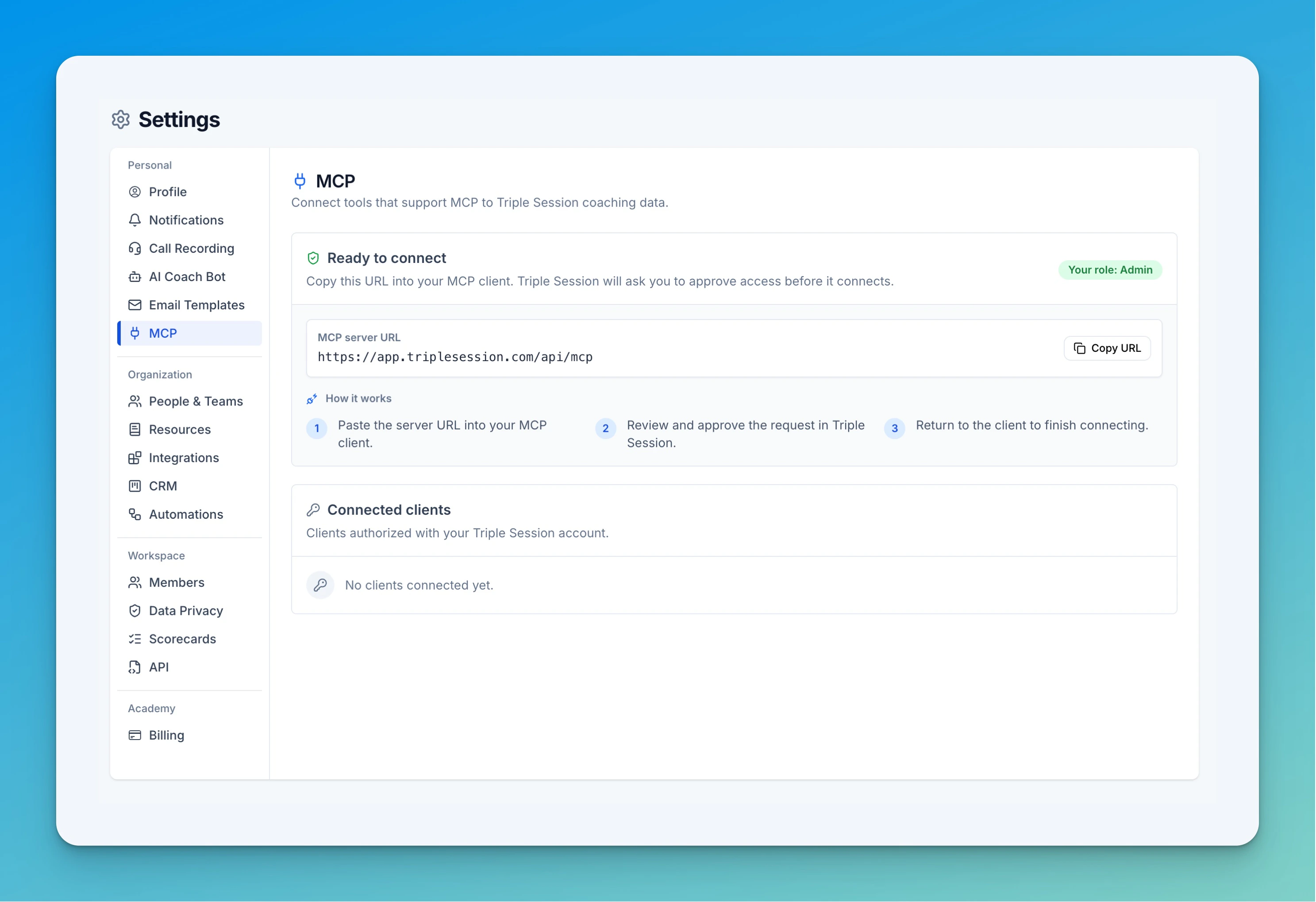 Triple Session's MCP server lets AI assistants read your call reports, scorecards, deal data, and team performance directly — no copy-pasting, no exports. You ask a question in natural language and the AI pulls the relevant data from your workspace.
The server uses OAuth for authentication. When you connect for the first time, Triple Session will ask you to approve access before any data is shared.
**MCP server URL**
```
https://app.triplesession.com/api/mcp
```
Find it anytime in **Settings → MCP**.
***
## Connect in Claude
In Claude, go to **Customize → Connectors** in the left sidebar. Click the **+** icon next to the search bar and select **Add custom connector**.
Triple Session's MCP server lets AI assistants read your call reports, scorecards, deal data, and team performance directly — no copy-pasting, no exports. You ask a question in natural language and the AI pulls the relevant data from your workspace.
The server uses OAuth for authentication. When you connect for the first time, Triple Session will ask you to approve access before any data is shared.
**MCP server URL**
```
https://app.triplesession.com/api/mcp
```
Find it anytime in **Settings → MCP**.
***
## Connect in Claude
In Claude, go to **Customize → Connectors** in the left sidebar. Click the **+** icon next to the search bar and select **Add custom connector**.
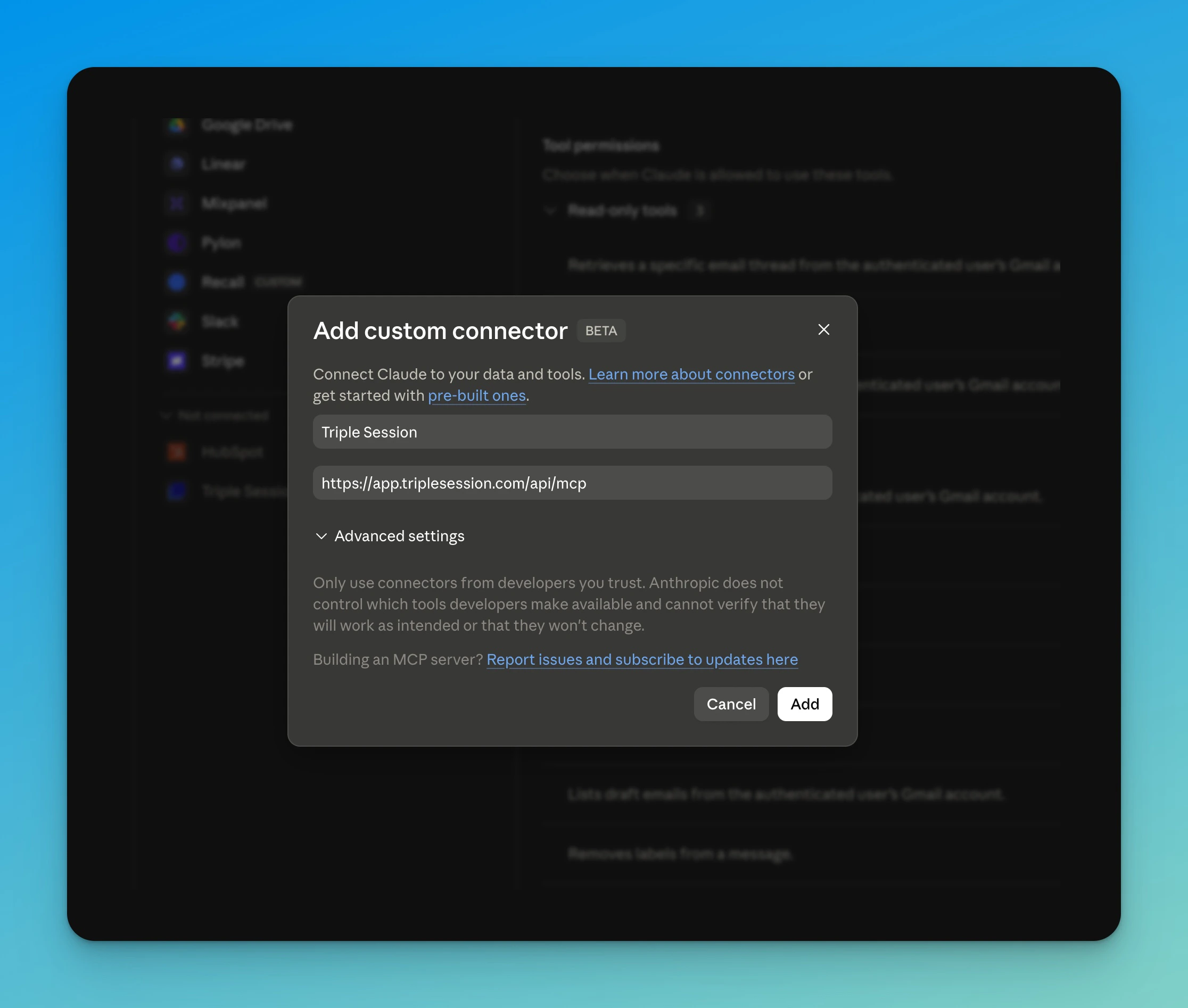
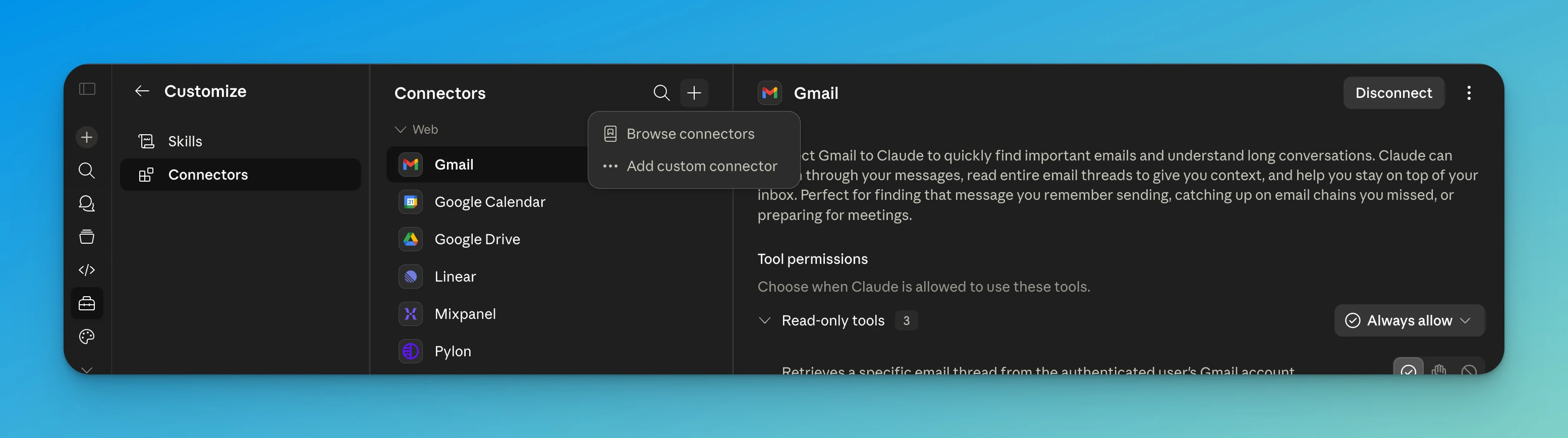 Set the name to **Triple Session** and the URL to `https://app.triplesession.com/api/mcp`. Click **Add**.
Claude will open a Triple Session page asking you to approve the connection. Once you approve, return to Claude — the connector will be active.
Set the name to **Triple Session** and the URL to `https://app.triplesession.com/api/mcp`. Click **Add**.
Claude will open a Triple Session page asking you to approve the connection. Once you approve, return to Claude — the connector will be active.
 **On Claude Team and Enterprise plans**, individual members can't add custom connectors. An **Owner** must add Triple Session to the organization first, after which each member connects it themselves. This split exists so Claude only ever accesses the data each individual user is authorized to see — authentication happens per user, not once for the whole org. See [Claude's instructions for adding custom connectors](https://support.claude.com/en/articles/11175166-get-started-with-custom-connectors-using-remote-mcp).
**Owner — add Triple Session to the organization:**
Go to **Settings → Organization settings → Connectors** and click **Add**.
**On Claude Team and Enterprise plans**, individual members can't add custom connectors. An **Owner** must add Triple Session to the organization first, after which each member connects it themselves. This split exists so Claude only ever accesses the data each individual user is authorized to see — authentication happens per user, not once for the whole org. See [Claude's instructions for adding custom connectors](https://support.claude.com/en/articles/11175166-get-started-with-custom-connectors-using-remote-mcp).
**Owner — add Triple Session to the organization:**
Go to **Settings → Organization settings → Connectors** and click **Add**.
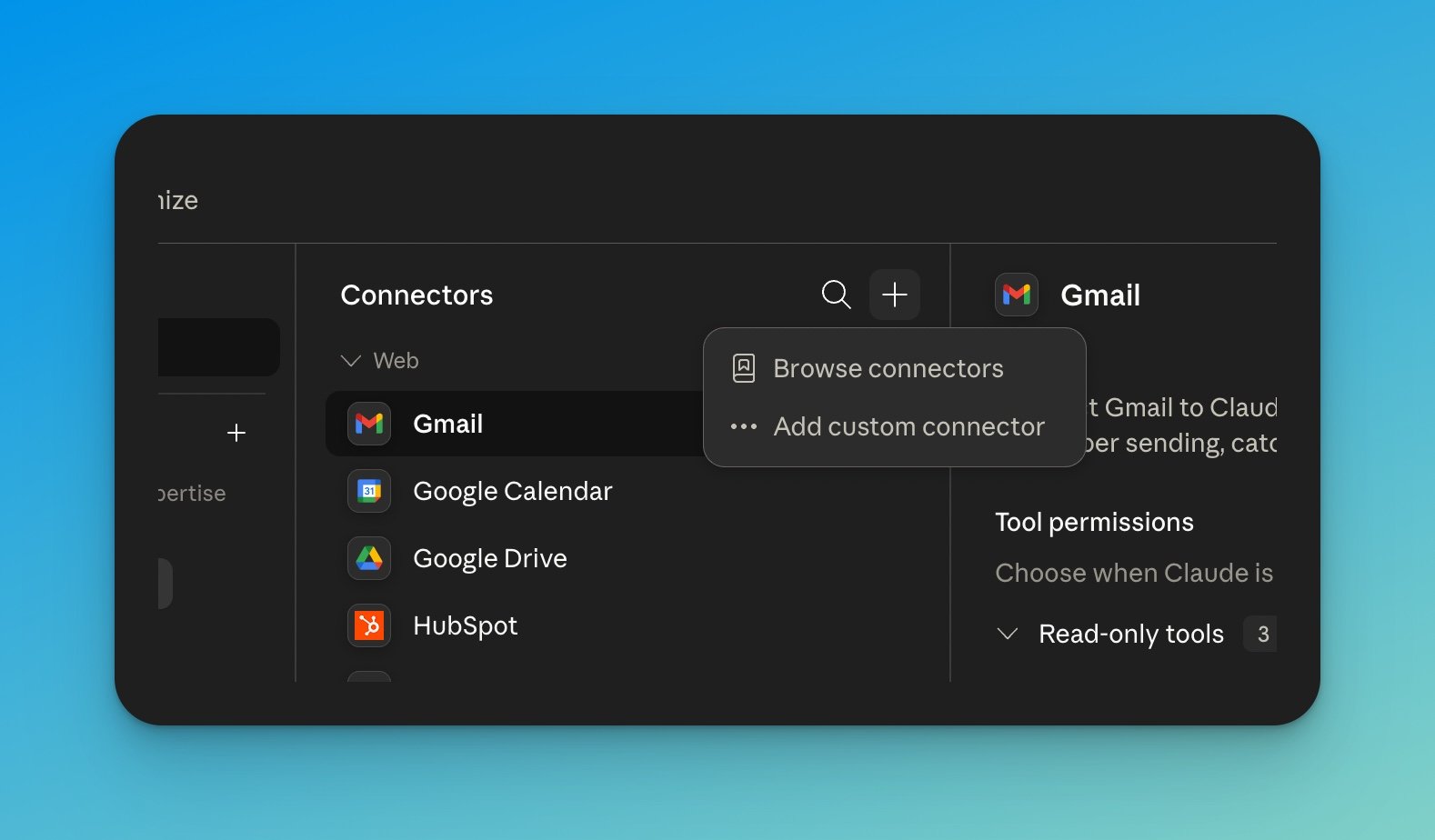 Hover over **Custom**, select **Web**, then set the name to **Triple Session** and the URL to `https://app.triplesession.com/api/mcp`. Click **Add**.
Triple Session now appears in every member's connector list with a **Custom** label.
Each member opens **Customize → Connectors**, finds **Triple Session**, and clicks **Connect** to approve access with their own account.
***
## Connect in ChatGPT
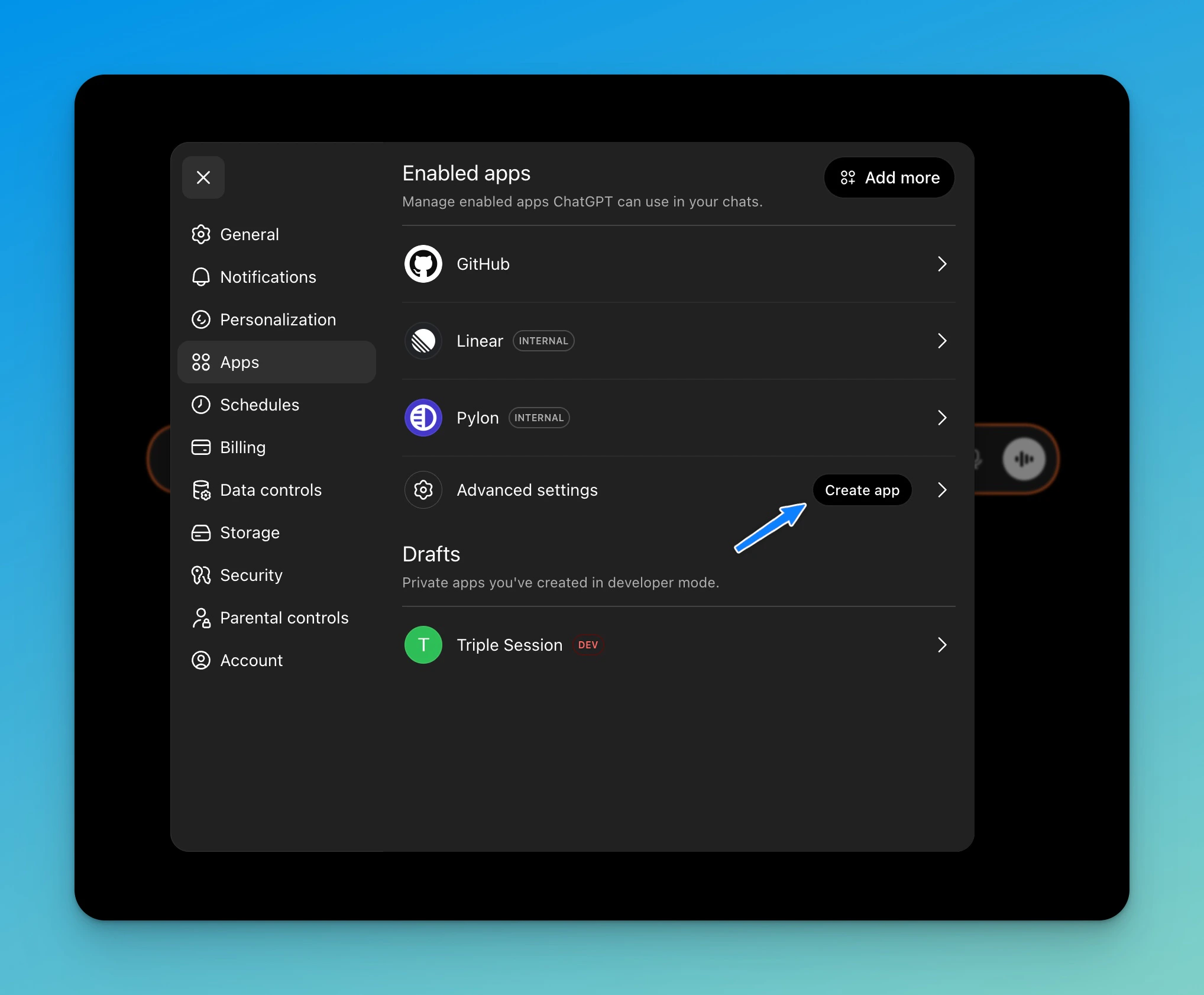
In ChatGPT, open **Settings → Apps**. Scroll to **Advanced settings** and click **Create app**.
Hover over **Custom**, select **Web**, then set the name to **Triple Session** and the URL to `https://app.triplesession.com/api/mcp`. Click **Add**.
Triple Session now appears in every member's connector list with a **Custom** label.
Each member opens **Customize → Connectors**, finds **Triple Session**, and clicks **Connect** to approve access with their own account.
***
## Connect in ChatGPT
In ChatGPT, open **Settings → Apps**. Scroll to **Advanced settings** and click **Create app**.
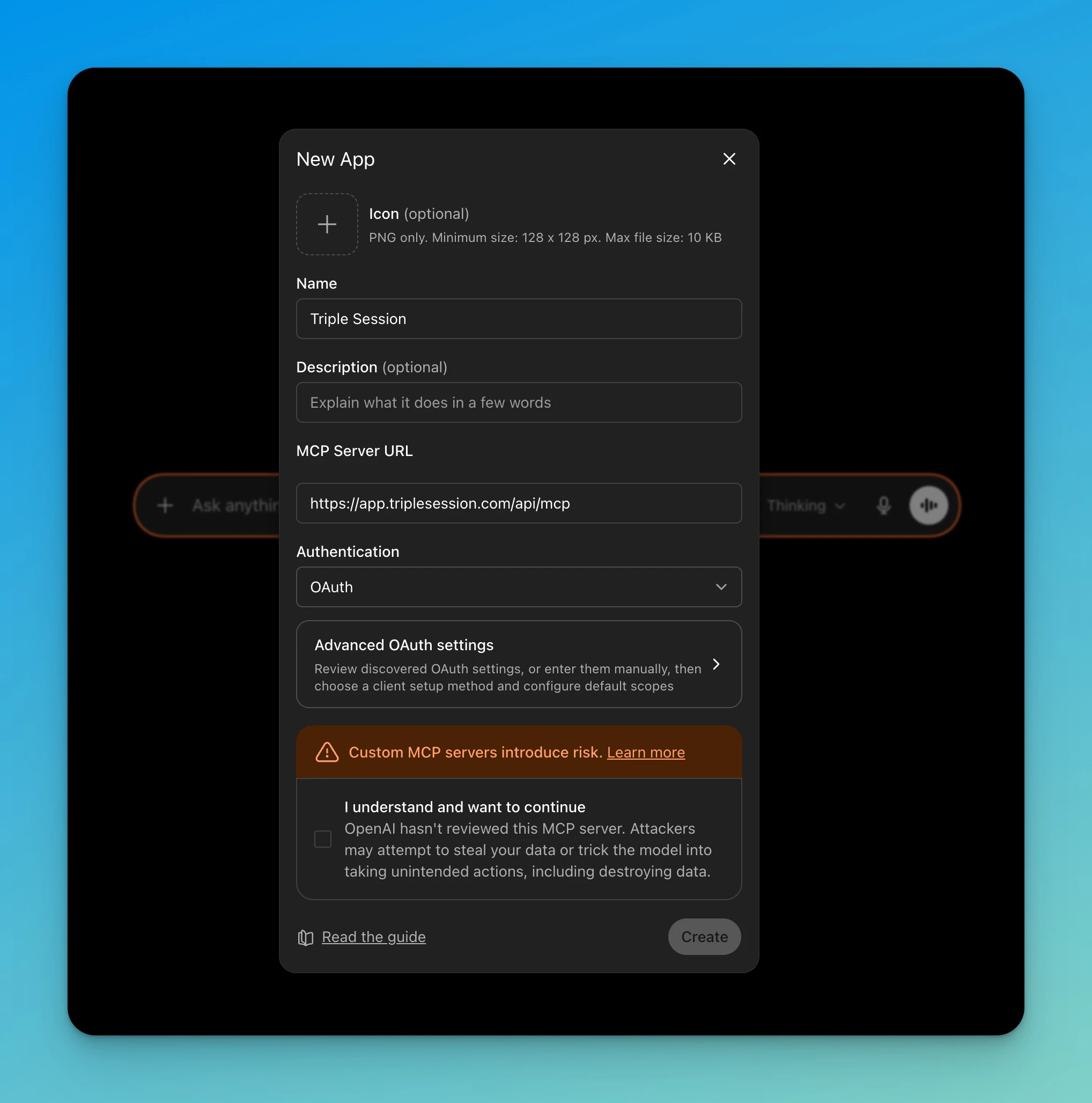
 Set the **Name** to `Triple Session` and the **MCP Server URL** to `https://app.triplesession.com/api/mcp`. Leave **Authentication** set to **OAuth**.
Check the acknowledgment box, then click **Create**. ChatGPT will redirect you to Triple Session to approve the connection.
Set the **Name** to `Triple Session` and the **MCP Server URL** to `https://app.triplesession.com/api/mcp`. Leave **Authentication** set to **OAuth**.
Check the acknowledgment box, then click **Create**. ChatGPT will redirect you to Triple Session to approve the connection.
 ***
## Available tools
Once connected, the AI has access to the following tools. It selects and chains them automatically based on your question.
| Tool | What it does |
| ------------------------ | ----------------------------------------------------------------------------------------------------------------------------------------------------------- |
| `search_calls` | Search call reports using plain language — ask about topics, objections, competitors, deal stages, or any keyword. Filter by rep, scorecard, or date range. |
| `get_call` | Get the full details of a specific call — score, scorecard used, participants, linked CRM records, summary, and risks identified. |
| `get_call_transcript` | Read the transcript of a call. Long transcripts are returned in pages, so the AI will request additional pages as needed. |
| `get_call_deal_insights` | Get only the deal-related insights and risks from a call, without loading the full report. |
| Tool | What it does |
| ------------------------ | ------------------------------------------------------------------------------------------------ |
| `search_roleplay_calls` | Search roleplay practice sessions specifically. Filter by persona, rep, or date range. |
| `list_roleplay_personas` | See all available roleplay personas — their role, difficulty level, language, and training goal. |
| Tool | What it does |
| ---------------------- | ------------------------------------------------------------------------------------------------------------------------------------------- |
| `list_scorecards` | List all scorecards available in your workspace. |
| `get_scorecard_rubric` | Get the full rubric for a scorecard — useful when you want to understand how calls are scored or what each section measures. |
| `get_rep_scorecard` | Get scorecard performance for yourself or another rep — average score, section-by-section breakdown, daily trend, and best and worst calls. |
| Tool | What it does |
| -------------------- | -------------------------------------------------------------------------------------------------- |
| `get_deal` | Get details for a CRM deal — stage, value, currency, and upcoming meetings. |
| `list_deal_meetings` | List all scored call reviews linked to a deal. Filter by date range to focus on a specific period. |
| `list_deal_emails` | List recent emails on a deal from your connected CRM. |
| `list_deal_notes` | List CRM notes on a deal — content, author, and timestamp. |
| Tool | What it does |
| --------------------------- | ---------------------------------------------------------------------------------------------------------------------------------------------------------------------- |
| `team_members` | Look up team members by name. The AI uses this automatically when you ask about a specific person before searching their calls or scorecard. Not available to members. |
| `list_managed_workspaces` | List the workspaces you manage and who is in each one. |
| `list_managed_team_members` | List your team members ranked by performance — useful for questions like "who needs the most coaching?" or "show me my lowest-scoring reps this month." |
| `get_managed_rep_overview` | Get a coaching summary for a specific rep — their recent calls, scores, and any notes on file. |
| `get_managed_rep_scorecard` | Get detailed scorecard performance for a specific rep over a chosen time period. |
***
## Example prompts
Once connected, you can ask things like:
* *"Show me the last 10 calls where we lost on pricing"*
* *"How is Sarah performing on the Discovery scorecard this month?"*
* *"Which reps on my team have the lowest average score this quarter?"*
* *"What are the main risks identified in the Acme Corp deal?"*
* *"Give me a transcript summary of the call with Globex yesterday"*
***
## Available tools
Once connected, the AI has access to the following tools. It selects and chains them automatically based on your question.
| Tool | What it does |
| ------------------------ | ----------------------------------------------------------------------------------------------------------------------------------------------------------- |
| `search_calls` | Search call reports using plain language — ask about topics, objections, competitors, deal stages, or any keyword. Filter by rep, scorecard, or date range. |
| `get_call` | Get the full details of a specific call — score, scorecard used, participants, linked CRM records, summary, and risks identified. |
| `get_call_transcript` | Read the transcript of a call. Long transcripts are returned in pages, so the AI will request additional pages as needed. |
| `get_call_deal_insights` | Get only the deal-related insights and risks from a call, without loading the full report. |
| Tool | What it does |
| ------------------------ | ------------------------------------------------------------------------------------------------ |
| `search_roleplay_calls` | Search roleplay practice sessions specifically. Filter by persona, rep, or date range. |
| `list_roleplay_personas` | See all available roleplay personas — their role, difficulty level, language, and training goal. |
| Tool | What it does |
| ---------------------- | ------------------------------------------------------------------------------------------------------------------------------------------- |
| `list_scorecards` | List all scorecards available in your workspace. |
| `get_scorecard_rubric` | Get the full rubric for a scorecard — useful when you want to understand how calls are scored or what each section measures. |
| `get_rep_scorecard` | Get scorecard performance for yourself or another rep — average score, section-by-section breakdown, daily trend, and best and worst calls. |
| Tool | What it does |
| -------------------- | -------------------------------------------------------------------------------------------------- |
| `get_deal` | Get details for a CRM deal — stage, value, currency, and upcoming meetings. |
| `list_deal_meetings` | List all scored call reviews linked to a deal. Filter by date range to focus on a specific period. |
| `list_deal_emails` | List recent emails on a deal from your connected CRM. |
| `list_deal_notes` | List CRM notes on a deal — content, author, and timestamp. |
| Tool | What it does |
| --------------------------- | ---------------------------------------------------------------------------------------------------------------------------------------------------------------------- |
| `team_members` | Look up team members by name. The AI uses this automatically when you ask about a specific person before searching their calls or scorecard. Not available to members. |
| `list_managed_workspaces` | List the workspaces you manage and who is in each one. |
| `list_managed_team_members` | List your team members ranked by performance — useful for questions like "who needs the most coaching?" or "show me my lowest-scoring reps this month." |
| `get_managed_rep_overview` | Get a coaching summary for a specific rep — their recent calls, scores, and any notes on file. |
| `get_managed_rep_scorecard` | Get detailed scorecard performance for a specific rep over a chosen time period. |
***
## Example prompts
Once connected, you can ask things like:
* *"Show me the last 10 calls where we lost on pricing"*
* *"How is Sarah performing on the Discovery scorecard this month?"*
* *"Which reps on my team have the lowest average score this quarter?"*
* *"What are the main risks identified in the Acme Corp deal?"*
* *"Give me a transcript summary of the call with Globex yesterday"*