> ## Documentation Index
> Fetch the complete documentation index at: https://docs.triplesession.com/llms.txt
> Use this file to discover all available pages before exploring further.
# Invite and Manage Members in Your Workspace
> Add teammates to Triple Session via individual or bulk invitations, assign Member or Manager roles, and control who appears in team analytics.
Building your team inside Triple Session is the first step to unlocking collaborative coaching and performance insights. As a Manager or Admin, you can invite teammates individually or in bulk, assign their role, seat type, and visibility, track invitation status, and control which members appear in analytics and digests.
## Inviting new members
 From the navigation menu, go to **Settings** > **Workspace** > **Members**.
Click the **Invite members** button in the top right of the Members table.
Select the method that best fits the number of people you're adding.
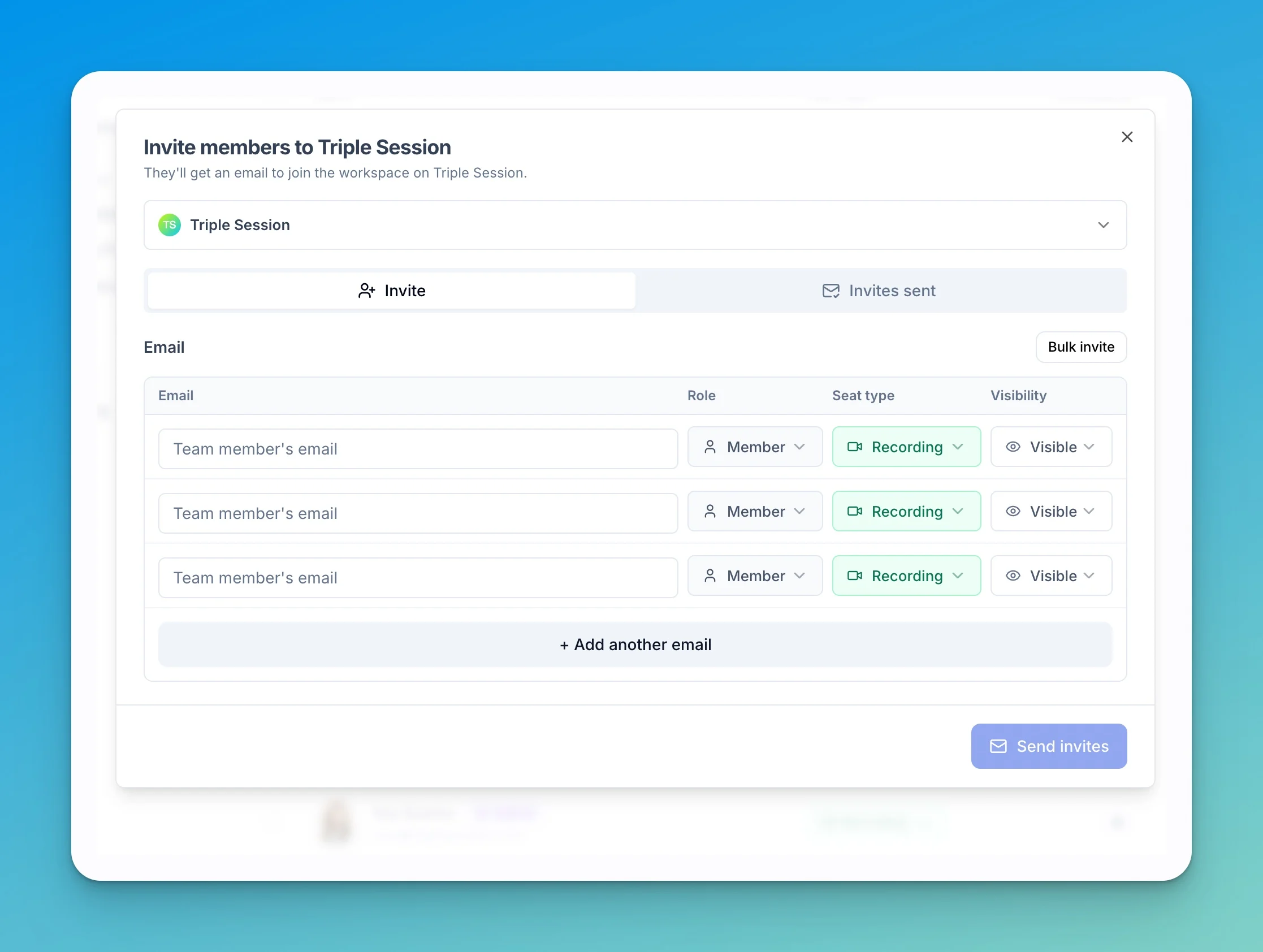
Enter the team member's email address, then set their **Role**, **Seat type**, and **Visibility** using the dropdowns on that row. To invite multiple people one at a time, click **+ Add another email** to add more rows.
On each invite row you control:
* **Role** — **Member** (sees only their own meetings and analytics) or **Manager** (sees the whole team's).
* **Seat type** — **Recording** (their calls are recorded by the bot) or **Viewer** (review-only, no recording). See [Roles and permissions](/workspace/roles-and-permissions) for seat details.
* **Visibility** — **Visible** or **Hidden** in team analytics, digests, and leaderboards. See [Managing member visibility](#managing-member-visibility) below.
Click **Bulk Invite** to switch modes. Paste a list of email addresses, one per line, then set the **Role**, **Seat type**, and **Visibility** to apply to all invitees.
Use bulk invite when onboarding a new team to save time and apply the same role, seat type, and visibility in a single action.
Click **Send Invites**. Each invited user will receive an email from [support@triplesession.com](mailto:support@triplesession.com) with a link to join the workspace.
Let new users know to expect an email from [support@triplesession.com](mailto:support@triplesession.com) and to check their spam or junk folder if they don't see it.
After sending, click the **Invites Sent** tab in the modal to see the status of all pending and accepted invitations. From this view, you can also **Delete** a pending invitation if needed.
## Managing member visibility
Member visibility controls whether a user's data appears in workspace analytics, digest emails, and member filters — useful for non-selling managers, sales ops, or admins who review calls but should not be included in team performance metrics. For exactly what **Hidden** excludes, see [Visibility](/workspace/roles-and-permissions) in Roles & Permissions.
You can set visibility when inviting (the **Visibility** column) or change it at any time from the Members table.
### How to hide or show a member
1. Go to **Settings** > **Members**.
2. Find the user you want to manage.
3. Click the **three-dot menu (...)** at the end of their row.
4. Select **Hide from workspace** or **Show in workspace** from the Actions menu.
### Checking visibility status
You can quickly see a member's current visibility status by looking at the icon in the **Analytics** column:
* **Chart icon** — the user's data is visible in the workspace.
* **Crossed-out eye icon** — the user's data is hidden from the workspace.
## Best practices
* **Onboard teams quickly:** Use **Bulk Invite** when setting up a new team to apply the same role, seat type, and visibility in one step.
* **Keep analytics clean:** Set non-selling members to the **Viewer** seat type and **Hidden** visibility at invite time, or hide them later. This keeps your team analytics, digests, and leaderboards an accurate reflection of sales performance.
* **Advise your team:** Tell new users to expect an invitation from [support@triplesession.com](mailto:support@triplesession.com) and to check spam if they don't receive it promptly.
From the navigation menu, go to **Settings** > **Workspace** > **Members**.
Click the **Invite members** button in the top right of the Members table.
Select the method that best fits the number of people you're adding.
Enter the team member's email address, then set their **Role**, **Seat type**, and **Visibility** using the dropdowns on that row. To invite multiple people one at a time, click **+ Add another email** to add more rows.
On each invite row you control:
* **Role** — **Member** (sees only their own meetings and analytics) or **Manager** (sees the whole team's).
* **Seat type** — **Recording** (their calls are recorded by the bot) or **Viewer** (review-only, no recording). See [Roles and permissions](/workspace/roles-and-permissions) for seat details.
* **Visibility** — **Visible** or **Hidden** in team analytics, digests, and leaderboards. See [Managing member visibility](#managing-member-visibility) below.
Click **Bulk Invite** to switch modes. Paste a list of email addresses, one per line, then set the **Role**, **Seat type**, and **Visibility** to apply to all invitees.
Use bulk invite when onboarding a new team to save time and apply the same role, seat type, and visibility in a single action.
Click **Send Invites**. Each invited user will receive an email from [support@triplesession.com](mailto:support@triplesession.com) with a link to join the workspace.
Let new users know to expect an email from [support@triplesession.com](mailto:support@triplesession.com) and to check their spam or junk folder if they don't see it.
After sending, click the **Invites Sent** tab in the modal to see the status of all pending and accepted invitations. From this view, you can also **Delete** a pending invitation if needed.
## Managing member visibility
Member visibility controls whether a user's data appears in workspace analytics, digest emails, and member filters — useful for non-selling managers, sales ops, or admins who review calls but should not be included in team performance metrics. For exactly what **Hidden** excludes, see [Visibility](/workspace/roles-and-permissions) in Roles & Permissions.
You can set visibility when inviting (the **Visibility** column) or change it at any time from the Members table.
### How to hide or show a member
1. Go to **Settings** > **Members**.
2. Find the user you want to manage.
3. Click the **three-dot menu (...)** at the end of their row.
4. Select **Hide from workspace** or **Show in workspace** from the Actions menu.
### Checking visibility status
You can quickly see a member's current visibility status by looking at the icon in the **Analytics** column:
* **Chart icon** — the user's data is visible in the workspace.
* **Crossed-out eye icon** — the user's data is hidden from the workspace.
## Best practices
* **Onboard teams quickly:** Use **Bulk Invite** when setting up a new team to apply the same role, seat type, and visibility in one step.
* **Keep analytics clean:** Set non-selling members to the **Viewer** seat type and **Hidden** visibility at invite time, or hide them later. This keeps your team analytics, digests, and leaderboards an accurate reflection of sales performance.
* **Advise your team:** Tell new users to expect an invitation from [support@triplesession.com](mailto:support@triplesession.com) and to check spam if they don't receive it promptly.