> ## Documentation Index
> Fetch the complete documentation index at: https://docs.triplesession.com/llms.txt
> Use this file to discover all available pages before exploring further.
# User Roles and Permissions in Triple Session
> Understand Triple Session's seat types (Viewer, Recording), user roles (Member, Manager, Admin), and analytics visibility to control access, credit usage, and reporting across your organization.
Triple Session controls access with three independent settings: **Seat Types** (can they record and use credits), **User Roles** (what they can see and manage), and **Visibility** (whether they appear in team reporting). Set all three when you [invite a member](/workspace/manage-members) or change them anytime after.
## Seat Types
A user's **Seat Type** determines whether they can record meetings and consume credits from your organization's shared pool. Credits are managed at the company level — there is no individual credit limit.
| Seat Type | What they can do | Consumes credits? |
| ---------------------------------------- | ------------------------------------------------------------------------------------------------------------- | ----------------------------------------------------------------- |
| **Viewer Seat** | Access AI Coach, view calls and data (based on their User Role) | No |
| **Recording Seat** | Record meetings, upload call files, import from integrations (Google Meet, Zoom, Aircall, HubSpot, Fireflies) | Yes — from the company pool |
A Viewer Seat cannot record or upload calls regardless of User Role. This seat type is typically assigned to managers and admins who need oversight without contributing their own call recordings.
### Add-ons
Add-ons provide extra functionality tied to a user's seat type.
* **AI Coach Bot:** available exclusively for users with a **Recording Seat**. To enable this add-on for a user, contact the support team at [support@triplesession.com](mailto:support@triplesession.com).
### How to assign seat types
As an Admin, go to **Organization** > **People**.
Locate the **Seat Type** column in the members table.
Click the dropdown next to the user you want to update.
Select **Recording Seat** for users who need to record, upload, or import meetings, or **Viewer Seat** for users who only need to review calls and analytics.
You can also set a member's seat type at invite time. See [Invite Team](/getting-started/invite-team).
## User Roles
A user's permissions come from their role. **Member** and **Manager** are workspace roles — every user is one or the other. **Admin** is a separate company-level role that can be granted to any user, whether they're a Member or a Manager, adding company-wide settings on top of their workspace role. (Seat Type, not role, determines whether they can record.)
### Member
The standard permission level for most users.
| Permission | Details |
| ------------------------------- | --------------------------------------------- |
| Upload calls | Requires Recording Seat |
| Automatic call review | Requires Recording Seat |
| Connect call recording tools | Requires Recording Seat |
| Create moments | Own calls only |
| View and search meetings | Own meetings only |
| View scorecards | Own scorecards only |
| Change scorecard | Own calls only |
| Delete calls | Own calls only |
| Enable/disable smart scorecards | Own scorecards only |
### Manager
This role is for team leads or managers who need oversight of their workspace. Managers inherit all Member capabilities, plus the following:
| Permission | Details |
| ------------------------- | ---------------------------------------------------- |
| View analytics | All workspace analytics |
| Access calls | All calls in the workspace |
| Create moments | Any call in the workspace |
| Change scorecard | Any call in the workspace |
| Delete calls | Any call in the workspace |
| Invite and remove members | Full workspace membership management |
| Manage member visibility | Add or remove users from analytics and meeting lists |
| Update configurations | Users' smart scorecards and call recording settings |
### Admin
A company-level role layered on top of a user's Member or Manager role. It adds permissions for company-wide settings and integrations — it does not change their workspace access.
| Permission | Details |
| ------------------- | -------------------------------- |
| Manage integrations | CRMs (e.g., HubSpot) and Aircall |
| Map CRM fields | Map CRM fields with scorecards |
| Manage automations | Company-wide automation rules |
Admin only covers company-wide configuration. A user's workspace access — viewing calls, managing the team — still comes from their Member or Manager role. For example, a Member who is also an Admin can manage integrations but still only sees their own calls.
The role tables above are the baseline. Several specific actions are **configurable** — admins can decide which roles can perform them. See [Company Permissions](#company-permissions) below.
## Company Permissions
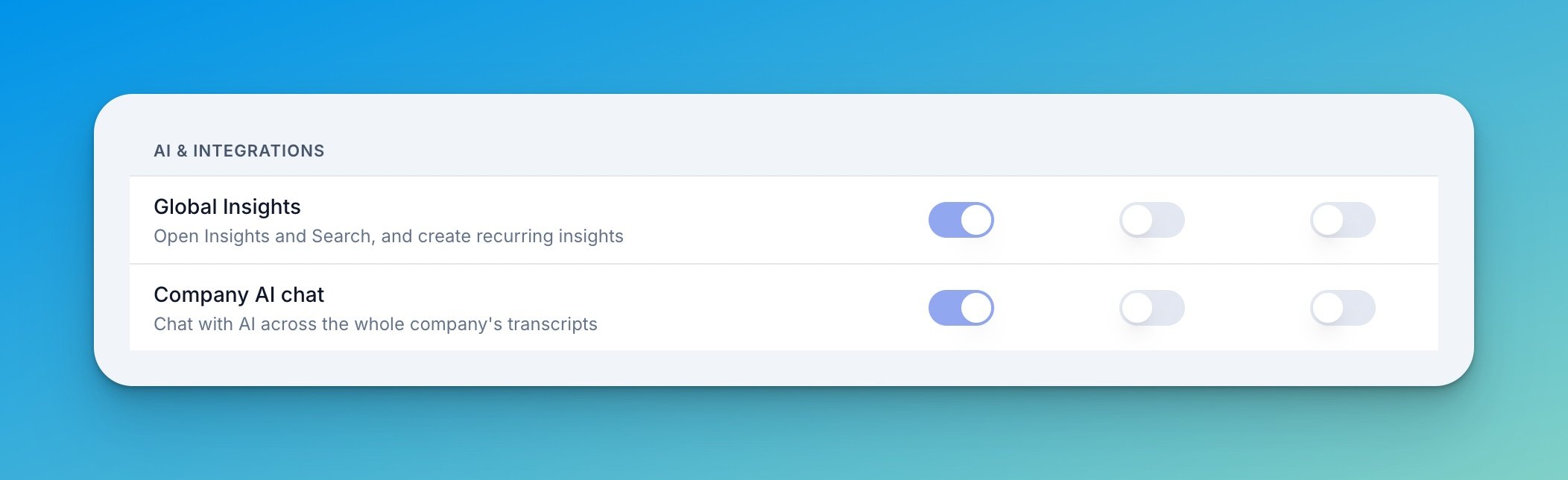
Beyond the fixed role capabilities above, Admins can control who can perform specific actions across the company from **Settings → Permissions**. Each action can be granted to **Admins**, **Managers**, or **Members** independently, grouped into three sections. Admins always have access, and defaults are kept conservative — nothing changes for a role until you opt it in.
### Reports & calls
| Permission | What it controls | Default access |
| --------------------- | -------------------------------------------------- | -------------- |
| Delete Reports | Permanently remove call reports from the workspace | All roles |
| Re-score reports | Re-evaluate a call against a different scorecard | All roles |
| Set Own Calls Private | Hide their own calls from other members | Admins only |
### Scorecards & seats
| Permission | What it controls | Default access |
| ------------------------ | ------------------------------------------------- | ----------------- |
| Edit Scorecards | Edit scorecard criteria, weights, and settings | Admins only |
| Change Member Seat Types | Switch members between Viewer and Recording seats | Admins & Managers |
Edit Scorecards and Change Member Seat Types cannot be granted to Members — they're available to Managers and Admins only.
### AI & integrations
| Permission | What it controls | Default access |
| ----------------------------------------- | ------------------------------------------------------- | -------------- |
| [Global Insights](/ai-coach/insights) | Open Insights and Search, and create recurring insights | Admins only |
| [Company AI chat](/ai-coach/company-chat) | Chat with AI across the whole company's transcripts | Admins only |
| [Install MCP Clients](/mcp-server) | Connect external MCP clients to Triple Session | Admins only |
 ## Visibility
**Visibility** controls whether a member appears in team-level reporting. It is separate from Seat Type and User Role: a member can have full access to their own calls while staying out of shared metrics. Use **Hidden** for non-selling managers, sales ops, or admins who review calls but should not skew team performance data.
| Visibility | Where the member appears |
| ---------------------------------------------------- | -------------------------------------------------------------------------------------------------------------------------------------------- |
| **Visible** | Analytics and Scorecard breakdowns, daily and weekly digest emails, leaderboards, and the members filter on the meetings page and in Moments |
| **Hidden** | Excluded from all of the above |
Hiding a member does not block their access to calls via a direct link. Visibility only controls whether their data appears in shared analytics views.
Set visibility when inviting a member (the **Visibility** column) or change it later from the Members table. For the step-by-step, see [Manage Members](/workspace/manage-members#managing-member-visibility).
Visibility is distinct from **meeting access** (who can open a recording or AI report). To control access to recordings, see [Privacy Settings](/workspace/privacy-settings).
## Visibility
**Visibility** controls whether a member appears in team-level reporting. It is separate from Seat Type and User Role: a member can have full access to their own calls while staying out of shared metrics. Use **Hidden** for non-selling managers, sales ops, or admins who review calls but should not skew team performance data.
| Visibility | Where the member appears |
| ---------------------------------------------------- | -------------------------------------------------------------------------------------------------------------------------------------------- |
| **Visible** | Analytics and Scorecard breakdowns, daily and weekly digest emails, leaderboards, and the members filter on the meetings page and in Moments |
| **Hidden** | Excluded from all of the above |
Hiding a member does not block their access to calls via a direct link. Visibility only controls whether their data appears in shared analytics views.
Set visibility when inviting a member (the **Visibility** column) or change it later from the Members table. For the step-by-step, see [Manage Members](/workspace/manage-members#managing-member-visibility).
Visibility is distinct from **meeting access** (who can open a recording or AI report). To control access to recordings, see [Privacy Settings](/workspace/privacy-settings).