

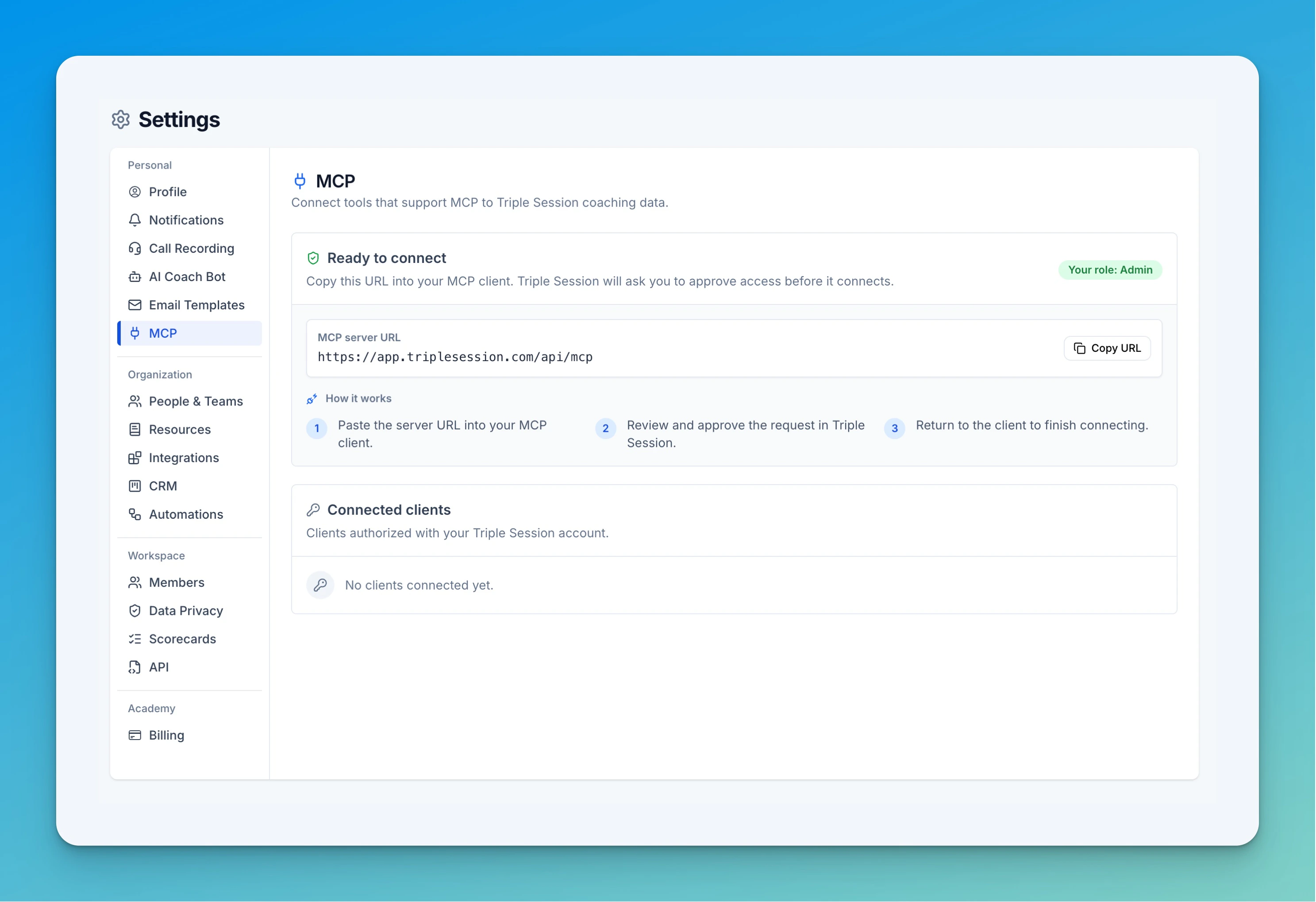
Connect in Claude
1
Open Connectors and add a custom connector
In Claude, go to Customize → Connectors in the left sidebar. Click the + icon next to the search bar and select Add custom connector.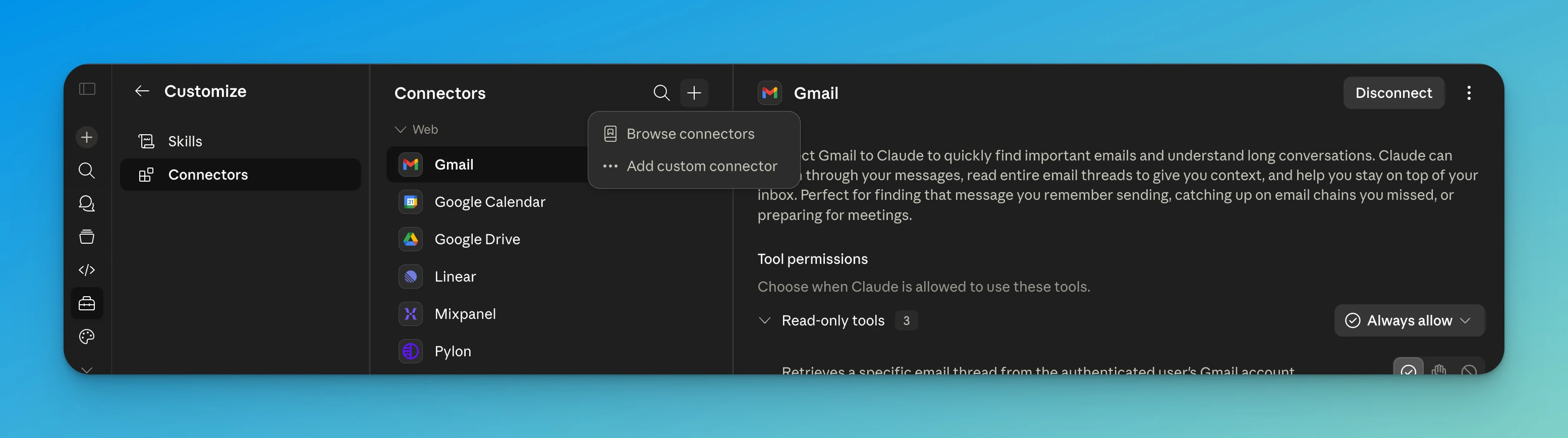
2
Enter the Triple Session details
Set the name to Triple Session and the URL to 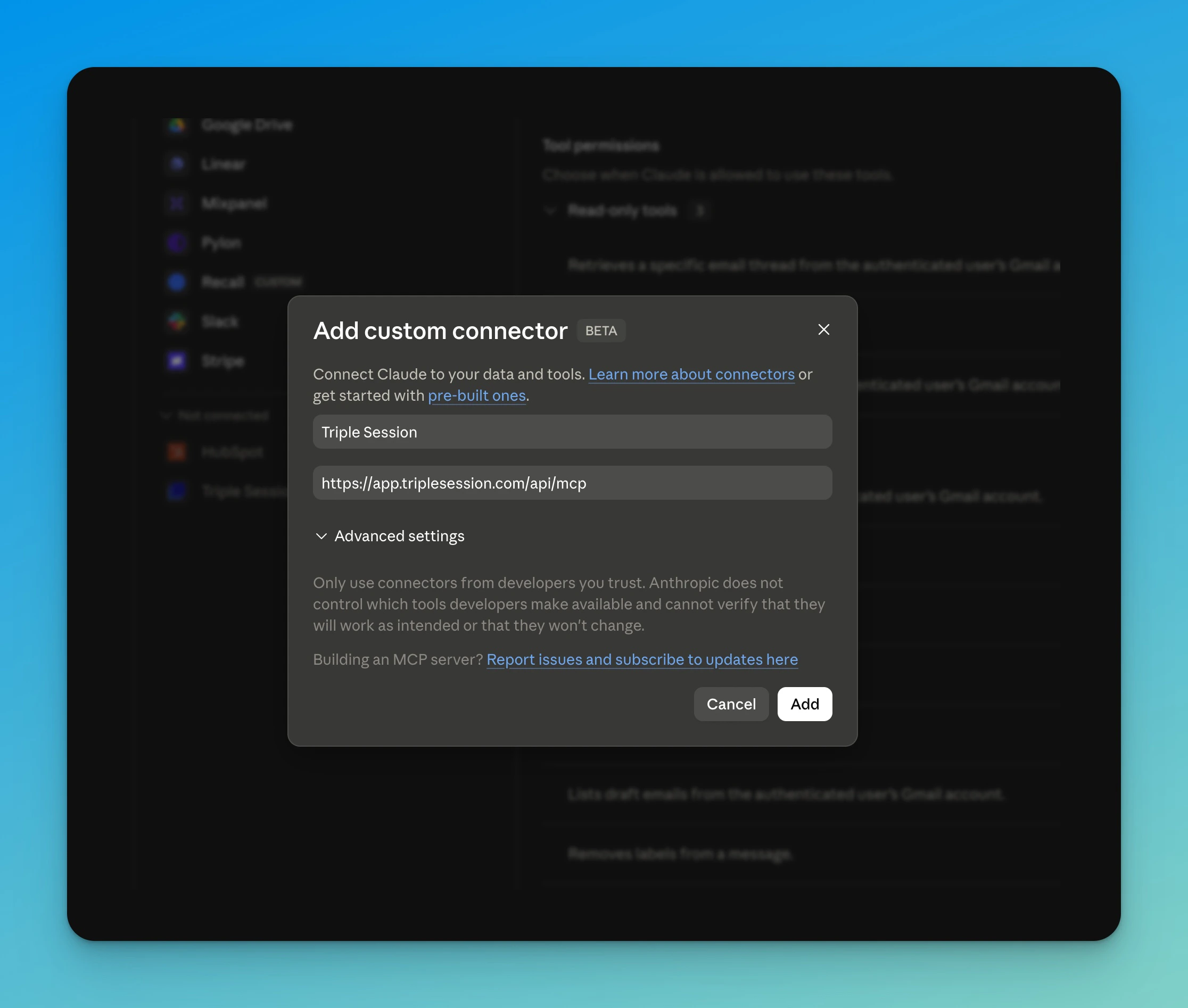
https://app.triplesession.com/api/mcp. Click Add.Claude will open a Triple Session page asking you to approve the connection. Once you approve, return to Claude — the connector will be active.On Claude Team and Enterprise plans, individual members can’t add custom connectors. An Owner must add Triple Session to the organization first, after which each member connects it themselves. This split exists so Claude only ever accesses the data each individual user is authorized to see — authentication happens per user, not once for the whole org. See Claude’s instructions for adding custom connectors.Owner — add Triple Session to the organization:
1
Open organization connectors
Go to Settings → Organization settings → Connectors and click Add.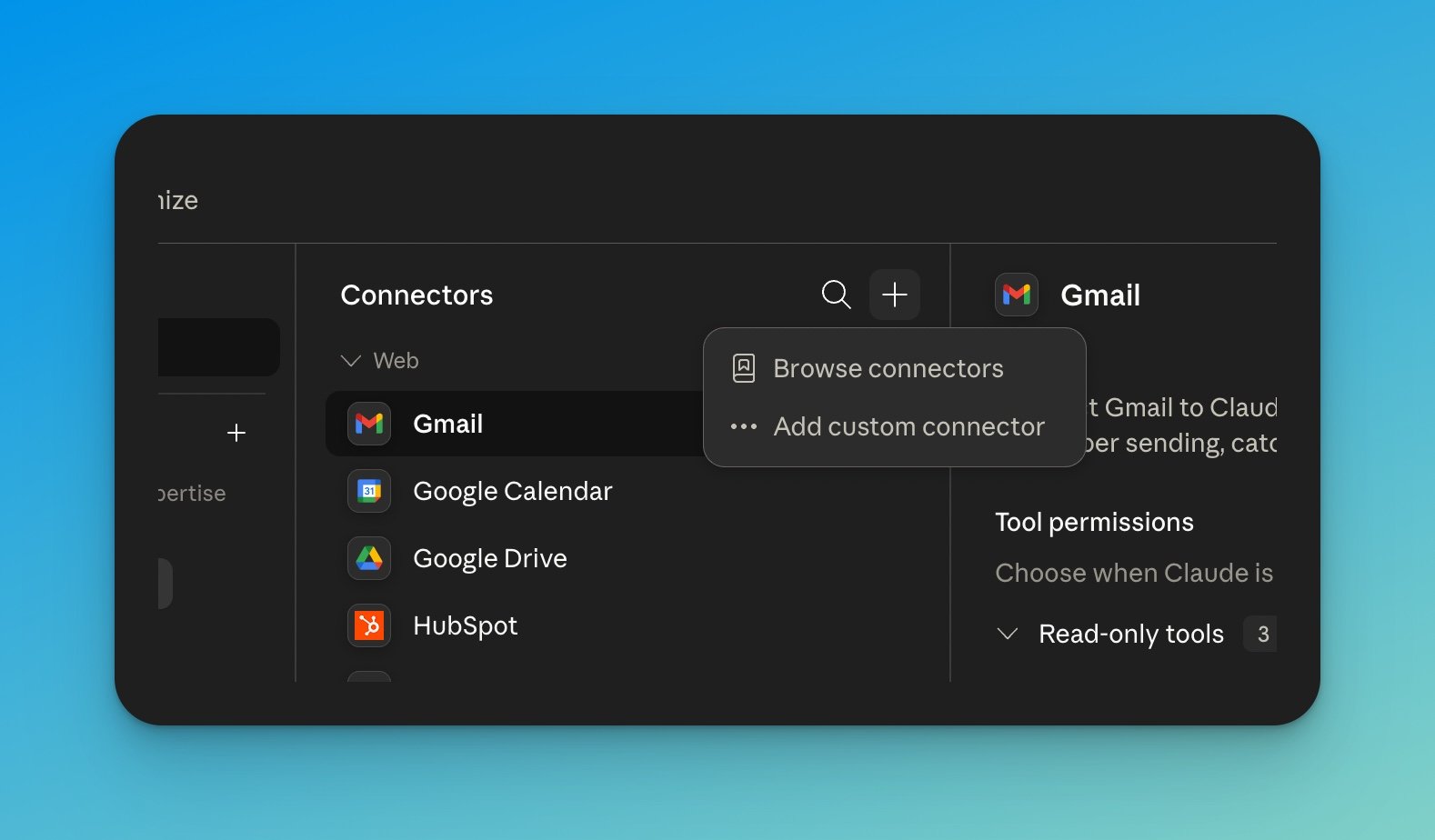
2
Add the Triple Session connector
Hover over Custom, select Web, then set the name to Triple Session and the URL to
https://app.triplesession.com/api/mcp. Click Add.Triple Session now appears in every member’s connector list with a Custom label.3
Members connect individually
Each member opens Customize → Connectors, finds Triple Session, and clicks Connect to approve access with their own account.
Connect in ChatGPT
1
Open Apps settings and create a new app
In ChatGPT, open Settings → Apps. Scroll to Advanced settings and click Create app.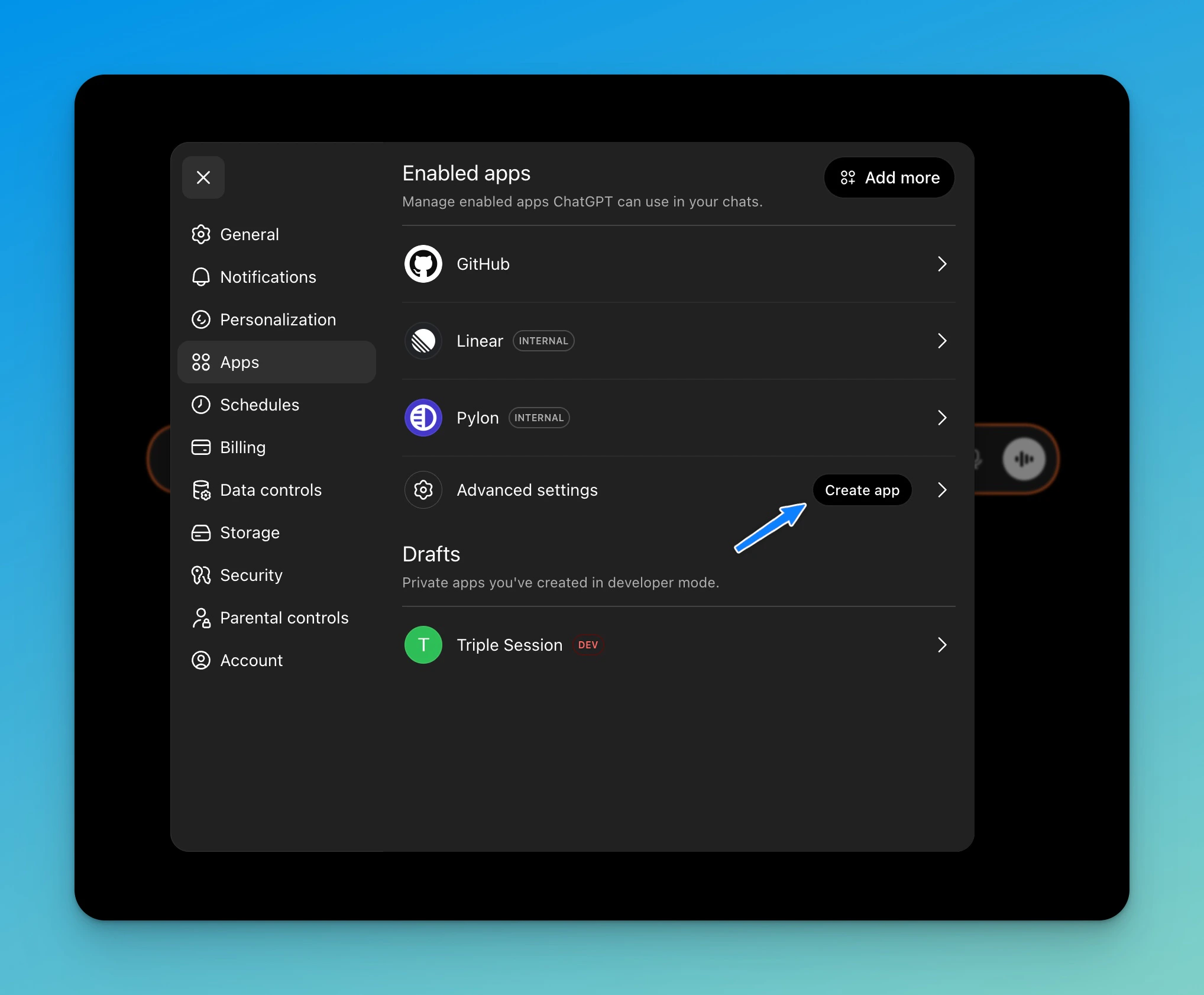
2
Fill in the app details
Set the Name to 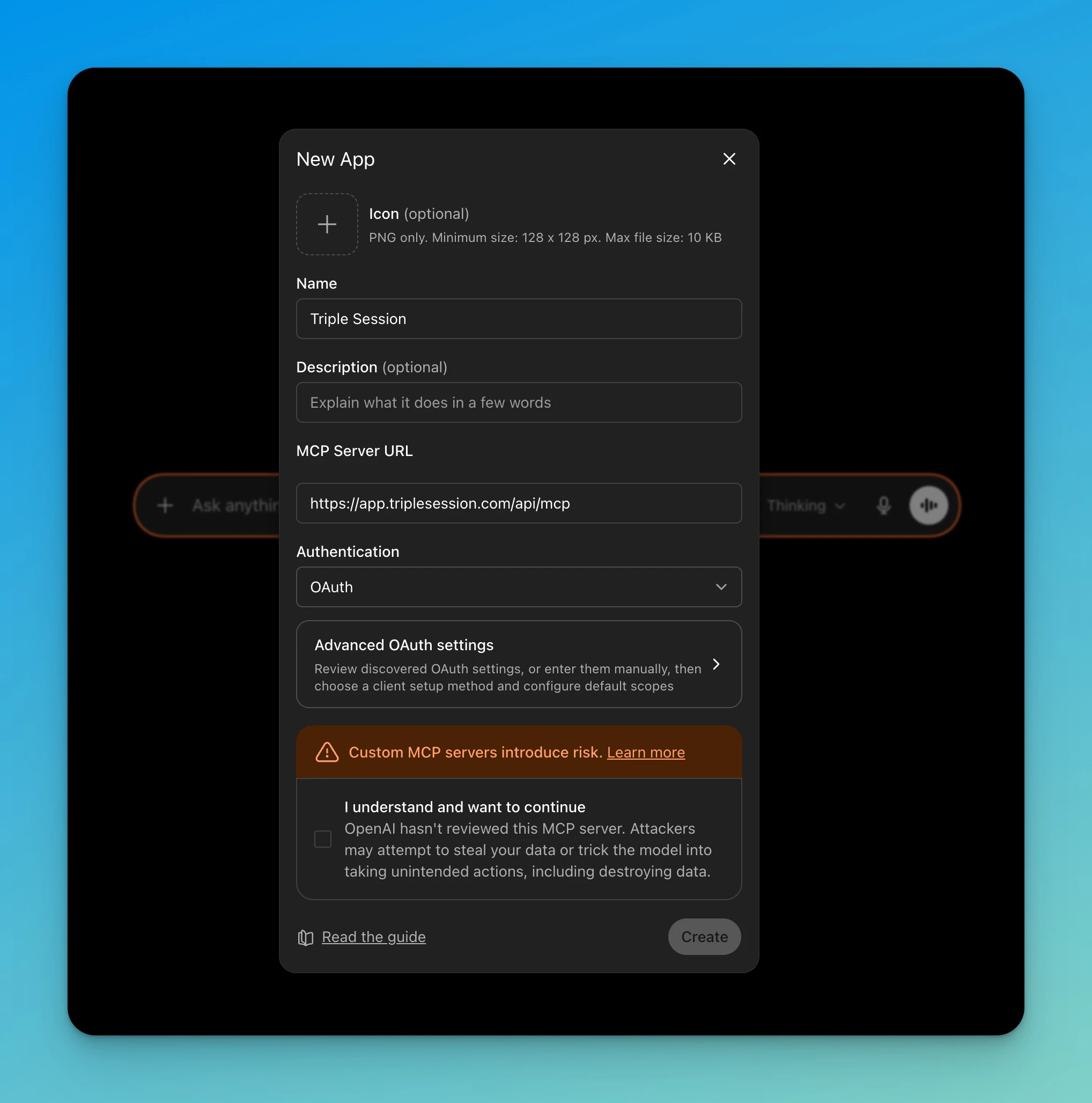
Triple Session and the MCP Server URL to https://app.triplesession.com/api/mcp. Leave Authentication set to OAuth.Check the acknowledgment box, then click Create. ChatGPT will redirect you to Triple Session to approve the connection.Available tools
Once connected, the AI has access to the following tools. It selects and chains them automatically based on your question.Calls
Calls
Roleplay
Roleplay
Scorecards
Scorecards
Deals
Deals
Team — admin and manager only
Team — admin and manager only
Example prompts
Once connected, you can ask things like:- “Show me the last 10 calls where we lost on pricing”
- “How is Sarah performing on the Discovery scorecard this month?”
- “Which reps on my team have the lowest average score this quarter?”
- “What are the main risks identified in the Acme Corp deal?”
- “Give me a transcript summary of the call with Globex yesterday”