
November 24, 2026New
Notes now know which moment of the meeting they’re about. Click a note to watch that moment, find notes right on the player and in the transcript, and reply to keep the conversation on the call.
Notes pinned to the moment
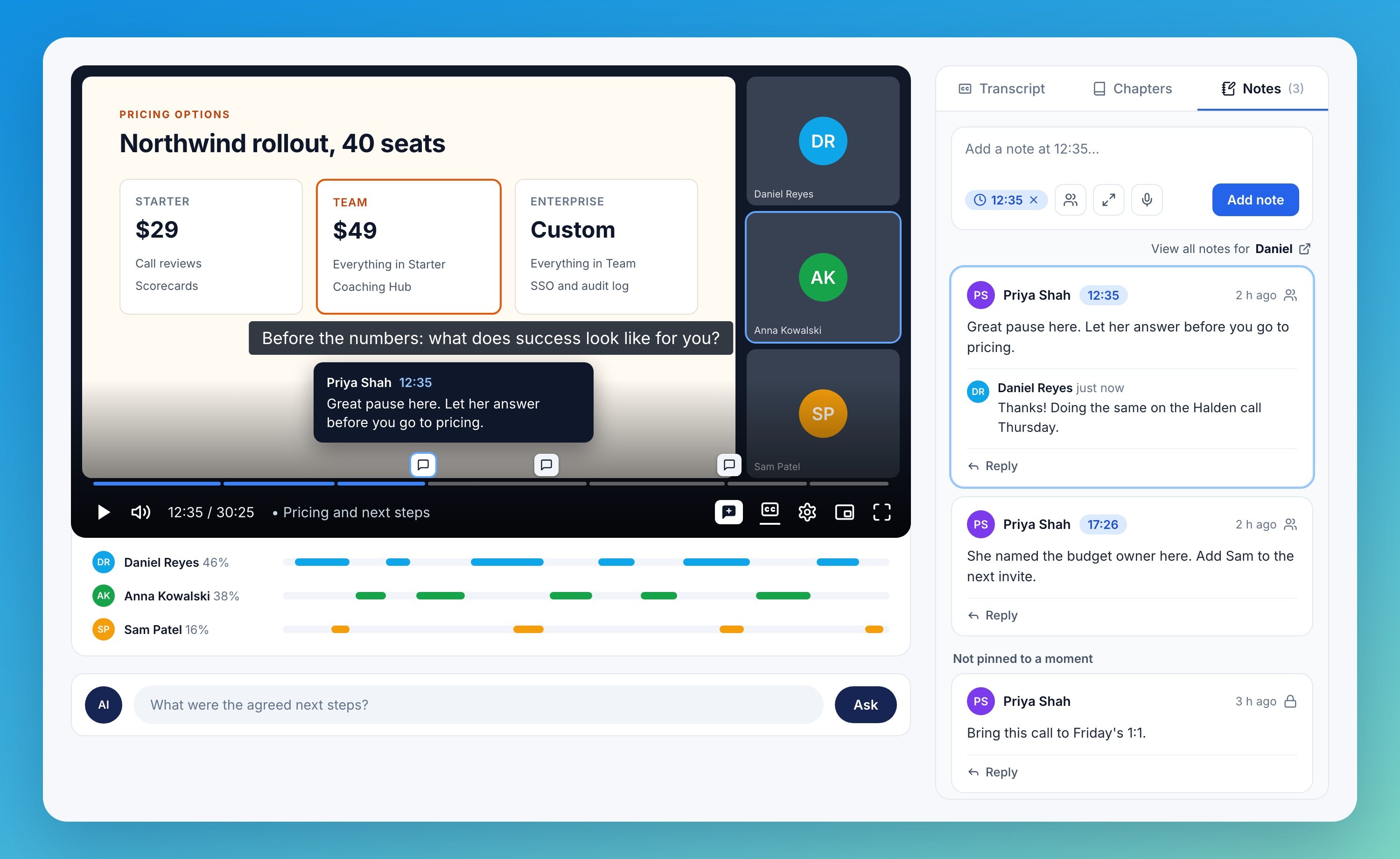
Open the Notes tab on a meeting and start typing. The note is pinned to where the recording is, shown as a time chip like 12:35. Click the time on any note to jump to that moment and watch or listen from there. For a note about the whole meeting, remove the time chip before you add it. Those notes are listed under Not pinned to a moment.Moments are saved for notes created from November 24, 2026. Earlier notes appear under Not pinned to a moment.
Notes on the player and in the transcript
Every pinned note gets a marker above the progress bar. Hover a marker to preview the note, and click it to jump there. This works on video and audio meetings.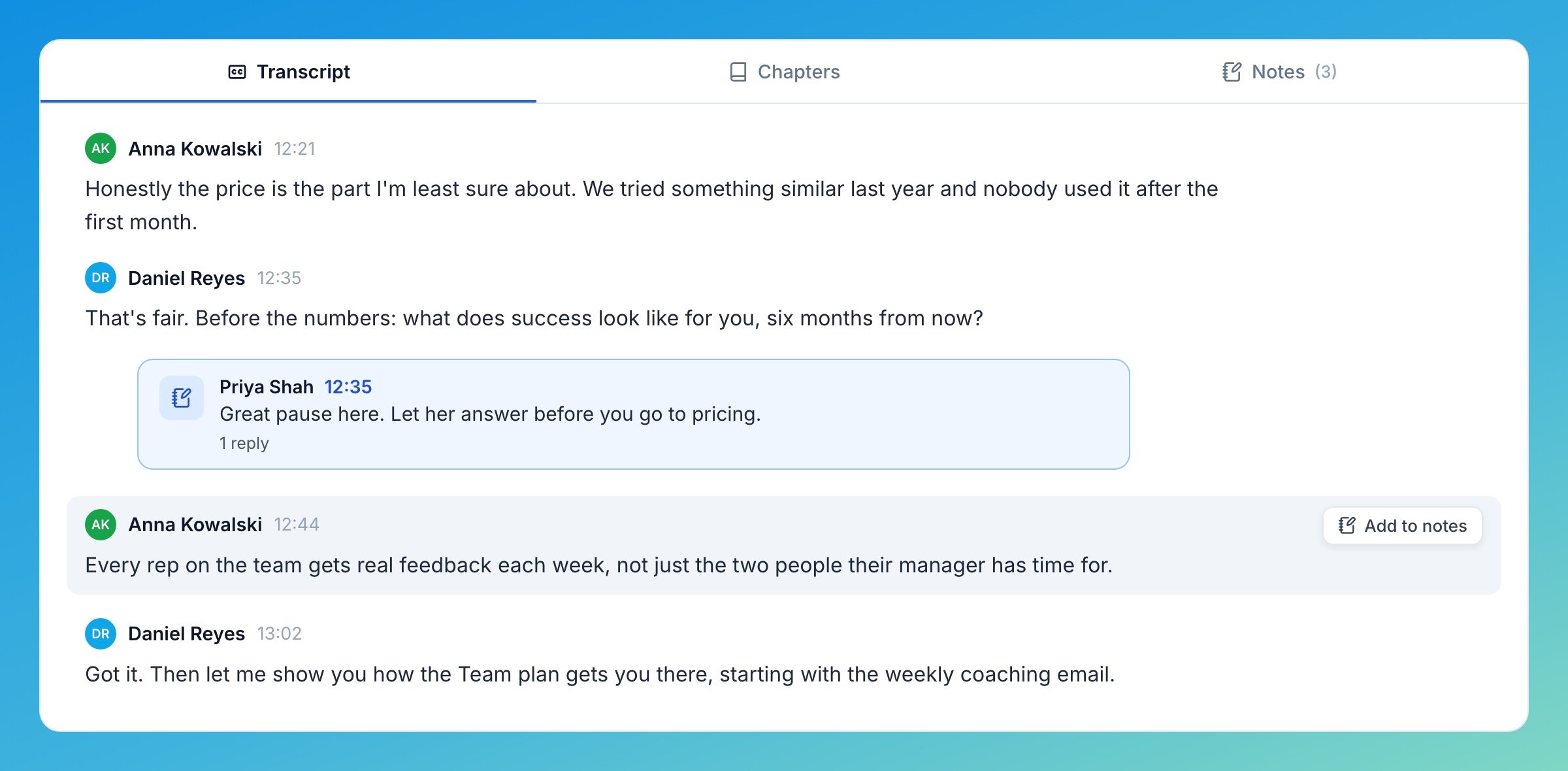
Two new player controls
- New note starts a note at the current time, straight from the player. It also works in full screen.
- Captions (CC) shows the call transcript as captions on the video.
Replies
Every note now has Reply. A manager leaves feedback on a moment, and the rep can answer in the same thread. Replies are emailed to the people in the conversation, and the link opens the meeting at the note’s moment.Share with everyone who can open the meeting
Notes on a meeting have a new visibility option: Everyone with access to the meeting. Use it for notes the whole team should see, like a moment worth learning from.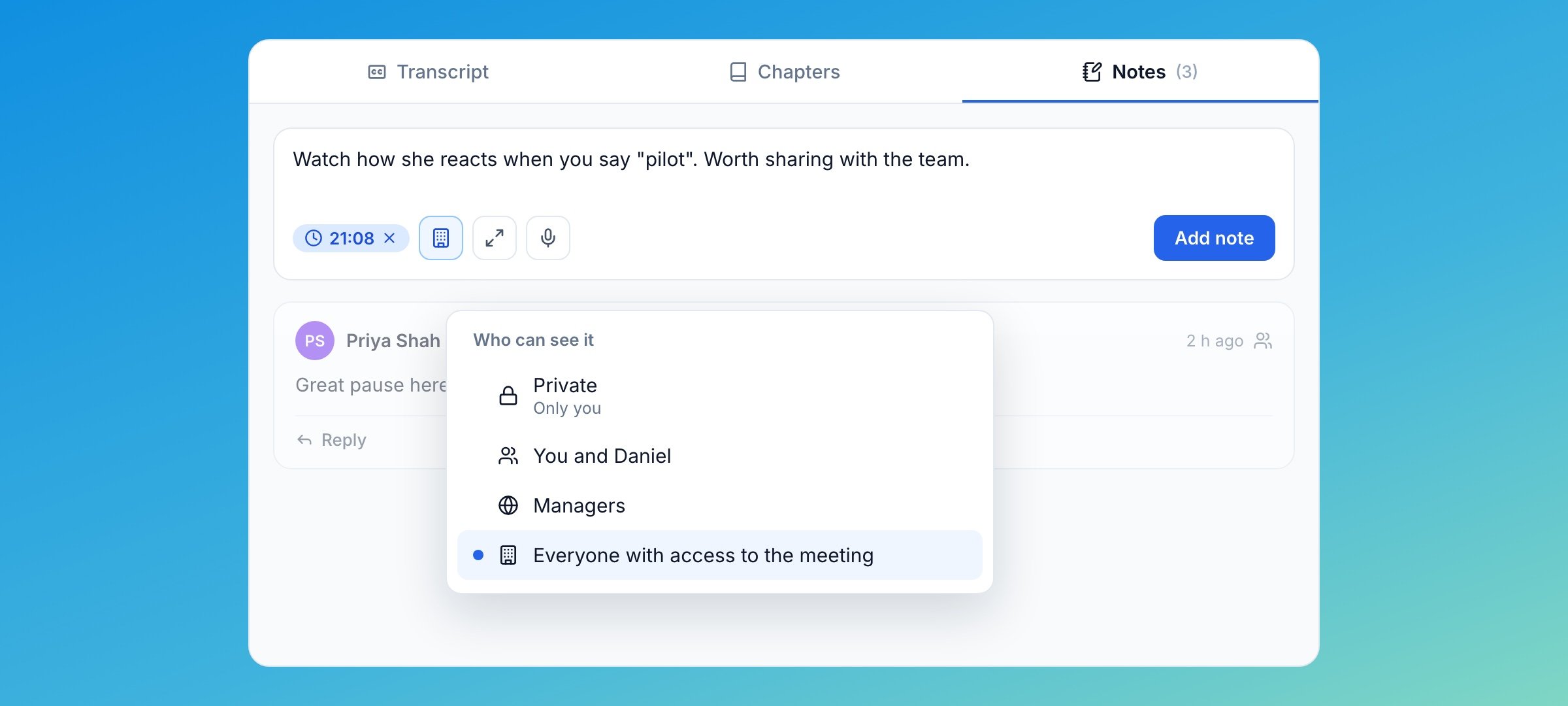
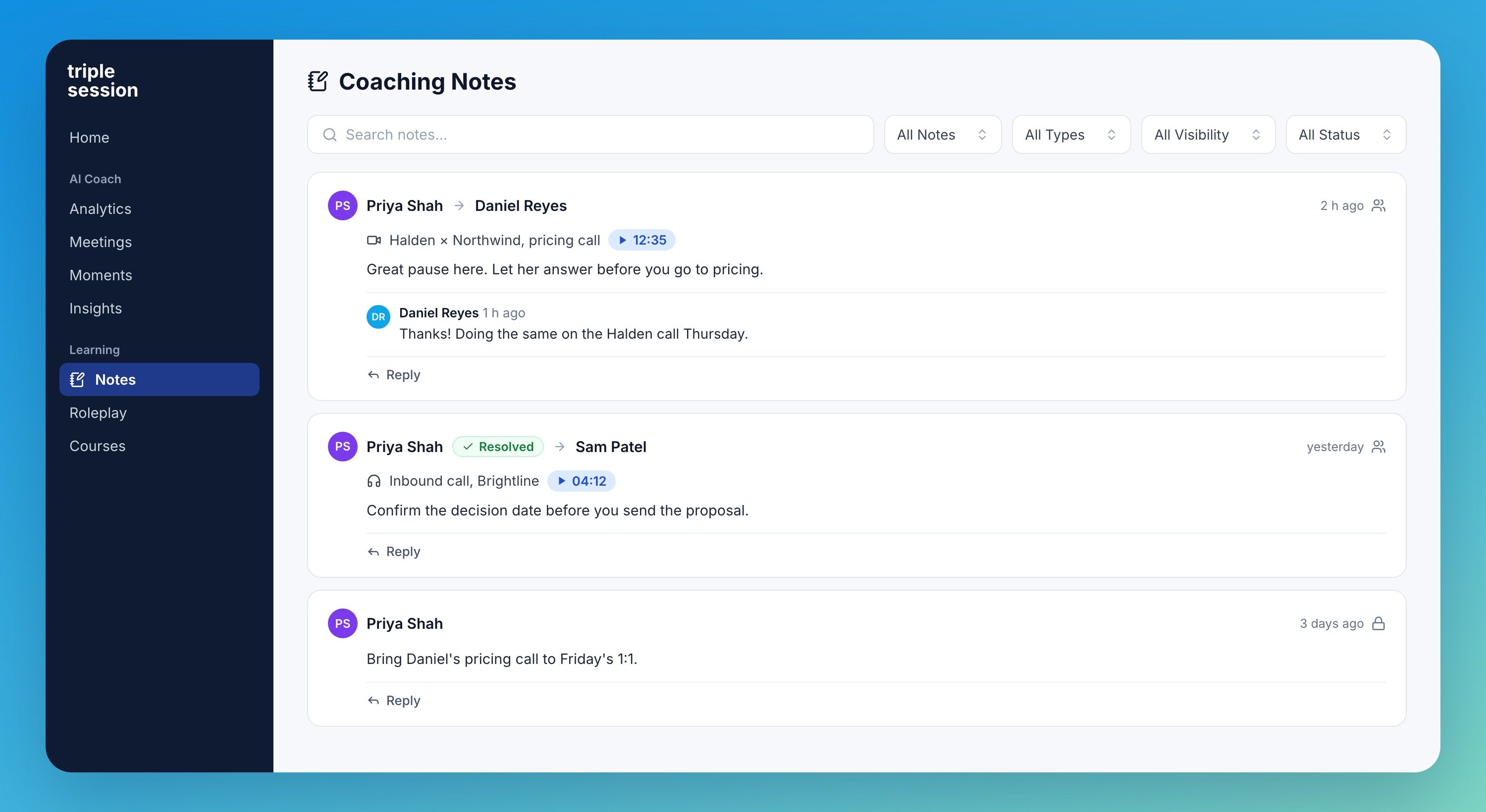
Coaching Notes page
Every note on the Notes page shows its meeting and moment, including resolved ones. Click the time to open the recording right there.