
Add a note to a meeting
1
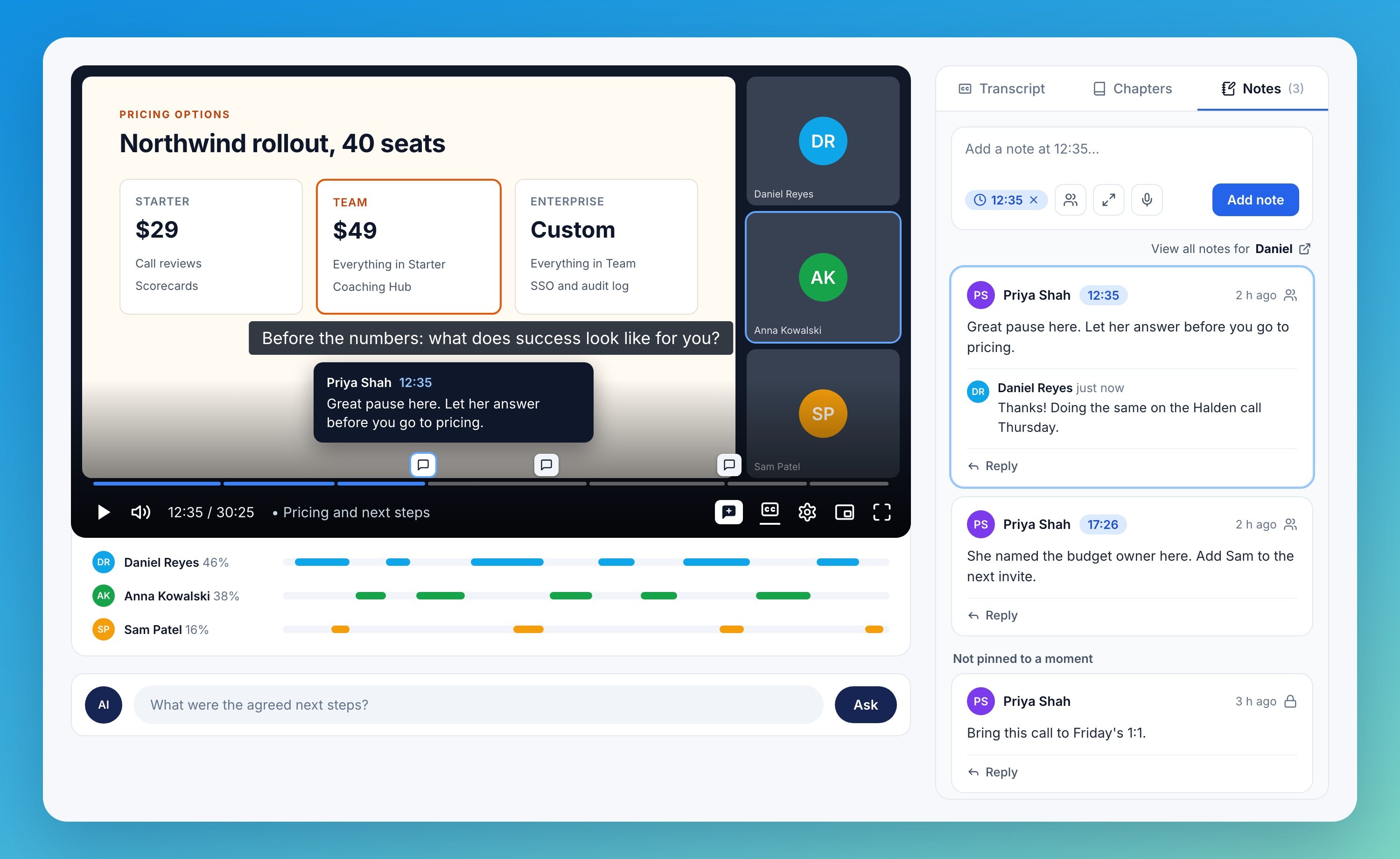
Open the Notes tab
Open a meeting report and click Notes in the panel next to the recording.
2
Go to the moment
Play or seek the recording to the moment you want to comment on. The composer follows the recording and shows the time as a chip, like 12:35.For a note about the whole meeting, click the × on the time chip.
3
Write the note and choose who can see it
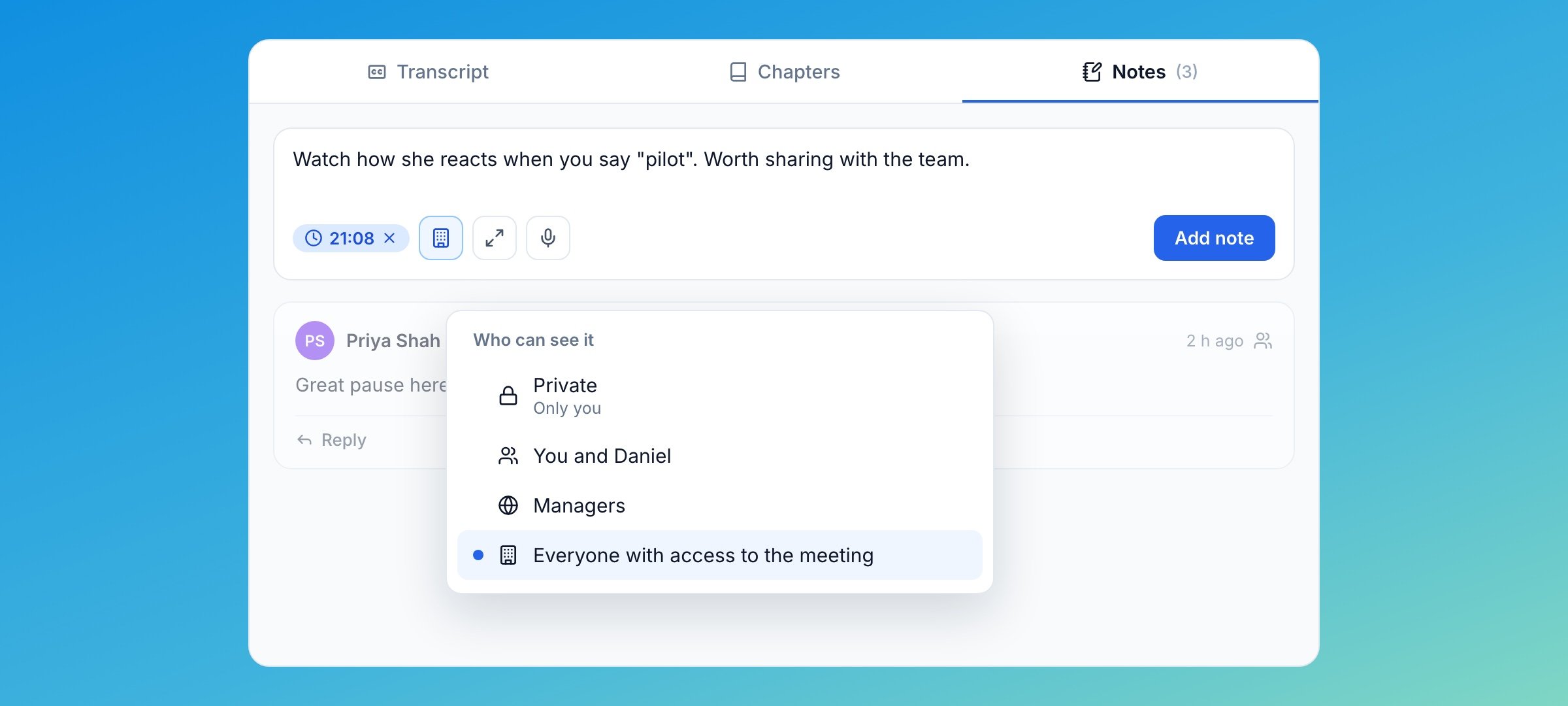
Type your note. Click the people icon to choose who can see it (see Who can see a note). Click the expand icon if you want the full editor.
4
Click Add note
The note appears in the Notes tab, on the player and in the transcript. If the rep can see it, they get an email with a link to the moment.
- The player. Click the New note button in the player’s controls. It works in full screen too.
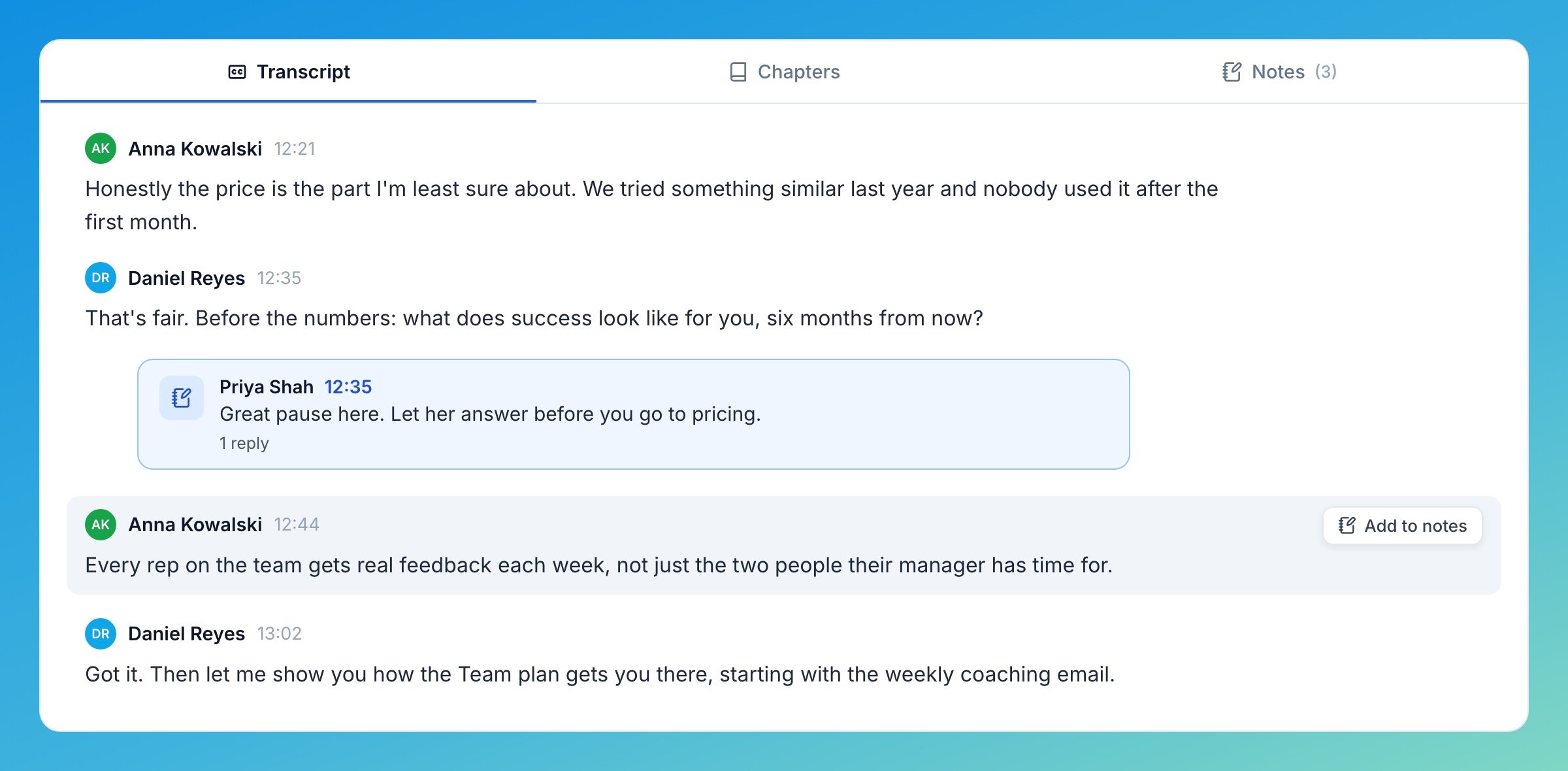
- The transcript. Hover a line and click Add to notes. The recording pauses and the note is pinned to that line.
Moments are saved for notes created from November 24, 2026. Earlier notes are listed under Not pinned to a moment.
Find notes in a meeting
- On the player. Each pinned note has a marker above the progress bar. Hover it to preview the note, and click it to jump there.
- In the transcript. Notes appear under the line they’re pinned to.
- In the Notes tab. Pinned notes are listed first. Click the time on a note to jump to that moment. Notes about the whole meeting are under Not pinned to a moment.
Reply to a note
Click Reply under any note to answer it. A manager leaves feedback on a moment, and the rep can respond in the same thread. New replies are emailed to the note’s author, to the rep when the note is visible to them, and to anyone else who replied. The email links to the meeting at the note’s moment. Edit or delete your own notes and replies from the icons on the card.Who can see a note
Choose who can see a note when you write it.
Notes on a meeting are shared with the rep by default. Triple Session remembers the last option you picked on your browser.
On your own meeting you can choose Private or Everyone with access to the meeting.
Notes that aren’t on a meeting, like notes on someone’s profile, offer Managers and the team member instead of Everyone with access to the meeting, and are private by default.
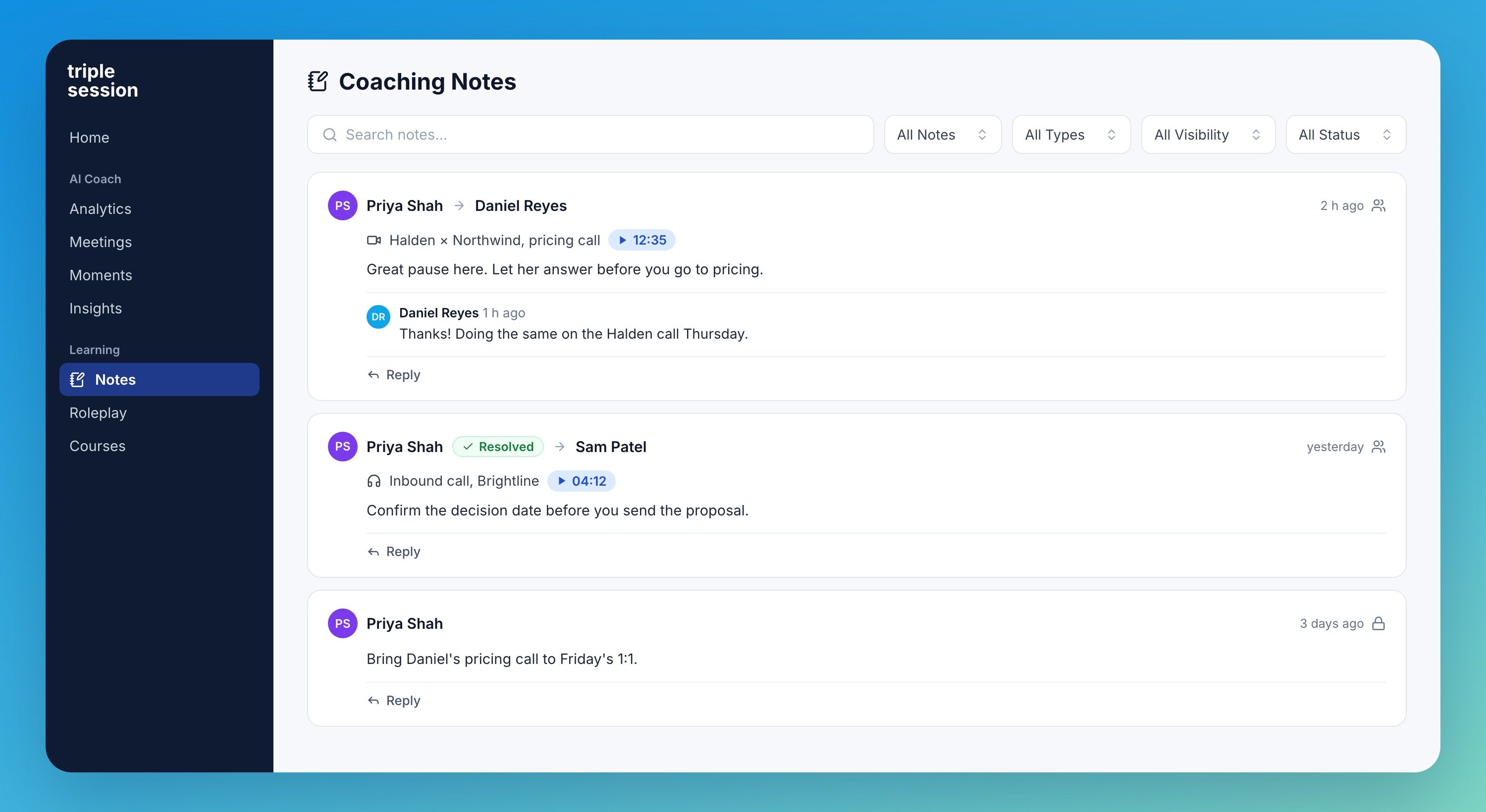
The Notes page
Click Notes in the sidebar to see every note you wrote or received. From a meeting, click View all notes for name in the Notes tab to open that person’s notes. Each note shows its meeting and the moment it’s pinned to, including notes already resolved. Click the time to open the recording at that moment. Search notes, or filter by author (All Notes, By Me, For Me), type, visibility and status.