

How the dashboard is organized
Your dashboard is built around Views. Each View is made up of Stages, and every stage tracks one scorecard. You can rename a stage — for example, “Cold Outreach” — to match the way your team actually sells. Switch between Views from the Select View dropdown, and set the one you use most as your default.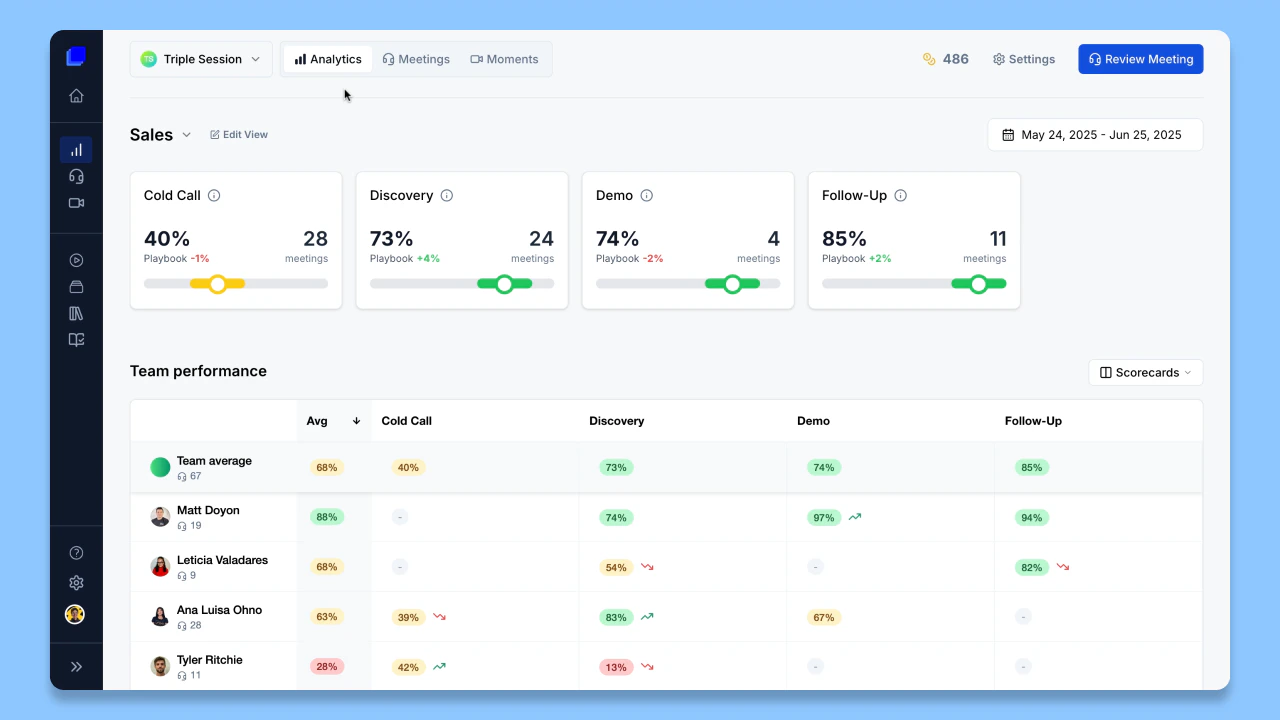
The dashboard only shows stages that have call data by default, keeping the view clean. You can still add stages with no data — they appear with “0” values until calls are logged against them.
Performance Overview
The Performance Overview chart shows how scores and meeting volume trend over your selected date range. Switch between Daily and Weekly to zoom in or out, and read each stage’s trend at a glance.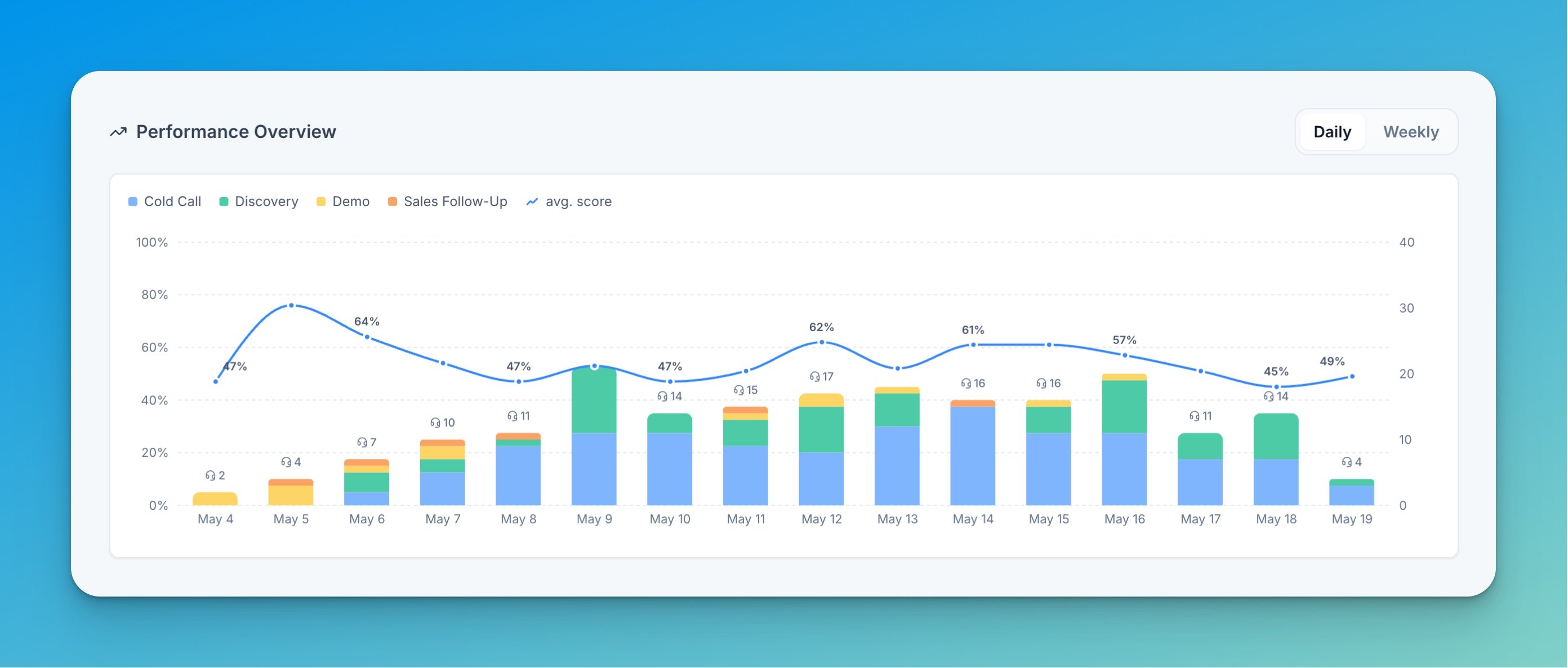
Filtering by date
Use the date-range picker at the top of the dashboard to set the period you want to analyze. It defaults to the last 30 days, and score trends are compared against the previous period.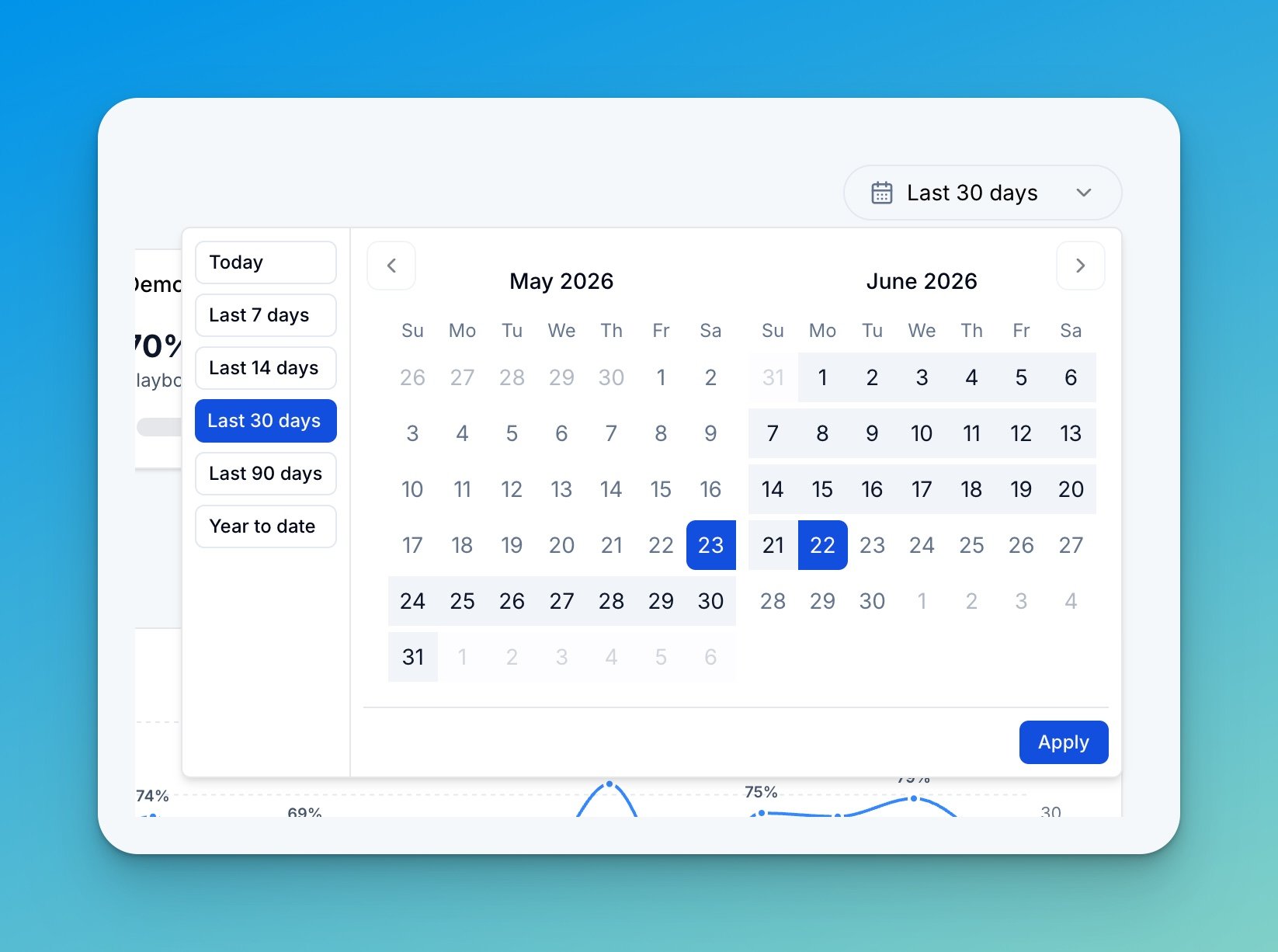
Navigating from team overview to individual performance
The dashboard opens on the team view, where you can see aggregate scores for each stage across all reps. To drill into a specific rep:- Find the rep’s name in the Performance table — use the Search members box to filter the list.
- Click their name to open their individual page.
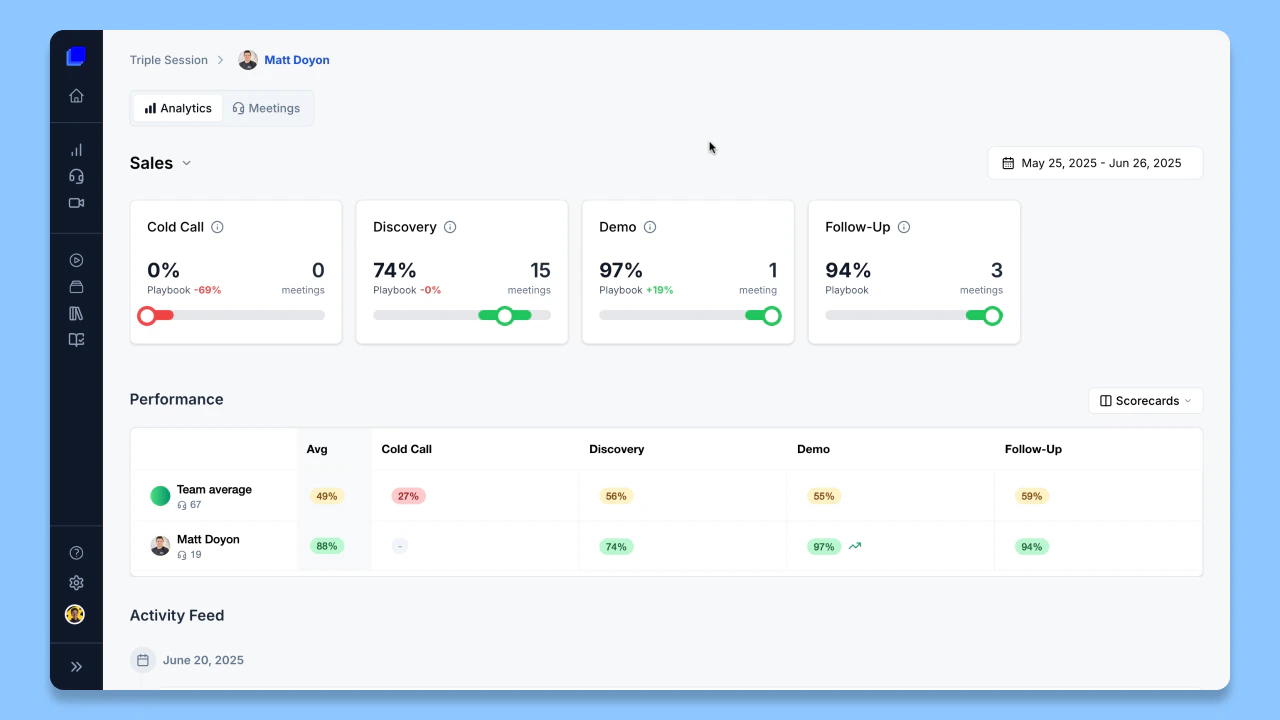
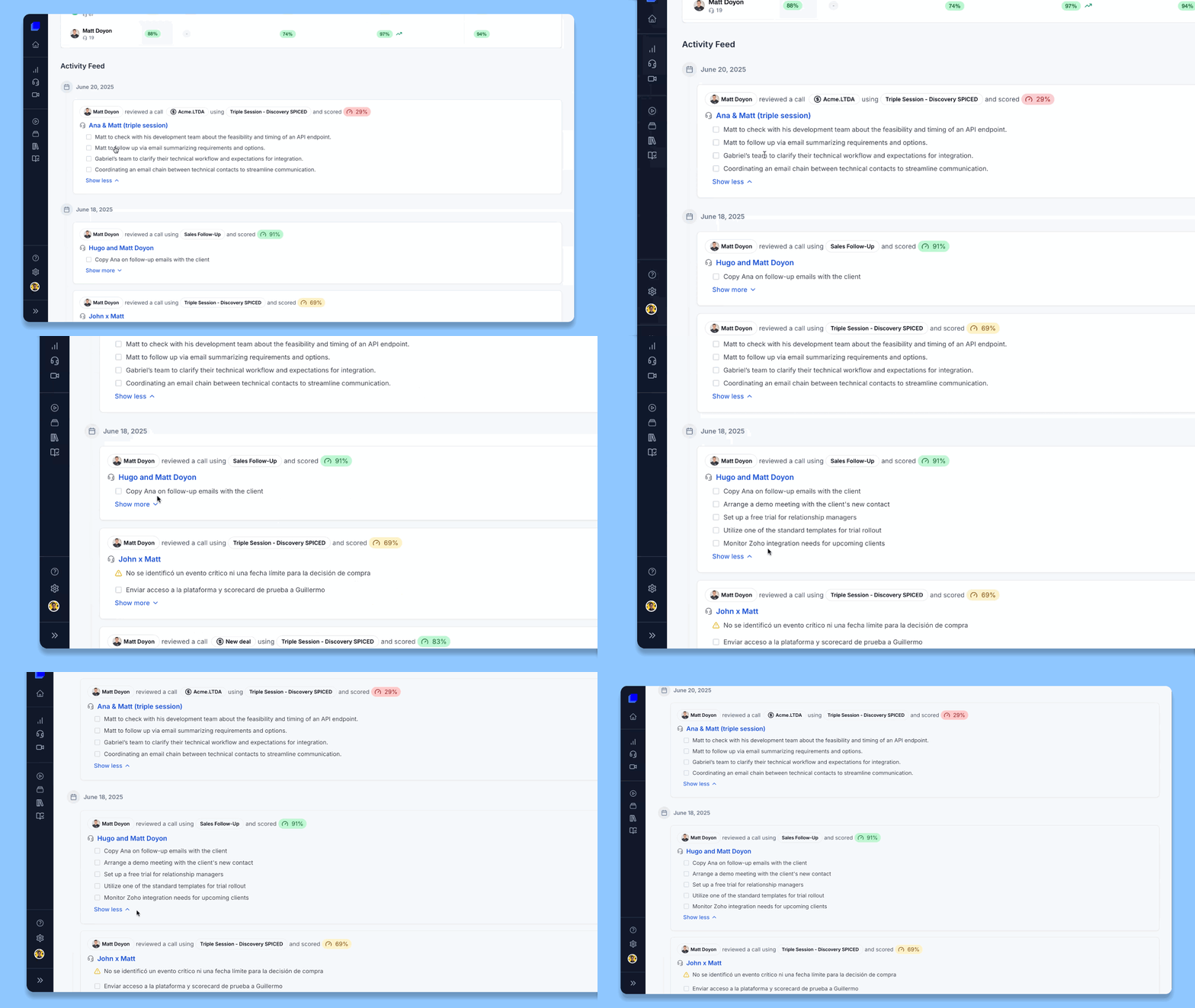
A rep’s data may be private and not visible to the workspace. Coaching Notes are visible to managers only.
Drilling into a stage
To see a detailed breakdown for any stage, click a score value in the Performance table (for example, “74%” under “Discovery”) on either the team view or an individual rep’s view to go straight to that scorecard’s dashboard.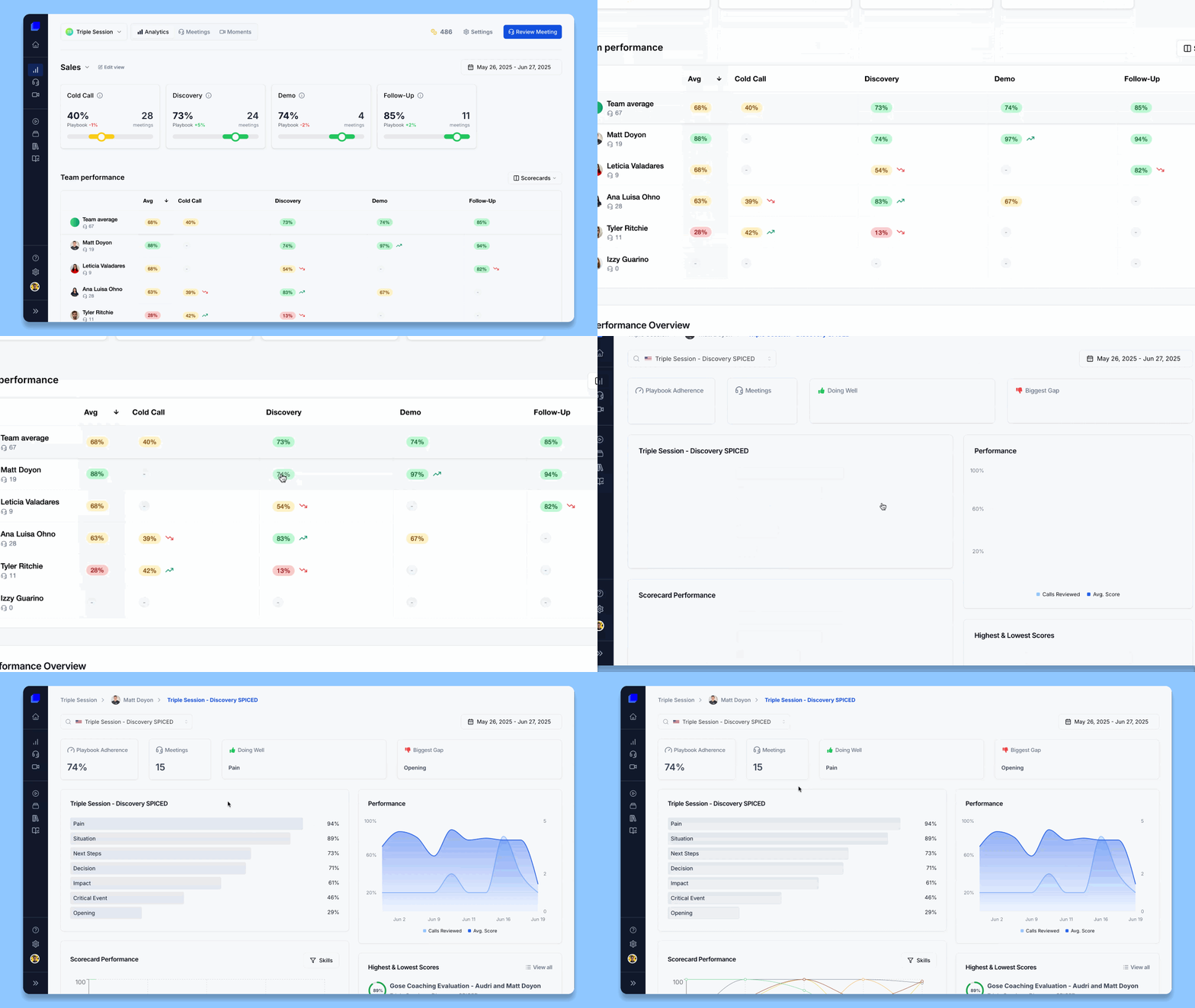
Customizing your Views
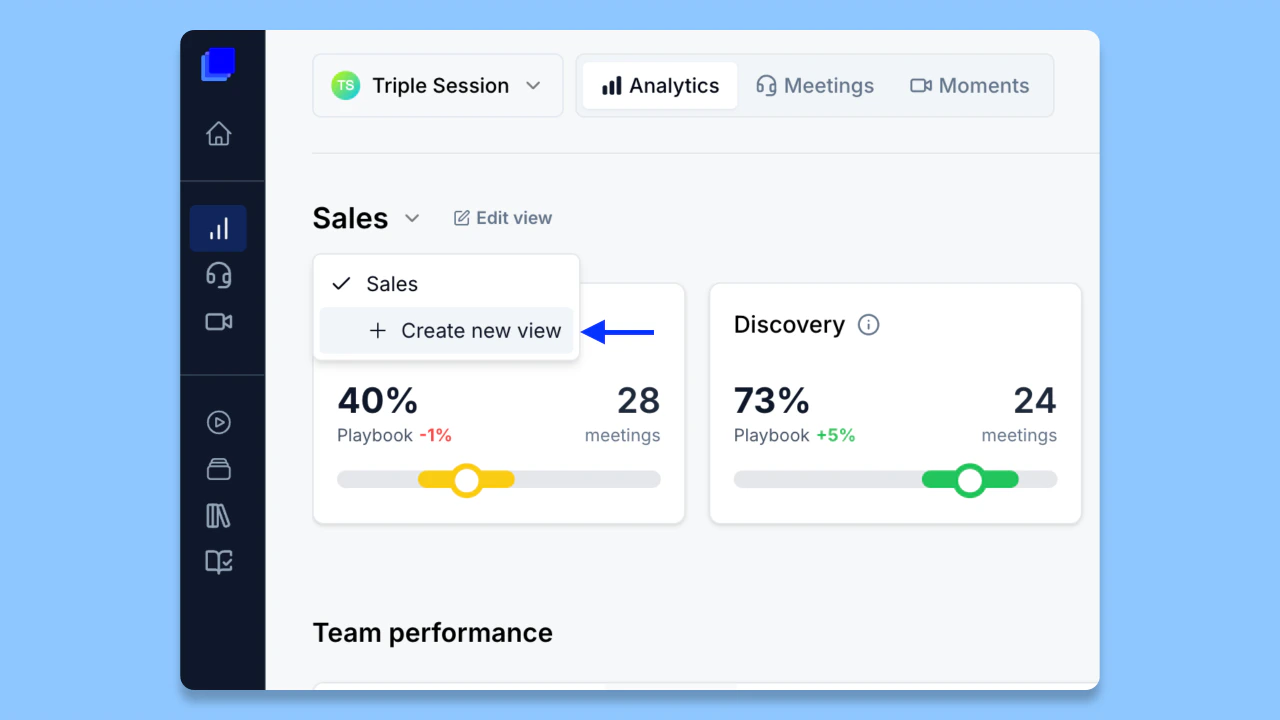
You can create multiple Views to organize how stages are displayed:- Use the Select View dropdown to Create View, Edit view, Delete view, or Set as Default.
- In Edit view mode, rename a stage or drag and drop stages to change their order.
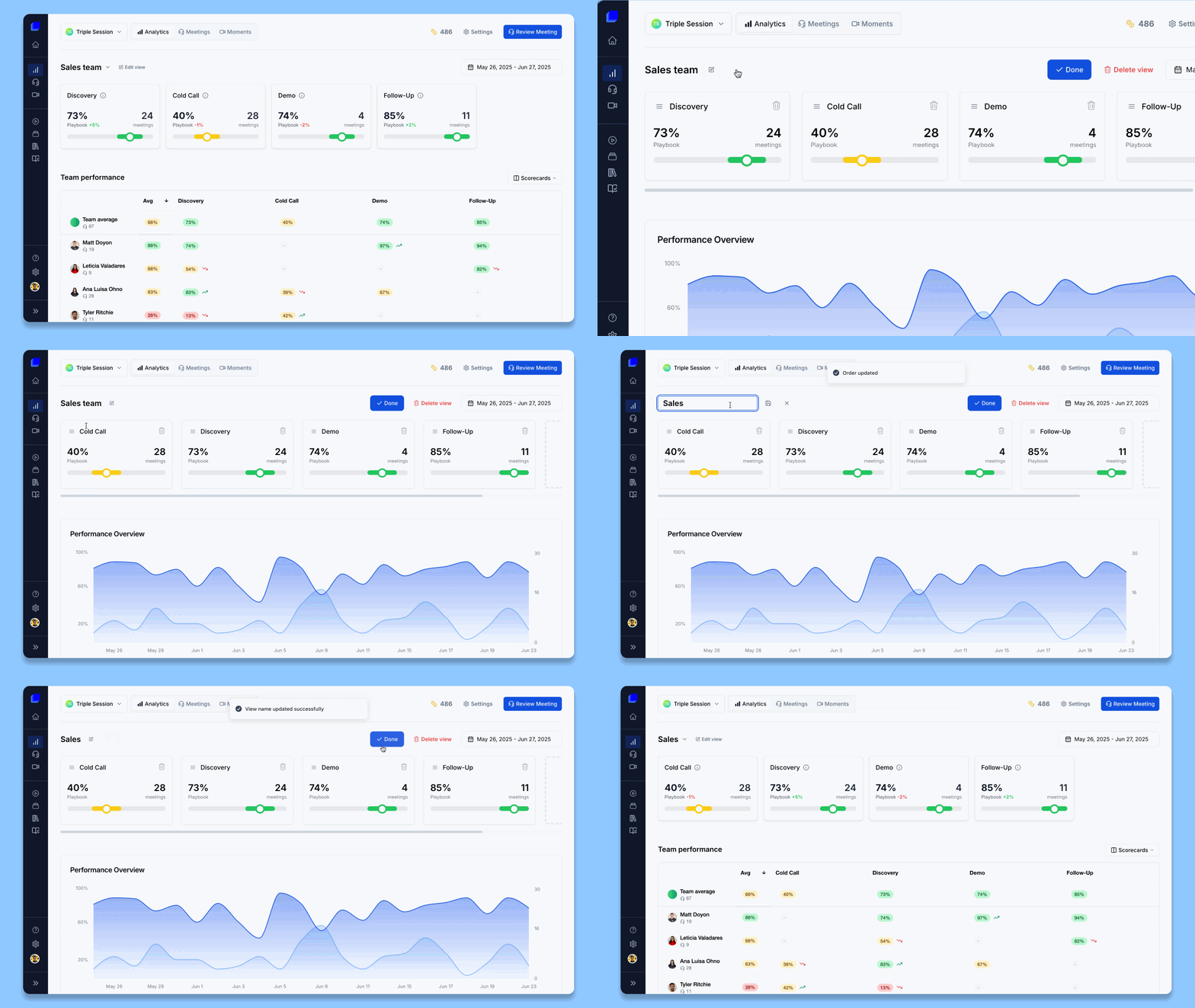
Editing Views requires full (manager) access. View customizations are workspace-specific — changes you make in one workspace do not affect other workspaces.
Using the Performance table for quick insights
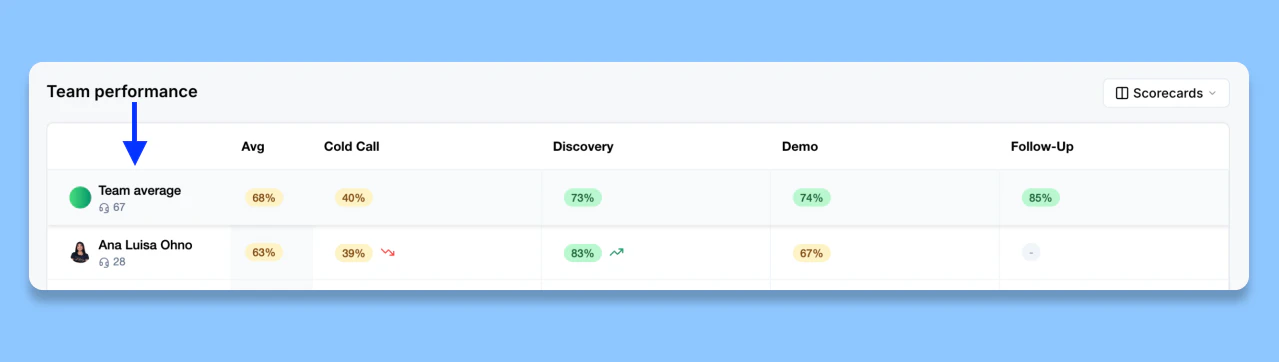
The Performance table is the fastest way to spot patterns across your team:- A pinned Team Average row to benchmark each rep against.
- A trend arrow (up, down, or stable) on every score cell — hover to see the exact change vs. the previous period.
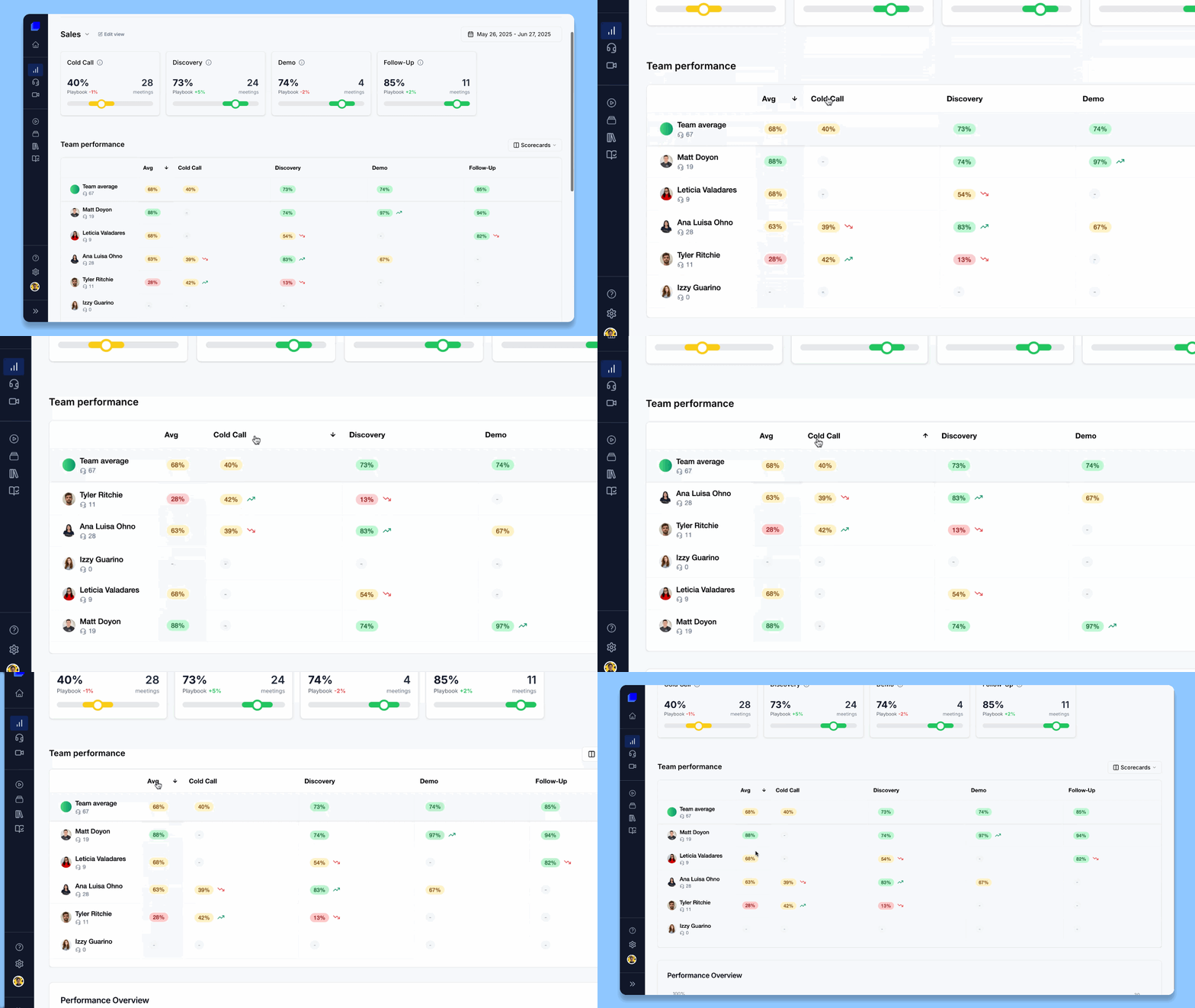
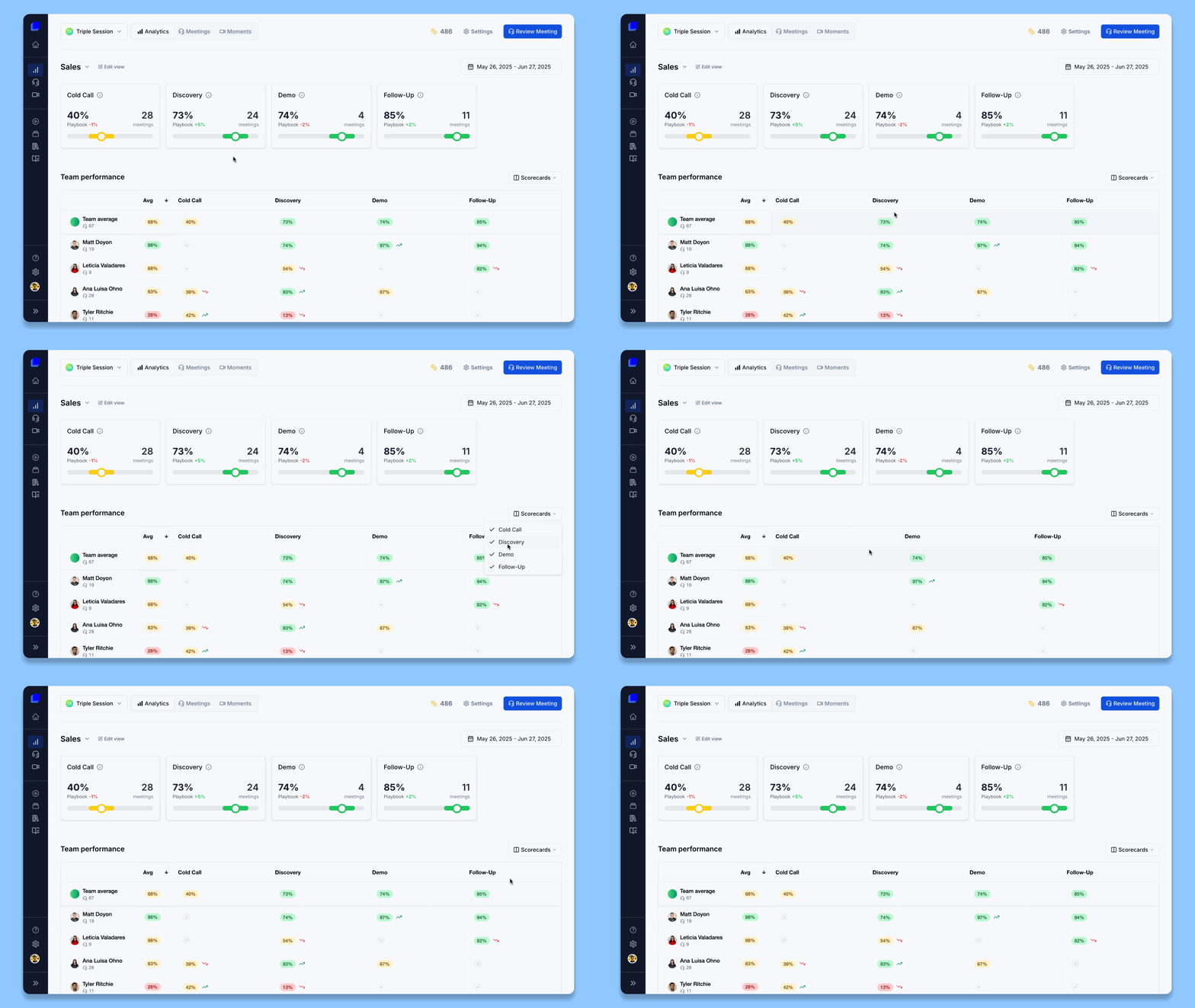
- Search members to filter rows, sort any column, and a column-visibility control to choose which stages appear.
Best practices
- Tailor Views per workspace — surface the stages most relevant to each team (for example, sales stages in a Sales workspace, CS stages in a Customer Success one).
- Coach proactively — review rep Activity Feeds and watch the Risks and Action Items on each call.
- Watch the trends — use the previous-period trend arrows to see whether coaching and process changes are landing.
FAQ
Why are some of my stages not showing in the overview?
Why are some of my stages not showing in the overview?
By default the dashboard only shows stages that have call data. Stages with no logged calls are hidden until calls are logged against them.
How do I add a stage that doesn't have data yet?
How do I add a stage that doesn't have data yet?
In Edit view mode, add the scorecard you want as a new stage. It appears with “0” data until calls are logged against it.
If I rename or reorder stages in one workspace, does it affect other workspaces?
If I rename or reorder stages in one workspace, does it affect other workspaces?
No. Renaming and reordering are specific to each workspace.