

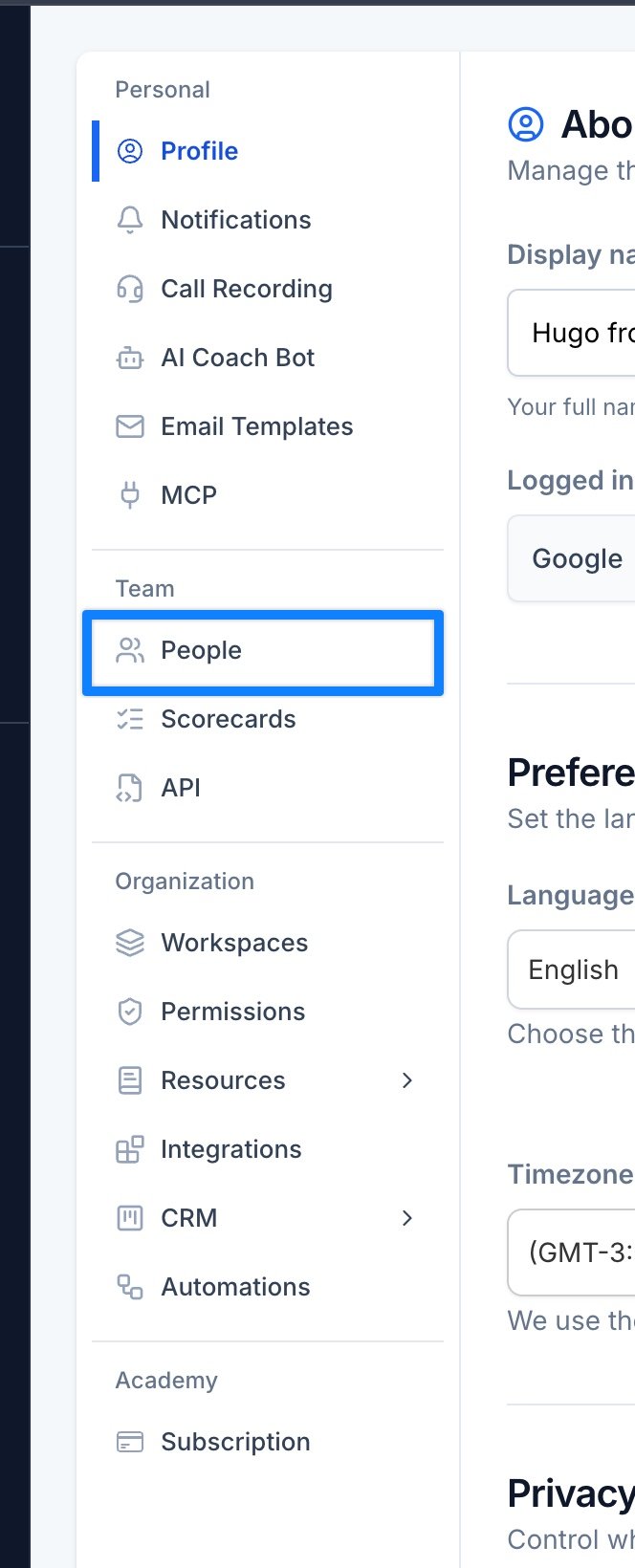
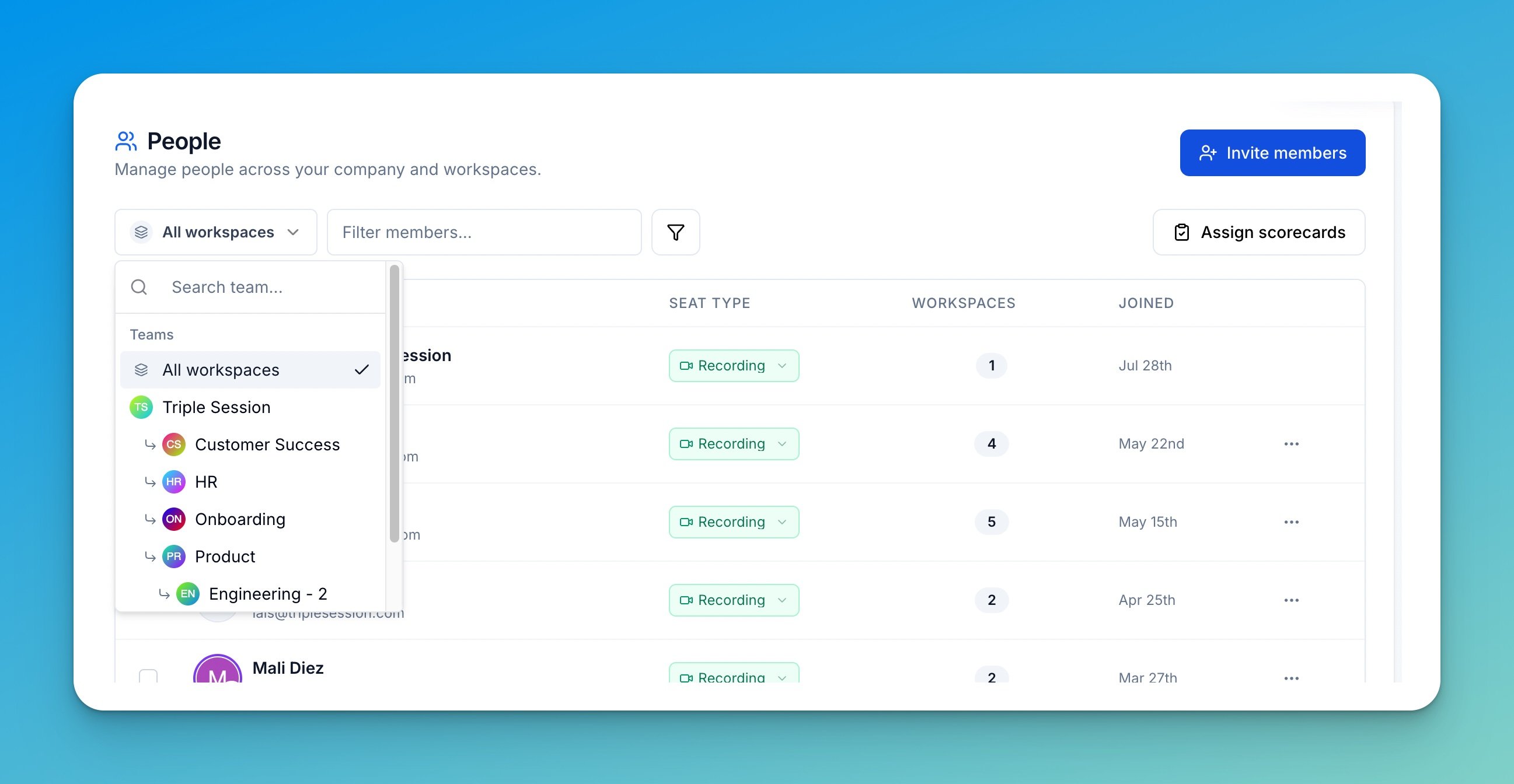
Invite someone new
1
Open the invite dialog
Click Invite members in the top right, and check that the workspace at the top of the dialog is the one you want them in.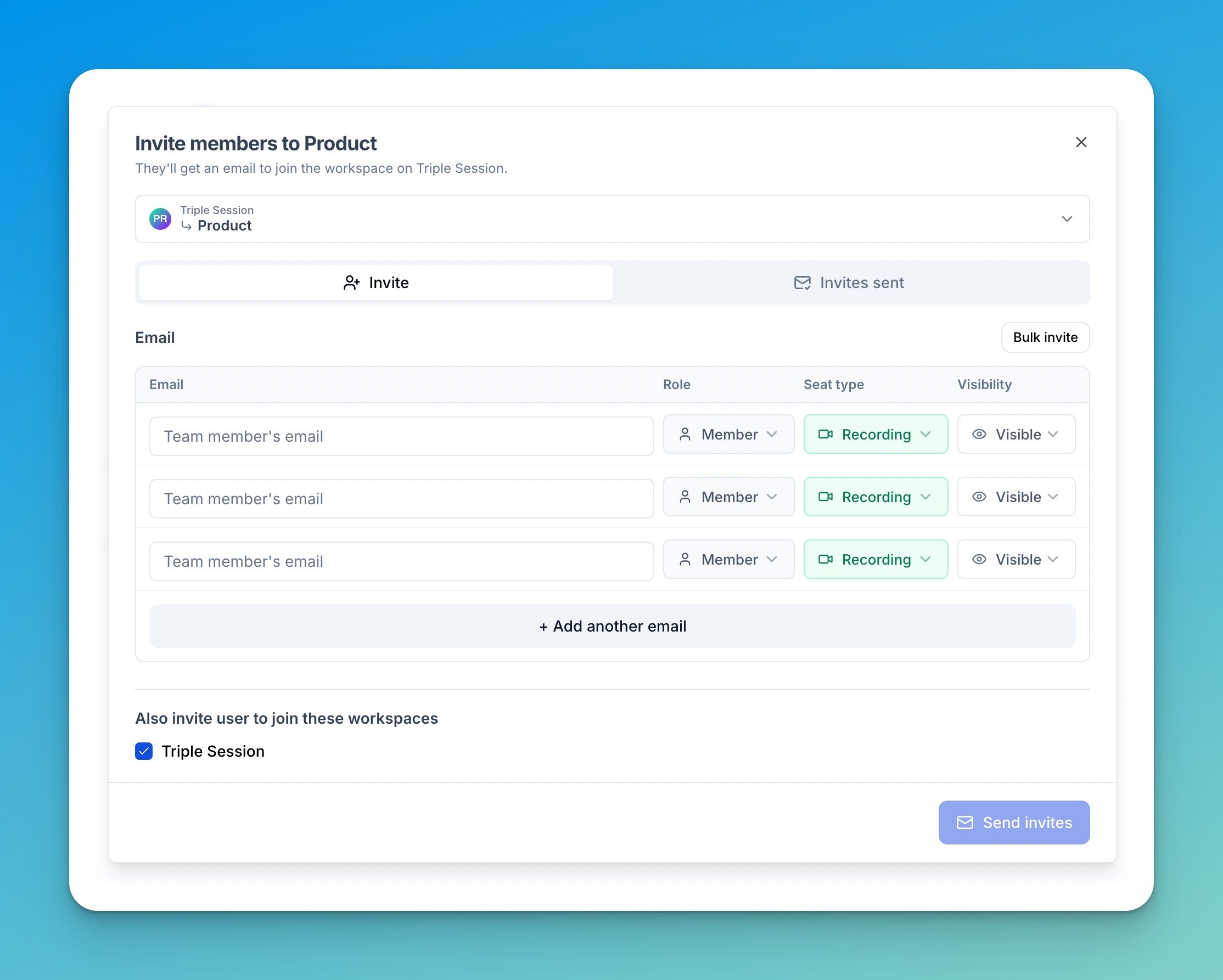
2
Add their email and settings
Enter their email, then set three things on that row:
- Role — Member sees only their own meetings and analytics. Manager sees the whole team’s.
- Seat type — Recording means their calls get recorded. Viewer is review-only.
- Visibility — whether they show up in team analytics, digests, and leaderboards.
3
Send
Click Send invites. Everyone gets an email from support@triplesession.com with a join link — tell them to check spam if it doesn’t arrive.
4
Assign their scorecards
New members join with nothing assigned, so their calls won’t be reviewed until you give them a scorecard. See Assign scorecards below.
Assign scorecards to your team
Click Assign scorecards in the toolbar.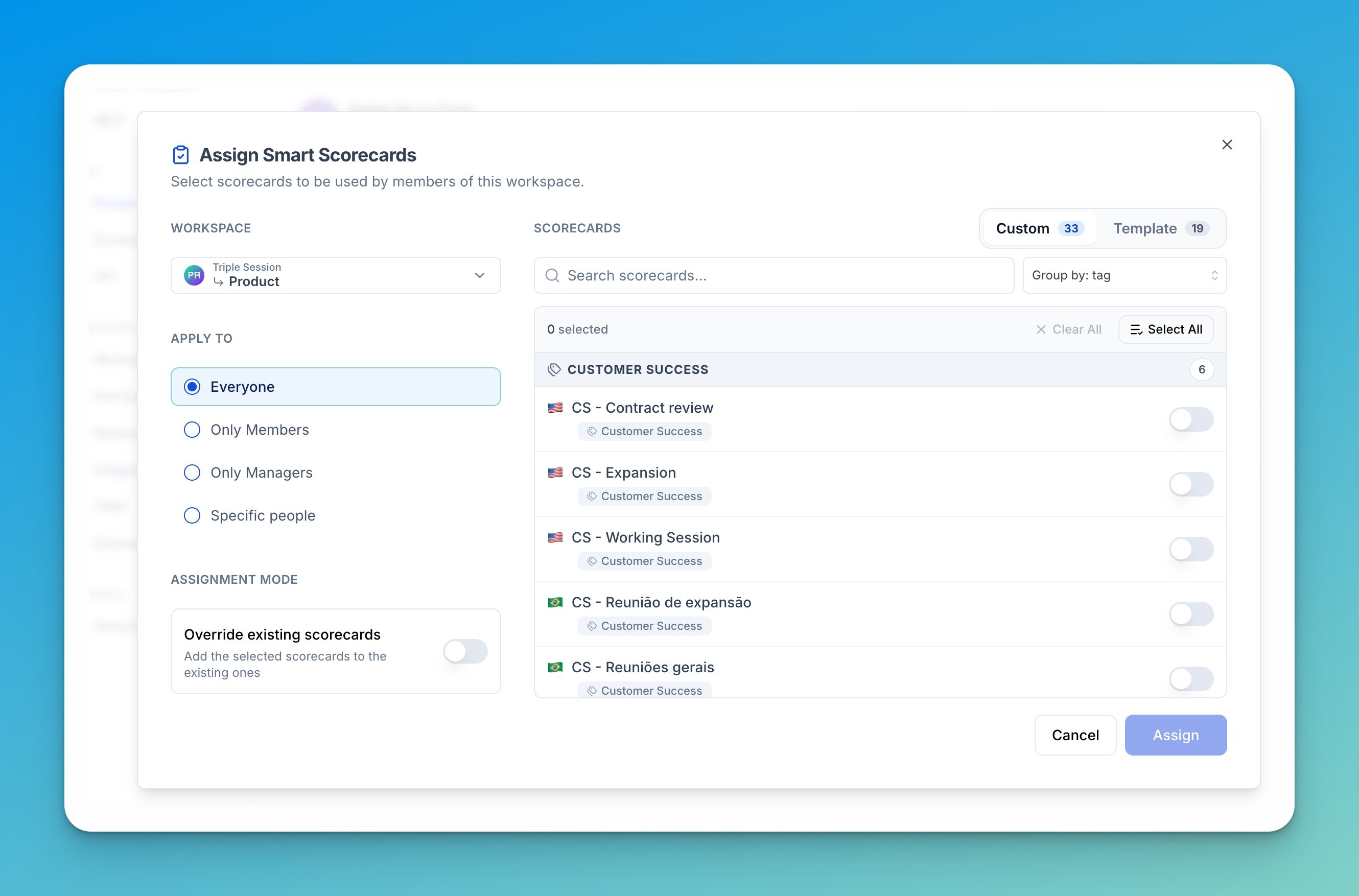
Change someone’s seat type
Seat type decides whether someone’s calls get recorded. Open the Seat Type dropdown on their row and switch between Recording and Viewer. A person has one seat type across the whole company, so this applies everywhere — not just the workspace you’re looking at.Change someone’s role
Open the Role dropdown on their row to switch between Member and Manager for that workspace. To make someone a company Admin, open the row menu (…) and choose Make admin. Admin is company-wide and sits on top of their workspace role.Hide someone from team analytics
Useful for non-selling managers, sales ops, or anyone who reviews calls but shouldn’t count toward team performance. Click the eye icon in the Visibility column on their row to toggle it. A crossed-out eye means their performance data is private. Hiding someone doesn’t restrict their access — it only keeps them out of shared analytics, digests, and leaderboards. See Visibility for exactly what gets excluded.Move someone between workspaces
From All workspaces, open the row menu (…) and choose Manage workspaces to add or remove their memberships in one go.Deactivate or remove someone
There are three ways to take someone off your team. Pick the one that matches the situation:
All three live in the row menu (…) on the People page.
Deactivate someone who left
Open the row menu (…) on their row, or on their profile, and choose Deactivate. The dialog lists what happens. Click Deactivate to confirm. Admins can deactivate anyone. Managers can deactivate members of their workspaces if they have the Change member seat types permission. See Roles & Permissions for the full rules.What happens
Deactivated members still count in team totals, analytics, leaderboards, and insights, so your history stays accurate. In per-person tables, like team performance or the Roleplay roster, they’re listed last in a collapsed Deactivated users group.
If the person belongs to more than one Triple Session company, deactivating them in one company blocks their sign-in to all of them.
Find or reactivate a deactivated member
The People page shows active members by default. To see deactivated members, open the filters and set Status to Deactivated or All members. While someone is deactivated, you can’t change their seat, role, or workspaces. To bring them back, open the row menu (…) and choose Reactivate. They can sign in again and show up in People and the manager dashboard. Their seat stays Viewer, so switch it back to Recording if their calls should be recorded. They also need to reconnect the meeting bot to their calendar.Remove someone
Remove from workspace
Use this when someone should no longer be part of one team, but still works at your company. Select that workspace at the top of the People page first.- They leave that workspace, and its team no longer sees their meetings and reports.
- They keep access to the company and to any other workspaces they belong to.
Remove from company
Use this when someone shouldn’t be in your company at all. It’s permanent and admins only.- Nobody in your company can see their meetings, scores, or reports anymore.
- They’re removed from every workspace.
- They lose access to your company’s academy and all training.
- Any invitations they haven’t accepted are revoked.
Tips
- Onboarding a whole team? Use Bulk invite, then Assign scorecards with Apply to: Everyone to set them all up at once.
- Keep analytics honest. Give non-selling teammates a Viewer seat and Hidden visibility when you invite them, so your leaderboards reflect actual sales performance.
- Check the Scorecards column. A 0 means that person’s calls aren’t being reviewed against anything.