

- Send notes to ticket — adds the meeting notes AI Coach already generates as a note on an open ticket.
- Update CRM with Ticket as the object type — fills ticket properties from scorecard results and deal insights, using the same field mapping you already use for deals and contacts.
Requirements
- Your account must have access to Automations.
- HubSpot must be connected with Tickets access granted. See Connect HubSpot.
- Tickets are available on Meeting Finished automations.
Tickets are supported for HubSpot only. Salesforce Cases are not supported.
- Connect HubSpot to use Ticket automations — no HubSpot connection on the workspace.
- Reconnect HubSpot and grant Tickets access — HubSpot is connected, but it was authorized without access to tickets. Reconnect it from Settings > CRM and approve tickets.
How the right ticket is chosen
A customer can have several tickets, and more than one may be open at the same time. Two settings, shown on both ticket actions, decide which one gets written to.Ticket resolution path
This tells Triple Session where to start looking. Triple Session takes the CRM records already matched to the call, then follows their ticket associations in HubSpot.
Pick the narrowest path that reliably reaches your tickets. If every ticket in your portal is associated with a contact, Contact → Ticket is the most predictable choice. Use All standard objects → Ticket when tickets are attached inconsistently.
Only open tickets are considered. Closed tickets are never written to, and Triple Session never creates a ticket — if nothing open is found, the action is skipped.
When several open tickets match
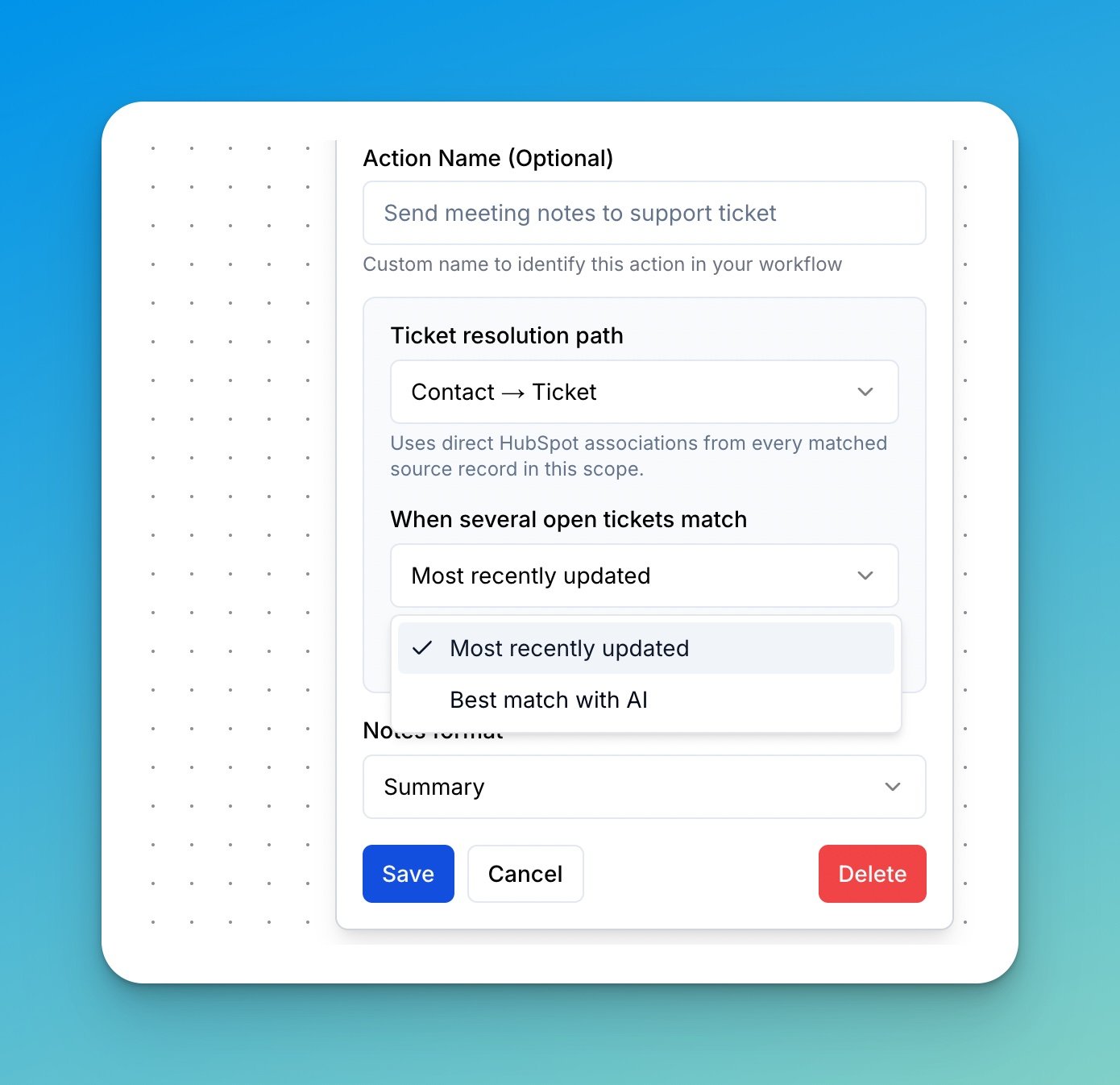
- Most recently updated — picks the open ticket that was updated most recently. Always writes when there is at least one open ticket. Start here.
- Best match with AI — compares the conversation against the open tickets and picks the one it is about. If the call does not clearly point to a single ticket, the action is skipped rather than guessing.
Send meeting notes to a ticket
1
Add the action
Go to Settings > Automations, open or create a Meeting Finished automation, then click Add Action and choose Send notes to ticket.Optionally give the action a name — for example, Send meeting notes to support ticket — to identify it in the workflow.
2
Choose how the ticket is found
Set the Ticket resolution path and When several open tickets match, as described above.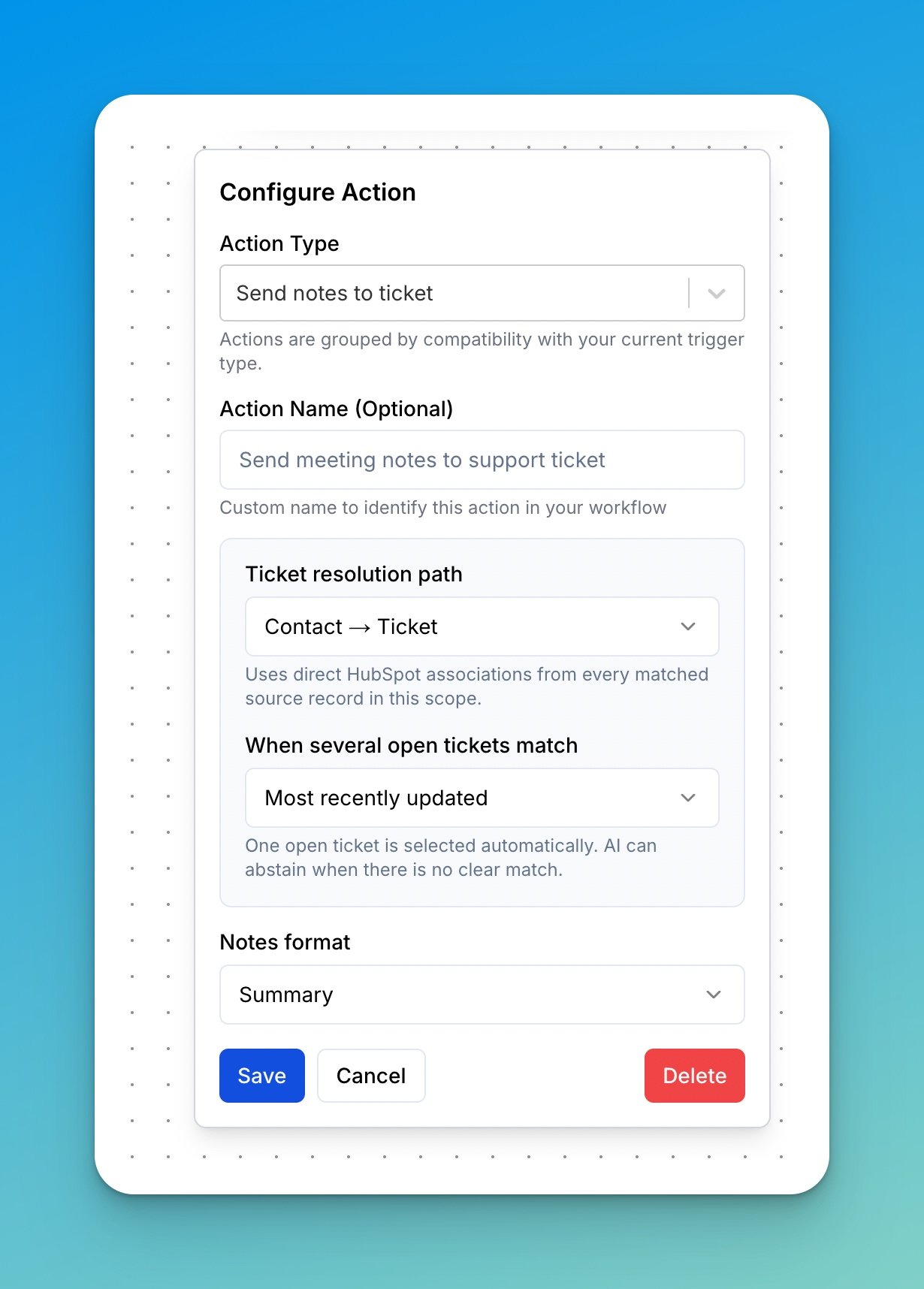
3
Choose the notes format
Pick what the note contains:
- Summary — the meeting summary.
- Deal Insights — the insights extracted from the conversation.
- Summary + Deal Insights — both.
4
Save and enable
Click Save, then set the automation status to Live.
Update ticket properties
1
Add an Update CRM action
In your Meeting Finished automation, click Add Action and choose Update CRM.
2
Select the scorecard and Ticket as the object type
Choose the scorecard whose results should fill the ticket, then set Object Type to Ticket.The ticket settings appear below it: set the Ticket resolution path and When several open tickets match.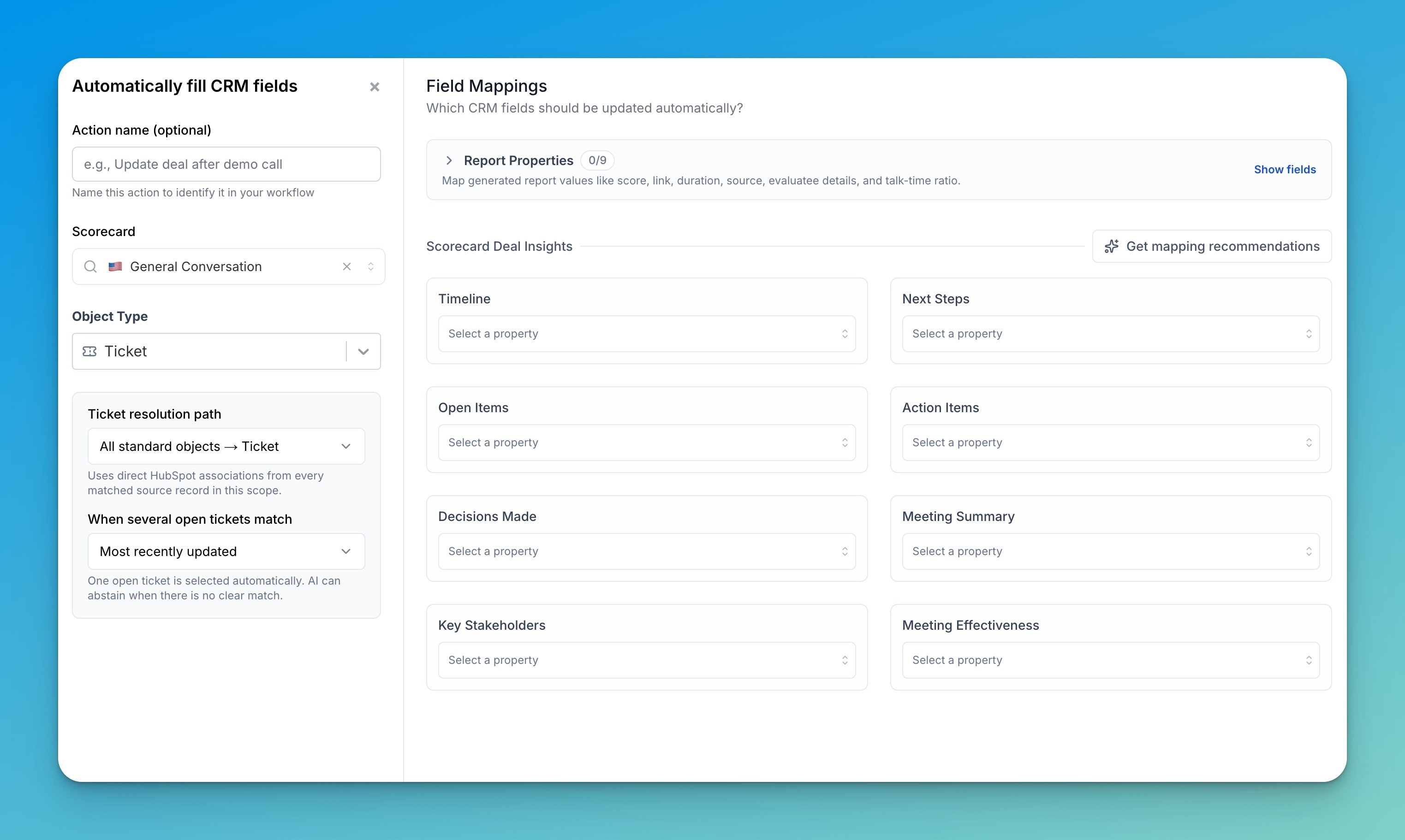
3
Map fields to ticket properties
Map report properties and scorecard deal insights to HubSpot ticket properties, exactly as you would for a deal or contact. For text properties you can choose Append or Replace.Click Get mapping recommendations to have Triple Session suggest matching ticket properties.
The ticket’s pipeline and stage are not available for mapping. Automations fill ticket properties only — they never close, reopen, or move a ticket.
4
Save and enable
Click Save, then set the automation status to Live.
Using both actions together
You can add Send notes to ticket and Update CRM → Ticket to the same automation. When both use the same resolution path and the same selection option, they write to the same ticket in that run, so the note and the property updates always land together. If you deliberately configure them differently — for example, notes onto a contact’s ticket and properties onto a deal’s ticket — each finds its own ticket independently.Reading the results
Open Logs on the automation to see what each run did. Ticket actions report which ticket was written to, or why they were skipped:
Skips are normal and expected — they mean no ticket was a safe match, so nothing was changed in HubSpot.
After a successful write, the call is linked to the ticket in Triple Session, alongside its existing contact, company, and deal associations.
Best practices
- Start with Most recently updated. It always writes when an open ticket exists, which makes it easy to confirm the automation is working before you switch to AI selection.
- Use the narrowest resolution path that works. Fewer candidate tickets means fewer ambiguous matches.
- Check the logs after the first few calls. Repeated skips usually mean the resolution path doesn’t reach your tickets, or the calls aren’t being matched to CRM records.
Need help setting up a specific workflow? Contact the Triple Session support team at support@triplesession.com.