

Common use cases
Competitor tracking
Competitor tracking
Automatically update a CRM field when a specific competitor is mentioned during a call. For example, set a “Competitors Mentioned” property in HubSpot whenever Acme or any other named competitor appears in the deal insights.
Lead scoring
Lead scoring
Increase a lead’s priority score in your CRM when the prospect mentions a must-have feature or a specific budget range. Because the filter only fires when those signals appear, your scoring stays accurate and is not inflated by routine calls.
Product feedback routing
Product feedback routing
Send a Slack notification to your product team channel whenever a specific feature request is detected in a discovery or demo call. This gives the product team real-time signal directly from the sales conversation.
Objection handling alerts
Objection handling alerts
Trigger an internal alert or a follow-up email sequence in your CRM when a common sales objection is raised. This allows managers or enablement teams to respond quickly and support the rep before the deal stalls.
Setup
1
Start your automation
Go to the Automations section in Triple Session and click New Automation to open the workflow editor.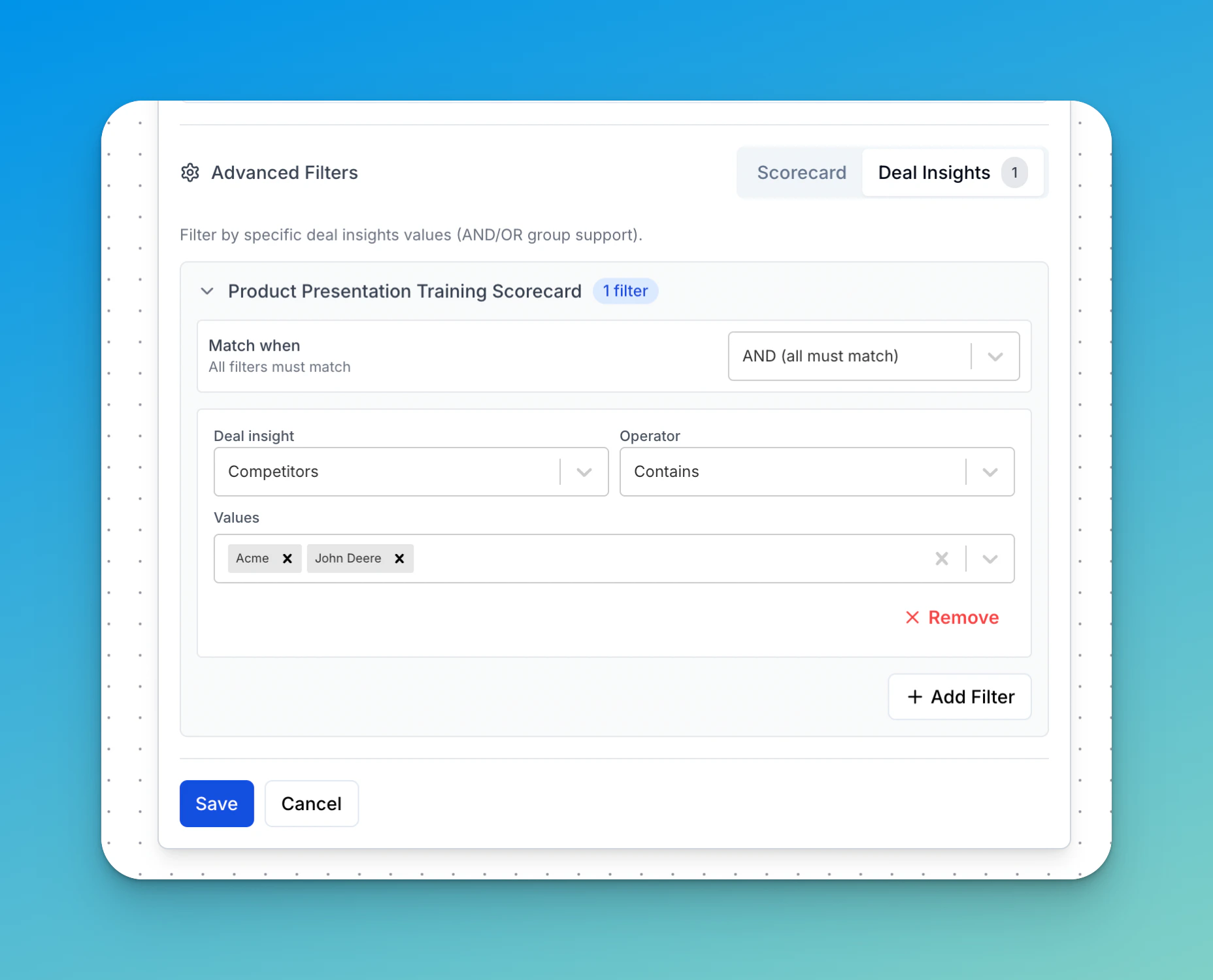
2
Configure the Meeting Finished trigger
Set the Trigger to Meeting Finished. In the trigger settings:
- Select your scorecard — choose the scorecard you want to pull insights from (for example, Discovery).
- Apply standard filters — optionally filter by meeting duration, score, or other meeting-level criteria.
3
Add advanced filters for deal insights
Open the Advanced Filters section and select the Deal Insights tab. Configure the following: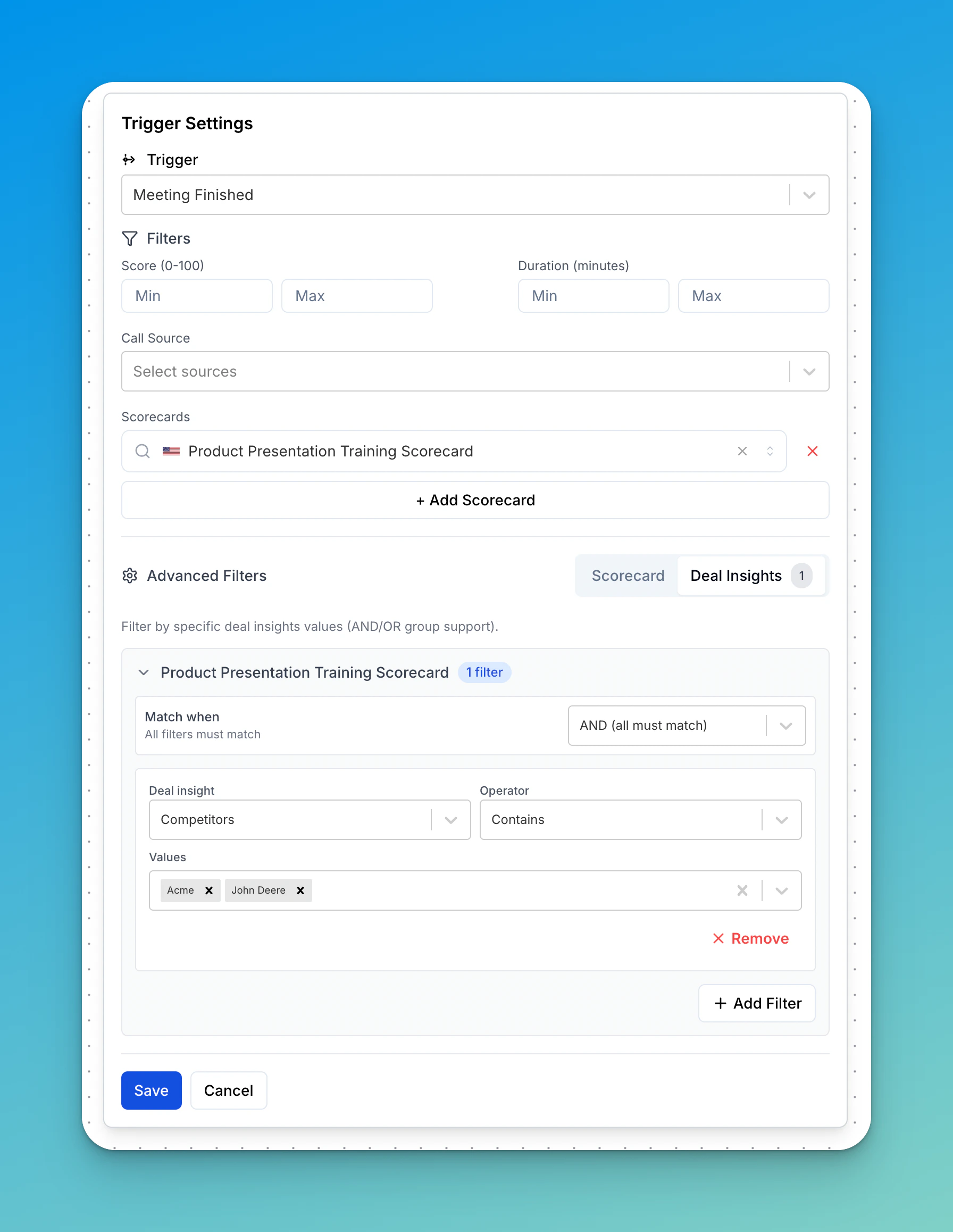
- Match When — choose AND if all filters must match, or OR if any single filter is enough to trigger the automation.
- Deal Insight — select the specific insight to track (for example, Competitors).
- Operator — choose Contains, Does not contain, or another operator to define how the value is matched.
- Values — enter the keywords or values you are looking for (for example, Acme, John Deere).
4
Define the action
Choose what happens when the filter conditions are met: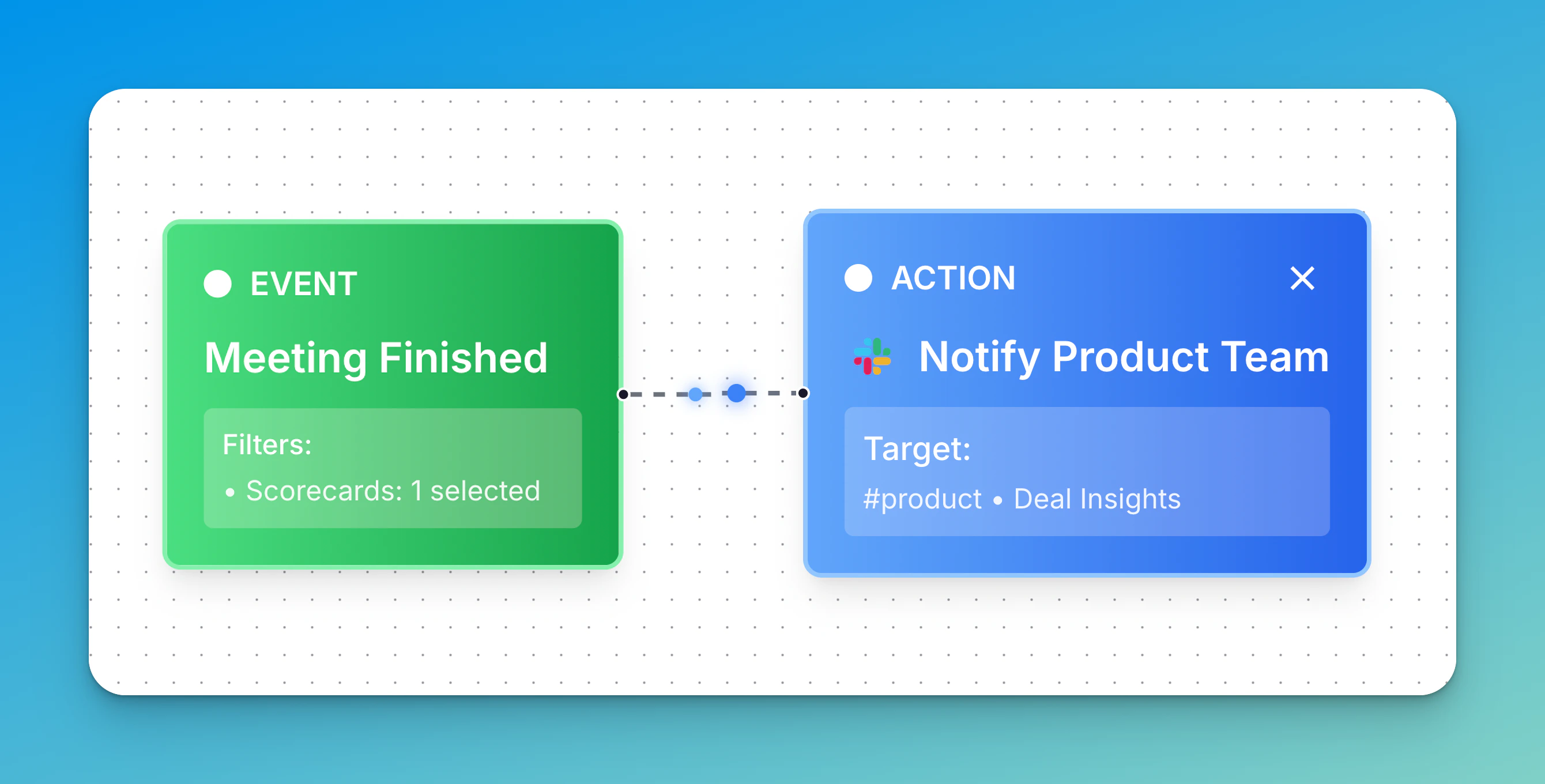
- Update CRM — map the insight directly to a field in HubSpot or Salesforce.
- Send to Slack — send a real-time alert to a specific Slack channel.
- Send Webhook — route the data to Zapier or any other app for a custom downstream workflow.
5
Save and enable the automation
Click Save Workflow, then click Live to activate the automation. It will start running immediately for any new calls that meet your conditions.
Need help setting up a specific workflow? Contact the Triple Session support team at support@triplesession.com.