

Bot recording is available only to members with a Recording seat. You can set a member’s seat type when inviting them or later from Settings > Team > People — see Roles & Permissions.
Why configure recording preferences
- Targeted recording: Focus the bot on specific meeting types, such as external calls, internal syncs, or meetings with keywords like “Discovery Call” in the title.
- Reduced noise: Prevent the bot from joining meetings where its presence isn’t needed, saving credits and keeping your library clean.
- Fuller coverage: Optionally include recurring meetings alongside your chosen preference.
How to configure recording preferences
1
Open AI Coach Bot settings
In Triple Session, click Settings in the left-hand navigation panel. Under the AI Coach section, select AI Coach Bot.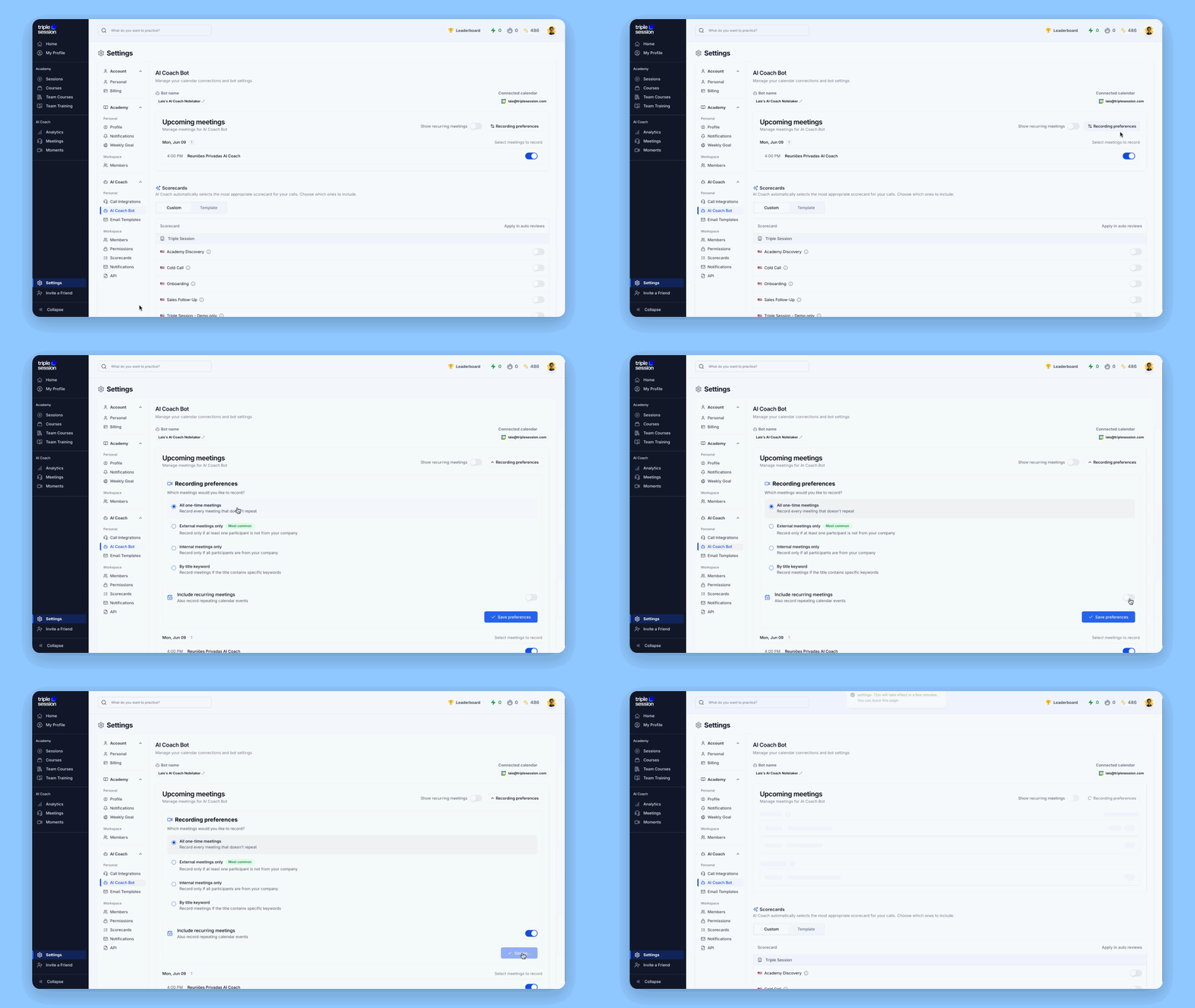
2
Choose a recording preference
Click Recording Preference and select one of the following options: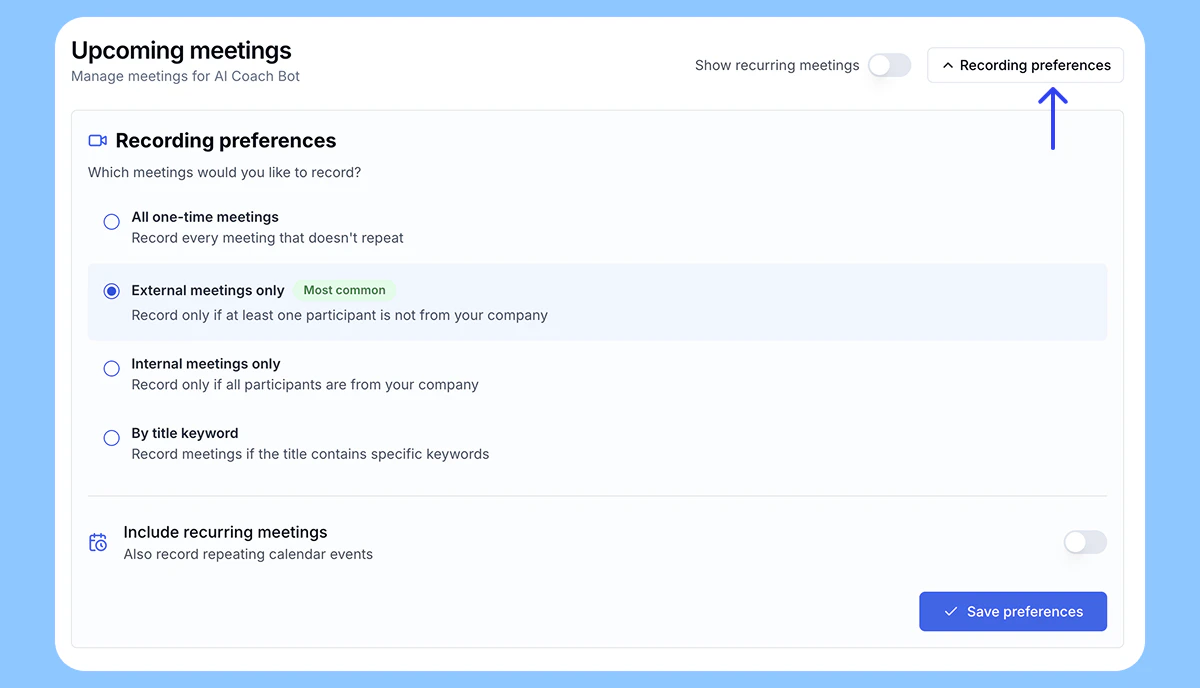
- All one-time meetings: The bot records every non-recurring meeting. This is the default behavior.
- External meetings only (most common): The bot records a meeting only if at least one participant’s email domain differs from yours. For example, if you are
john@acme.comand a meeting includeslaura@stephens.com, the bot joins. - Internal meetings only: The bot records a meeting only if all participants share your email domain. For example, if you are
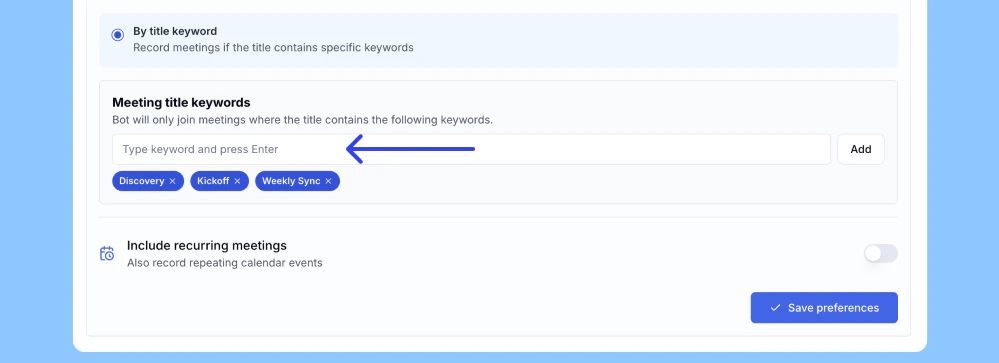
john@acme.com, the bot joins only meetings where every invitee also has an@acme.comaddress. - By title keyword: The bot records a meeting only if the meeting title contains one or more keywords you define. Type each keyword into the Meeting title keywords field and press Enter or click Add. The bot joins if any of the keywords match. Example keywords: “Discovery,” “Demonstration,” “Kickoff.”
3
Configure recurring meetings
Below the main preference options, find the Include recurring meetings toggle. By default, this is off — the bot only joins non-recurring meetings. Turn it on to also record meetings that repeat on a schedule.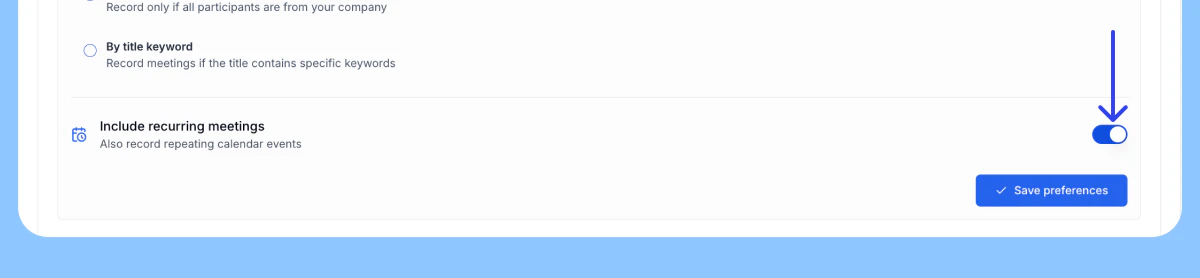
4
Save your preferences
Click Save preferences to apply your changes.