

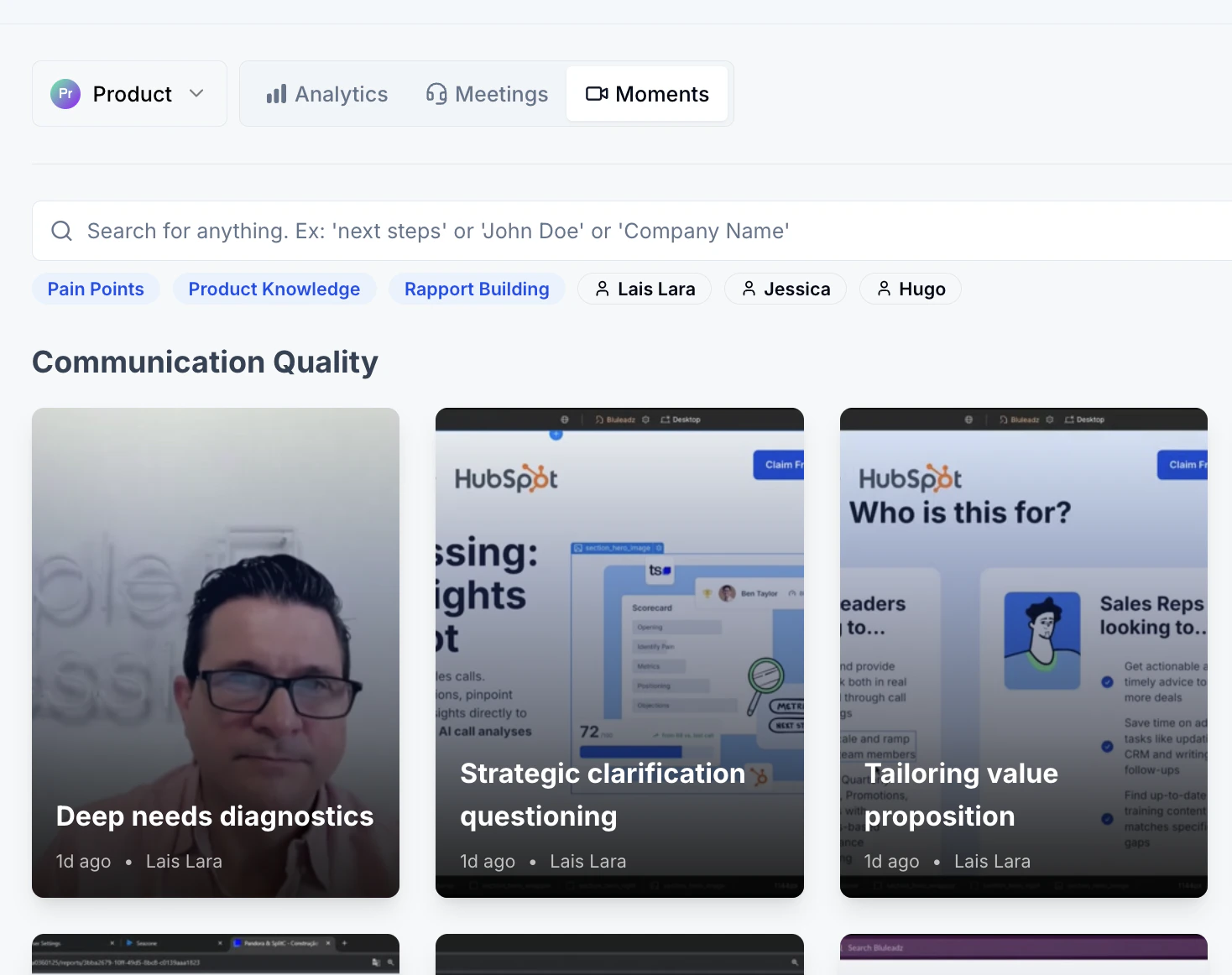
What you can do with Moments
Analyze and learn
Review critical parts of sales calls without listening to the entire conversation. Understand how reps handled specific scenarios like objection handling, value proposition delivery, and competitor comparisons. Pinpoint areas for improvement and highlight success stories.
Search and explore
Use tags and filters to quickly locate Moments across your team’s calls. Filter by tags such as “Objection Handling,” “Value Proposition Delivery,” or “Competitor Mention,” as well as by team member, topic, or call.
Train and coach
Use Moments in coaching sessions to show real examples of good practices and areas needing improvement. Compile key Moments from multiple calls to develop targeted training materials backed by real-world scenarios.
Share insights
Share Moments with your team to showcase success stories, align on sales strategies, or address recurring objections. Moments make it easy to spread learnings from top performers across the whole team.
How Moments are generated
Moments are created automatically by Triple Session’s AI whenever a call is processed. The generation process works as follows:- Call processing — The video recording is uploaded to the system after a sales call is completed.
- AI analysis — The AI scans the video for key sections based on your process, speech patterns, keywords (such as objection handling or competitor mentions), and contextual cues like shifts in tone or key decision points.
- Segmentation and tagging — The AI extracts clips and assigns relevant tags, for example “Budget Constraints” or “Competitor Mention.”
- Auto-organized — Moments are stored and made searchable, ready for review, coaching, and sharing.
Where to find Moments
Moments are available in two places inside AI Coach. For all team Moments:1
Navigate to the Moments tab
Open AI Coach and click the Moments tab.
2
Explore Moments
Use the search bar or filters to find specific Moments by tags, team members, or topics.
3
Review a Moment
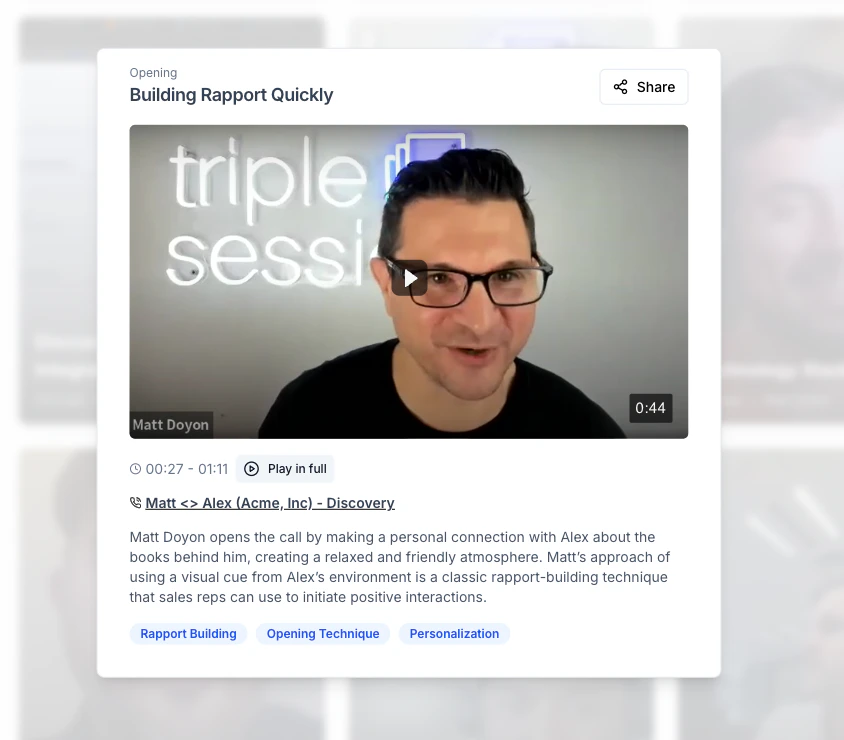
Click on any Moment to watch the video clip, read its description, and see related information.
Prerequisites
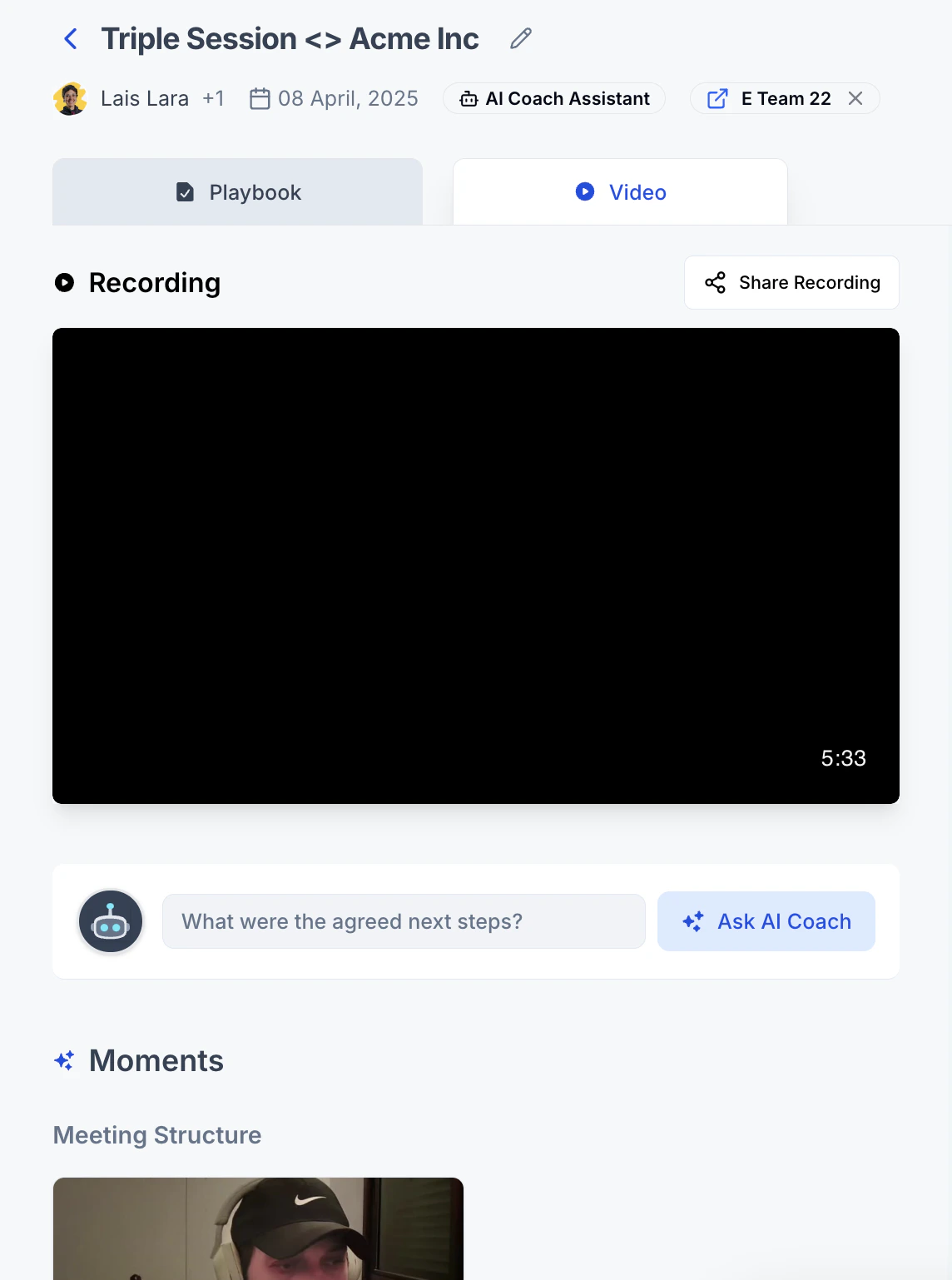
Moments are generated from recorded video calls. To ensure Moments are created for your conversations, import calls using one of the following methods:- Integrations — Sync calls from Zoom or Google Meet directly into AI Coach, or use the AI Coach Bot.
- Manual uploads — Upload recorded video files directly into the system.
Moments are only generated from video call recordings. Text-only transcript uploads do not produce Moments.