

Before syncing data, make sure your CRM is connected. See Connect HubSpot CRM or Connect Salesforce CRM to get started.
To configure automatic note pushes, object matching, routing, HubSpot Meetings, Salesforce Events, and task creation, see Sync Settings.
Method 1: Update specific CRM properties
Use this method when you want to write targeted insights — such as next steps, budget, or key pain points — into pre-defined fields on a Deal record. Each insight maps to a specific CRM property, so your data lands exactly where it needs to be for reporting and filtering.Map Fields required before using this method
An admin must map Triple Session insight fields to CRM properties first. Without a mapping, there are no properties to update. See Map Fields to set this up.
- Sending to a property overwrites any existing value in that CRM field.
- Only available when syncing to a Deal record.
1
Open the Deal Insights tab
Navigate to a meeting recording and click the Deal Insights tab.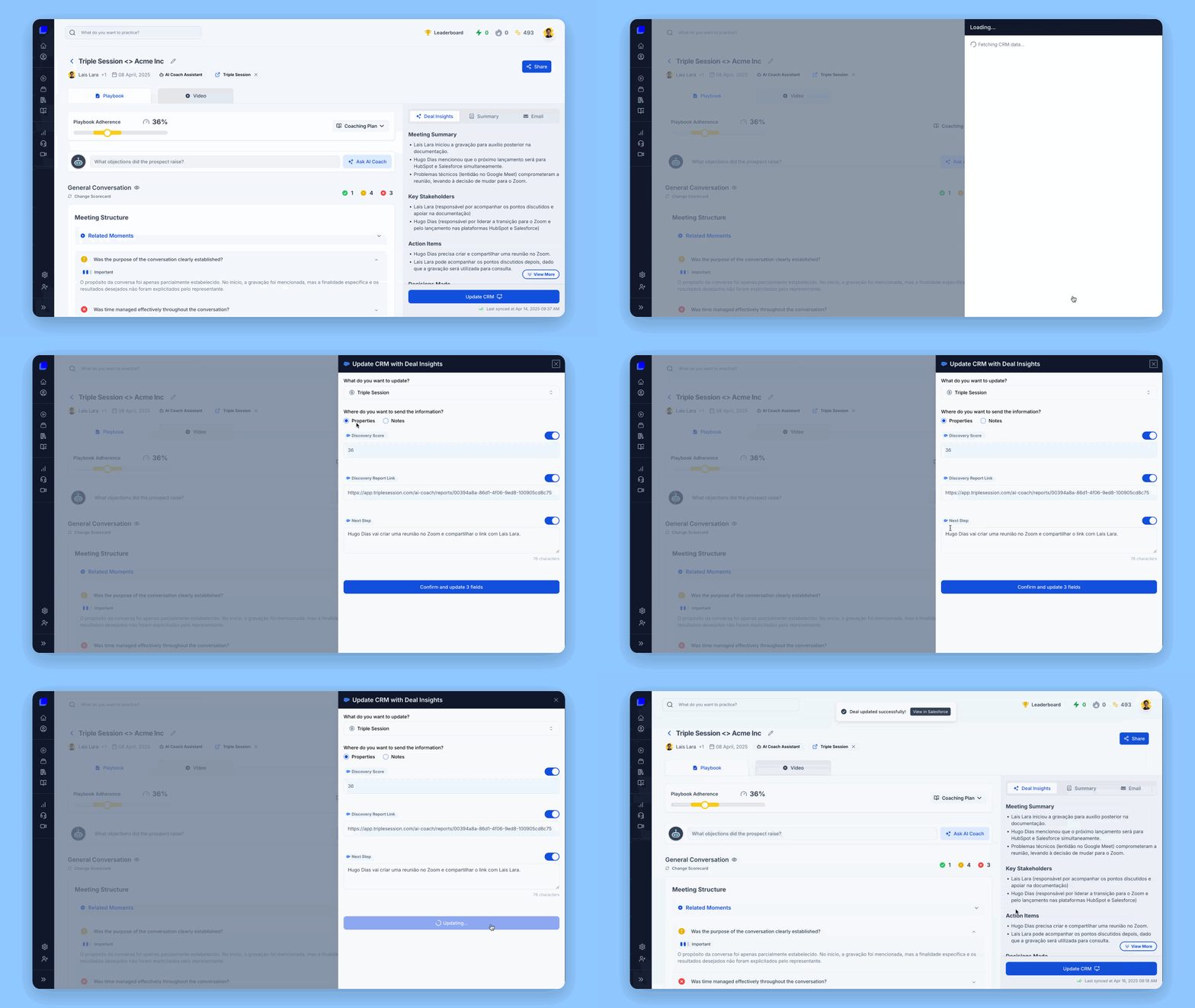
2
Click Update CRM
Click the Update CRM button.
3
Select the deal and choose Properties
Confirm the correct Deal is selected — search for one if it isn’t already associated. Make sure the Properties option is selected.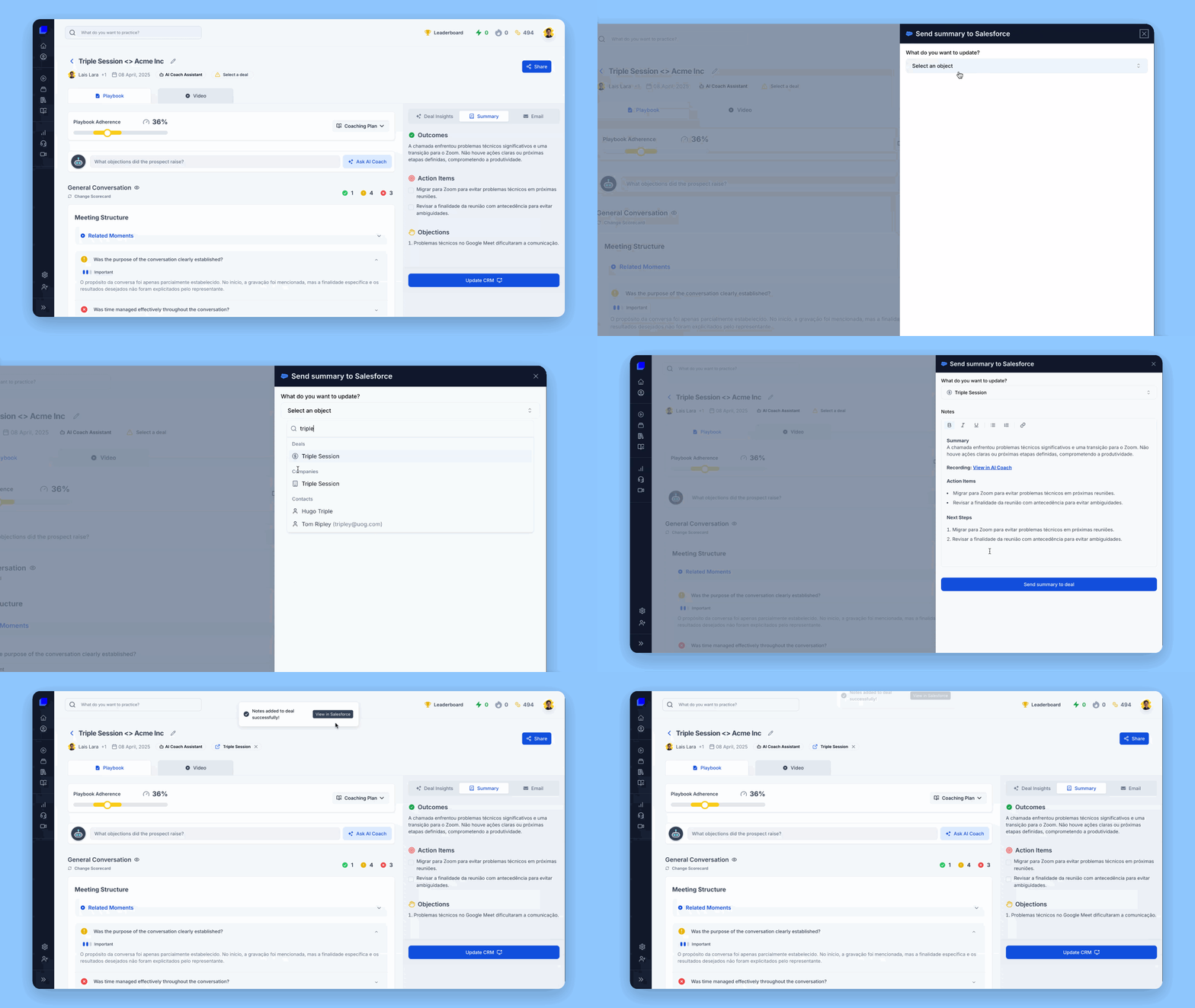
4
Review the mapped fields
Triple Session shows which CRM fields will be updated based on your admin’s mapping configuration.
5
Confirm
Click Confirm and update fields to push the data to your CRM.
Method 2: Send information as CRM notes
Use this method to log a full meeting summary or specific deal insights as an activity note on a Deal, Company, or Contact record. Notes create a chronological history on the CRM record without overwriting any structured fields, and they work without any field mapping setup. Key benefits:- No field mapping required — works immediately after connecting your CRM.
- Preserves a chronological activity log on the CRM record.
- Does not overwrite data in structured CRM fields.
- Supports Deals, Companies, and Contacts.
Send a summary as a note
1
Open the Summary tab
Navigate to a meeting recording and click the Summary tab.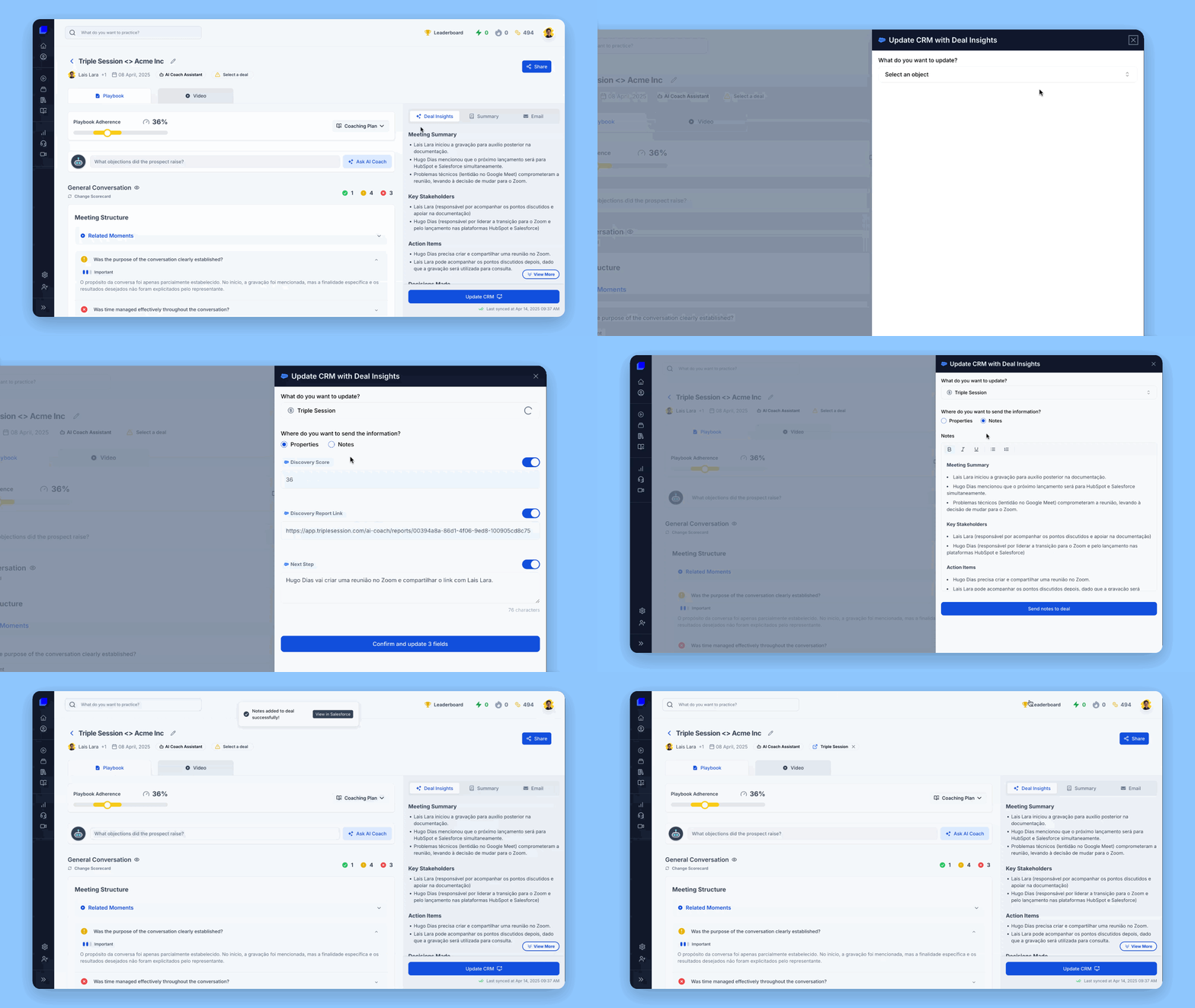
2
Click Update CRM
Click the Update CRM button on the Summary tab.
3
Select the destination object and Notes option
Choose the destination — Deal, Company, or Contact — and search for the record if one isn’t already associated. Confirm that Notes is selected.
4
Review the note text
The summary text appears in the editor. Edit it if needed before sending.
5
Confirm
Click Confirm and Update fields to log the note in your CRM.
Send deal insights as a note
1
Open the Deal Insights tab
Navigate to a meeting recording and click the Deal Insights tab.
2
Select the destination object
Choose Deal, Company, or Contact as the destination record.
3
Choose Notes
Select the Notes option.
4
Review the note text
Review or edit the text in the editor.
5
Confirm
Click Confirm and Update fields to log the note in your CRM.