

Requirements
- Your account must have access to Automations.
- A Zapier account (or another automation platform such as N8N), or a custom endpoint to receive the webhook. Zapier is used in the example below, but any platform that can receive webhooks will work.
Example use case
“We want to store specific data extracted from calls in a spreadsheet when the call ends.” For this example, the automation uses:- Meeting Finished as the trigger
- Send Webhook as the action
- Zapier to route the data to Google Sheets
Setup
1
Create a new automation
Go to Settings > Automations and click New Automation.Set the Trigger to Meeting Finished and the Action to Send Webhook.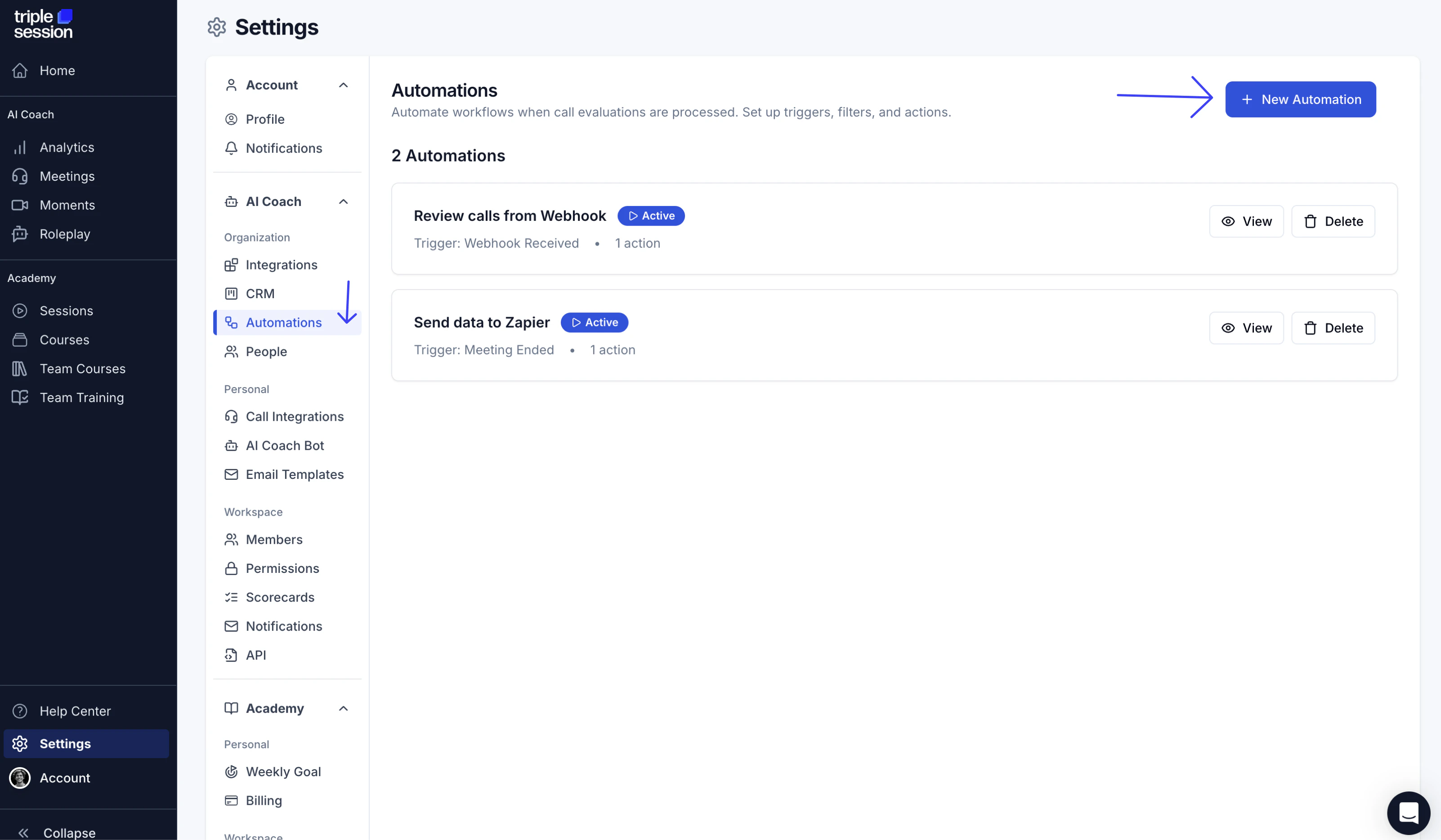
2
Configure the webhook
In the Action settings, paste the webhook URL from Zapier (or your chosen platform) into the Webhook field. Select the data fields you want to include in the payload.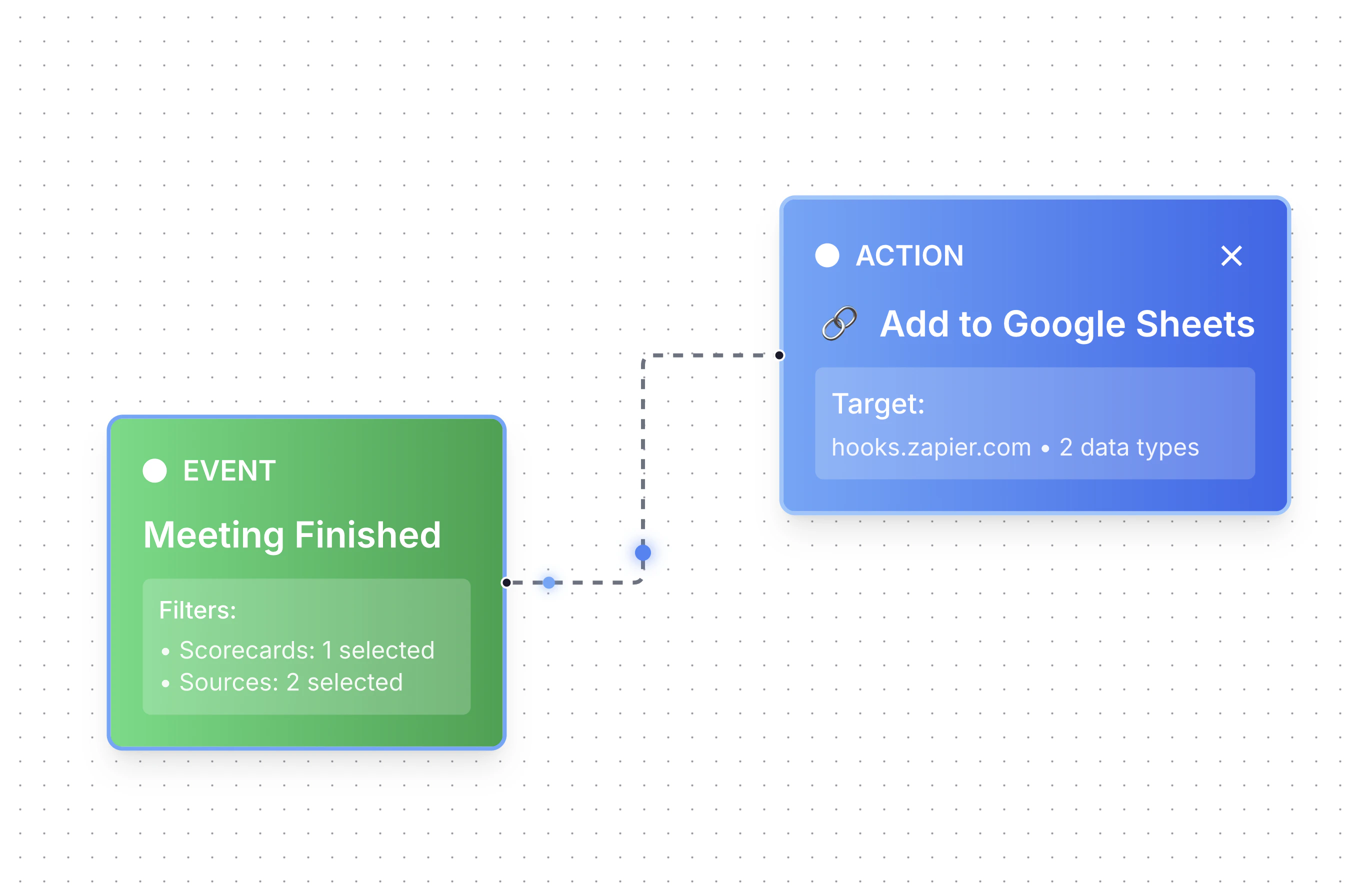
3
Connect the webhook to your destination app in Zapier
In your Zapier Zap, add an action step and connect it to the app you want to send data to — for example, Google Sheets. Map the fields from the incoming webhook payload to the columns in your spreadsheet.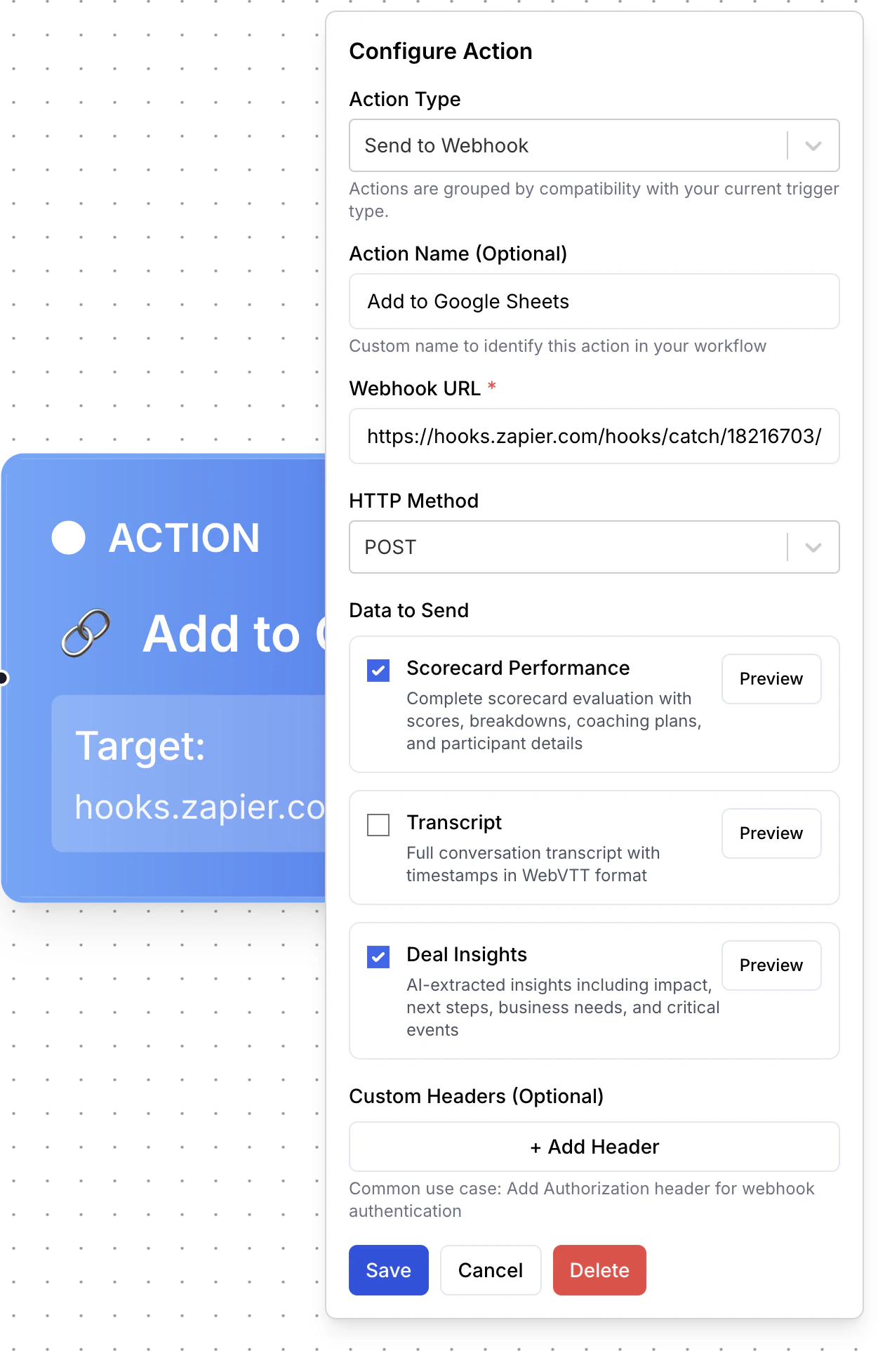
4
Save and enable the automation
Back in Triple Session, click Save Workflow, then click Live to activate the automation.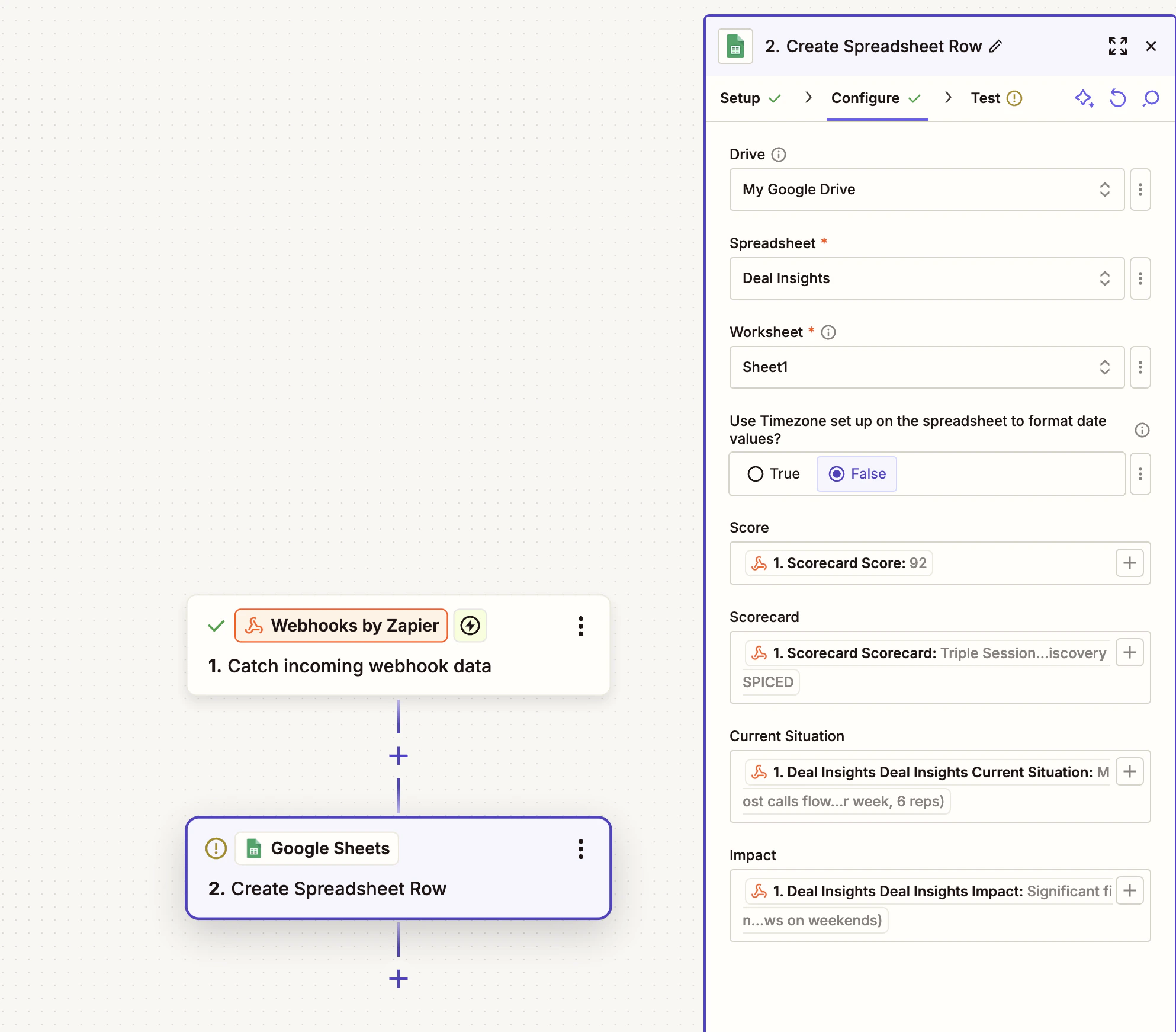
Supported destinations
Because the Send Webhook action sends a standard HTTP POST with a JSON payload, you can connect it to any app that accepts incoming webhooks. Common destinations include:- Google Sheets (via Zapier or N8N)
- Microsoft Power BI (via a streaming dataset or Azure Function)
- Tableau (via a connected data source)
- Any internal system or custom endpoint
You are not limited to Zapier. You can use N8N, Make (formerly Integromat), or write your own endpoint to receive and process the webhook payload.