

You must be an Admin to configure field mappings. Before mapping, create the necessary custom fields in your CRM — HubSpot or Salesforce — so they appear in the property selector.
Prerequisites
- Your CRM (HubSpot or Salesforce) must already be connected to Triple Session. See Connect HubSpot CRM or Connect Salesforce CRM.
- The CRM properties you want to map must already exist in your CRM. Create them there first before returning to Triple Session.
Set up field mappings
1
Go to CRM integration settings
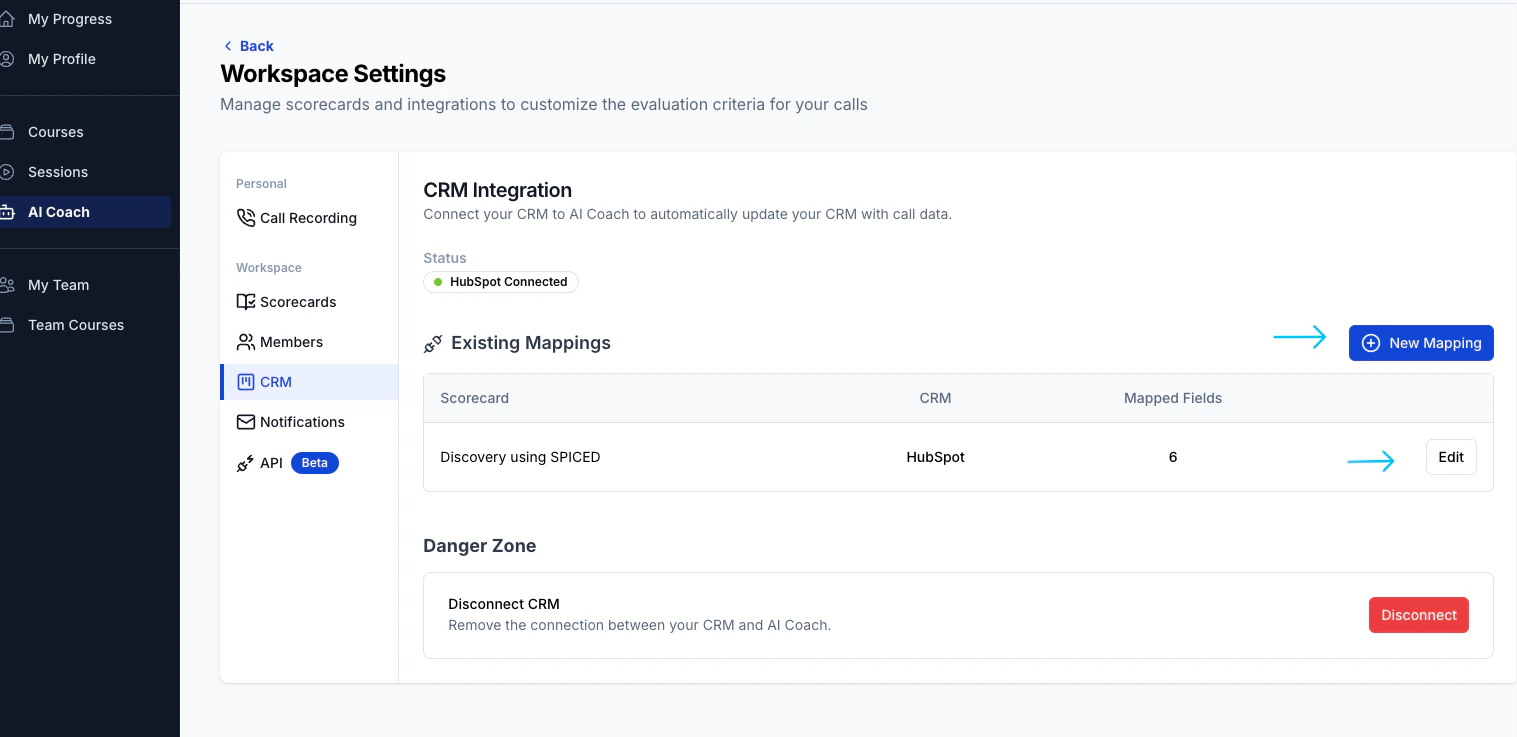
In Triple Session, click Settings in the left-hand navigation menu, then select CRM.The CRM integration page shows your connection status and any existing mappings.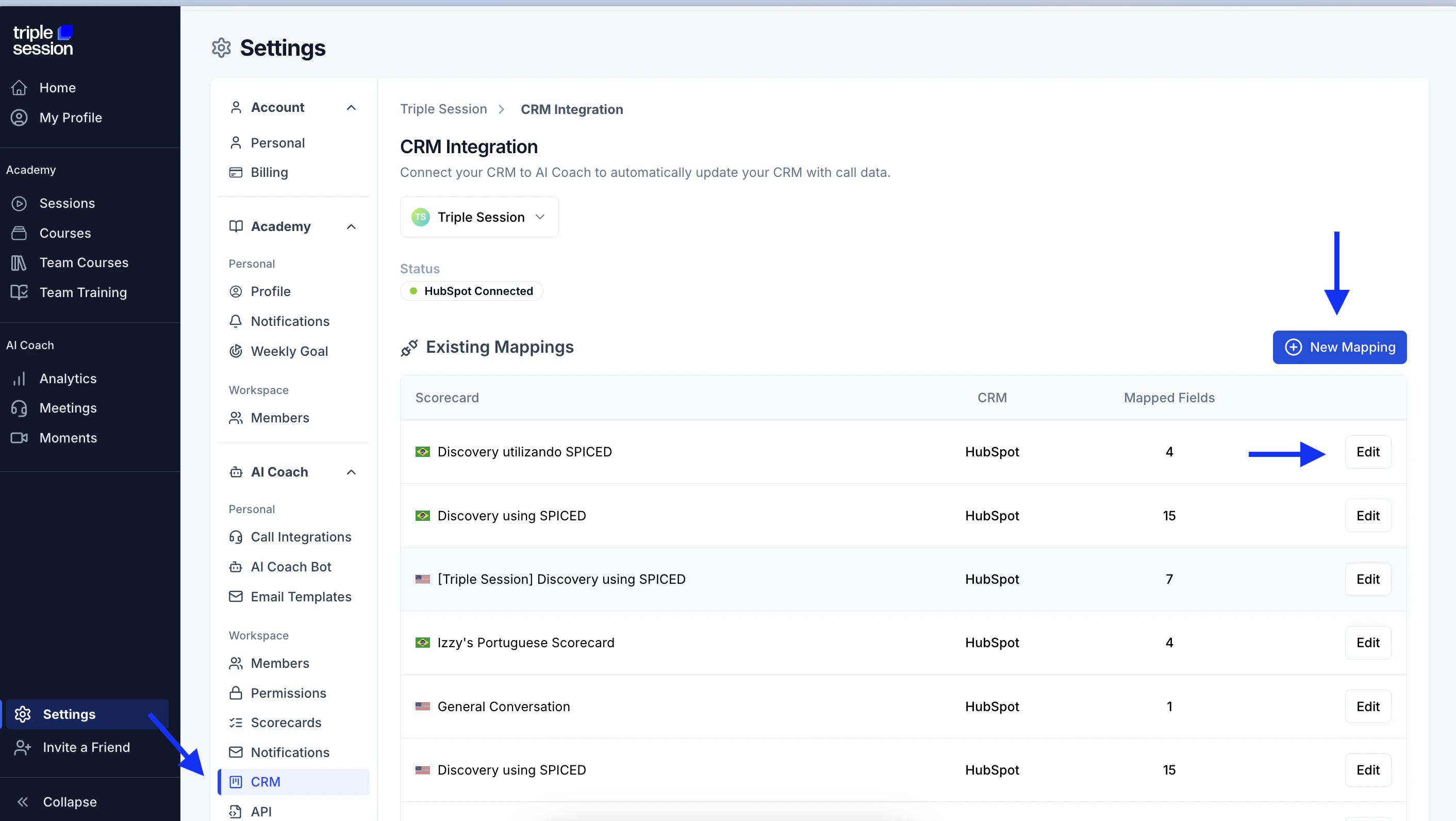
2
Create a new mapping or edit an existing one
You have two options: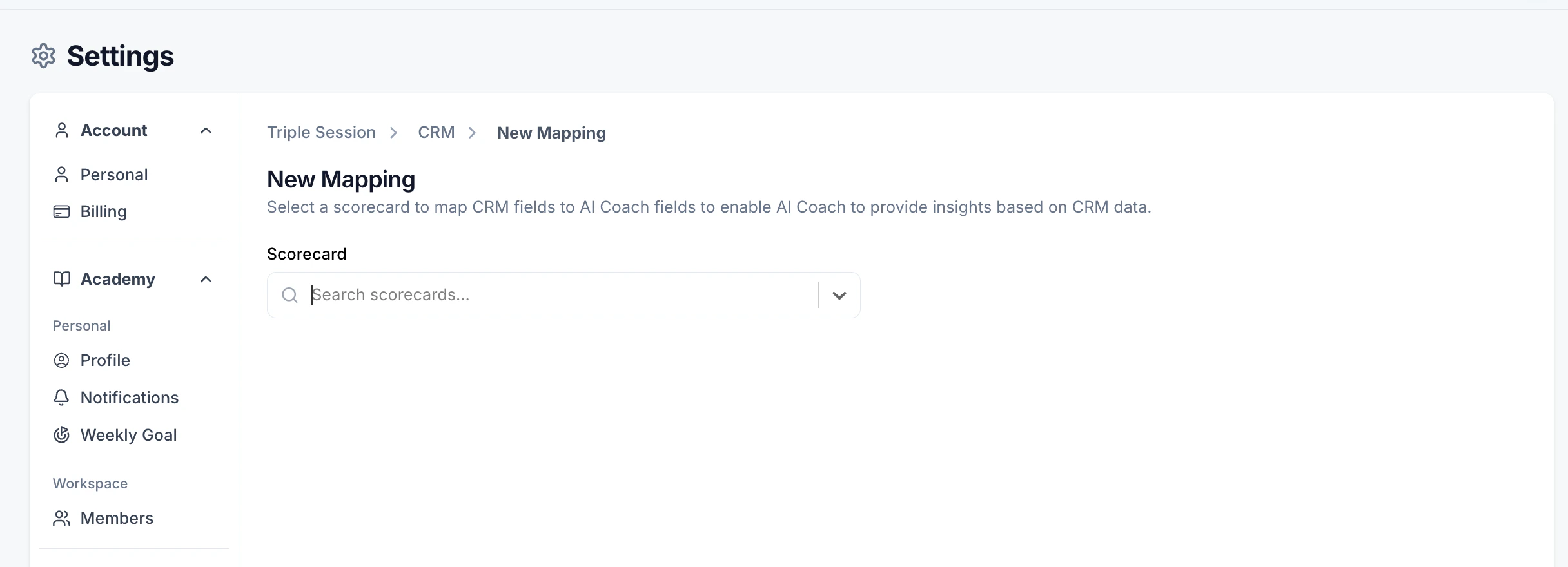
- To add a new mapping, click + New Mapping.
- To update an existing mapping, find the relevant scorecard in the “Existing Mappings” list and click Edit.
3
Select a scorecard (new mappings only)
If you clicked + New Mapping, use the Scorecard dropdown to search for and select the scorecard whose insights you want to map.This tells Triple Session which set of deal insights to push to your CRM.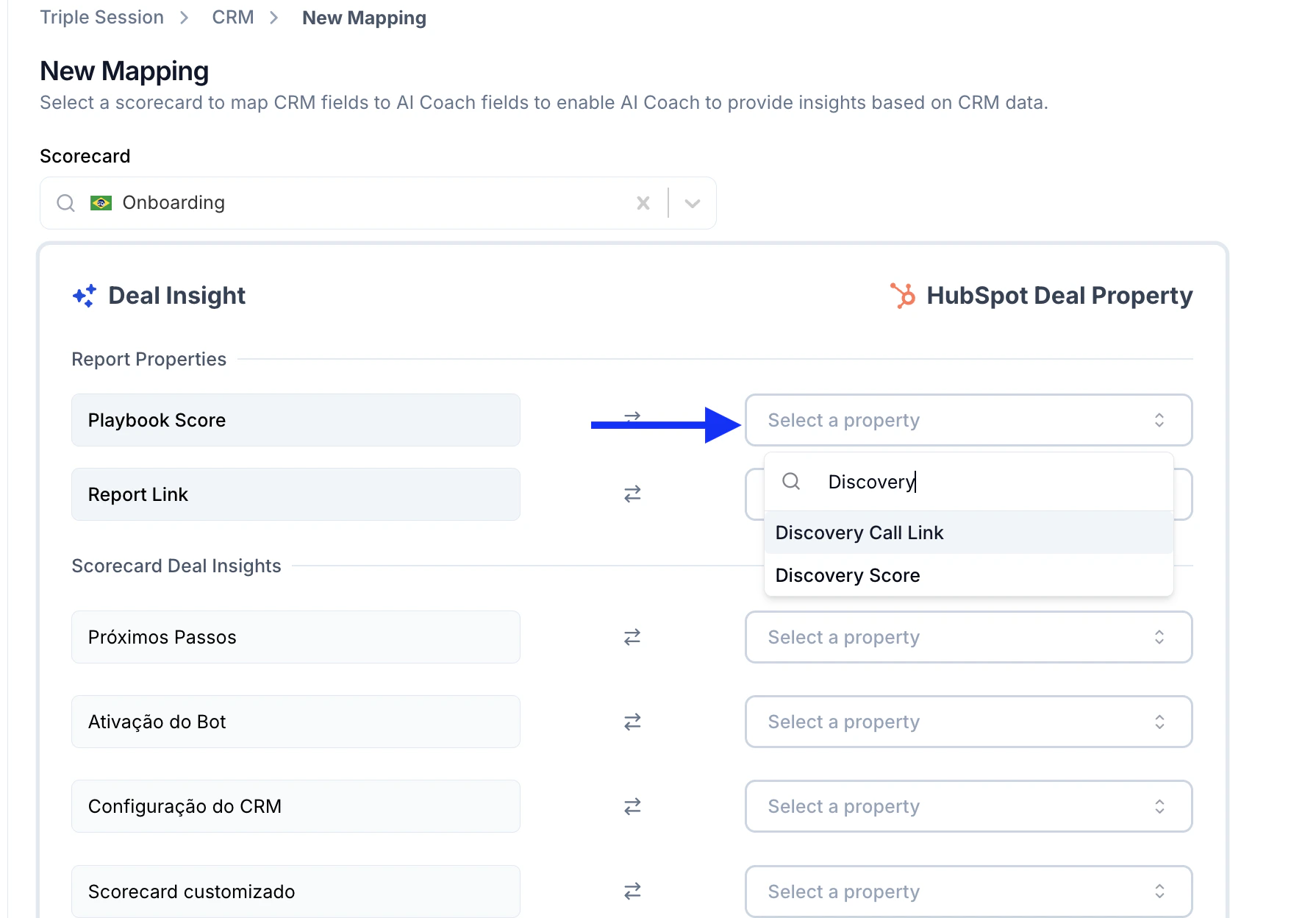
4
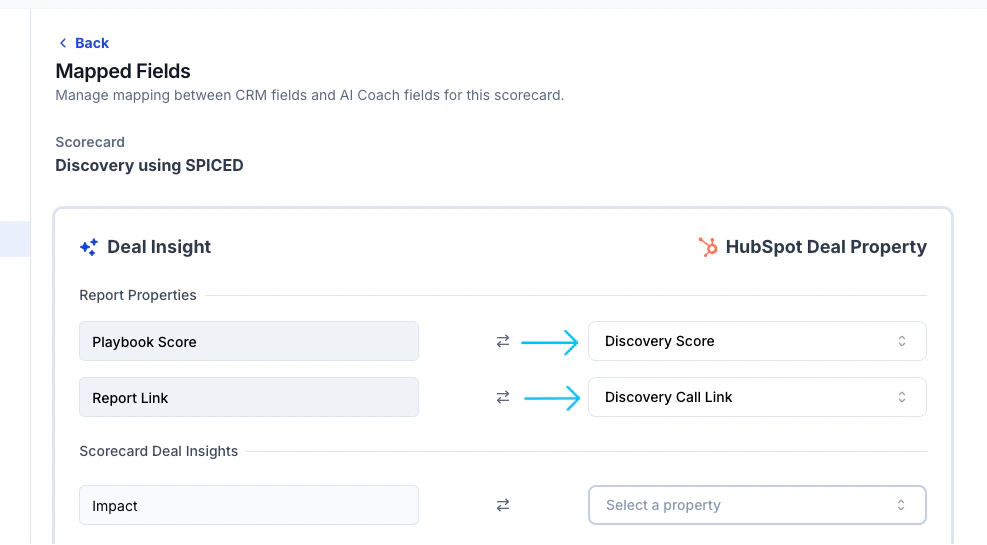
Map Triple Session fields to CRM properties
You’ll see a list of available Triple Session insight fields — such as Playbook Score, Report Link, and other scorecard-specific fields.For each field you want to sync, click the Select a property dropdown on the right and choose the corresponding CRM property you created earlier.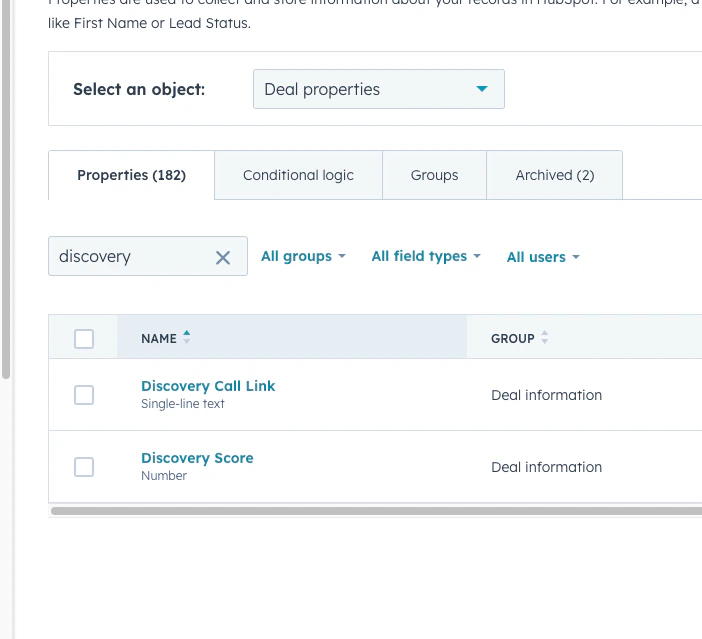
5
Save the mapping
Scroll to the bottom of the page and click Save.Your mapping is now active. Reps can immediately start pushing insights to the mapped CRM properties.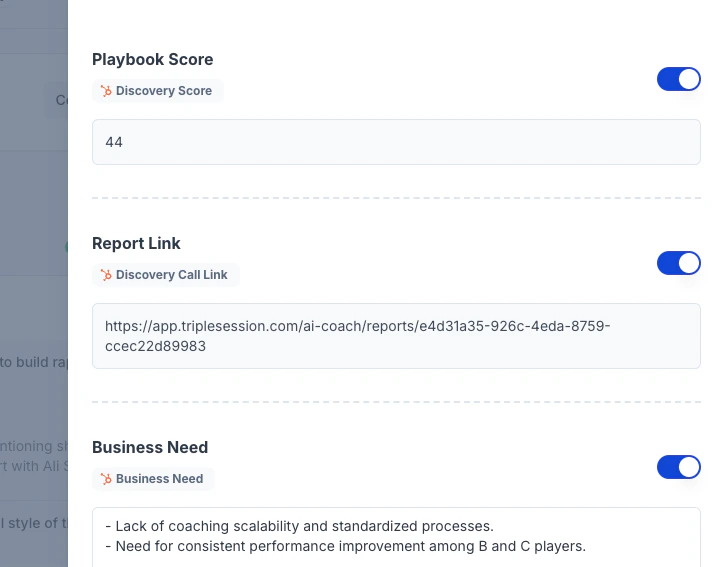
Example: map playbook score and call link
A common use case is pushing the playbook score and a link to the full call report onto each deal record, so managers can filter and report on call quality directly in HubSpot or Salesforce. Step 1: Create the fields in your CRM In the Deal object of your CRM, create the following properties:- Score — use the field type Number to record Playbook Scores.
- Call Link — use the field type Single-line text (or URL) to store the report link.
Report Properties (system fields)
Every mapping includes a Report Properties section with 9 system-generated fields that Triple Session populates automatically from each call. You don’t need a scorecard to use them — they’re always available.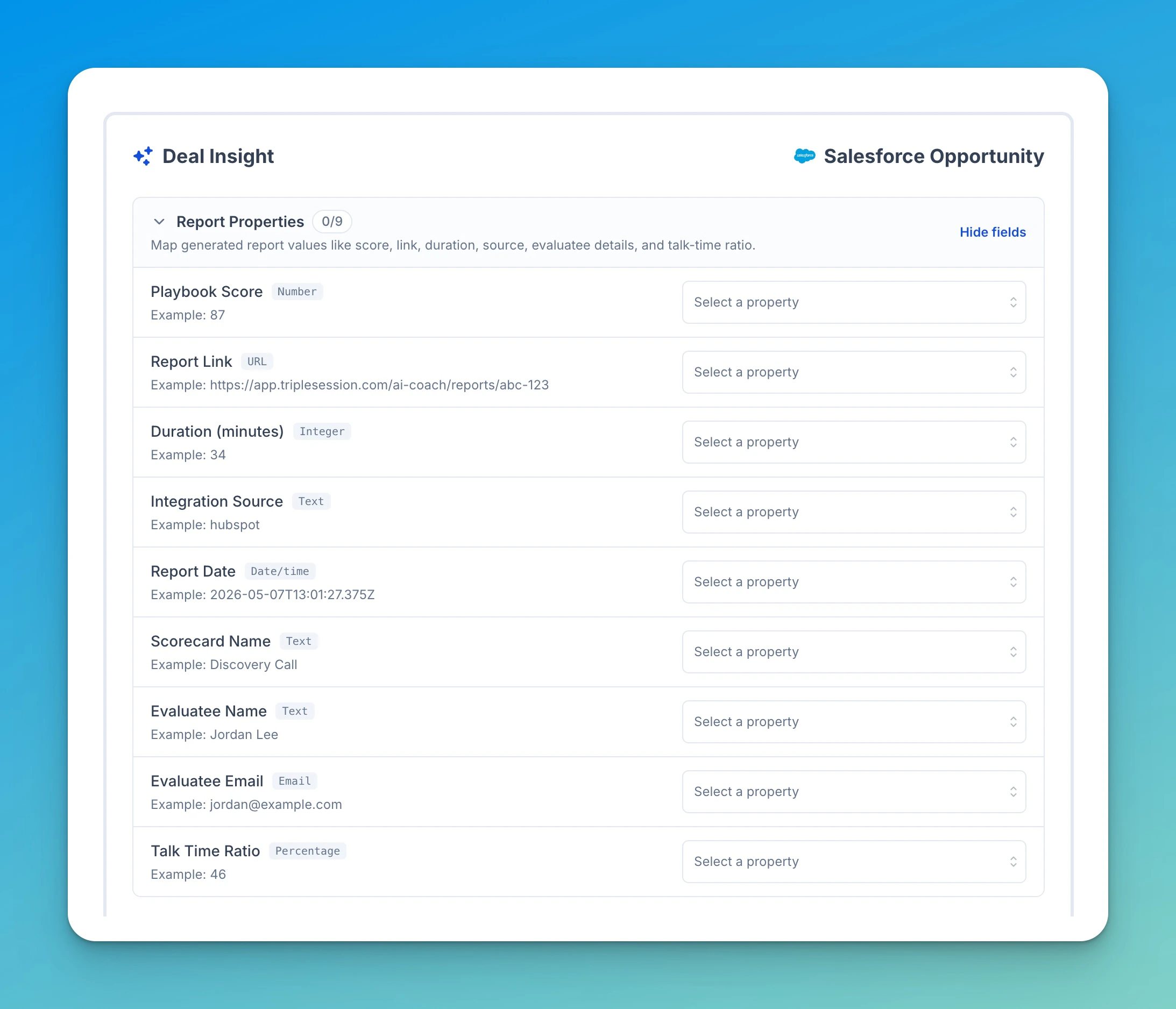
Best practices
- Create CRM properties first. Fields must exist in your CRM before you can select them in Triple Session’s mapping editor.
- Match field types. Use a Number field for Playbook Score and a Single-line text or URL field for Report Link. Mismatched types can cause sync errors.
- Start with one scorecard. Set up and verify one mapping before adding others to catch any configuration issues early.