
Documentation Index

Fetch the complete documentation index at: https://docs.triplesession.com/llms.txt

Use this file to discover all available pages before exploring further.

Building your team inside Triple Session is the first step to unlocking collaborative coaching and performance insights. As a manager, you can invite teammates individually or in bulk, assign roles, track invitation status, and control which members appear in analytics.

Invite members to your workspace

1

Go to the Members page

From the navigation menu, go to Settings > Workspace > Members.
2

Open the invitation dialog

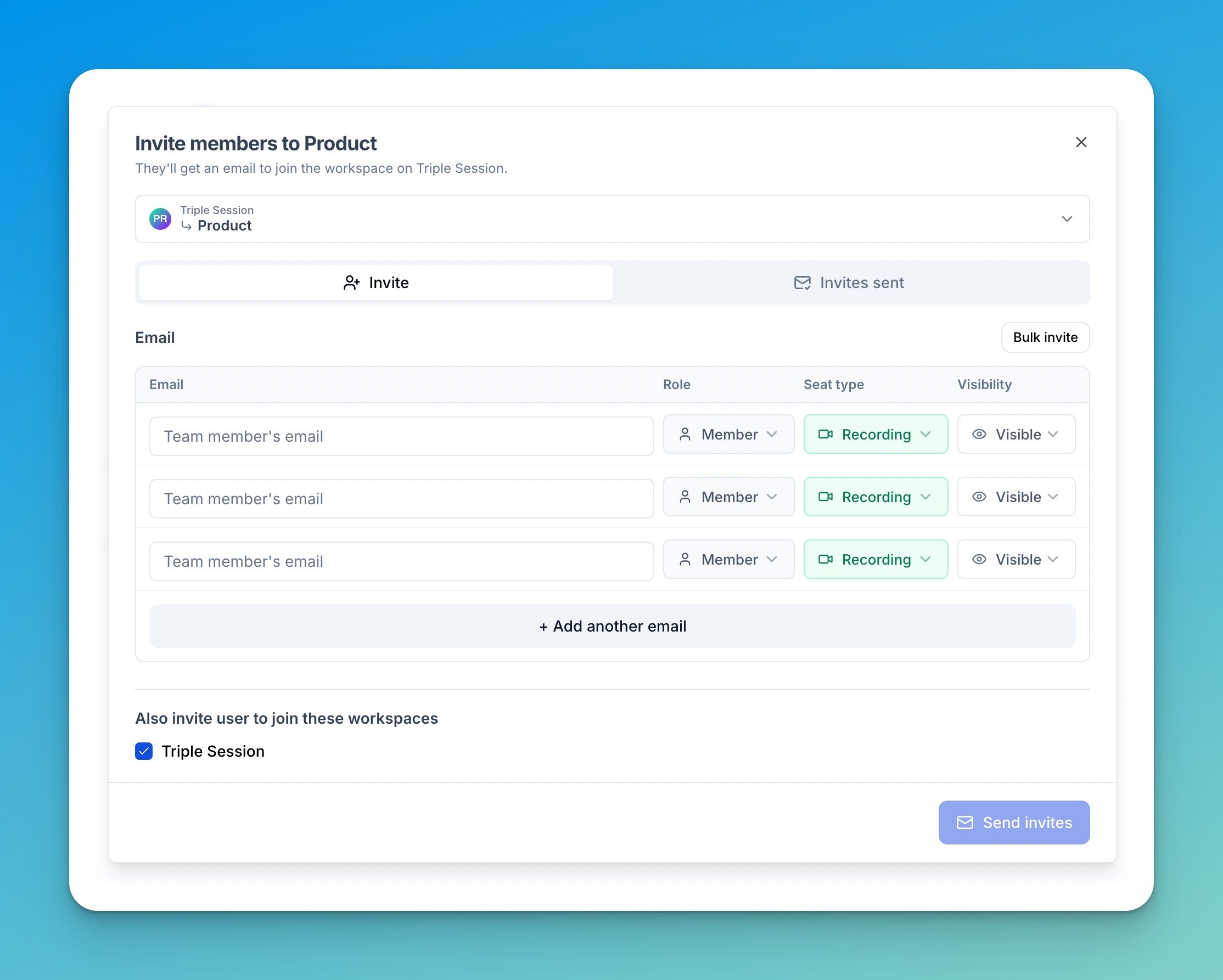
Click the Invite members button in the top right of the Members table.
3

Choose your invitation method

You have two ways to invite teammates:
  • Individual invite (default): Enter a team member’s email address and select their role from the dropdown. Click + Add another email to add more invitees one at a time.
  • Bulk invite: Click Bulk Invite to switch modes. Paste a list of email addresses, one per line. Select the role to assign to all invitees under Invite all as.
4

Assign roles

When inviting members, you assign each person one of two roles:
  • Member: Can only view meetings and analytics from themselves.
  • Manager: Can view meetings and analytics from anyone on the team.
Choose the appropriate role based on each person’s responsibilities.
5

Send the invitations

Click Send Invites. Each invited user will receive an email from support@triplesession.com with a link to join the workspace.
6

Track invitation status

Click the Invites Sent tab inside the invitation dialog to see the status of all pending and accepted invitations. From here, you can also Delete a pending invitation if needed.
Invited users receive their invitation from support@triplesession.com. Let new teammates know to check their spam or junk folder if they don’t see the email in their inbox.

Manage member visibility in analytics

Not every workspace member should appear in team performance metrics. Managers, sales ops staff, and admins may need access to calls without skewing your analytics, digest emails, or leaderboards. When a member is hidden from the workspace:
  • They do not appear in Analytics or Scorecard breakdowns.
  • They do not appear in daily and weekly digest emails.
  • They do not appear in the member filters on the meetings page or in Moments.
Hiding a member does not block their access to calls via a direct link. They can still view calls they have access to — they simply won’t appear in team-level reporting.

Hide or show a member

1

Go to the Members page

Navigate to Settings > Members.
2

Find the member you want to manage

Locate the member in the table.
3

Open the Actions menu

Click the three-dot menu (…) at the end of their row.
4

Update their visibility

Select Show in workspace or Hide from workspace from the Actions menu.

Check a member’s visibility status

In the Members table, look at the icon in the Analytics column to quickly see a member’s current visibility:
  • A chart icon means the member’s data is visible in the workspace.
  • A crossed-out eye icon means the member’s data is hidden from the workspace.

Best practices

  • Onboard teams quickly: Use Bulk Invite when setting up a new team to save time and ensure everyone gets the same role in a single step.
  • Keep analytics clean: Use Hide from workspace for anyone who reviews calls but is not an active, quota-carrying member. This keeps your team analytics, digest emails, and leaderboards focused on your sales team’s actual performance.
  • Advise your team: Let new members know to expect an invitation from support@triplesession.com and to check spam if they don’t see it.