

Looking to sync deal data to HubSpot?
This page covers HubSpot as a call recording source. To push AI Coach insights back to your HubSpot deal properties, see Connect HubSpot CRM.
Connect HubSpot VoIP
1
Go to AI Coach settings
Log into your Triple Session account. Click the Settings tab from the sidebar menu. You can also access Settings from within any AI Coach page — Analytics, Meetings, or Moments.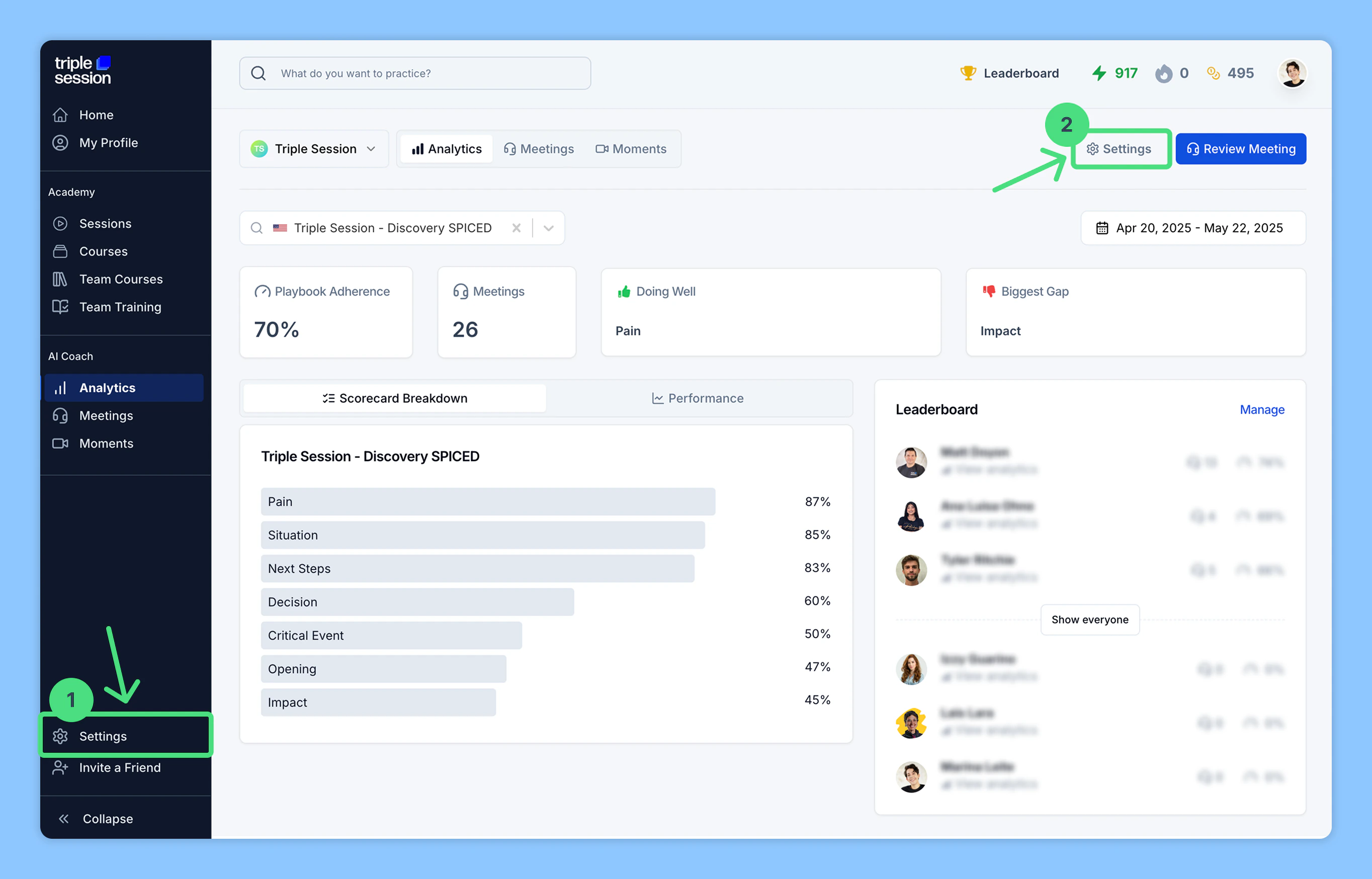
2
Connect HubSpot under Call Recording
Go to Settings > Personal > Call Recording, find HubSpot among the listed call recording tools, then click Connect.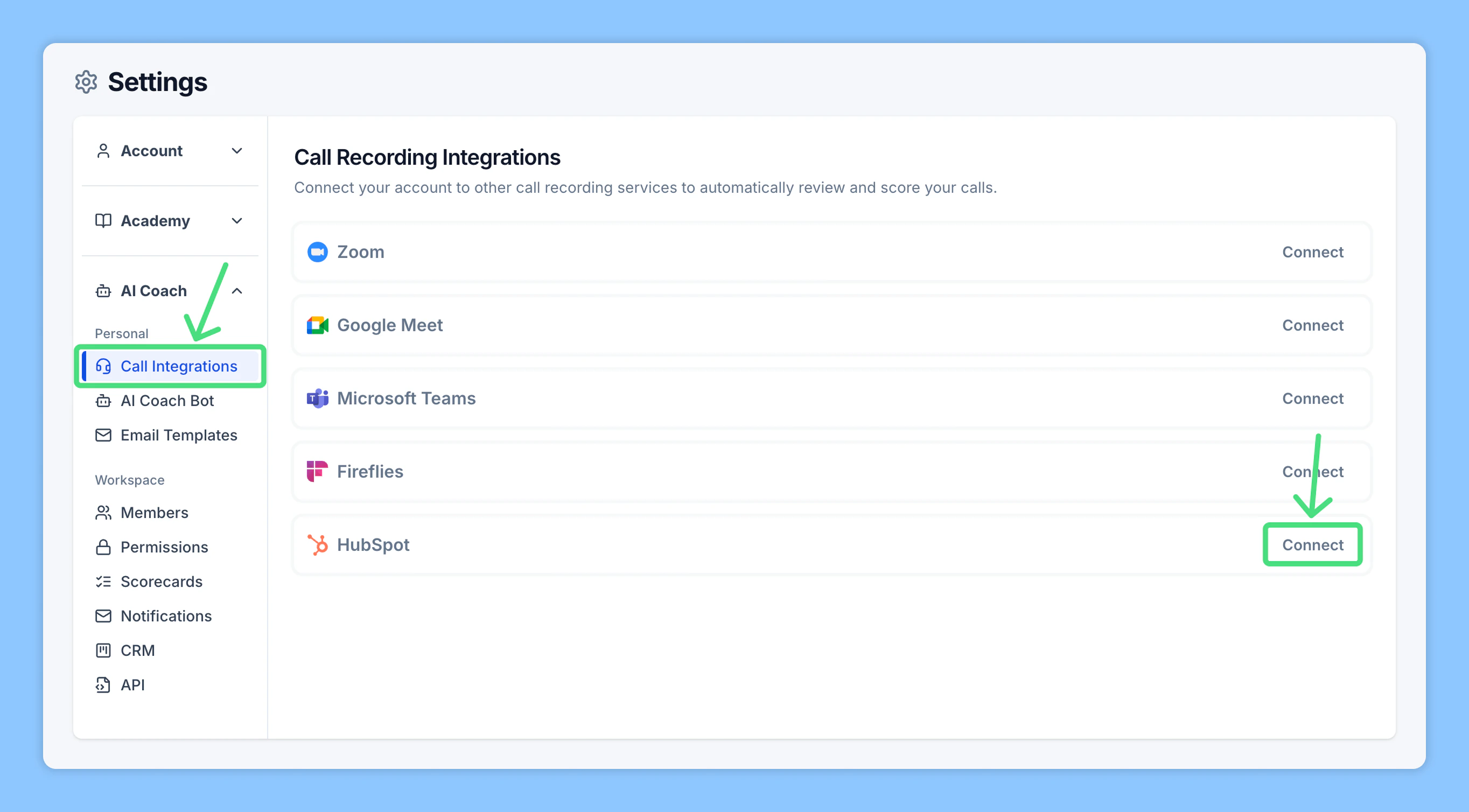
3
Authorize HubSpot access
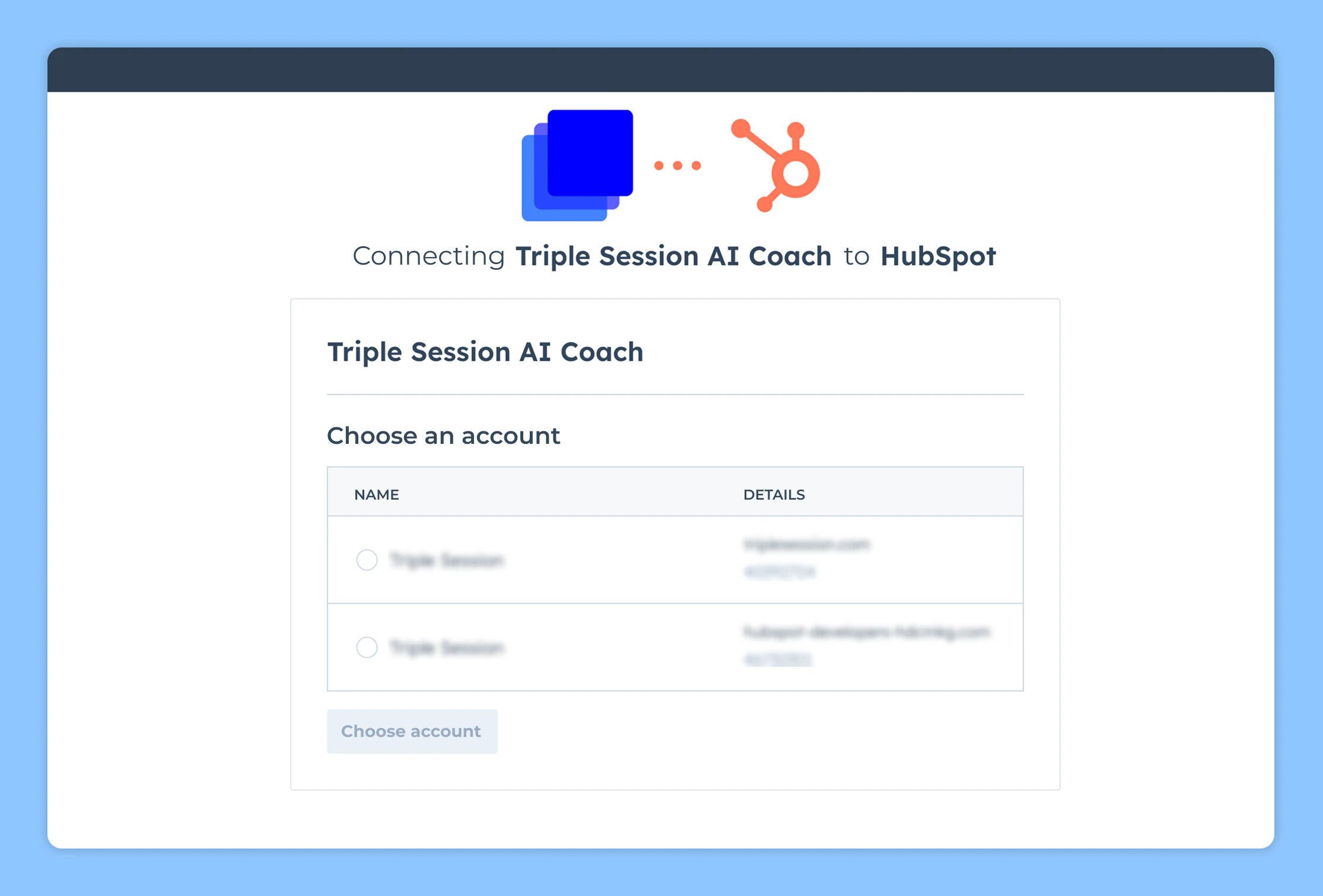
Sign in to your HubSpot account. Choose the account you want to connect, then grant permission for AI Coach to access your HubSpot recordings and meeting data.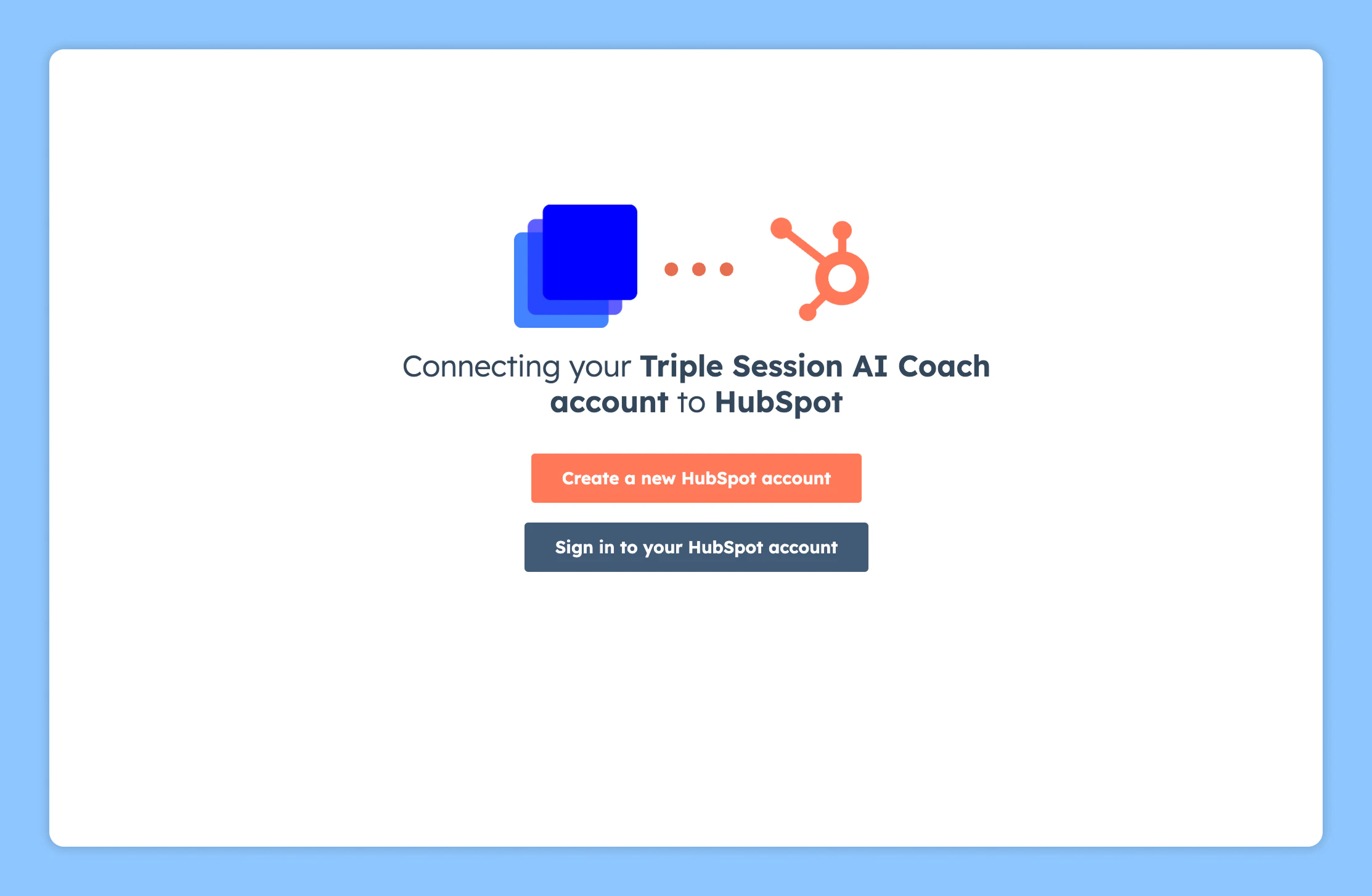
4
Automated Reviews
Once HubSpot is connected, AI Coach will automatically begin analyzing your meetings through Automated Reviews.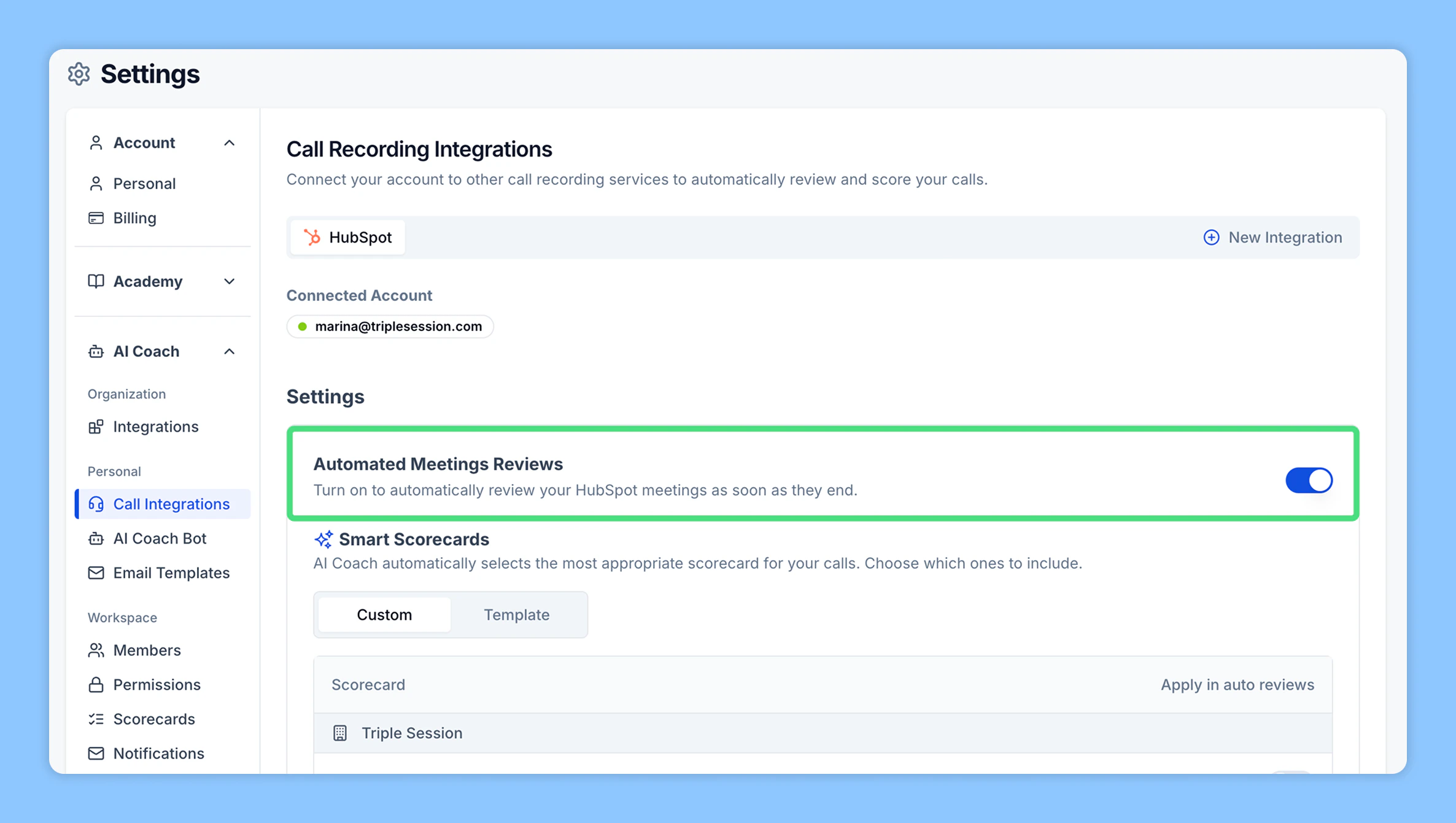
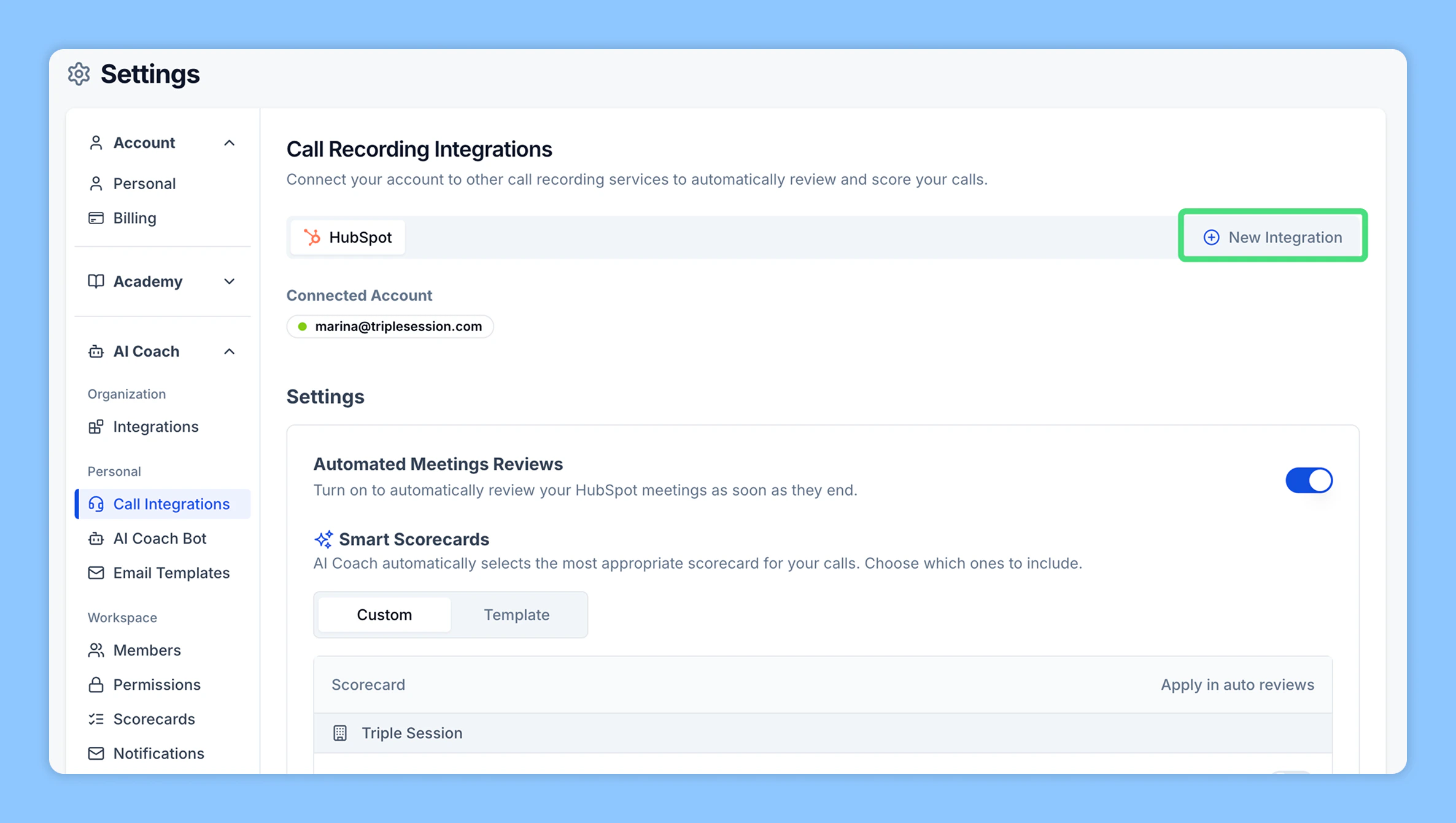
Automated Reviews are enabled by default. AI Coach will automatically review and summarize your HubSpot calls shortly after they end — no manual action needed. You can disable Automated Reviews at any point from your settings.
- Import from HubSpot: Use the integration to select and import past meetings.
- Upload a file: Upload a HubSpot meeting file directly (audio or transcript).
Import calls from HubSpot
You can manually import individual HubSpot recordings for analysis at any time. Before you start:- Make sure your HubSpot account is connected to AI Coach.
- Make sure you have available credits in your account.
1
Click Review Call
In AI Coach, click Review Call to open the review options.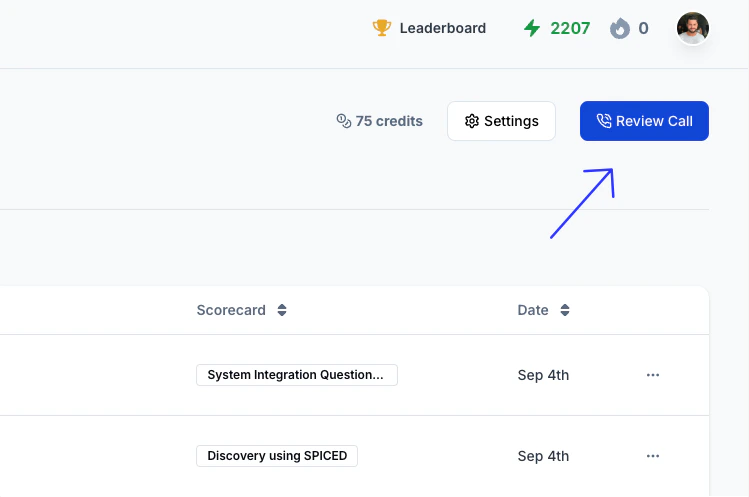
2
Fill out the call review information
Select the meeting you want to review. Then: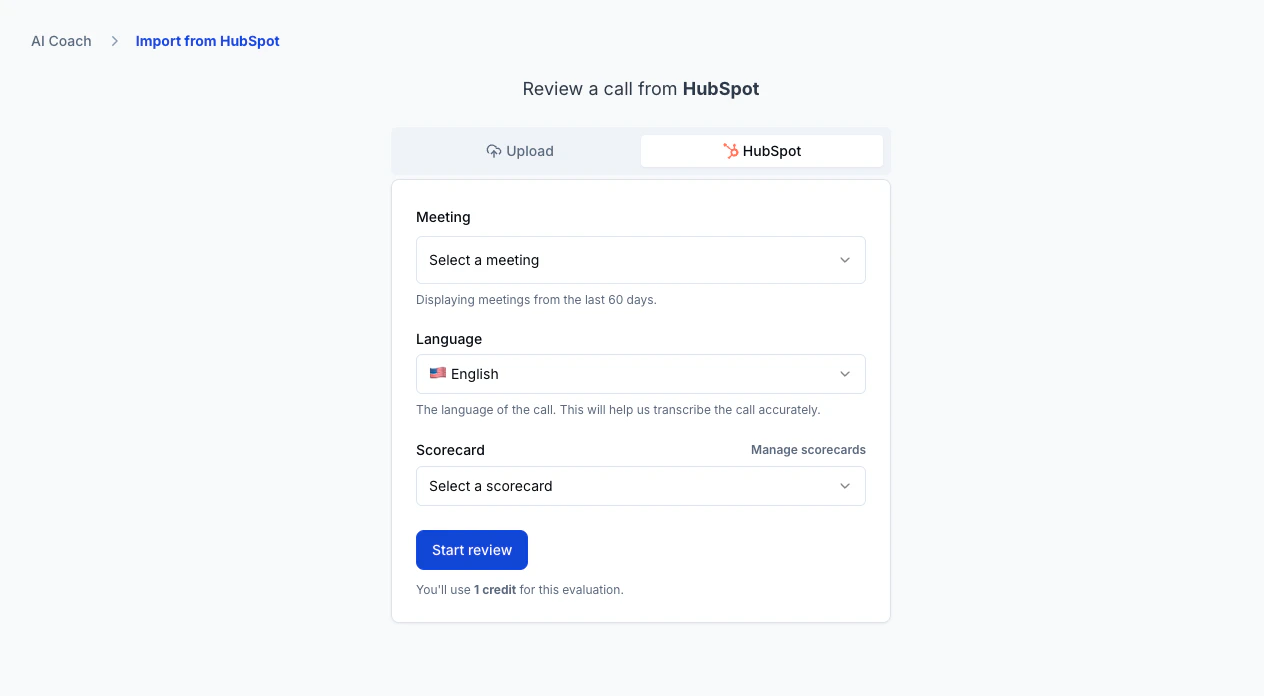
- Pick the language the call was held in.
- Select a scorecard to use for the evaluation.
3
Start the analysis
Click Start Analysis. Your report will be ready in about 4 minutes, depending on call length. The page refreshes automatically once it’s ready. You can also leave the page — AI Coach will email you when the analysis is complete.