

How the AI Coach Bot works on Zoom
When a new Zoom meeting appears on your calendar, the bot identifies it as a Zoom meeting and automatically schedules itself to join — unless you manually remove it from the Triple Session list of upcoming meetings. When the meeting starts, the bot joins and requests permission to record. The meeting host must grant this permission for the bot to begin recording.Configure Zoom to allow recording
1
Enable Local Recording
In your Zoom account, go to Settings > Recording and make sure Local recording is turned on. This setting allows participants to record meetings.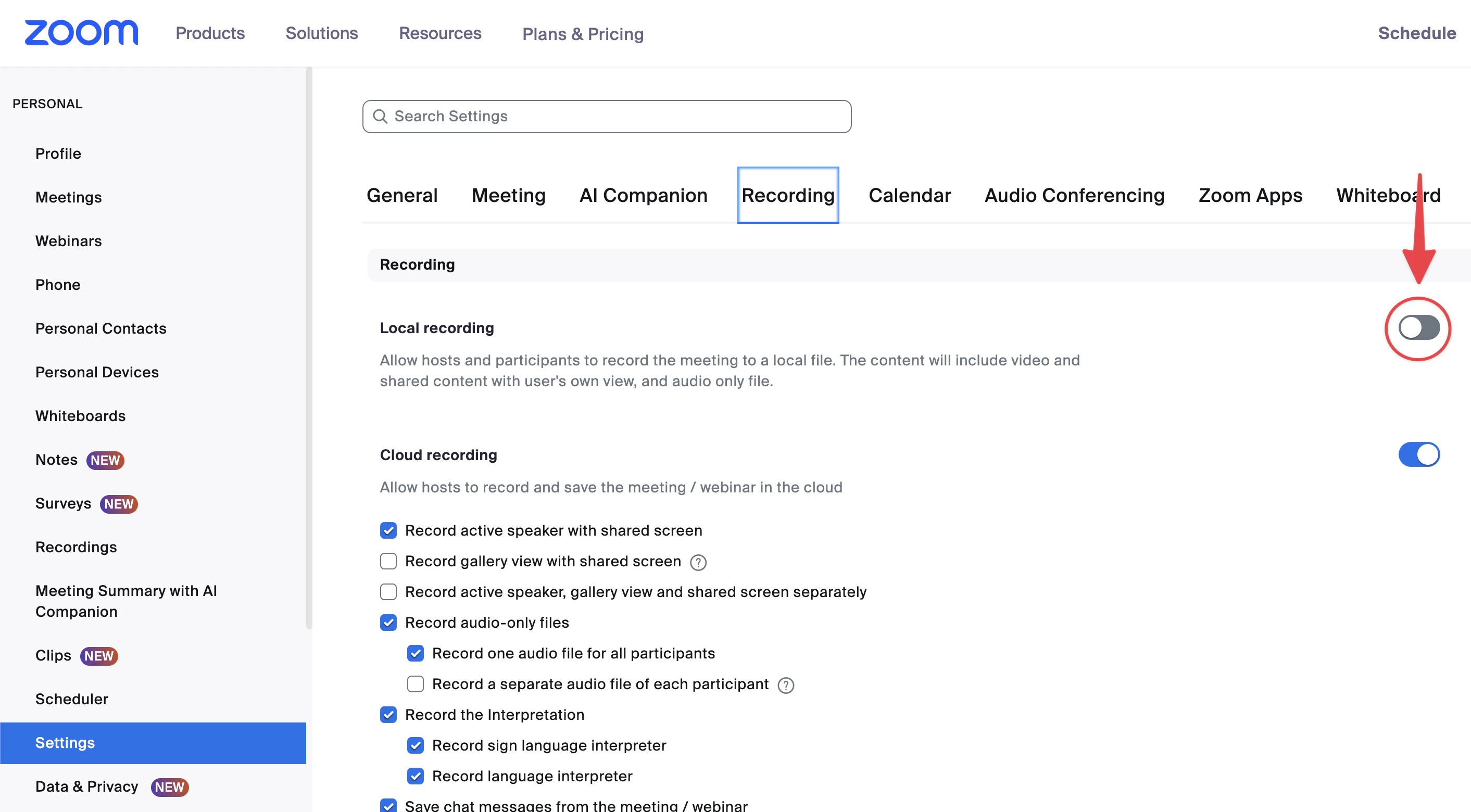
2
Allow internal and external participants to record
After enabling local recording, confirm that both of the following sub-options are also enabled: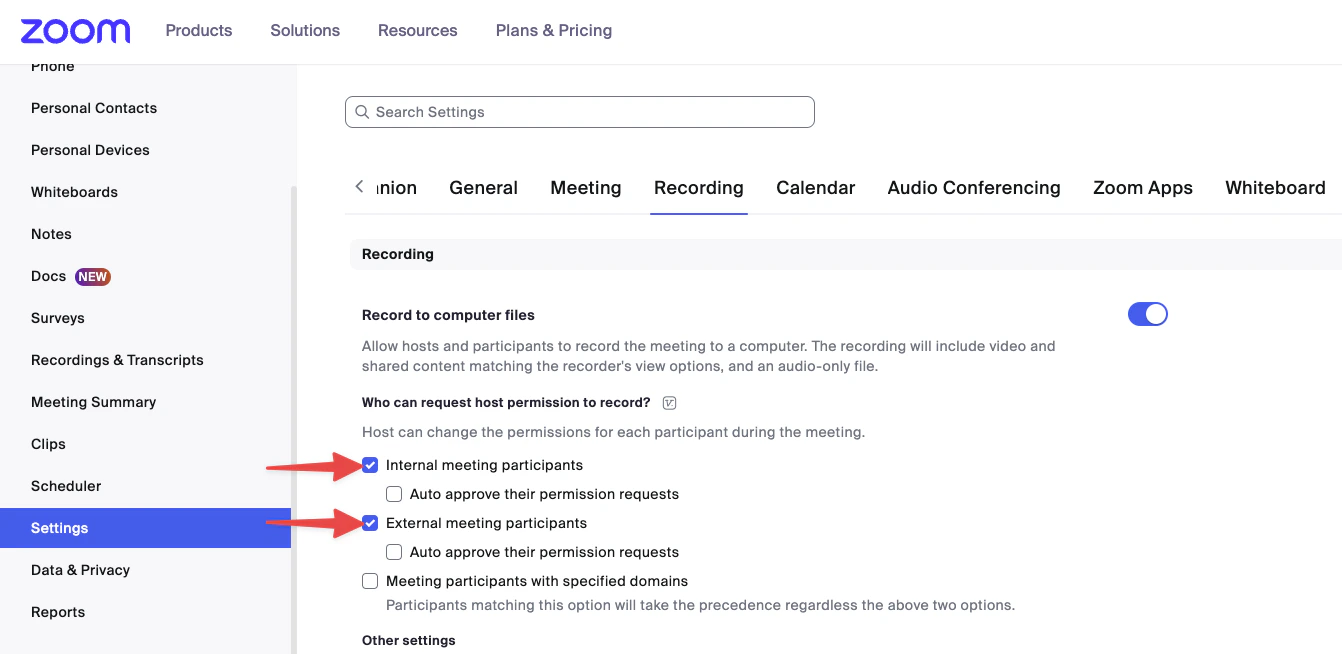
- Internal meeting participants
- External meeting participants
These settings are usually enabled by default in Zoom, but they may have been turned off manually. If the bot is unable to record your Zoom meetings, check these settings first.
Manually invite the bot to a meeting
If the bot was accidentally removed from a call, or if you want to record a meeting that your settings would normally exclude, you can send a manual invite at any time.1
Copy the meeting link
While in your active meeting, copy the unique meeting invitation link or URL from Zoom.
2
Go to your Triple Session home page
Navigate to your Triple Session home page and click the Invite bot to meeting button.
3
Paste the link and send the invite
In the dialog box, paste the meeting link into the URL field and click Invite. A new bot instance will request to join your meeting within a minute.