

How to export
1
Open Meetings and filter as needed
Go to AI Coach → Meetings and set up the view you want — date range, scorecard, sales rep, deal, or search. Your export contains exactly the meetings this view shows, nothing more.
2
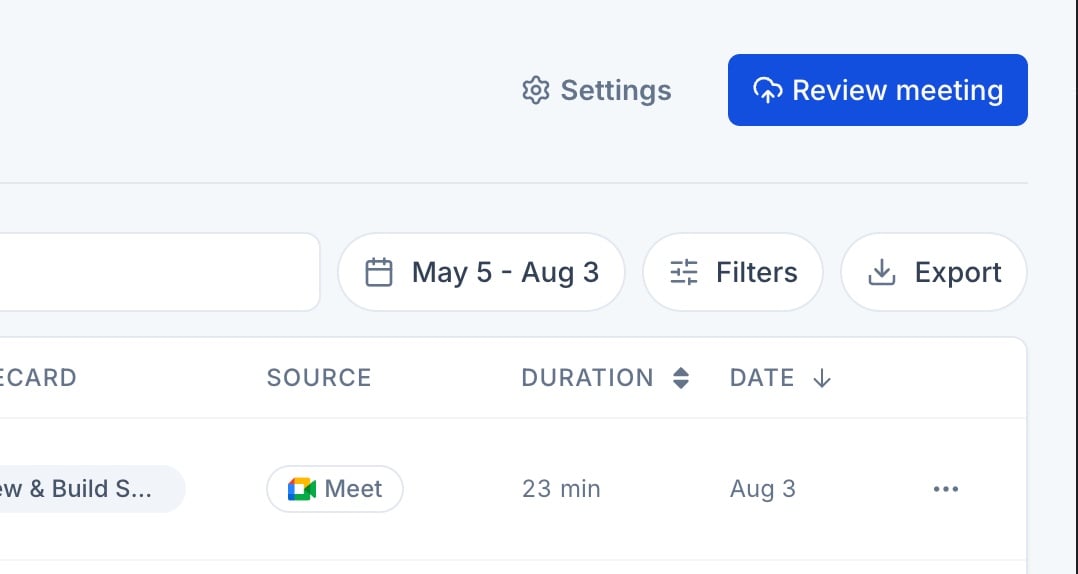
Click Export
Click Export in the toolbar, next to the date range and filters.
Don’t see the Export button? Exporting is limited to certain roles — see Permissions below.
3
Choose your columns
In the Export reports dialog, check the columns you want in the file. Columns are grouped by type, with a Select all / Clear all toggle at the top. At least one column must stay selected.
4
Download or wait for your email
- 1,000 meetings or fewer — the button reads something like Download 42 reports. Click it and the CSV downloads right away.
- More than 1,000 meetings — the button reads something like Email me 4,200 reports instead. Click it and AI Coach builds the file in the background; you’ll get an email with a download link in a few minutes.
Choosing your columns
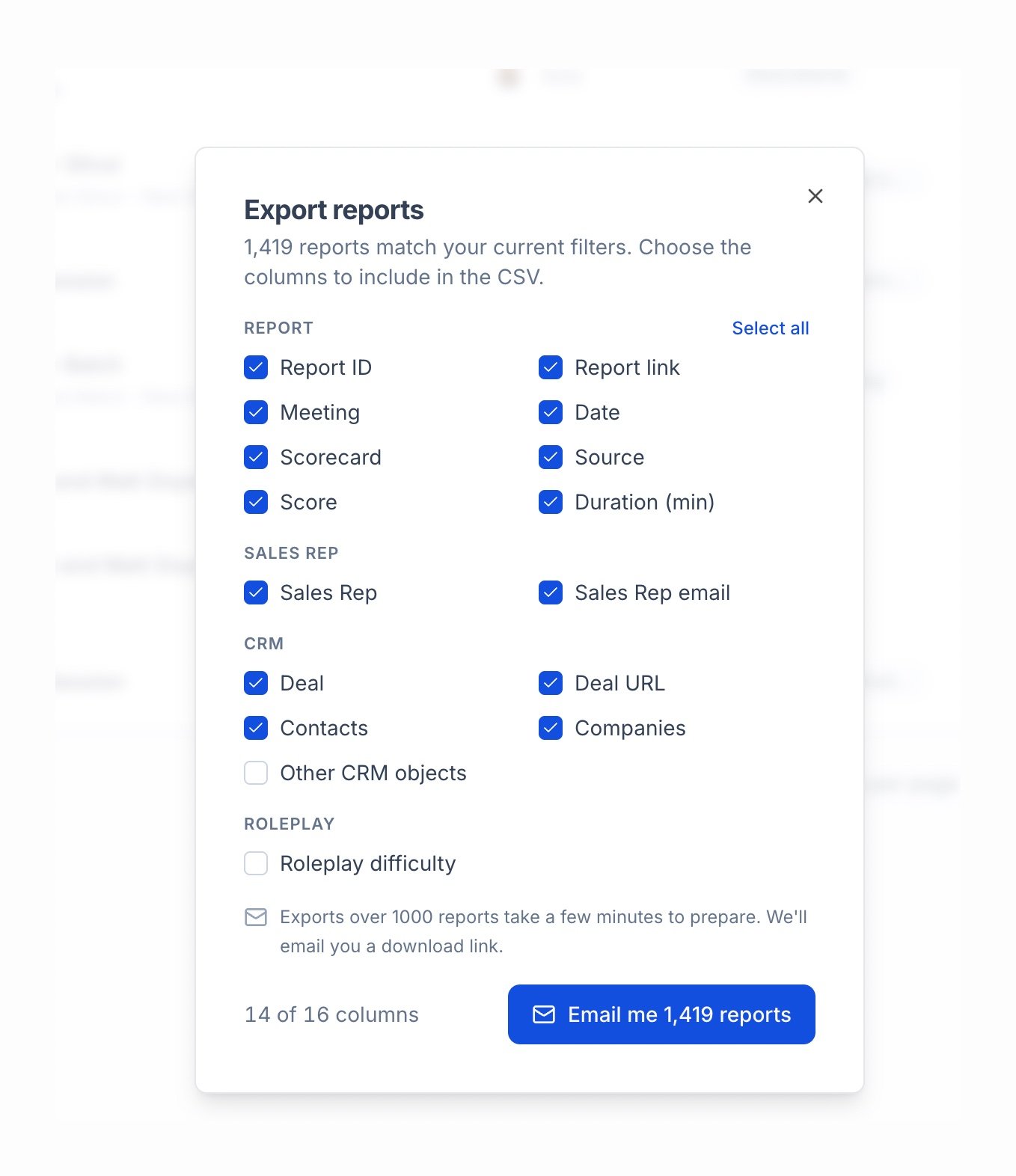
- Report — Report ID, Report link, Meeting, Date, Scorecard, Source, Score, Duration (min)
- Sales rep — Sales Rep, Sales Rep email
- CRM — Deal, Deal URL, Contacts, Companies, Other CRM objects
- Roleplay — Roleplay difficulty
Large exports (over 1,000 meetings)
For big exports, AI Coach builds the file in the background and emails you a link instead of making you wait on the page.- The email arrives once the export is ready, with a Download CSV button.
- The link is personal to you — you need to be signed in to Triple Session to use it. Sharing it with someone else won’t work for them.
- If the filtered export would contain more than 100,000 meetings, AI Coach won’t generate it. You’ll get an email explaining that instead of a download link — narrow your filters (for example, a shorter date range) and export again.
Download links stay valid for a limited time after the export finishes. If a link stops working, just repeat the export to get a fresh one.
What’s in the file
- Exports are plain CSV files, formatted to open cleanly in Excel, Google Sheets, or any spreadsheet tool.
- An export only ever contains the meetings you can see. If a teammate’s calls are private or outside your workspace access, they’re left out — even for admins.
- The Date column uses your own timezone, labeled in the column header (for example, “Date (America/New_York)”).
Permissions
Exporting requires the Export reports permission. By default this is available to Admins and Managers; admins can extend it to Members from Settings → Permissions. See Roles & Permissions for the full list of configurable permissions.FAQ
Does the export include meetings I can't normally see?
Does the export include meetings I can't normally see?
No. An export always matches your Meetings page exactly — the same filters and the same visibility rules. It never includes private or restricted meetings, even for admins.
Can I export as XLSX instead of CSV?
Can I export as XLSX instead of CSV?
Not currently — exports are CSV files, which open in Excel, Google Sheets, and most spreadsheet tools without any extra steps.
Why did my export switch from a download to an email?
Why did my export switch from a download to an email?
Exports over 1,000 meetings are generated in the background and delivered by email instead of downloading immediately, so large exports don’t hold up your browser.