

Requirements
- Access to Automations and a company admin role.
- Every agent email you send belongs to a Triple Session member of your company with a recording seat, plus standard credits for recordings or VoIP credits for transcripts.
- For recordings, a URL that Triple Session can download. See Recording URL.
Set up the automation
1
Create the automation
Go to Settings > Automations and click New Automation. Set the Trigger to Webhook Received and add a Review Meeting action.
2
Copy the webhook details
Open the trigger and keep Signed or API key selected under Authentication. Copy these values into your system or automation tool (such as Zapier):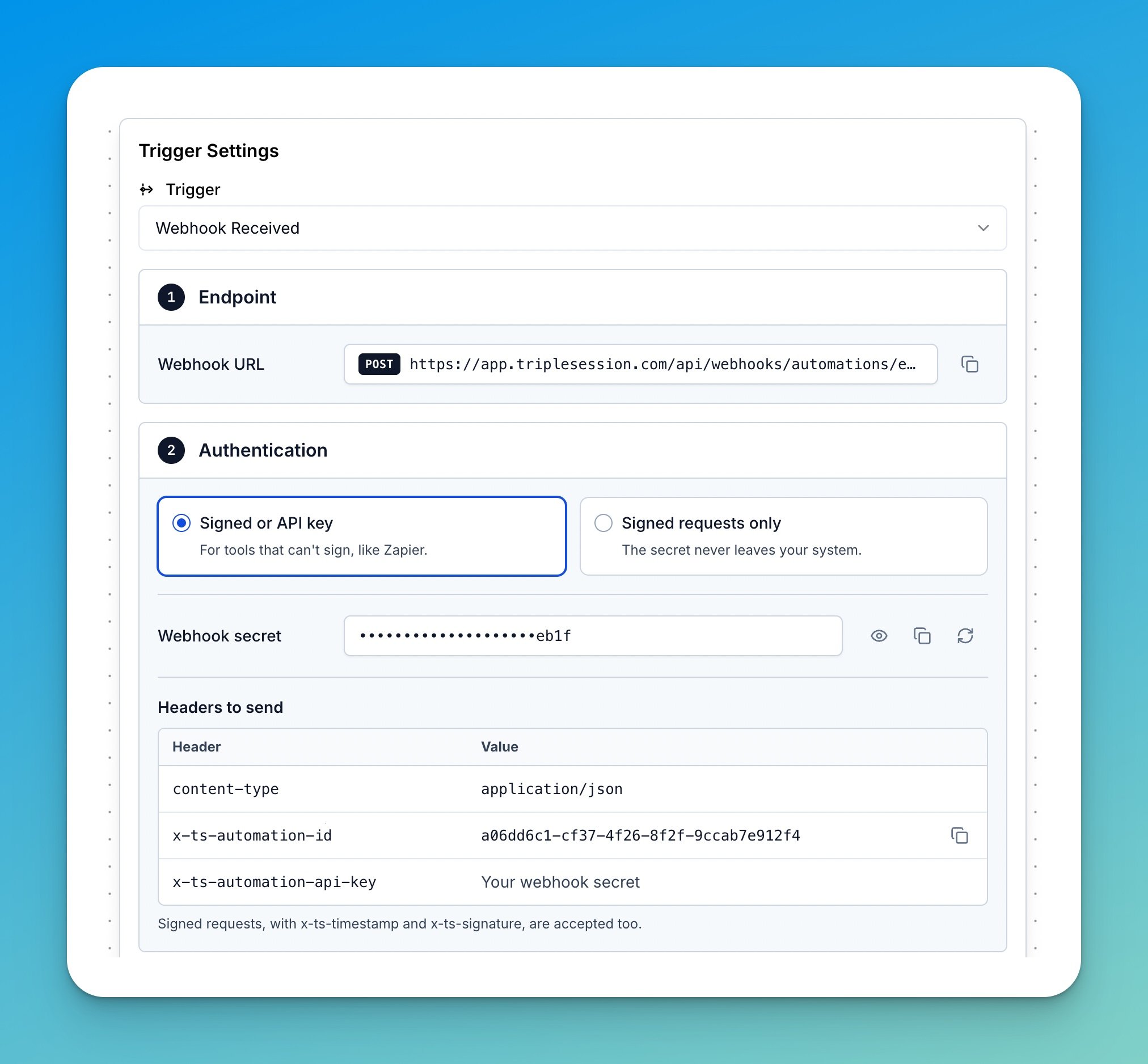
- The Webhook URL from Endpoint.
- The
x-ts-automation-idvalue from Headers to send. - The Webhook secret, sent in the
x-ts-automation-api-keyheader.
3
Configure the Review Meeting action
Open the Review Meeting action and pick a scorecard. Leave Recording source authentication on None unless your recordings are private (see Recordings behind authentication).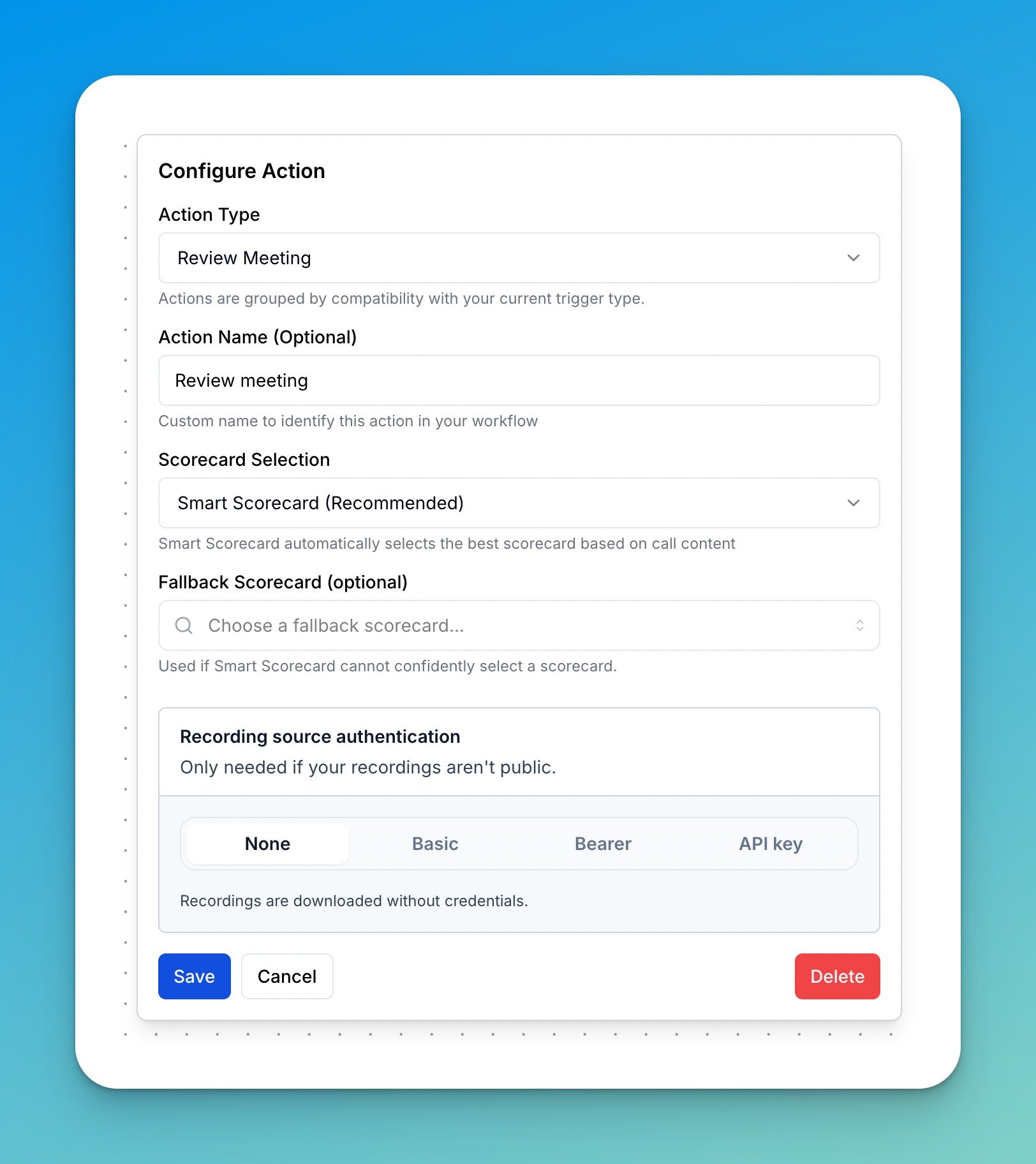
4
Turn the automation live
Save the automation and click Live. Then send a test notification.
Recording URL
Triple Session downloads eachrecording_url with a single GET request.
Notification request
Send onePOST request per recording to the Webhook URL from the trigger.
Headers
To sign requests instead of sending the secret, see Signed requests.
Body
Send
recording_url or transcript_body. If you send both, the recording is used.
Responses
A
meeting_id is accepted once per 24 hours. If its run fails, for example because the download failed, you can re-send the same meeting_id right away once you’ve fixed the cause.Sample code
Each sample sends one notification with the API key header. It waits forRetry-After on 429 and backs off exponentially on 5xx or network errors. To sign requests, swap the headers function as shown in Sign each request.
- Node.js
- PowerShell
- curl
Requires Node.js 18 or later.
Signed requests
Use signed requests when your own code sends the notifications and your security policy doesn’t allow a shared secret in request headers. Each request carries a signature computed with the webhook secret, so the secret never travels with the request and a captured request stops working after 5 minutes. Tools that can only set fixed headers, such as Zapier, keep using the API key.Sign each request
Replace thex-ts-automation-api-key header with these two headers:
- Sign the exact string you send: build the JSON body once, then sign and send that string.
- The timestamp must be within 5 minutes of Triple Session’s clock. Keep your server’s clock in sync (NTP).
- Compute a new timestamp and signature on every retry.
- Always send
meeting_id. Each is accepted once per 24 hours, so a captured request can’t be replayed. - Don’t also send
x-ts-automation-api-key. If both are present, only the signature is checked.
- Node.js
- PowerShell
- curl
Accept only signed requests
Once every sender signs, open the trigger and select Signed requests only under Authentication. Requests without a valid signature are then rejected, including API key requests.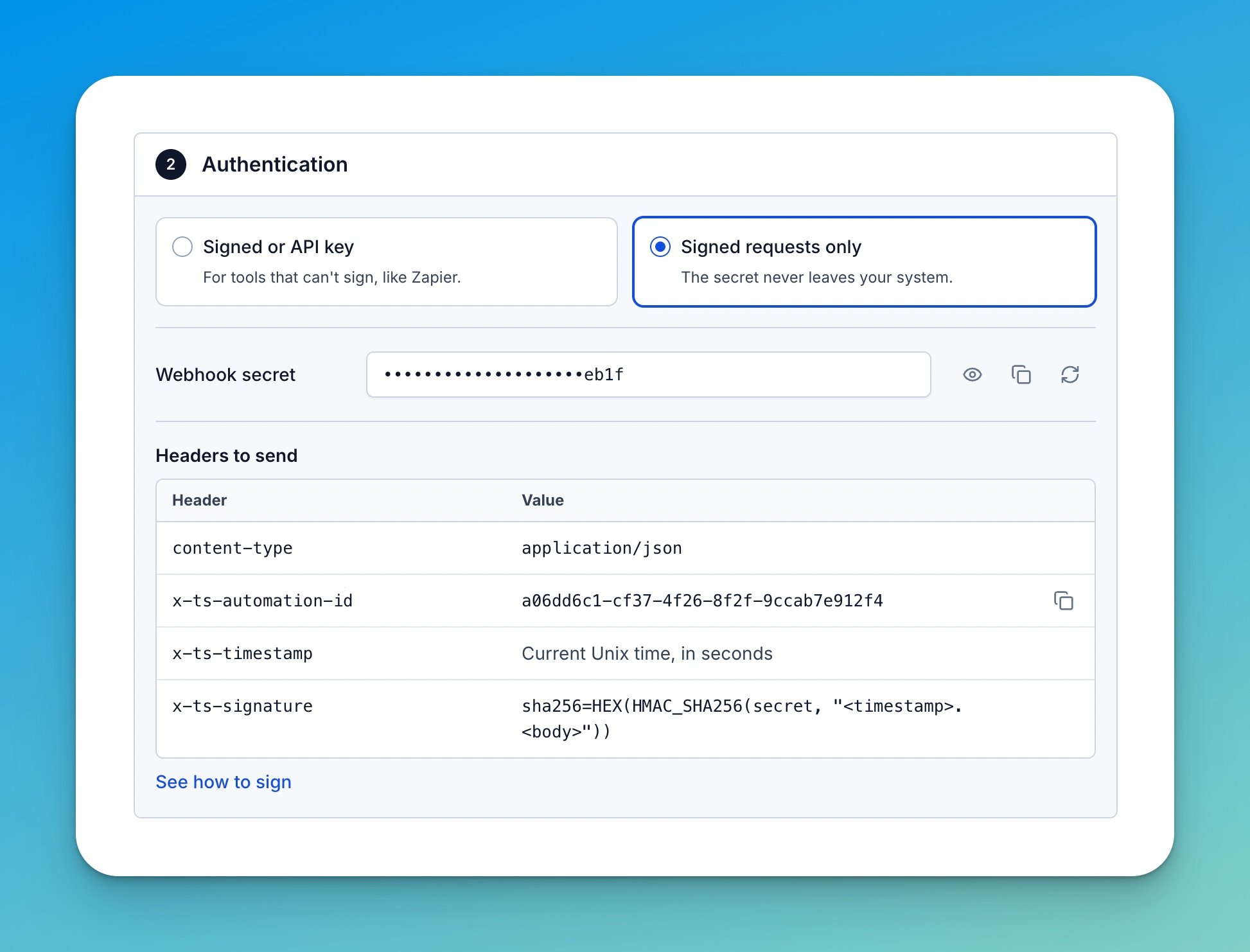
Recordings behind authentication
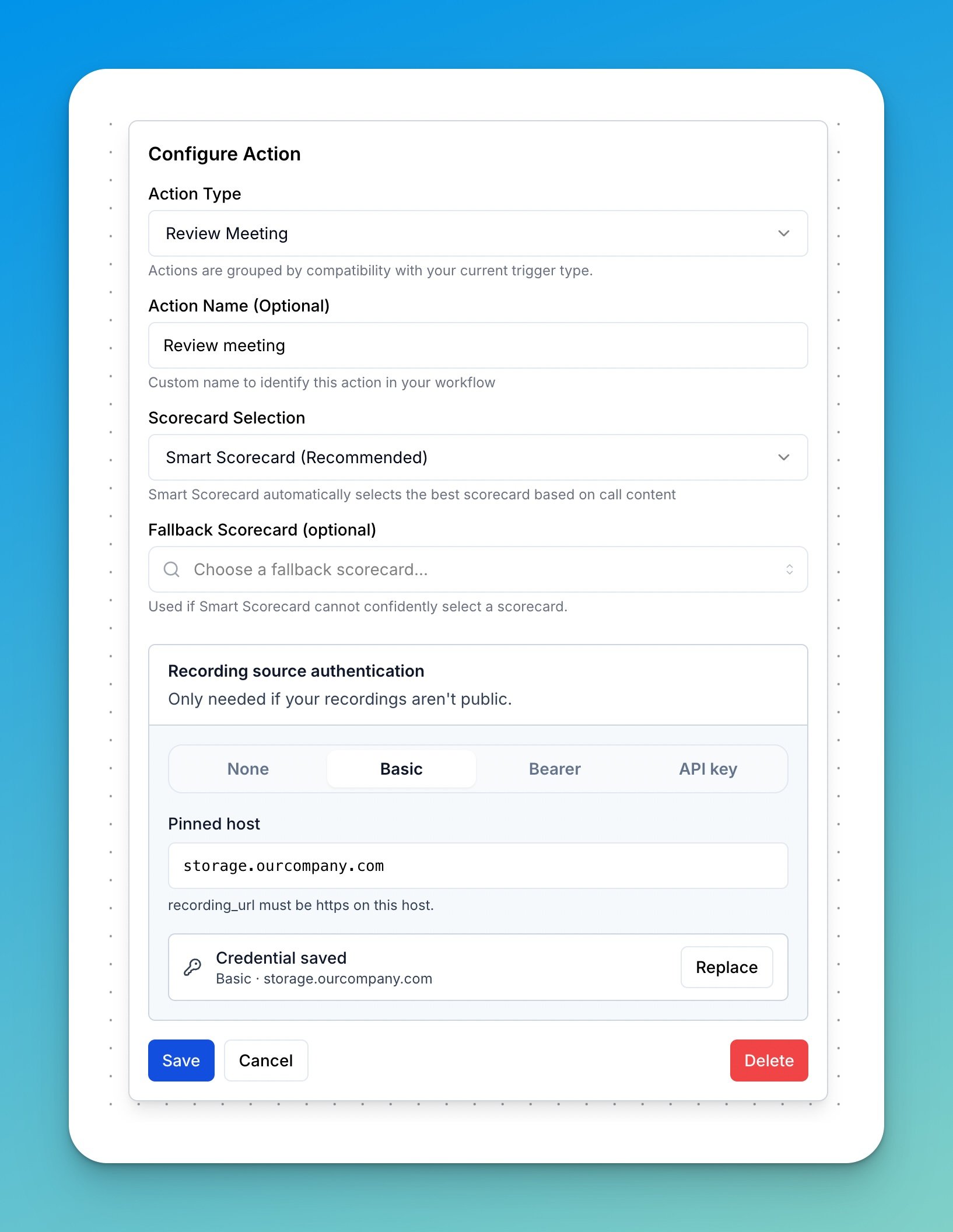
Use this when your recordings aren’t public and you can’t send pre-signed links. Triple Session downloads each file with a credential that your company admin enters in the Review Meeting action.Enter the credential
Open the Review Meeting action and fill in Recording source authentication:- Auth type: Basic, Bearer or API key.
- Pinned host: the exact hostname of your Recording source, such as
recordings.example.com. Add the port only if it isn’t 443. - The credential: username and password, a token, or a header name and value.
Rotate the credential
Click Replace, enter the new credential and save. The next download uses it. Keep the old credential valid on your side until you’ve saved. Changing the auth type, pinned host or header name requires entering the credential again.Recording source contract
The Recording source is the HTTPS endpoint that serves your recording files. If your storage can’t serve a file with one plain request, such as SharePoint Online, Amazon S3, Azure Blob Storage or SFTP, put a small HTTPS endpoint in front of it that meets this contract, on top of the Recording URL requirements:Security
- Only the files you point to. Triple Session never lists, scans or polls your storage. Downloaded recordings are stored in Triple Session for transcription and evaluation, like recordings from any other integration.
- Entered by your admin only. Never sent through email or Triple Session staff.
- Encrypted and write-only. Never shown again, returned by the API or written to logs.
- Tied to its host. Sent only over HTTPS to the pinned host.
401 in the run log.
Test the setup
1
Send one real notification
Use a real recording, the email of a member with a recording seat, and a new
meeting_id.2
Check the run log
Open the automation, click View Logs and open the run’s Review Meeting action to see its status and any error.If the request returned
200 but no run appears, sales_rep_email doesn’t match a member of your company.3
Check the call
The evaluated call appears on the agent’s call list in AI Coach.