

Most teams use both: turn on the Zap first, then run the script with
CREATED_BEFORE set to the moment the Zap went live.
Requirements
- A Triple Session company admin role and access to Automations.
- Each Fathom recorder’s email belongs to a Triple Session member of your company with a recording seat, plus VoIP credits for transcripts (script) or standard credits for recordings (Zapier).
- For the script: Python 3.8+ or Node.js 18+, and a Fathom API key.
- For Zapier: a Zapier plan that includes Webhooks by Zapier.
Set up the automation in Triple Session
1
Create the automation
Go to Settings > Automations and click New Automation. Set the Trigger to Webhook Received and add a Review Meeting action. Pick a scorecard, or use smart scorecard selection.
2
Copy the webhook details
Open the trigger and keep Signed or API key selected. Copy three values: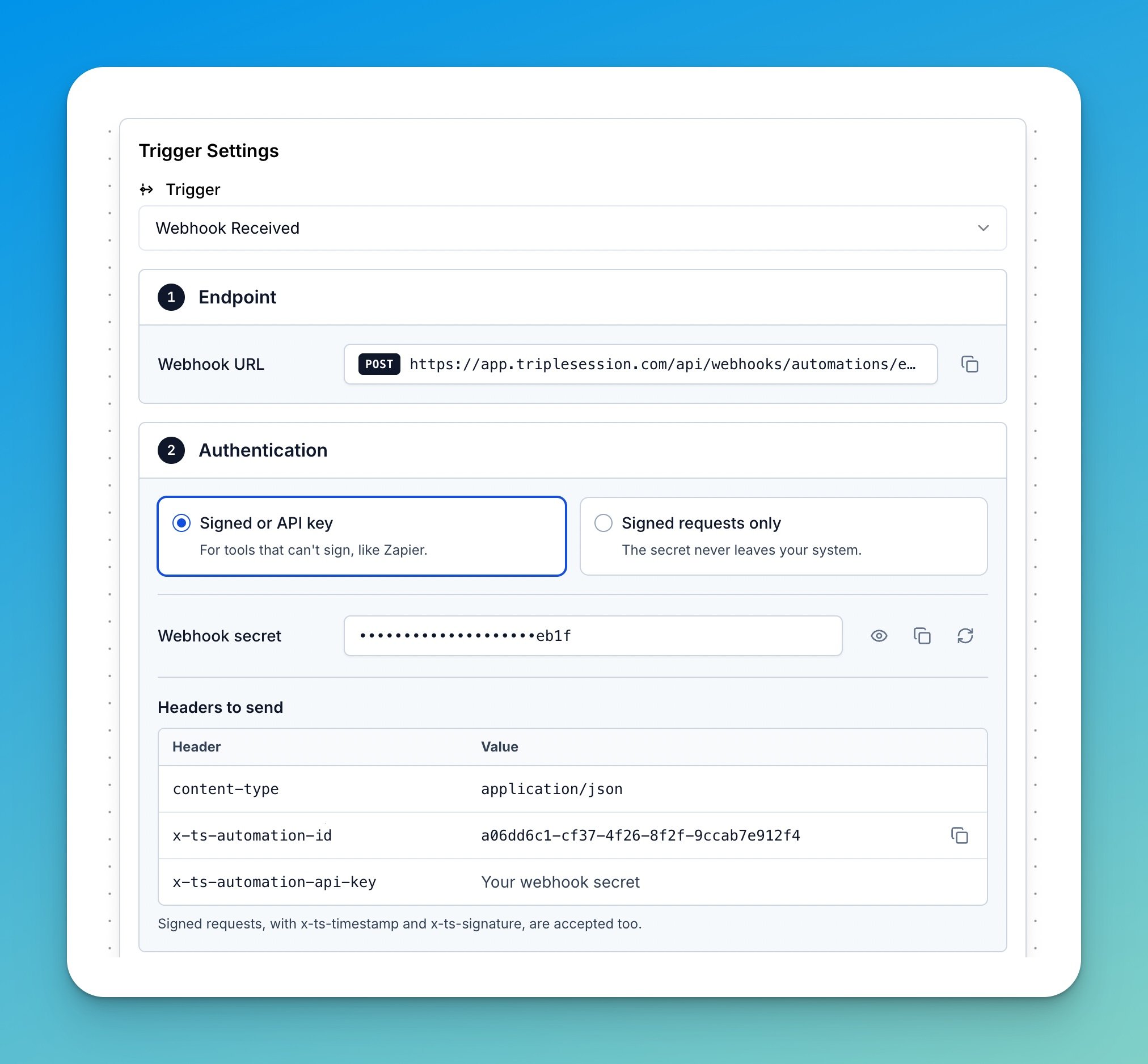
- The Webhook URL from Endpoint.
- The
x-ts-automation-idvalue from Headers to send. - The Webhook secret.
3
Turn the automation live
Save the automation and click Live.
Import past meetings with a script
The script reads your meetings from the Fathom API, page by page, and sends each transcript to your automation. It runs on your computer, and your keys never leave it.1
Generate a Fathom API key
In Fathom, go to Settings. Under API Access, click Add.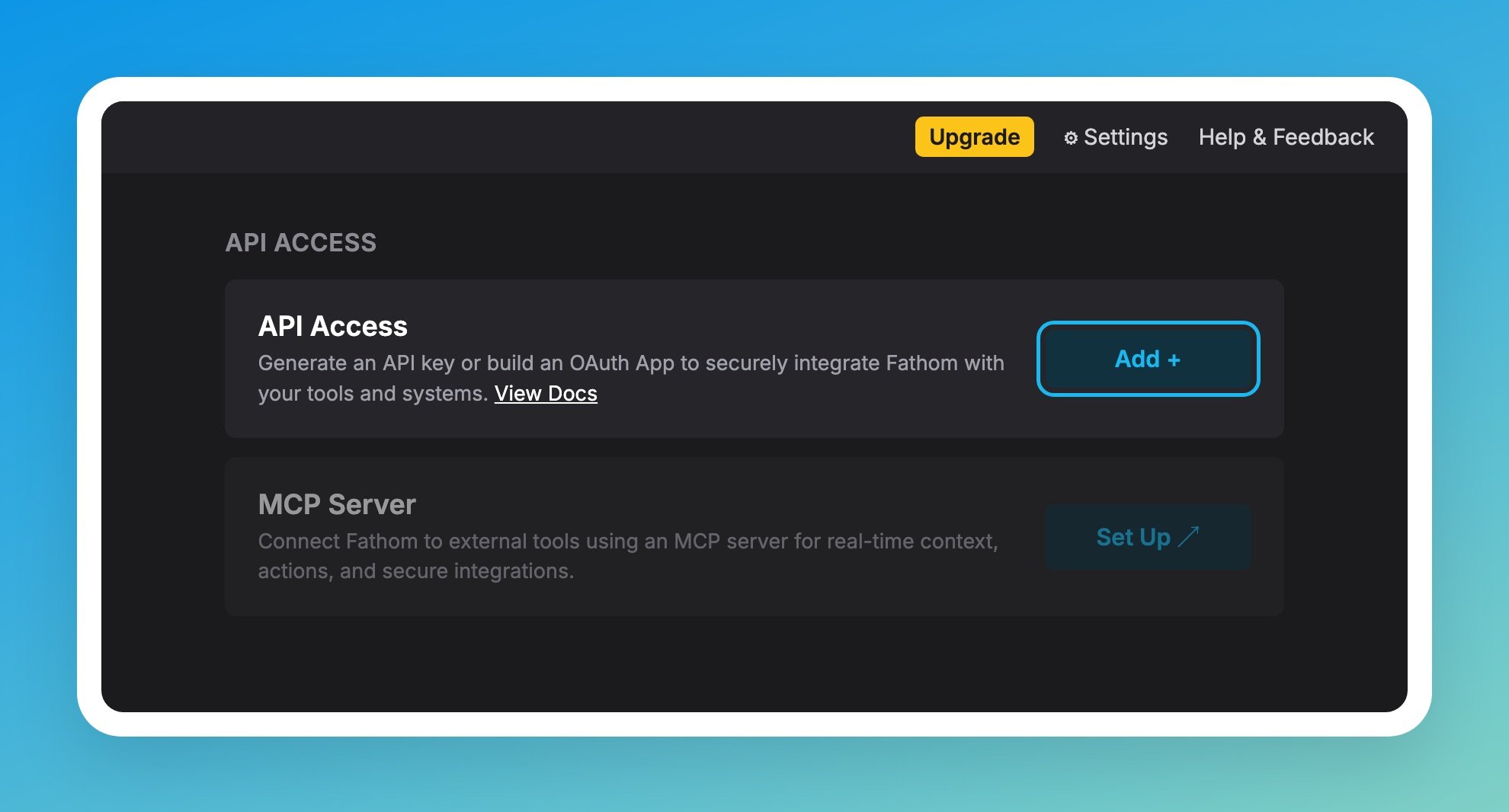
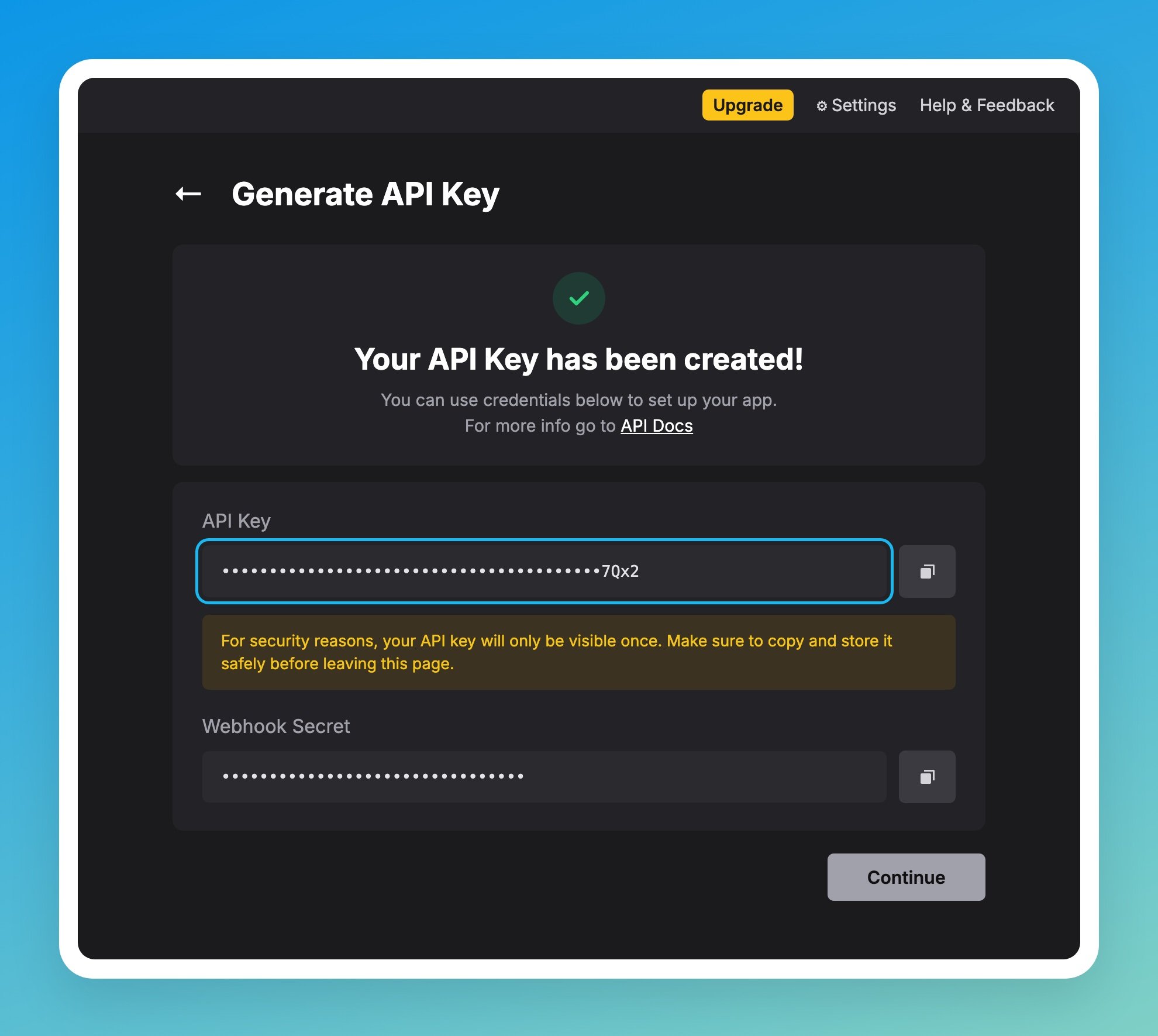
Triple Session import, and click Create API Client. Copy the API Key. Fathom only shows it once. The script doesn’t use the Webhook Secret.A Fathom key reads the meetings you recorded and the meetings shared with you or your team. To import your whole team’s history, generate the key as a Fathom admin with view access to all shared calls. Private calls are only visible to the person who recorded them.
2
Save the script
Copy one version into a file. Both do the same thing and only use the standard library.
- Python
- Node.js
Save as
import_fathom.py. Requires Python 3.8 or later.import_fathom.py
3
Set your keys
In a terminal, set the four required values. Add
CREATED_AFTER or CREATED_BEFORE to limit the date range.4
Preview the import
Run the script with Check that each rep email matches a Triple Session member. Meetings for other emails are accepted but never reviewed.
DRY_RUN=1. It lists every meeting it would send, with the rep email, and sends nothing.5
Run the import
Run the same command without Reviews appear in AI Coach under each rep’s calls, and each run appears in the automation’s Logs.
DRY_RUN. Each meeting prints one line:How the script maps Fathom data
The script skips meetings with only internal attendees. To import internal meetings too, delete the
calendar_invitees_domains_type line.
Large histories
- Your automation accepts 150 requests per hour by default. When the script reaches the limit, it waits for the time in
Retry-Afterand continues, so 600 meetings take about four hours. Leave the terminal open, or contact support to raise the limit before a large import. - Fathom returns the newest meetings first. If the script stops, set
CREATED_BEFOREto the date on the lastsentline and run it again. - Each
meeting_idis accepted once per 24 hours. After that, sending the same meeting again creates a second review, so limit reruns withCREATED_AFTERandCREATED_BEFORE.
Send new meetings with Zapier
Zapier’s Fathom triggers run for meetings recorded after the Zap is turned on. Use this Zap to keep Triple Session in sync from now on, and the script for everything before it.1
Connect Fathom to Zapier
In Fathom, go to Settings, find Zapier and click Connect.
2
Add the Fathom trigger
Create a Zap. On the Setup tab, choose Fathom as the app, New Download Video as the trigger event, and your Fathom account.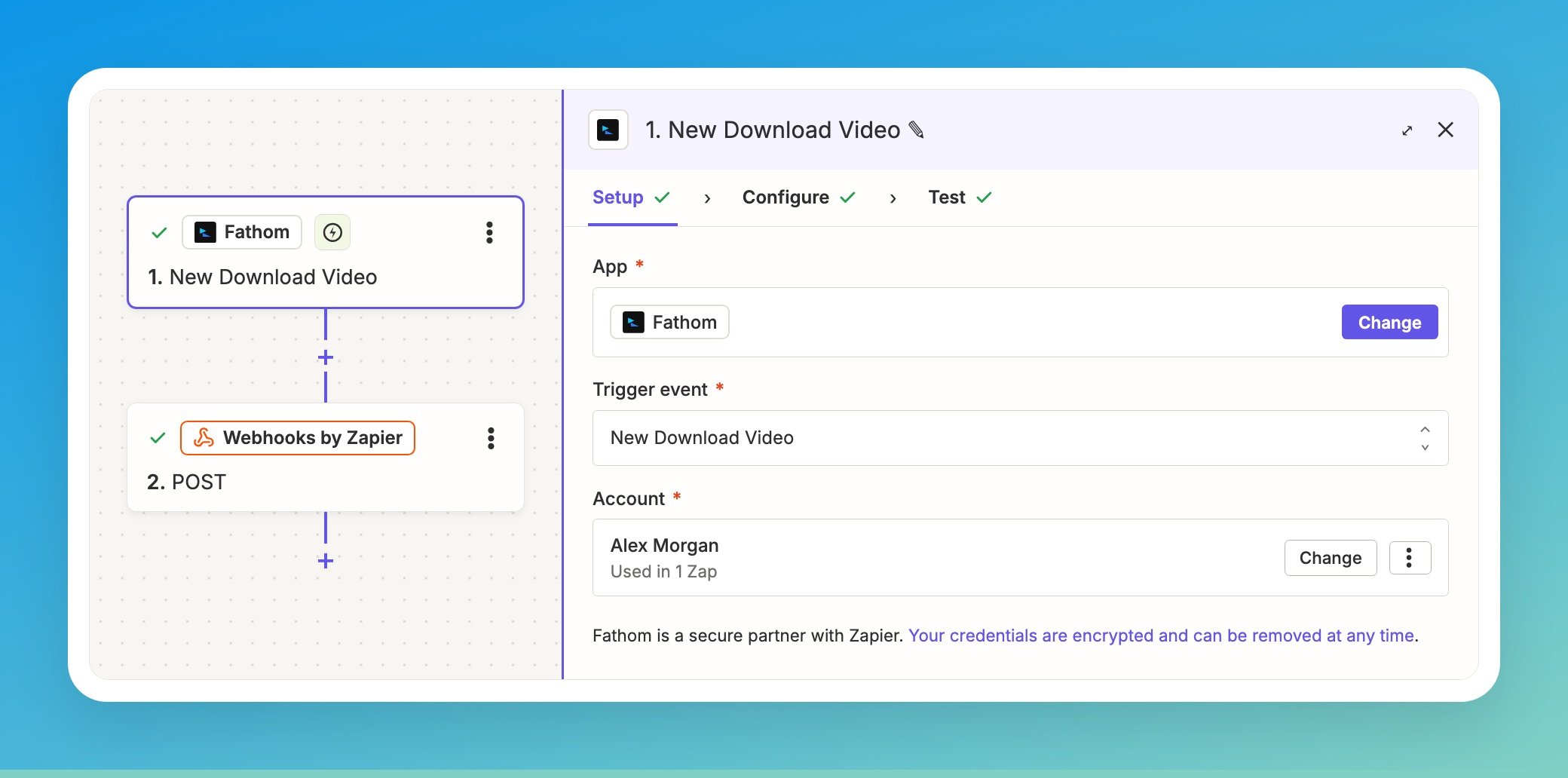
- Team Meetings to send your team’s meetings from one Zap.
- My Meetings to send only the meetings you record.
3
Add a Webhooks by Zapier POST action
Add Webhooks by Zapier as the action and choose POST. Fill in: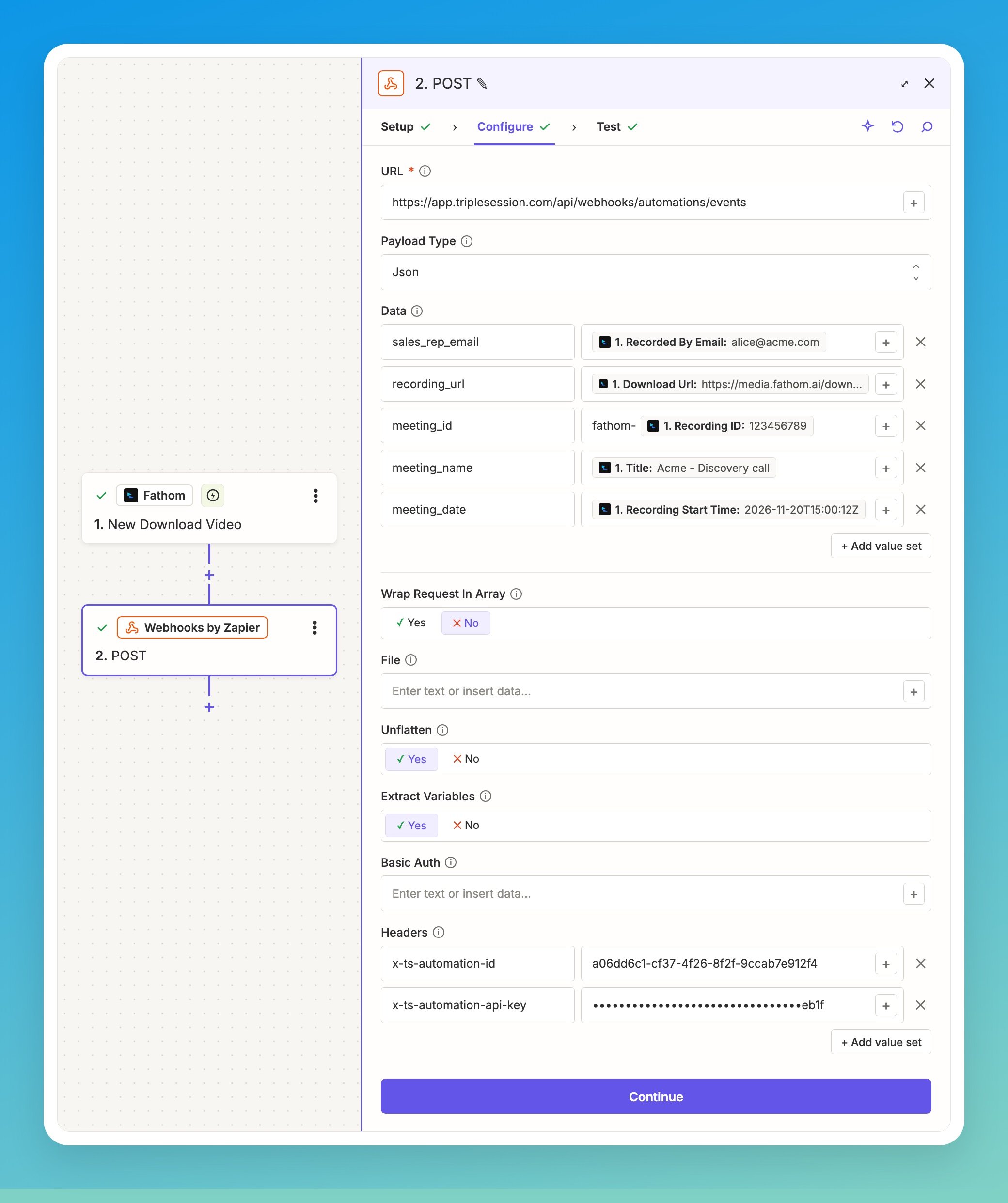
- URL: the Webhook URL from your automation.
- Payload Type:
json. - Data: map each Triple Session field to a field from the Fathom trigger.
- Headers:
x-ts-automation-idandx-ts-automation-api-keywith the values from your automation.
4
Test and publish
Click Test step. Triple Session answers
200 with Automation started, and the run appears in the automation’s Logs. Publish the Zap.Troubleshooting
For every field, response code and limit, see Send Recordings for Review with a Webhook. For other tools, see Import from other platforms.